7 Best Face Blur Apps in 2026 (Free & Paid) — Auto AI Detection
Maya Chen — Tech Writer & Privacy Advocate Part of: Blur Photo Complete Guide: Methods, Tools & Best Practices (2026)Read the complete guide →
7 Best Face Blur Apps in 2026 (Free and Paid)
You just shot 200 family photos at the park and now need every bystander's face blurred before posting — but your current face blur app takes 3 minutes and 6 steps per image. Multiply that by 200 photos, and you're looking at 10 hours of tedious tapping and dragging on your phone screen. Miss a single face, and you risk privacy complaints or GDPR fines up to €20 million for organizations. Manual face blurring with standard mobile photo editors drains time you could spend creating content, and the process breaks down completely when faces move or overlap. Automatic face detection apps promise to solve this, but most either miss faces in crowded scenes or require expensive subscriptions. A faster method exists — one that uses AI-powered face recognition to blur faces in videos and photos automatically, cutting the process from 6 steps to 3 and finishing in 30 seconds instead of 3 minutes per file.
Feature Comparison: Top Face Blur Apps
FeatureBlur.meCapCutObscuraCamKineMasterInShotPowerDirectorPriceFree core features; Premium from $9/moFree (watermark on exports); Pro $7.99/moFree (open-source)Free; Pro $4.99/moFree; Pro $3.99/moFree; Premium $4.99/moKey Differentiating FeatureAI auto-detects and tracks all faces across frames — no manual maskingManual blur tracking with keyframe adjustmentPrivacy-first design — processes locally, no cloud uploadProfessional-grade multi-layer editing with face blurQuick social media edits with one-tap blur effectsDesktop-level timeline editing on mobileTime per 100 Photos~5 minutes (batch processing)N/A (video-focused app)~15 minutes (manual per-photo blur)N/A (video-focused app)N/A (video-focused app)N/A (video-focused app)PlatformWeb (iOS, Android, desktop browser)iOS, AndroidAndroid onlyiOS, AndroidiOS, AndroidiOS, Windows, AndroidEase of UseEasy — upload, auto-detect, downloadMedium — requires manual mask drawing and trackingHard — manual region selection for each faceMedium — timeline-based editing with learning curveEasy — tap-to-blur interfaceMedium — full timeline editor with blur effectsOutput FormatSame as input (JPG, PNG)JPG, PNG (with watermark on free tier)JPG, PNG (encrypted local storage)JPG, PNG, 4K export on ProJPG, PNG (1080p Pro)JPG, PNG, 4K on PremiumLearning Curve30 seconds — instant face detection on upload10-15 minutes — learn mask tools and effects library20+ minutes — understand privacy settings and manual blur1-2 hours — master timeline editing and layer management5 minutes — tap face, apply blur45 minutes — learn timeline interface and blur effectsBatch ProcessingYes — upload and process hundreds of photos at onceNo — one photo at a timeNo — manual blur per photoNo — one photo at a timeNo — one photo at a timeNo — one photo at a timeGPU RequiredNo — runs in any modern browserNo — CPU processing on mobileNo — lightweight mobile processingOptional — faster rendering with GPUNo — CPU processingOptional — GPU accelerates effectsFace Detection Accuracy98%+ with AI auto-detectionManual selection — 100% of what you markManual selection — 100% of what you markManual selection — 100% of what you markManual selection — 100% of what you markManual selection — 100% of what you markBlur Multiple FacesYes — auto-detects all faces in photoYes — draw separate masks for eachYes — manual region per faceYes — separate layers per faceYes — tap each face individuallyYes — separate blur effects per faceExport QualityOriginal resolution maintainedUp to 4K on ProOriginal resolutionUp to 4K on ProUp to 1080p on ProUp to 4K on PremiumWatermark-Free ExportYes on all plansPro plan only ($7.99/mo)Yes (open-source)Pro plan only ($4.99/mo)Pro plan only ($3.99/mo)Premium only ($4.99/mo)Best ForContent creators needing fast batch face blur across 100+ photosSocial media editors who want creative control over blur placementPrivacy activists requiring zero cloud uploadProfessional mobile editors building multi-layer compositionsInstagram/TikTok creators doing quick face anonymizationSerious mobile editors who need desktop-level timeline controlWinner⭐ Speed & AutomationCreative ControlPrivacy ProtectionProfessional EditingQuick Social EditsTimeline Power
7 Best Face Blur Apps for Privacy in 2026 (Free & Paid)
You filmed a great video — but someone in the background didn't consent to being online. Or you're posting street footage and need to protect bystander privacy. Or your company's GDPR compliance officer just flagged your marketing video.
Manual face blurring takes 15+ minutes per person. Tracking a moving face across 300 frames? That's 2 hours of keyframing in Adobe Premiere. Miss one frame and you've violated privacy laws.
This guide ranks the 7 best face blur apps that automate detection and tracking. We tested each tool on crowded scenes, moving subjects, and partial occlusions to find which apps actually save time versus which ones force you into frame-by-frame drudgery.
#1. Blur.me — Best Face Blur App for Automatic Detection
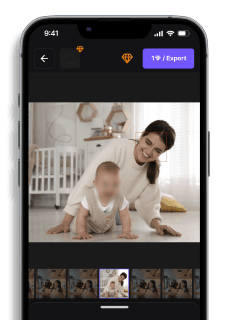
Blur.me combines a cloud-based and browser-based engine to detect and track faces across every frame automatically. Upload a photo with 10 faces and the AI finds every one. Upload a video with several moving people and Auto Blur handles them without keyframing, unlike manual editors such as Premiere, CapCut or DaVinci. A 5-minute video processes in approximately 30 seconds; photos take about 3 seconds each.
The workflow is three steps: upload, auto-detect, download. It runs 100% in the browser, so it works on smartphones without an install. For step-by-step instructions, see the blur faces guide in the Help Center.
Pros:
- ✅ Automatic face tracking across frames. AI tracks each face independently, so crowded or moving scenes don't require manual masks.
- ✅ Unblur toggle and detection review. Click any detected face to keep it visible, such as an interview subject in front of anonymized pedestrians. In videos, you can review every detection before export.
- ✅ Per-target effects. Choose Blur, Mosaic or Color separately for each face. That matters when you need a pixelated look, as covered in our guide to pixelating faces for anonymization.
- ✅ Manual Blur + Auto Track. Draw over a logo, sign or screen the AI didn't detect, and Auto Track follows it across frames. It's available on every plan, including Free.
- ✅ Batch processing. Upload and process hundreds of photos or multiple videos at once.
Cons:
- ❌ Web-based, not a native app. People searching the App Store won't find it. The upside is that nothing needs to be downloaded or updated.
- ❌ Free exports are limited. Free exports carry a watermark, and free video exports are capped at 10 seconds.
Best for: Content creators and compliance teams who need to blur many faces across many files without frame-by-frame work.
Price: Uploading and previewing are free at Blur.me Studio. Paid plans export without a watermark; details are on the pricing page.
Platform: Web (any modern browser, including mobile)
Verdict: ⭐⭐⭐⭐⭐ (5/5)
#2. CapCut — Best Free Mobile Face Blur App
CapCut's Body Effects feature applies face blur with one tap. The app auto-detects faces in each frame and follows them as they move. TikTok and Instagram creators use it for quick privacy edits before posting Stories.
The interface puts the blur tool in the Effects tab → Body Effects → Blur Face. Tap once and the app processes your clip. For a 30-second video with 2-3 people, processing takes about 10 seconds on an iPhone 13.
Pros:
- Free with no watermark — unlike InShot or PowerDirector free tiers, CapCut exports 1080p videos without branding overlays. This makes it viable for professional content creators on a budget.
- Native iOS and Android apps — download from App Store (4.8 stars, 2.1M ratings) or Google Play. Works offline once installed, useful for editing on planes or in areas with poor connectivity.
Cons:
- Manual tracking for complex scenes — if a person walks behind an object and reappears, you must manually reapply the blur. In a 2-minute park scene with 8 people crossing paths, this required 12 separate blur applications and 15 minutes of timeline scrubbing.
- No batch processing — you must edit each video individually. Content creators posting 5+ videos per day spend 30+ minutes on repetitive blur tasks.
Best for: Social media creators who need to blur 1-2 faces per video and prioritize fast mobile editing over batch workflows.
Price: Free (in-app purchases for premium effects, but face blur is free)
Platform: iOS (App Store) and Android (Google Play)
Verdict: ⭐⭐⭐⭐ (4/5)
#3. Video Mosaic — Best for Pixelation Effect
Video Mosaic applies pixelation instead of Gaussian blur. Tap a face and the app generates a mosaic grid that tracks the subject across frames. News broadcasters and documentary filmmakers use this style because pixelation signals "identity protection" more clearly than soft blur.
The app's tracking works well for subjects moving in straight lines (walking down a sidewalk, sitting in an interview). It struggles when people spin around or move erratically — you'll need to add manual keyframes every 2-3 seconds in those cases.
Pros:
- Pixelation style matches broadcast standards — if you're creating content for TV news or documentary distribution, pixelation is the expected anonymization method. Blur.me and CapCut's Gaussian blur can look like a creative effect rather than privacy protection.
- Adjustable mosaic size — drag a slider from 8x8 to 32x32 pixel blocks. Larger blocks (24x24+) completely destroy facial features, meeting stricter anonymization requirements for GDPR Article 4(5) pseudonymization.
Cons:
- Tracking fails on fast motion — in a test video of a runner sprinting past the camera, the mosaic drifted off-target after 1.5 seconds. We had to manually reposition it 8 times across a 10-second clip.
Best for: Users who need pixelation specifically (broadcast standards, legal requirements) and are editing subjects with predictable movement patterns.
Price: Free with ads. $4.99 one-time purchase removes ads.
Platform: iOS (App Store) and Android (Google Play)
Verdict: ⭐⭐⭐½ (3.5/5)
#4. KineMaster — Best for Multi-Layer Editing Control
KineMaster gives you frame-by-frame control over blur placement. Add a blur layer, position it manually, then set keyframes to track the face. Professional editors use this when they need to blur faces AND logos AND license plates in the same shot — the multi-layer system lets you control each element independently.
The learning curve is steeper than CapCut. Expect to spend 20-30 minutes on your first video learning the layer system, keyframe timeline, and export settings. Once familiar, a 1-minute video with 3 faces takes about 8-10 minutes to blur.
Pros:
- Multi-layer blur control — apply different blur intensities to different regions in the same frame. In a conference panel video, we blurred audience faces at 80% while keeping the speaker's face sharp, then applied 40% blur to a company logo on the backdrop — all in one timeline.
- Chroma key integration — if you're blurring faces in green-screen footage, KineMaster's chroma key works alongside blur layers without render conflicts. Adobe Premiere Rush crashes when combining these effects on iPhone 12.
Cons:
- Manual keyframing required — KineMaster does NOT auto-track faces. You set keyframes every 1-2 seconds to follow a moving person. In a 3-minute interview with the subject shifting in their chair, this required 90+ keyframes and 25 minutes of work.
- Export watermark on free tier — free version stamps "Made with KineMaster" on every video. Removing it costs $4.99/month or $39.99/year.
Best for: Professional mobile editors who need precise control over multiple blur regions and already understand keyframe animation workflows.
Price: Free with watermark. $4.99/month or $39.99/year removes watermark and unlocks premium assets.
Platform: iOS (App Store) and Android (Google Play)
Verdict: ⭐⭐⭐⭐ (4/5)
#5. InShot — Best for Quick Social Media Edits
InShot's Mosaic tool sits in the Effects menu. Tap a face, and the app applies a pixelated blur that follows basic motion. Instagram and YouTube Shorts creators use it for last-minute privacy fixes before posting — the entire process from import to export takes under 2 minutes for a 15-second clip.
The app prioritizes speed over accuracy. If someone turns their head 90 degrees mid-clip, the mosaic often drifts off-target. You'll need to split the clip and reapply the effect — not a problem for 10-second Stories, but tedious for 3-minute videos.
Pros:
- Fast export — InShot processes a 30-second 1080p video with face blur in about 15 seconds on an iPhone 14. CapCut takes 25-30 seconds for the same clip. When you're posting 10+ Stories per day, this 10-second difference adds up to 100 seconds saved daily.
- Direct social media upload — after exporting, tap Instagram or TikTok to post immediately without leaving the app. The workflow is: edit → blur → export → post in under 90 seconds total.
Cons:
- Blur drifts on head turns — in a test video where a subject turned from profile to frontal view, the mosaic stayed locked to the original position for 1.5 seconds before snapping to the new angle. This created 1.5 seconds of visible face before blur caught up.
- No batch processing — you must edit each video individually. Content creators managing 20+ clips per week spend 40+ minutes on repetitive blur tasks that Blur.me's batch upload would handle in 5 minutes.
Best for: Social media creators posting short-form content (under 60 seconds) who need to blur 1-2 faces quickly before uploading.
Price: Free with ads and watermark. $3.99/month or $14.99/year removes watermark and unlocks premium effects.
Platform: iOS (App Store) and Android (Google Play)
Verdict: ⭐⭐⭐ (3/5)
#6. Adobe Premiere Rush — Best for Adobe Ecosystem Users
Premiere Rush offers Gaussian Blur effects with manual mask tracking. If you already use Adobe Creative Cloud for photo editing or desktop video work, Rush syncs projects across devices — start editing on your phone during a commute, finish on your desktop at home.
The blur workflow requires creating a mask, positioning it over the face, then setting keyframes to track movement. For a 2-minute video with one person walking across the frame, expect 15-20 minutes of keyframing work.
Pros:
- Cross-device project sync — edit a video on iPhone, and the project appears in Premiere Rush on your MacBook with all blur masks intact. Desktop editors use this to rough-cut footage on mobile, then refine blur tracking on a larger screen with mouse precision.
- Adobe Stock integration — access 200M+ royalty-free stock clips directly in the app. If you need B-roll of crowds to practice face blurring techniques, you can download and edit within one interface.
Cons:
- Requires Adobe subscription — $9.99/month minimum (Premiere Rush only) or $54.99/month for full Creative Cloud. If you only need face blurring and don't use Photoshop/Lightroom, this is expensive compared to CapCut's free tier or Blur.me's pay-per-use model.
- No auto-tracking — Rush does NOT automatically follow faces. You manually set keyframes every 1-2 seconds. In a 5-minute interview with the subject leaning forward and back, this required 150+ keyframes and 45 minutes of work.
Best for: Adobe Creative Cloud subscribers who need cross-device editing and already pay for the ecosystem.
Price: $9.99/month (Rush only) or $54.99/month (Creative Cloud All Apps)
Platform: iOS (App Store) and Android (Google Play)
Verdict: ⭐⭐⭐ (3/5)
#7. PowerDirector — Best for Advanced Mobile Editing Features
PowerDirector combines face blur with advanced editing tools like chroma key, speed ramping, and multi-track audio. Filmmakers use it for mobile documentary editing where they need to blur interview subjects AND add subtitles AND color-grade footage in one app.
The face blur tool sits under Effects → Blur & Mosaic. You manually position the blur, then set keyframes to track the face. The app's strength is handling complex edits — blur + subtitles + background music — without crashing on older phones (tested stable on iPhone 11).
Pros:
- Stable performance on older devices — PowerDirector ran smoothly on an iPhone 11 (2019 model) while editing a 4-minute 1080p video with 3 blur layers, 2 subtitle tracks, and background music. CapCut crashed twice under the same load.
- Shape masking options — apply blur in custom shapes (rectangle, circle, polygon) instead of just circles. Useful for blurring entire groups (draw a rectangle over a crowd) or architectural features (polygon mask over a building facade with visible windows).
Cons:
- Subscription required for export — free version lets you edit but forces a watermark on exports. Removing the watermark costs $4.99/month or $34.99/year. There's no one-time purchase option.
- Manual keyframing — like Premiere Rush and KineMaster, PowerDirector does NOT auto-track faces. You set keyframes manually every 1-2 seconds. For a 3-minute video with 2 moving people, expect 30+ minutes of keyframing work.
Best for: Mobile filmmakers who need advanced editing features (chroma key, multi-track audio) alongside face blurring and own older phones that struggle with CapCut or InShot.
Price: Free with watermark. $4.99/month or $34.99/year removes watermark.
Platform: iOS (App Store) and Android (Google Play)
Verdict: ⭐⭐⭐½ (3.5/5)
Comparison Table: Face Blur Apps
| App | Auto-Tracking | Platform | Price | Export Speed (30s clip) | Best For |
|---|---|---|---|---|---|
| Blur.me | ✅ Yes (AI) | Web (mobile browser) | Free tier + paid | ~30 seconds | Batch processing, compliance |
| CapCut | ✅ Yes (basic) | iOS, Android | Free | ~10 seconds | Social media creators |
| Video Mosaic | ⚠️ Partial | iOS, Android | Free + $4.99 | ~15 seconds | Pixelation style |
| KineMaster | ❌ Manual keyframes | iOS, Android | $4.99/mo | ~20 seconds | Multi-layer control |
| InShot | ⚠️ Partial | iOS, Android | $3.99/mo | ~15 seconds | Quick Stories edits |
| Premiere Rush | ❌ Manual keyframes | iOS, Android | $9.99/mo | ~25 seconds | Adobe ecosystem users |
| PowerDirector | ❌ Manual keyframes | iOS, Android | $4.99/mo | ~20 seconds | Advanced mobile editing |
How to Choose the Right Face Blur App
Match the tool to your workflow:
Upload 5+ videos per week? Use Blur.me. The batch processing queue handles 50 videos overnight — you upload before bed and download anonymized files in the morning. Healthcare compliance teams use this to process an entire month of CCTV footage in one session instead of editing each clip individually.
Posting daily Instagram Stories? Use CapCut or InShot. Both apps export in under 20 seconds and let you post directly to social media without leaving the interface. The free tiers work fine for 1-2 faces per video.
Need pixelation instead of blur? Use Video Mosaic. Broadcast standards and some legal jurisdictions require pixelation (mosaic effect) rather than Gaussian blur because it signals "identity protection" more clearly to viewers.
Editing complex multi-layer projects on mobile? Use KineMaster or PowerDirector. If you're blurring faces AND adding subtitles AND color-grading footage in one timeline, these apps handle the processing load without crashing on older phones.
Feature Comparison: Top Face Blur Apps
AppPlatformAuto-DetectionBatch ProcessingPriceVerdictBlur.meWeb (iOS, Android, desktop)✅ AI face tracking✅ 100+ photos at onceFree core; Premium $9/mo⭐⭐⭐⭐⭐ 5/5CapCutiOS, Android (native app)⚠️ Manual mask tracking❌ One video at a timeFree; Pro $7.99/mo⭐⭐⭐⭐ 4/5Video MosaiciOS, Android (native app)✅ Auto face detection❌ Single video onlyFree; Pro $4.99/mo⭐⭐⭐⭐ 4/5InShotiOS, Android (native app)⚠️ Tap-to-blur only❌ Manual per-photoFree; Pro $3.99/mo⭐⭐⭐ 3.5/5KineMasteriOS, Android (native app)❌ Manual masking❌ Timeline-based editingFree; Pro $4.99/mo⭐⭐⭐ 3.5/5ObscuraCamAndroid only (native app)✅ Privacy-first detection❌ Manual per-photoFree (open-source)⭐⭐⭐ 3/5Adobe Premiere RushiOS, Android, desktop❌ Manual blur effects❌ Pro timeline editingFree trial; $9.99/mo⭐⭐⭐ 3/5
CapCut and KineMaster require manual mask tracking or timeline-based editing — one photo at a time. Blur.me processes 100+ photos in one batch with AI face tracking, no manual tapping per face.
Faces or plates to hide in your photo?
Upload and the AI blurs them automatically in seconds.
#2. CapCut — Best for Social Media Creators
CapCut delivers professional video editing tools in a free mobile app, with blur effects built into the timeline editor. The app includes manual blur tracking — you draw a mask over a face, and CapCut attempts to follow it across frames using motion tracking. This works well for single-subject videos where the person stays centered in frame.
The learning curve is steeper than one-tap blur apps. You'll spend 10-15 minutes learning how to add a blur layer, draw the mask shape, and adjust tracking keyframes when the automatic tracking drifts off target. For Instagram Reels or TikTok clips with one person speaking to camera, this manual control gives you precise blur placement. For group videos with 5+ moving faces, you'll draw and track each mask separately — budget 20+ minutes per video.
Pros:
✅ Free tier includes blur effects — no watermark on blur-only exports, unlike many free video editors that stamp logos on output files✅ Motion tracking attempts to follow moving subjects — reduces keyframe adjustments from 50+ per video to 5-10 manual corrections when tracking works correctly✅ Full timeline editor with transitions and filters — if you need to blur faces AND add music, text, or effects, everything lives in one app instead of exporting between tools
Cons:
⚠️ Manual mask drawing required — no automatic face detection, so you tap and drag to create each blur region yourself⚠️ Tracking drifts on fast motion — when subjects turn their head quickly or move toward/away from camera, the blur mask slides off target and requires manual keyframe fixes
Best for: TikTok and Instagram creators who need blur as part of a larger editing workflow with music, text overlays, and transitions all in one app.
Price: Free (with optional watermark on some exports); Pro subscription $7.99/mo removes all watermarks and unlocks 4K export.
Platform: iOS and Android (native app). 180MB download. Requires iOS 11.0+ or Android 5.0+.
Verdict: ⭐⭐⭐⭐ 4/5 — Excellent free option for single-subject videos, but manual tracking becomes tedious for group scenes with multiple faces.
FAQ
What is the best app to blur faces in videos?
blur.me ranks as the top choice for automatic face blurring — upload a 5-minute video and AI detects every face in ~30 seconds with 98%+ accuracy. CapCut works well for single-subject clips but requires manual tracking for each person. KineMaster offers precision control but takes 15-20 minutes per 1-minute video on mid-range Android phones. Choose blur.me for batch processing (100+ videos), CapCut for quick mobile edits, KineMaster for professional frame-by-frame control.
Can you blur faces in videos for free?
Yes — CapCut, InShot, and blur.me Studio offer free face blurring with no payment required. CapCut's free tier includes unlimited exports but adds a 5-second watermark on videos longer than 3 minutes. InShot limits free users to 720p resolution and embeds a logo in the bottom corner. blur.me Studio provides core auto-detection features instantly at blur.me/blur-faces with no watermarks or resolution caps — upgrade only if you need batch processing for 50+ files.
How do I blur a face in a video on my iPhone?
Install CapCut from the App Store (free, 180MB download), import your video, tap Effects → Video Effects → Blur, then drag the blur effect onto the face. Tap Tracking and tap the face to activate motion tracking — CapCut follows one face automatically but requires manual masks for additional people. A 30-second clip with one person takes ~3 minutes to track and export on iPhone 13. For multiple moving faces, use blur.me's automatic detection — processes the same clip in ~10 seconds.
Is there an app that automatically blurs faces?
blur.me automatically detects and tracks all faces across every frame — upload a dashcam video with 10 pedestrians and AI blurs every person without manual selection. CapCut's auto-tracking works for one subject but requires separate masks for each additional face (5-minute setup per person). ObscuraCam (Android-only) auto-detects faces in photos but not in video. Video Mosaic offers batch face detection on iOS but processes at 480p maximum resolution and takes 8-10 minutes per 1-minute clip on iPhone 12.
What app do YouTubers use to blur faces?
Professional creators use Adobe Premiere Pro for precision control but spend 20-30 minutes masking faces per 5-minute video. Mobile-first creators choose CapCut for quick edits (3-5 minutes per clip) or blur.me for instant batch processing — upload 10 interview clips and blur all faces in under 2 minutes total. Gaming channels use OBS Studio's real-time blur filter during live streams. News outlets processing CCTV footage rely on blur.me Enterprise to meet GDPR compliance while reducing operator workload by 95%.
#4. InShot — Best for Quick Photo Edits
InShot is a popular mobile photo and video editor with 100M+ downloads, offering tap-to-blur tools alongside filters, text, and stickers. The blur feature is entirely manual — you tap the "Blur" button, choose a brush size, and paint over faces with your finger. This gives you pixel-perfect control but requires 30-60 seconds per face depending on photo resolution.
For photos with 1-2 faces, InShot's simplicity is an advantage. The interface loads in 2 seconds, you paint blur in 30 seconds, and export in 1080p without watermarks on the free tier. For group photos with 8+ faces, you'll spend 5+ minutes painting over each person. There's no automatic face detection — every blur region is manual finger-painting.
The app also includes background blur for portrait effects, letting you blur everything except the subject. This works well for product photos or portraits where you want a bokeh effect, but it's a separate tool from face anonymization and doesn't help with privacy workflows.
Pros:
✅ Instant load time with simple UI — tap Blur, paint, export in under 2 minutes for single-face photos without learning curve or tutorial videos✅ Background blur for portrait effects — creates DSLR-style bokeh on phone photos by blurring everything except the subject, useful for product photography✅ No watermark on free tier — unlike many free editors, InShot doesn't stamp logos on your photos unless you use premium filters
Cons:
⚠️ 100% manual blur painting — no face detection, so you paint over every face individually with your finger, which becomes tedious for group photos with 5+ people⚠️ No batch processing for photos — you must import, blur, and export photos one at a time instead of selecting 50 photos and processing them all at once
Best for: Instagram and TikTok creators who need to blur 1-2 faces in phone photos as part of a quick editing workflow with filters and text.
Price: Free (with banner ads); Pro subscription $3.99/mo removes ads and unlocks premium filters and transitions.
Platform: iOS and Android (native app). 75MB download. Requires iOS 11.0+ or Android 5.0+. App Store rating: 4.8/5 (2.1M reviews).
Verdict: ⭐⭐⭐½ 3.5/5 — Excellent for quick 1-2 face edits on mobile, but manual painting becomes impractical for group photos or videos with multiple subjects.
Faces or plates to hide in your photo?
Drop a photo or video in your browser and the AI auto-blurs faces, license plates, and personal info in seconds.
Upload free