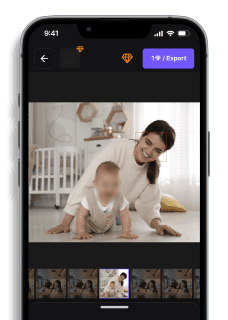
Blur Face in Video
Maya Chen — Tech Writer & Privacy Advocate Part of: Blur Video Complete Guide: Tools, Methods & Best Practices (2026)Read the complete guide →
Blurring faces in videos can seem like a hard and repetitive task, but with the right tools, it becomes effortless. Whether you're trying to anonymize a video for privacy, compliance, or just to protect someone's identity, knowing how to blur faces efficiently is key. In this guide, we’ll dive into how to blur faces in video content using BlurMe's blur face in video tool, the best free online face blur app.
Why Blur Faces in Videos?
Blurring faces in videos serves a multitude of purposes. From ensuring privacy to complying with regulations, it is a powerful tool for anyone creating or sharing video content. If you’re working in journalism, security, or even creating content for social media, it's essential to understand when and how to blur faces.
Blurring faces is essential for:
- Protecting identities in sensitive content like interviews, protests, or security footage by covering the person's face.
- Ensuring privacy compliance with laws like GDPR when sharing or using videos commercially.
How to Blur a Face in a Video
BlurMe makes the process of blurring faces in videos quick and intuitive, all directly in your browser. Here’s how it works:
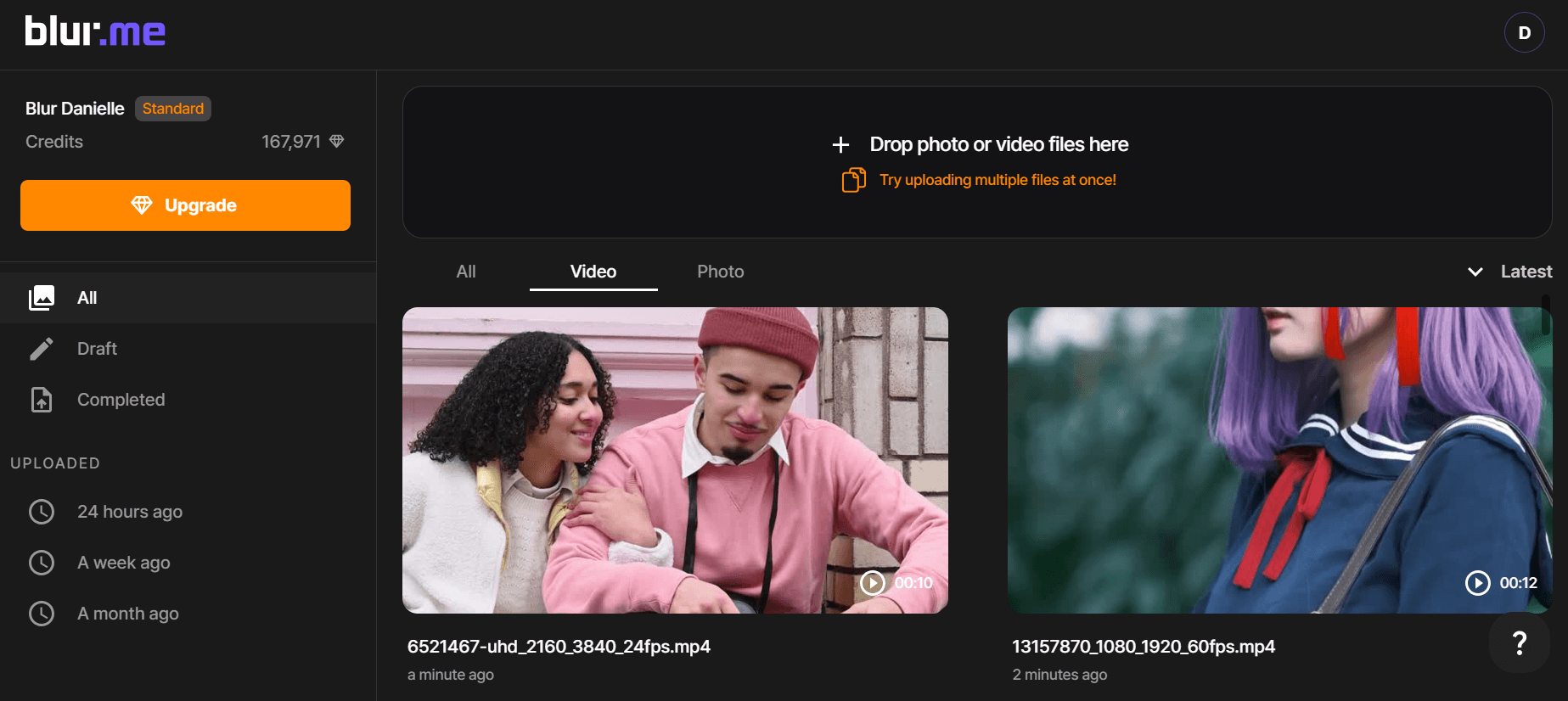
- Upload Your Video
To begin, head to the BlurMe website and sign up for free. Upload your video to the Studio. The platform supports all video formats so you are able to upload easily no matter what type of video you're working with.
- AI-Powered Face Detection
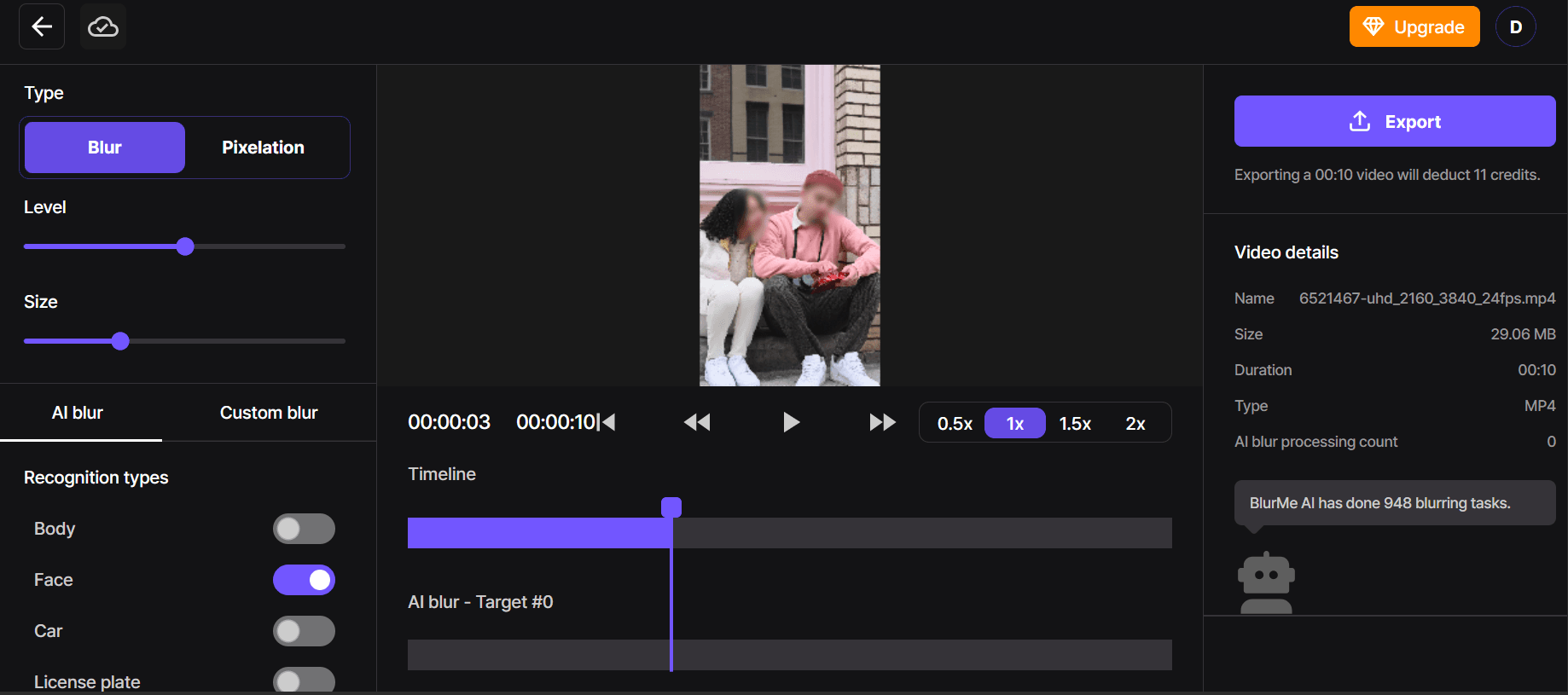
Once your video is uploaded, BlurMe’s AI technology automatically detects faces in the video. This means you don’t have to manually trace or track the faces yourself. The app does the work for you, identifying and blurring the faces in just a few clicks.
- Fine-Tune the Blur Effect
While the automatic face blur feature is powerful, you can also fine-tune the blur intensity and size. Whether you want a soft blur or a more intense pixelate effect, BlurMe gives you full control over the blur's strength. - Preview and Export
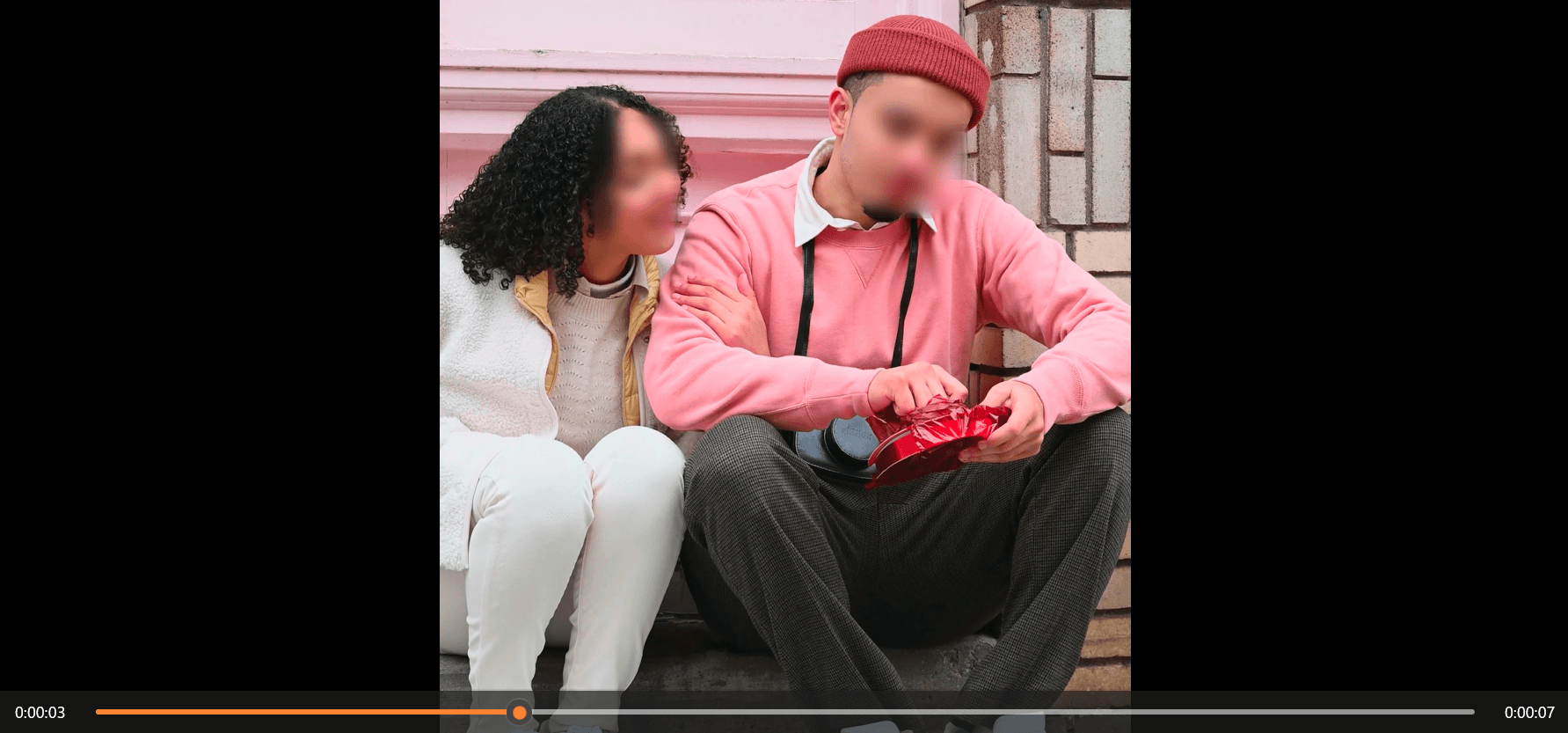
Once you've applied the blur effect, preview your video to make sure everything looks perfect. When you're satisfied, export the video directly from the browser, ready for sharing or storage.
For a more detailed guide, How to Blur Face in a Video tutorial is a great place to get more information on adding face blur effect in videos.
How to Blur Face in a Video on iPhone
If you're editing on the go, BlurMe offers the perfect solution for iPhone users. You can blur faces in videos directly from your phone's browser, without needing to download any special app. Here’s how to blur on your iPhone:
- Open the BlurMe Website in Your Browser
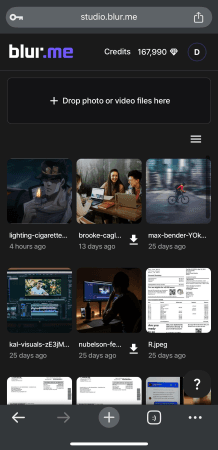
Open Safari or your preferred browser and go to the BlurMe website. - Upload Your Video
Select the video from your gallery to upload to the platform's Studio.
- AI Automatically Detects and Blurs Faces
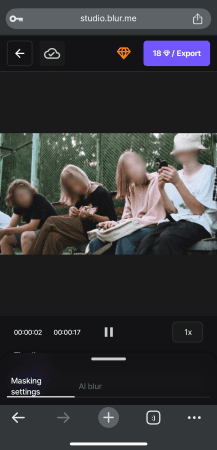
Once your video is uploaded, BlurMe’s AI face detection technology automatically identifies the faces and applies a blur effect.
- Adjust Blur Effect
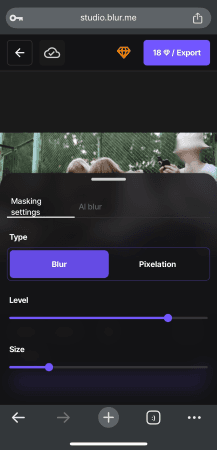
You can adjust the blur level and size as needed before exporting the final video. This process is easy to do on iPhone, just as it is on desktop.
- Export and save the blurred video directly into your iPhone downloads folder.

Why Choose BlurMe for Blurring Faces in Videos?
- Browser-Based Convenience
BlurMe doesn’t require any software downloads or installations. It works directly in your browser, which means you can use it on any device with internet access – desktop, laptop, or mobile. - Fast and Automatic Face Detection
Using advanced AI technology, BlurMe detects and blurs faces quickly, making the process of face blurring effortless. Even with multiple faces or moving individuals, the app handles it automatically, saving you time and effort. - Customizable Blur Effects
BlurMe lets you control the intensity of the blur effect. Whether you're looking to lightly obscure someone's identity or fully anonymize them, you have full control over the final look of your video. - Free and Paid Options
While BlurMe offers a free version for basic edits, the premium version unlocks additional features like longer videos, more customization, and higher-quality exports. Massive discounts are available to educational institutions and special cases. - No Need for Advanced Editing Skills
Unlike complex video editing software that requires manual tracking and frame-by-frame adjustments, BlurMe simplifies the process with its easy-to-use interface and automatic face detection.
Easiest Way to Blur Faces in a Video Online
If you’re looking for a quick, hassle-free way to blur faces in a video without downloading software, BlurMe is the perfect solution. The online platform works directly in your browser, letting you upload your video, blur faces, and export the video, all in a matter of minutes.
Blur Moving Faces in Videos
One of the standout features of BlurMe is its ability to blur moving faces in videos. Unlike traditional editing software that requires manual tracking, BlurMe’s AI tracks moving faces in your video and automatically applies the blur effect, ensuring that no faces are left exposed, no matter how much the subjects move.
How to Blur Someone’s Face in a Video: Tips for Content Creators
For content creators, privacy is key, especially when sharing footage publicly. If you're dealing with videos of crowds, public spaces, or personal events, it's essential to know how to blur someone's face to ensure you respect their privacy especially when you need to blur multiple faces at once.
With one click you can blur a whole crowd of people. Whether you’re sharing footage on YouTube, Instagram, or any other platform, using a reliable face blur app will help you stay compliant with privacy laws and protect the individuals in your videos.
Faces or plates to blur in your video?
Upload and the AI blurs them automatically in seconds.
How to Censor a Video with BlurMe
Censoring a video involves more than just pixelating sections of the frame. When you want to blur faces in a video, the goal is to keep people’s identities protected while maintaining the integrity of the video. BlurMe provides a quick and efficient solution for this, allowing you to censor videos in a professional and ethical way, with minimal effort.
FAQs:
- How does BlurMe blur multiple faces in a video?
BlurMe uses AI-powered face detection technology to identify and automatically blur all faces in your video. - How can I blur moving faces in videos?
Yes, BlurMe’s AI technology can automatically track and blur moving faces in videos, saving you from manually adjusting the blur frame by frame. - Can I blur videos on my iPhone and mobile device?
Absolutely! BlurMe works directly in your browser, so you can easily upload, blur faces, and export your video on any device, including your iPhone. - Can I blur faces in a video for free?
BlurMe offers a free version for basic face blurring so you can blur faces online for free, with premium options available for more advanced features, longer videos, and higher export quality.
Blur Videos with the Best Face Blur App: BlurMe
If you know how to blur faces in iMovie and other video editing software, that's great but when it comes to blurring videos, BlurMe is the go-to online app to blur faces in video quickly, effectively, and with high-quality results. Whether you’re a content creator, journalist, or just someone looking to protect privacy, BlurMe lets you blur everyone's face fast and easy using AI. If you are interested in learning more like how to remove text from videos or how to unblur, our blog has several great articles.
Ready to blur faces in your videos? Try BlurMe today and experience the fastest, easiest way to blur people’s faces in your video content.
Faces or plates to blur in your video?
Drop a video or photo in your browser and the AI auto-blurs faces, license plates, and personal info in seconds.
Upload free