Images to PDF
Arrange JPG, PNG, WebP, AVIF and HEIC photos together and save one PDF, with an original-size or A4 page for each image.
Free · No sign-up · No file upload
Assemble a PDF from different image formats
Choose your images and set the page order with the arrows.
Pick Original size or A4. A4 does not crop the image.
Download the PDF.
A page for every image in the list
Photos, transparent graphics and WebP images can go into one document without converting them first. Images of different sizes each get their own page.
A4 fits each image without cropping. Original size uses 96 pixels per inch. HEIC uses the first image only; Live Photo video and animation are not included.
Example result
Before
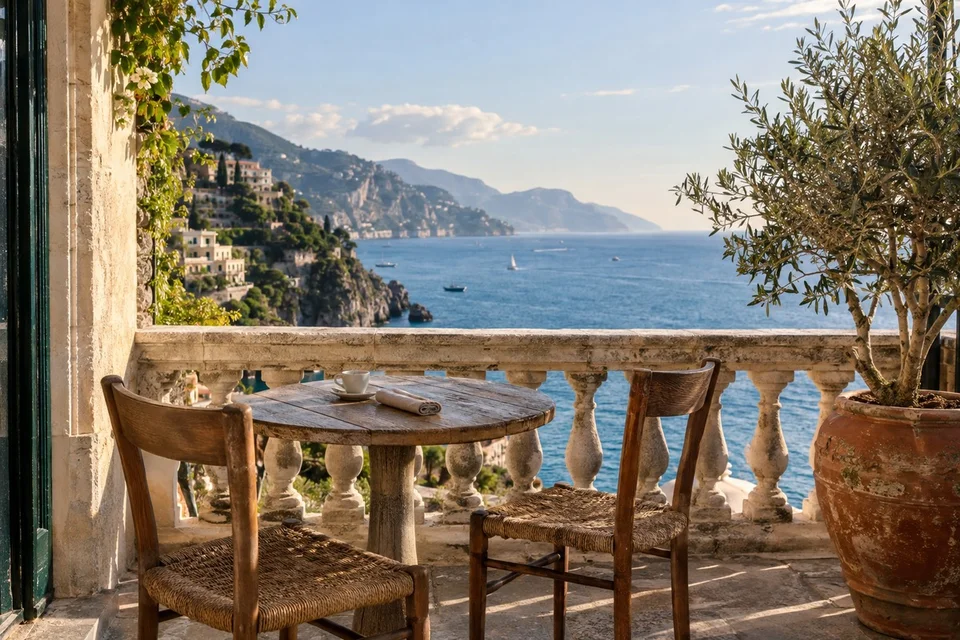
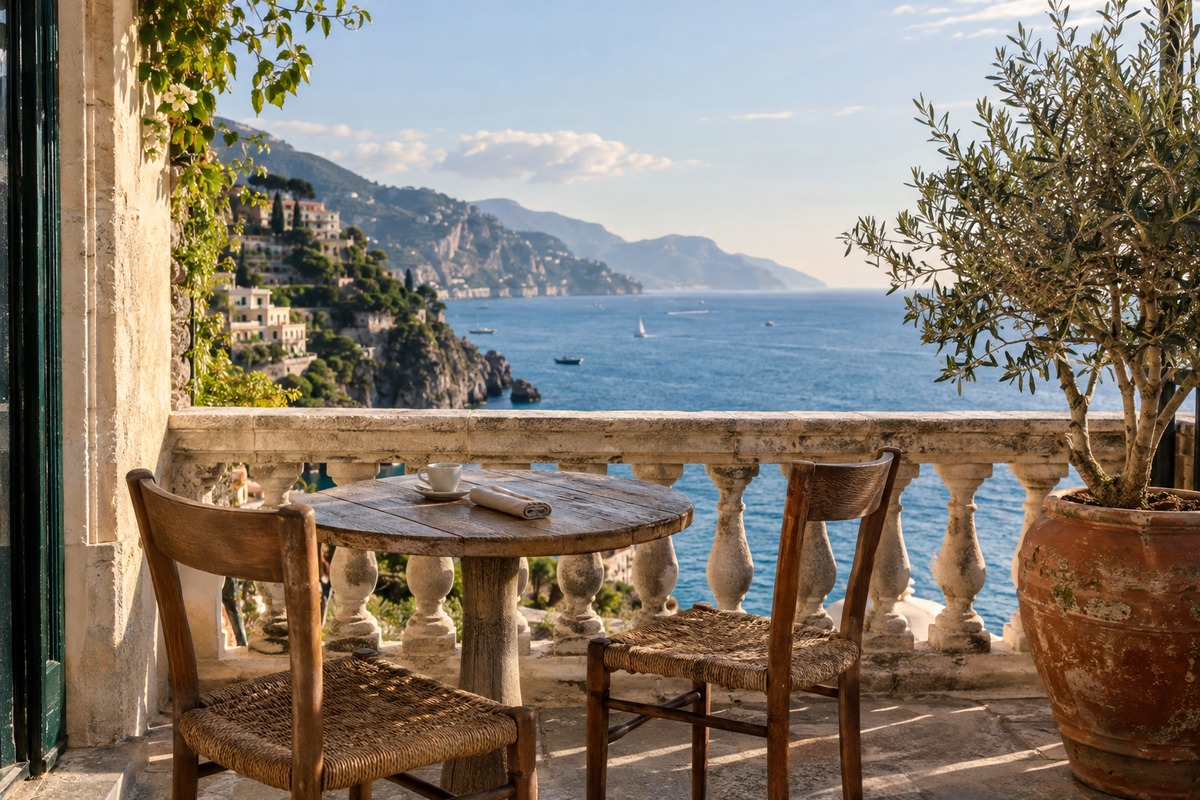
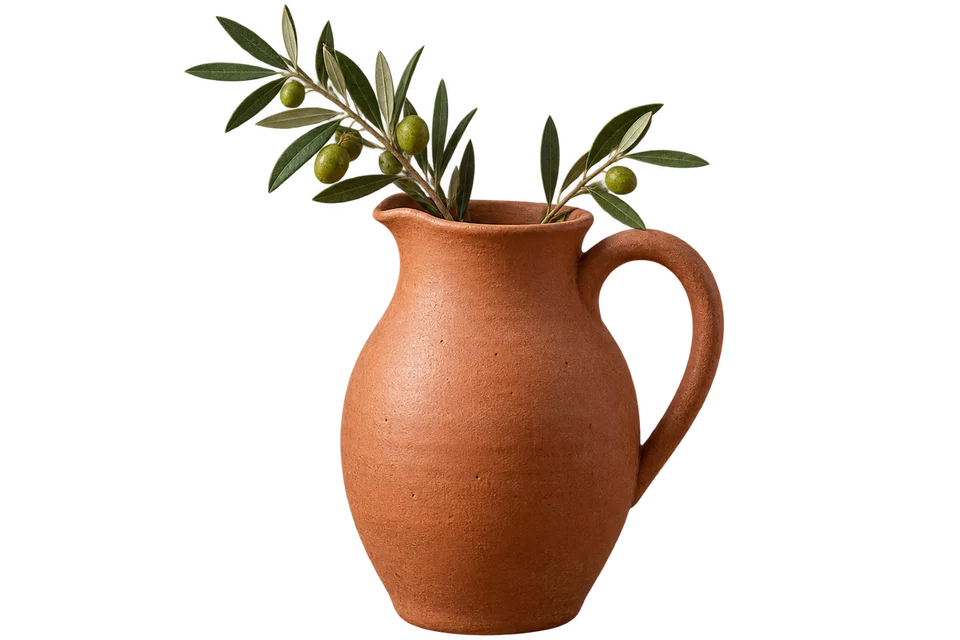
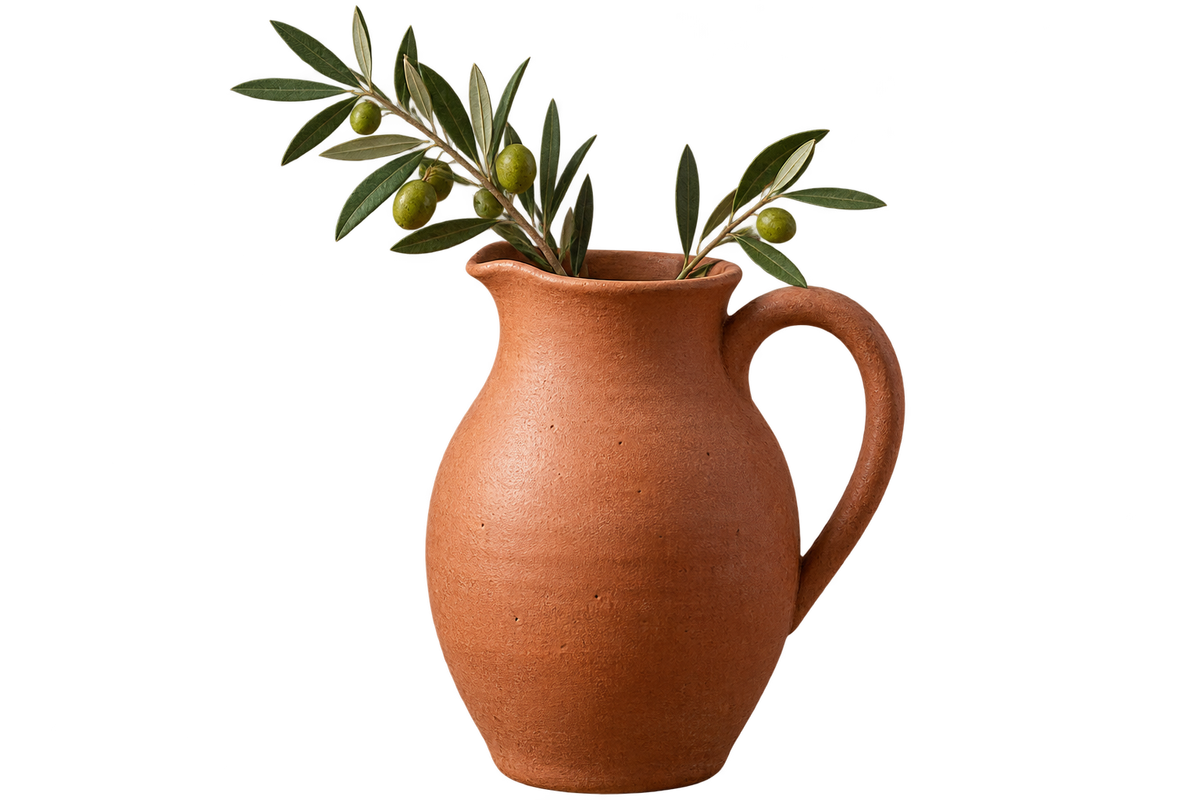
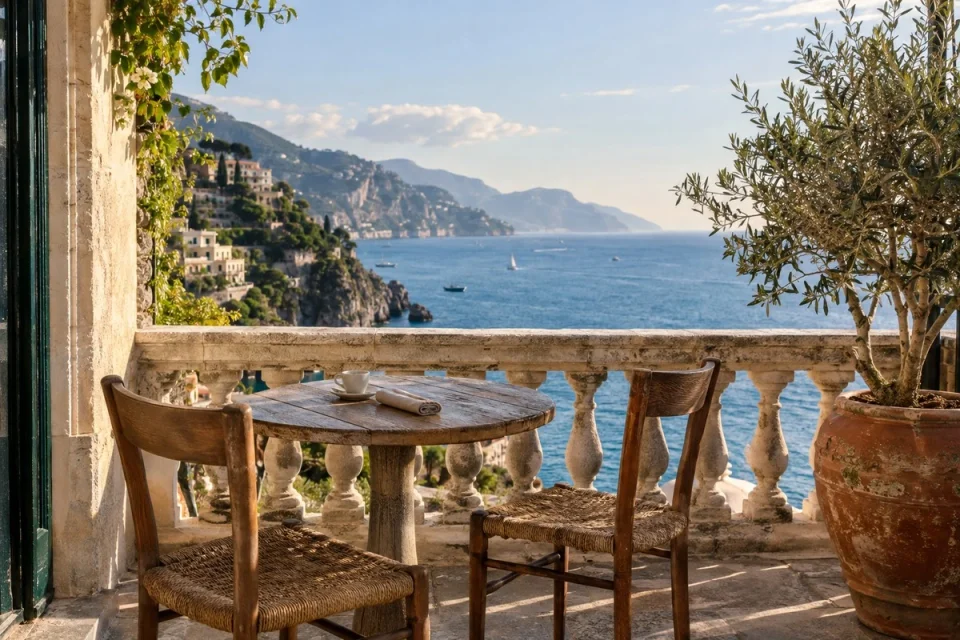
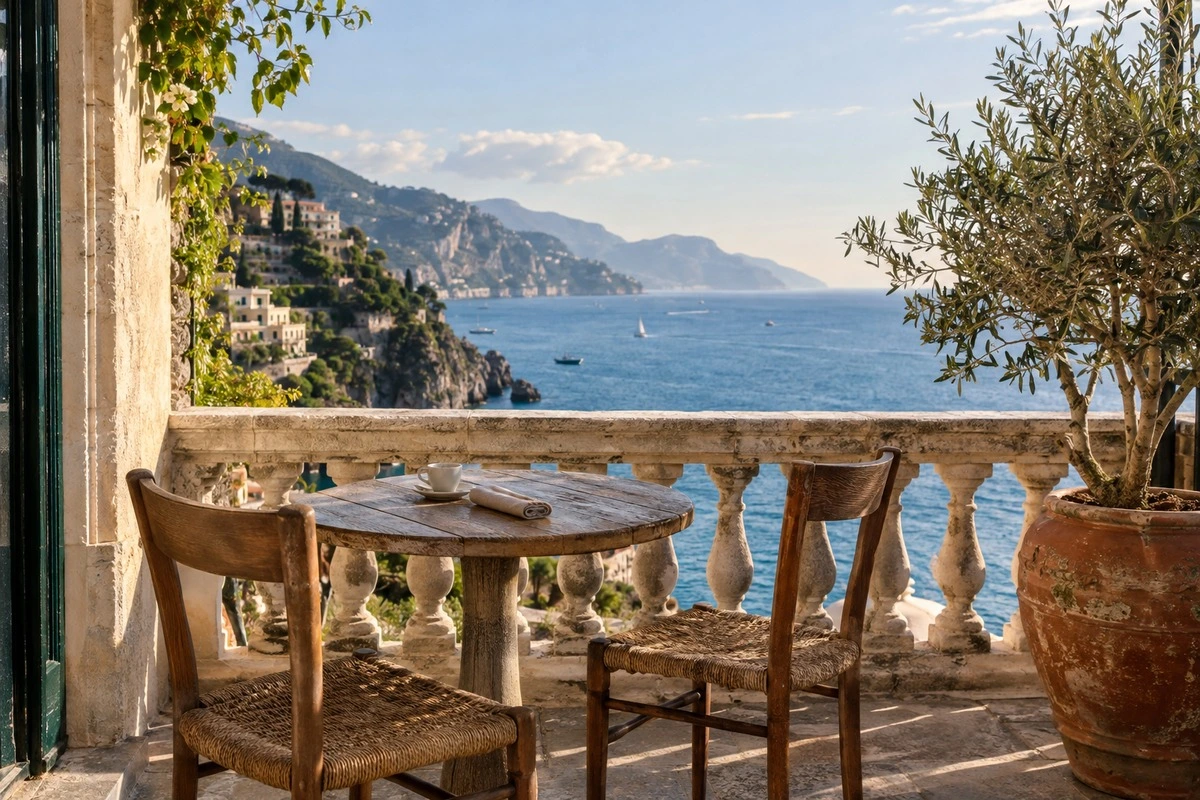
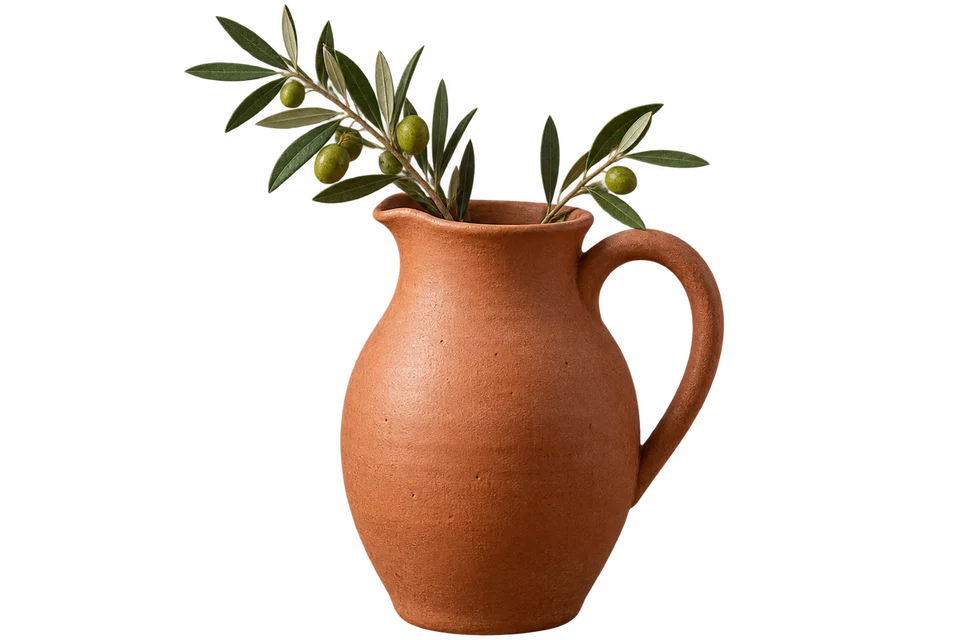
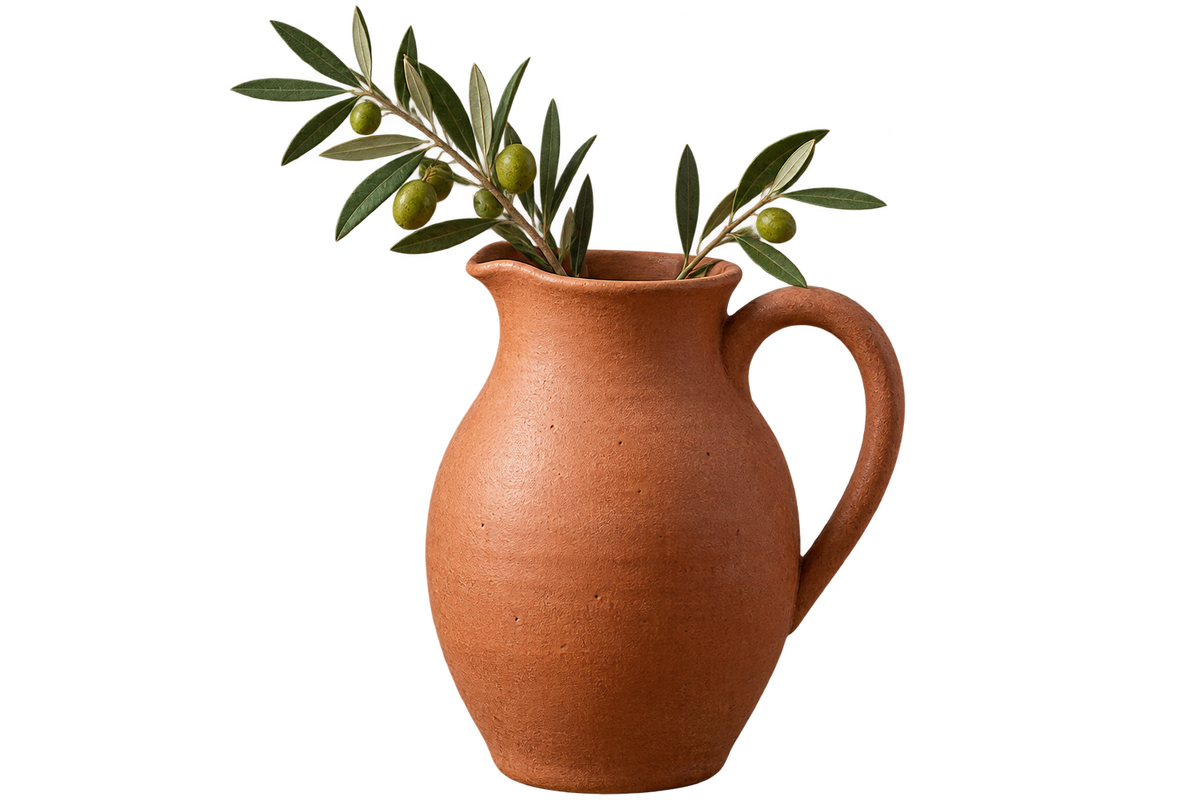

After

Frequently asked questions
- What happens when I mix photos and transparent graphics?
- Each file gets its own page. JPG stays JPEG inside the PDF; the other formats become decoded PNG image data. Transparent areas remain transparent and usually appear white in PDF viewers.
- Does mixed-image PDF creation make the photos smaller?
- It does not resize their pixels. JPEG compression is retained, while the decoded PNG data used for other formats can increase file size.
- Can I edit text in the PDF made from pictures?
- The pages contain images. Printed words remain part of those images; no text recognition or editable text is added.
- How do I change the order of a mixed image set?
- Use the up and down controls before processing. The displayed list becomes the page order.
- Are my files uploaded to a server?
- No. Files are processed in your browser on this device and are not sent to BlurMe servers.
Related tools
All toolsPDF to images
Export PDF pages as JPG, PNG or WebP.
JPG → PDF
Arrange JPG photos into a single PDF document.
PNG → PDF
Put PNG images into a PDF for sharing or printing.
HEIC → PDF
Arrange HEIC phone photos into a PDF.
Image converter
Turn mixed image formats into one chosen format.
Redact PDF
Edit in StudioFind and remove personal information in PDFs.