




Moving faces stay blurred to the last frame
Once a face is found, BlurMe follows it until the video ends. Turned heads and camera moves are handled, so you never drag a blur box frame by frame.
Real result
Blur faces in video automatically: AI finds every face and follows it to the last frame, then blurs or pixelates it. Check and fix the result in the editor.
Every face on a busy street, found and blurred to the end of the clip. A real result.
A real result: on a busy street, BlurMe finds the face of everyone walking toward the camera and keeps them blurred to the end of the video
Companies, universities and nonprofits around the world blur their footage with BlurMe




Blur faces in a video in three steps, with nothing to install.
Click Upload video or drop the file anywhere on the page. MP4, MOV and WebM are supported.
AI finds and covers every face. Click anyone you want to keep visible, then pick blur, pixelate or solid and the strength.
Click Export to save the blurred video.
Once a face is found, BlurMe follows it until the video ends. Turned heads and camera moves are handled, so you never drag a blur box frame by frame.
Crowds, events and street footage are no problem: AI finds every face and blurs them together. Click a face to exclude it and it stays as it was.

Pick the effect that suits your video, then adjust strength and size. Apply it to every face at once, or give each face its own.
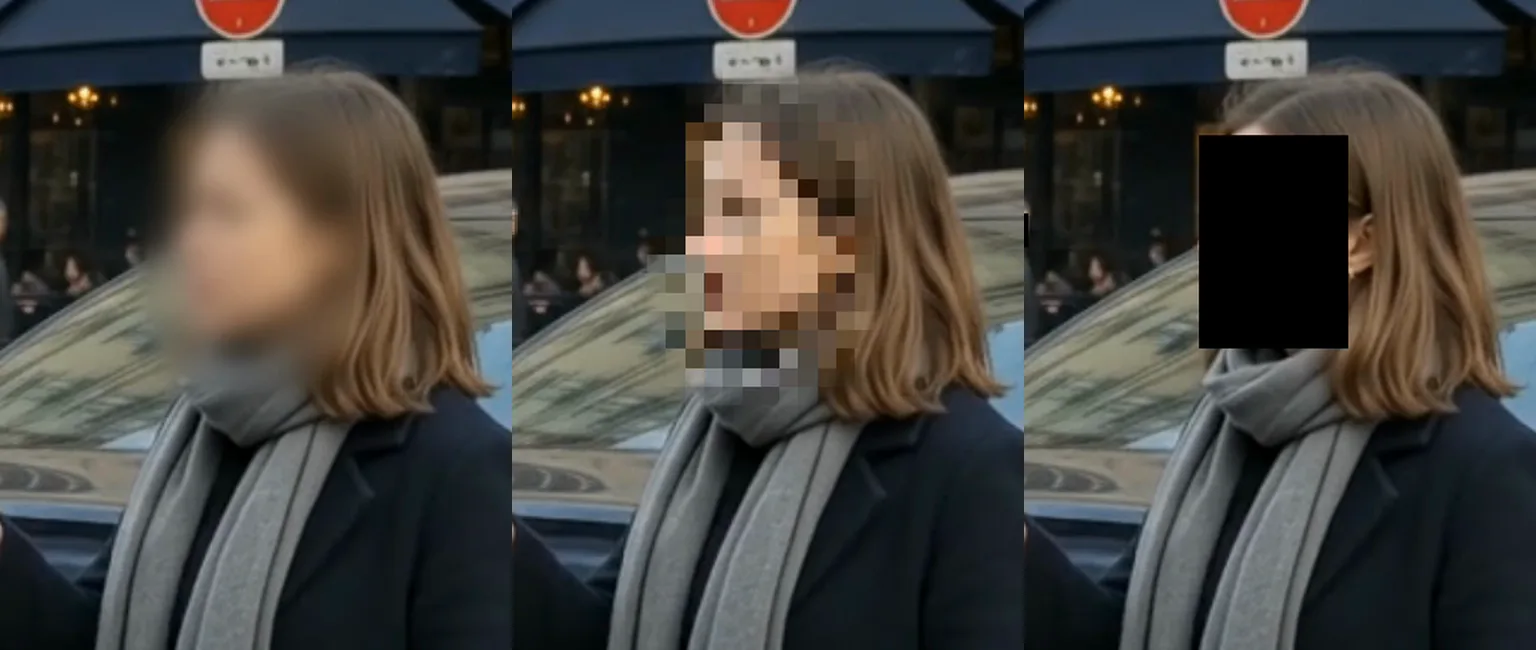 BlurPixelateSolid
Yes, but you place a mask on each face yourself, and on mobile and web you move it with keyframes as the face moves. BlurMe finds every face and follows it to the end.
CapCut steps are based on CapCut's official guide, How To Blur Face in Videos.
More blur tools


