PDF to images
Choose a page range, output format and DPI to turn PDF pages into separate images, ready to download individually or as a ZIP.
Free · No sign-up · No file upload
Export selected pages in one image format
Choose a PDF and enter the pages to convert.
Pick JPG, PNG or WebP and set the DPI.
Download each page or all of them as a ZIP.
Resolution changes the rendered page size
DPI sets how many pixels each page is drawn with. Doubling the DPI doubles the width and height, so the image has four times as many pixels.
Each selected page becomes an image named with its original page number. Text, links and vectors are rendered into pixels; the resulting image no longer contains selectable PDF text.
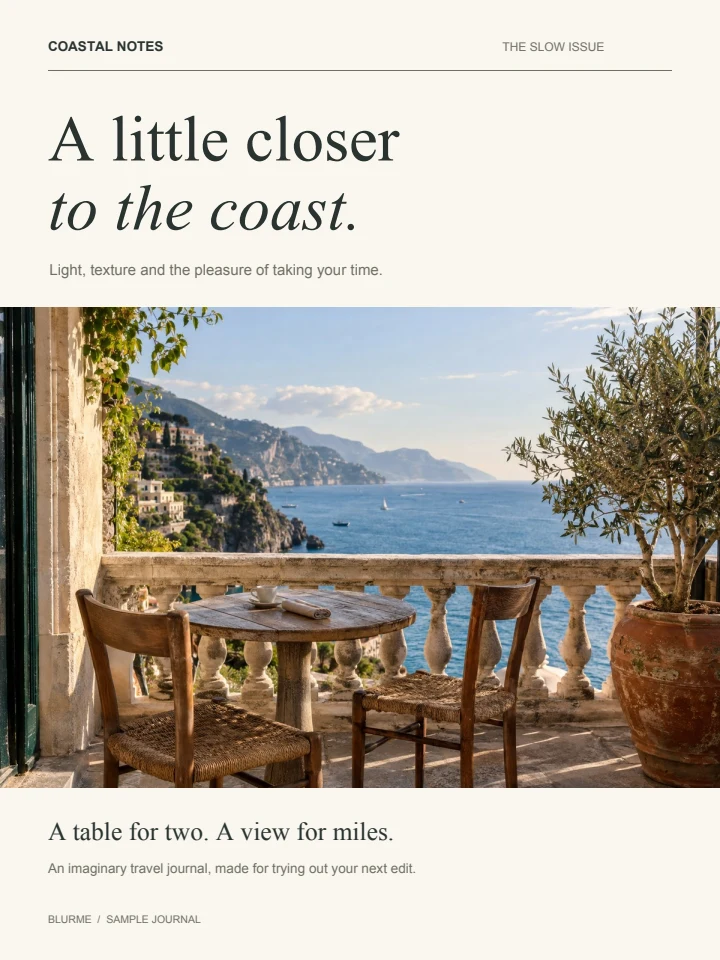
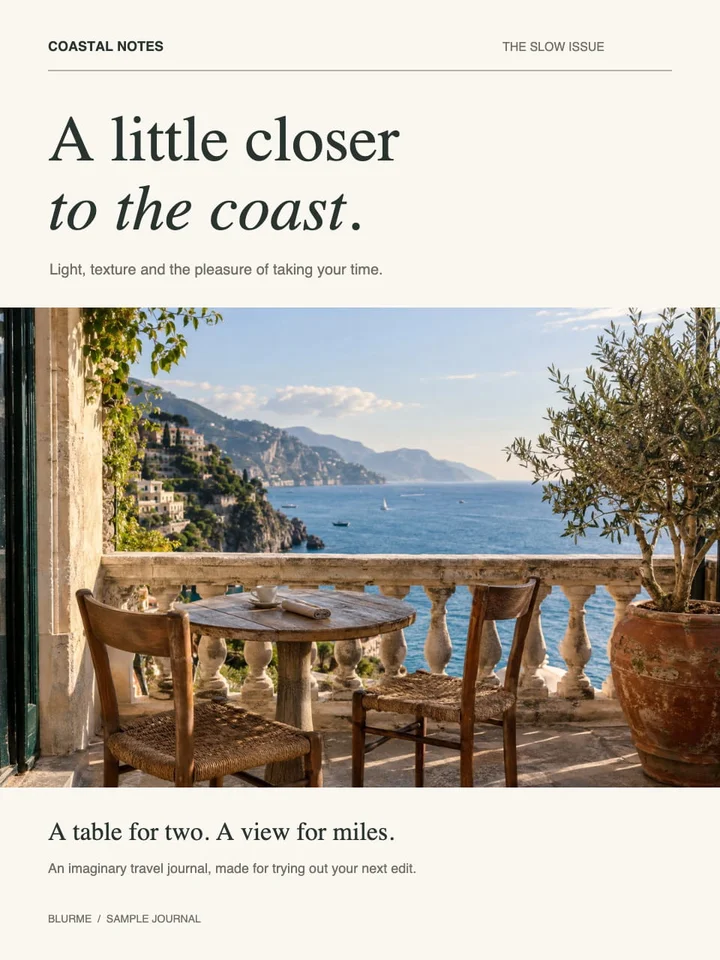
Example result
Before
After
 JPG · 960×1280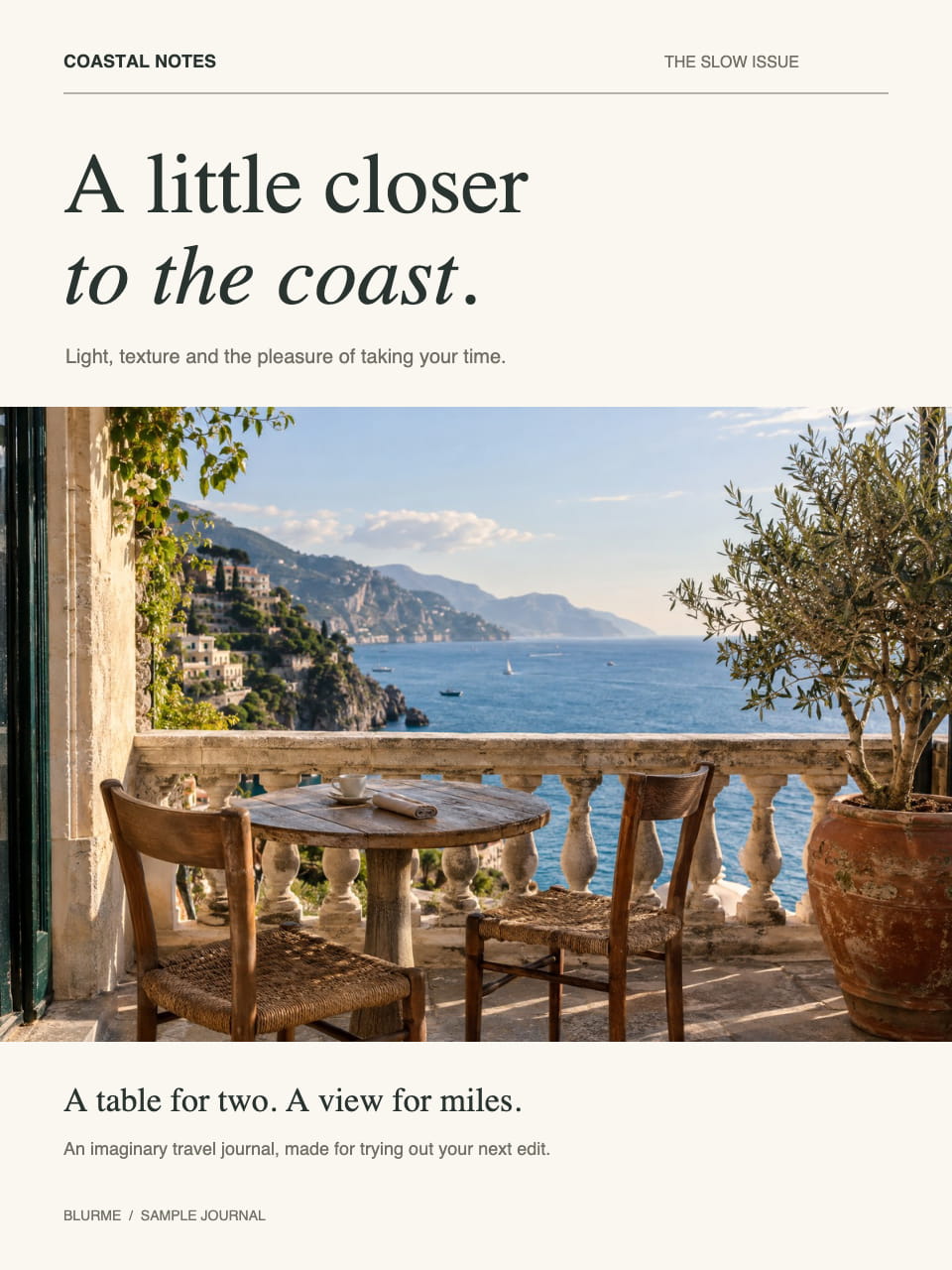
Frequently asked questions
- Which image format should I choose for my PDF pages?
- JPG suits photographic pages, PNG avoids additional lossy compression, and WebP offers adjustable quality. All three render the page on a white background.
- Does PNG export retain the PDF's vector graphics?
- No. PNG stores the rendered pixels. Increase DPI for more detail, within the displayed resolution limits.
- Why is there no quality slider for PNG page export?
- PNG encoding is lossless. DPI controls its pixel dimensions; the lossy quality setting applies only to JPG and WebP.
- Can the PDF image exporter unlock a protected document?
- No. Password-protected PDFs are rejected. Use an unprotected copy that you can access.
- Are my files uploaded to a server?
- No. Files are processed in your browser on this device and are not sent to BlurMe servers.
Related tools
All toolsImages to PDF
Combine mixed image formats into one PDF.
PDF → JPG
Render selected PDF pages as JPG images.
PDF → PNG
Render selected PDF pages as PNG images.
PDF to text
Extract selectable PDF text into a TXT file.
Redact PDF
Edit in StudioFind and remove personal information in PDFs.
Add page numbers to PDF
Add original page numbers at the bottom center of a PDF.