How to Blur Faces in a Video with BlurMe
Maya Chen — Tech Writer & Privacy Advocate Part of: Video Blurring Guide: Find the Right Workflow for Your TaskRead the complete guide →
BlurMe lets you start face blurring from detected faces, then correct the areas that need attention. For a usable result, follow the entire clip through to export: a covered face in the opening preview does not tell you what happens after a turn, cut or re-entry.
Prepare the clip
Keep the original and decide which people should remain visible. Note any sections where the camera changes angle or new people appear. Open the video face blur tool to begin.
This guide covers the BlurMe workflow. To compare automatic tracking with manually animated masks, see video face blur methods.
Edit faces in BlurMe
Step 1: Import the video
Choose your clip and wait for it to load in the editor. Check the orientation and duration. If you have several versions, confirm that you selected the final source before spending time correcting tracks.
Step 2: Start with face detection
Use automatic face detection to create the starting blur regions. Review the detected people against your coverage decision. Keep the faces that should be obscured and adjust any regions that cover someone you meant to show.
Do a separate pass for small faces in the background and subjects near the edge. Prominent faces are easier to notice in a quick preview; the smaller ones deserve a deliberate check.
Step 3: Correct regions and timing
Add manual regions for missed areas and adjust existing coverage where needed. Inspect the start and end of each appearance. A region should cover the face when it is visible, including the moment a person enters or turns toward the camera.
For moving areas that need manual control, use the editor’s keyframe workflow to adjust position over time. Check the interval between adjustments, not only the frames where you placed them. For difficult sequences, use the occlusion and re-entry review guide.
Step 4: Choose the appearance
Use soft blur or pixelation according to the visual result you want, and inspect the covered face at the intended output size. Ensure that the region extends around all of the features you need to obscure. More effect strength does not repair a region that misses part of the face.
Step 5: Review, export and replay
Play the complete edited clip. Pause at cuts, overlapping people and camera movements. Export the result, then open the downloaded video in a separate player and replay it. Confirm that the downloaded file has the intended duration and coverage before sharing it.
Make corrections efficiently
If a problem is confined to one interval, note its time and correct that section before repeating the export check. Keep a short list of unresolved times rather than relying on memory. Finish the review only when every item is resolved in the exported copy.
For logos, labels and other non-face regions, use the general partial-video workflow. The selection decision is different even though the final export review is similar.
FAQ
Can I blur one person and leave another visible?
Review the detected face regions and retain only the intended coverage. Check the selection again where people cross or leave and re-enter the scene.
What if a face disappears behind another person?
Inspect the frames immediately before and after the overlap and correct the affected interval. The moving-face troubleshooting guide explains the main checkpoints.
What are the Free Studio export limits?
Free Studio video exports include a watermark and are limited to 10 seconds, up to 1080p, with a 1GB upload limit. Paid options are listed on the pricing page.
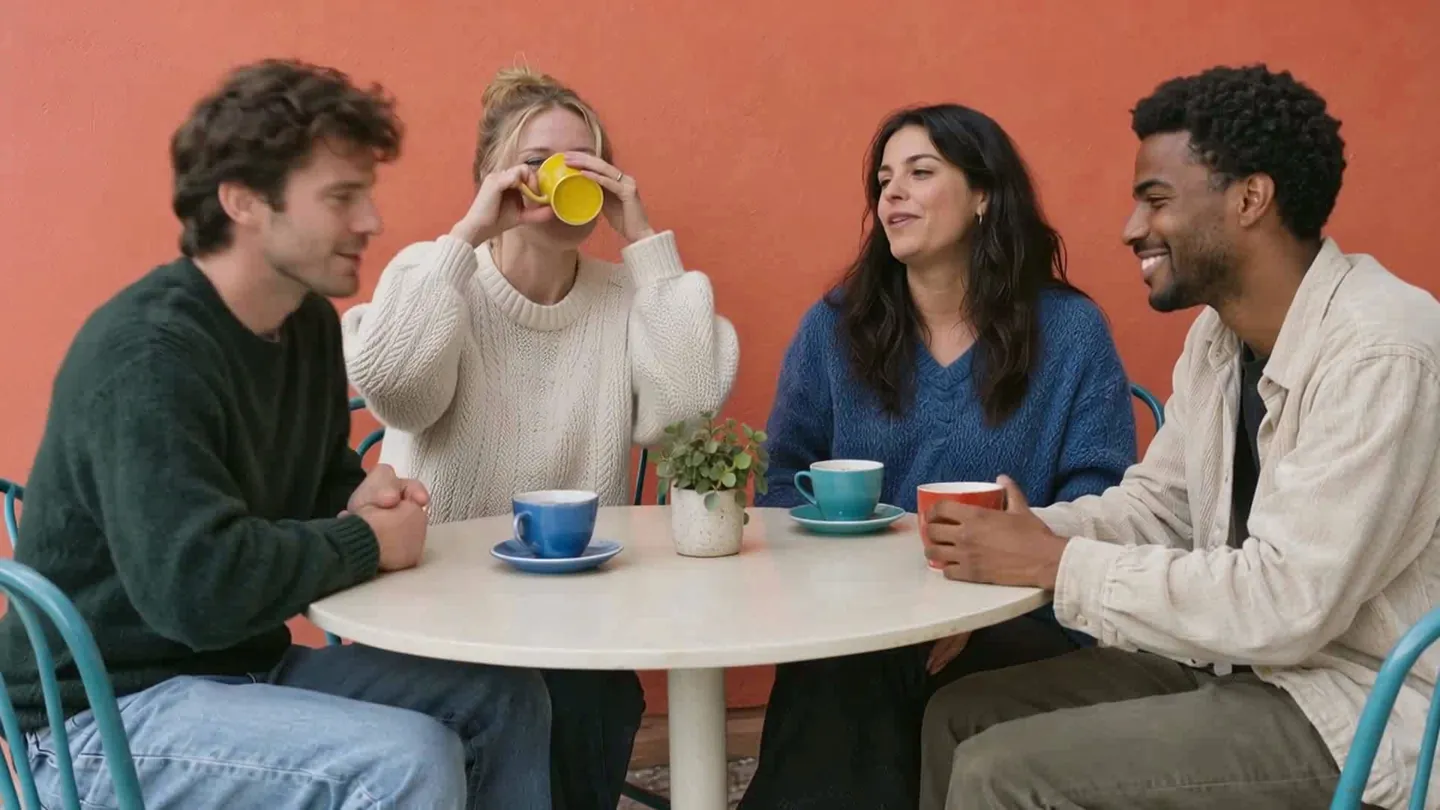
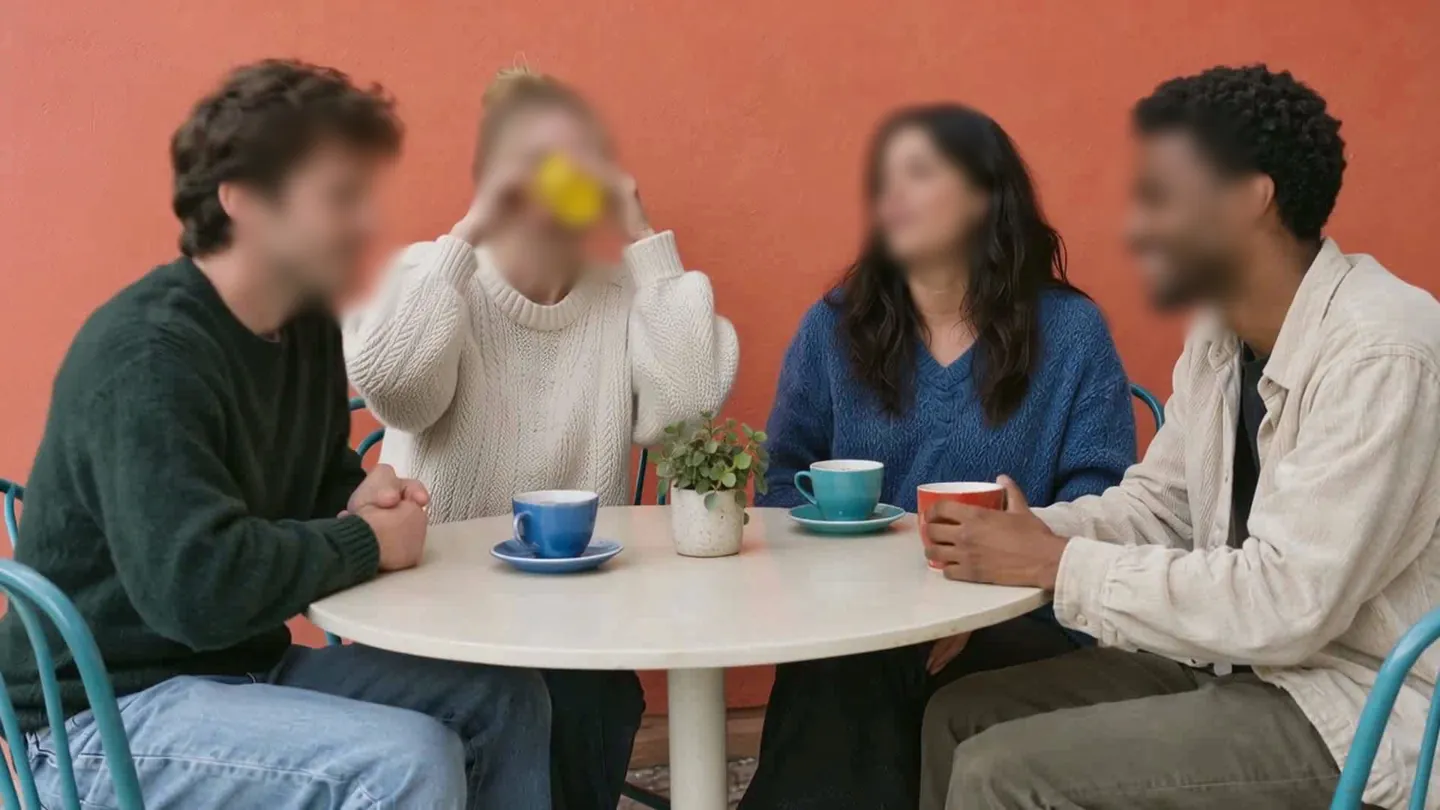
Faces in your video? Upload it and the AI finds them in every frame.
Nothing to install. Start right away.