MKV to MOV conversion is often necessary when working with Apple software, QuickTime, or professional video editing tools that don’t fully support MKV files. While MKV is great for storing high-quality video, it’s not always the most compatible format—especially on macOS.
In this guide, you’ll learn how to convert MKV to MOV online for free, why MOV is often the better choice, and how to use BlurMe’s MKV to MOV converter to convert videos quickly in your browser—without downloads, watermarks, or quality loss.
What Is an MKV File?
MKV (Matroska Video) is a flexible multimedia container that can store video, audio, subtitles, and metadata in one file. It’s widely used for high-resolution content, but:
- MKV files are not natively supported by QuickTime
- Many Apple and iOS apps struggle with
.mkvplayback - Editing MKV files on Mac often requires extra software
This is where converting .mkv to .mov becomes essential.
How to Convert MKV to MOV Online for Free (Step-by-Step)
BlurMe offers a browser-based MKV to MOV converter designed for speed, quality, and privacy.
Step 1: Open the BlurMe MKV to MOV Converter
Go to BlurMe Studio and open the BlurMe MKV to MOV converter. No installation required.
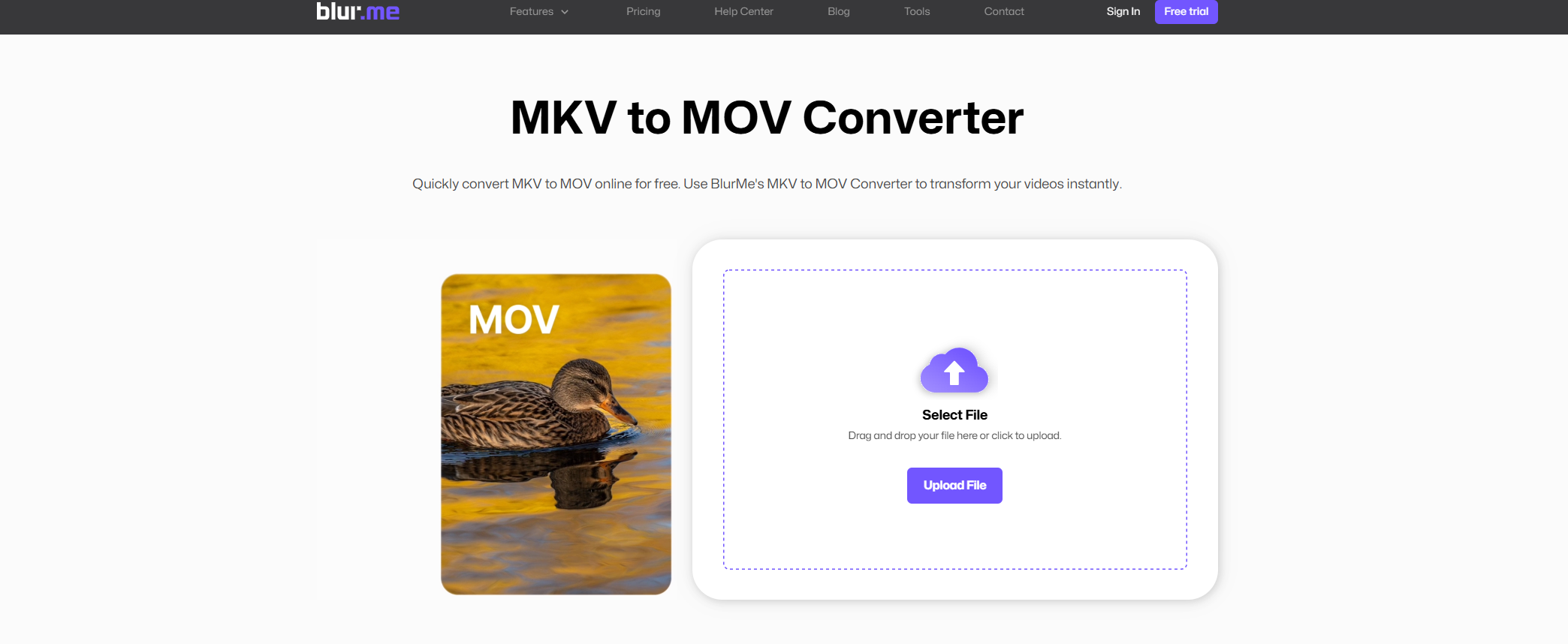
Step 2: Upload Your MKV File
Drag and drop your .mkv file or click upload. BlurMe supports large and high-resolution videos.
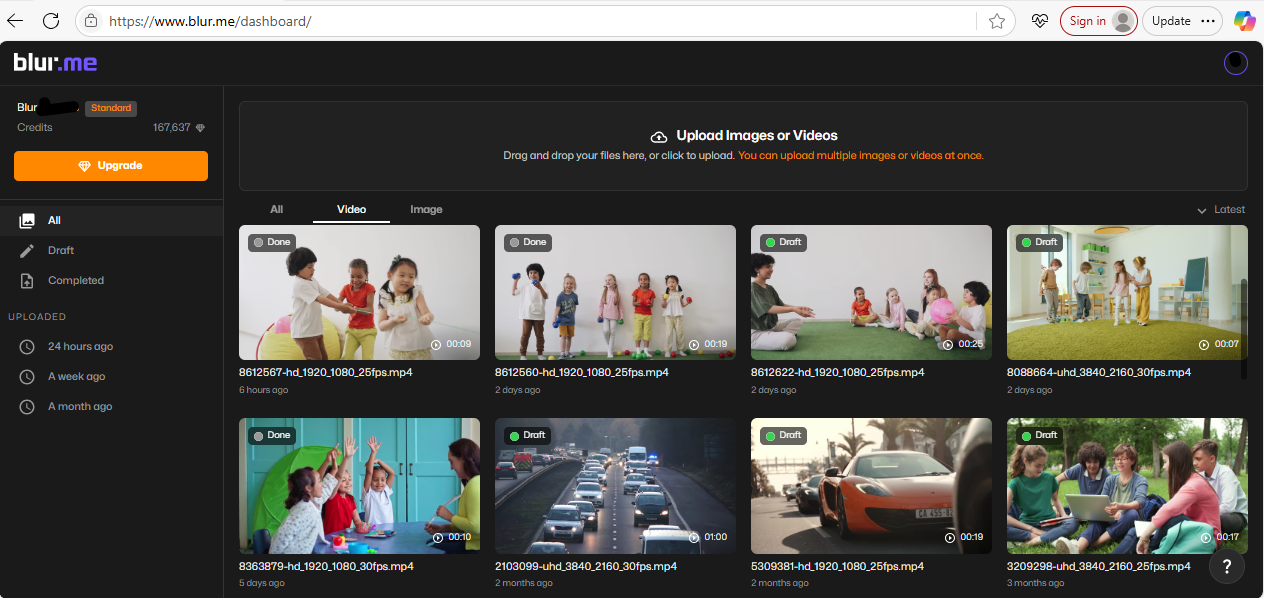
Step 3: Select MOV as the Output Format
Choose MOV from the available export formats.
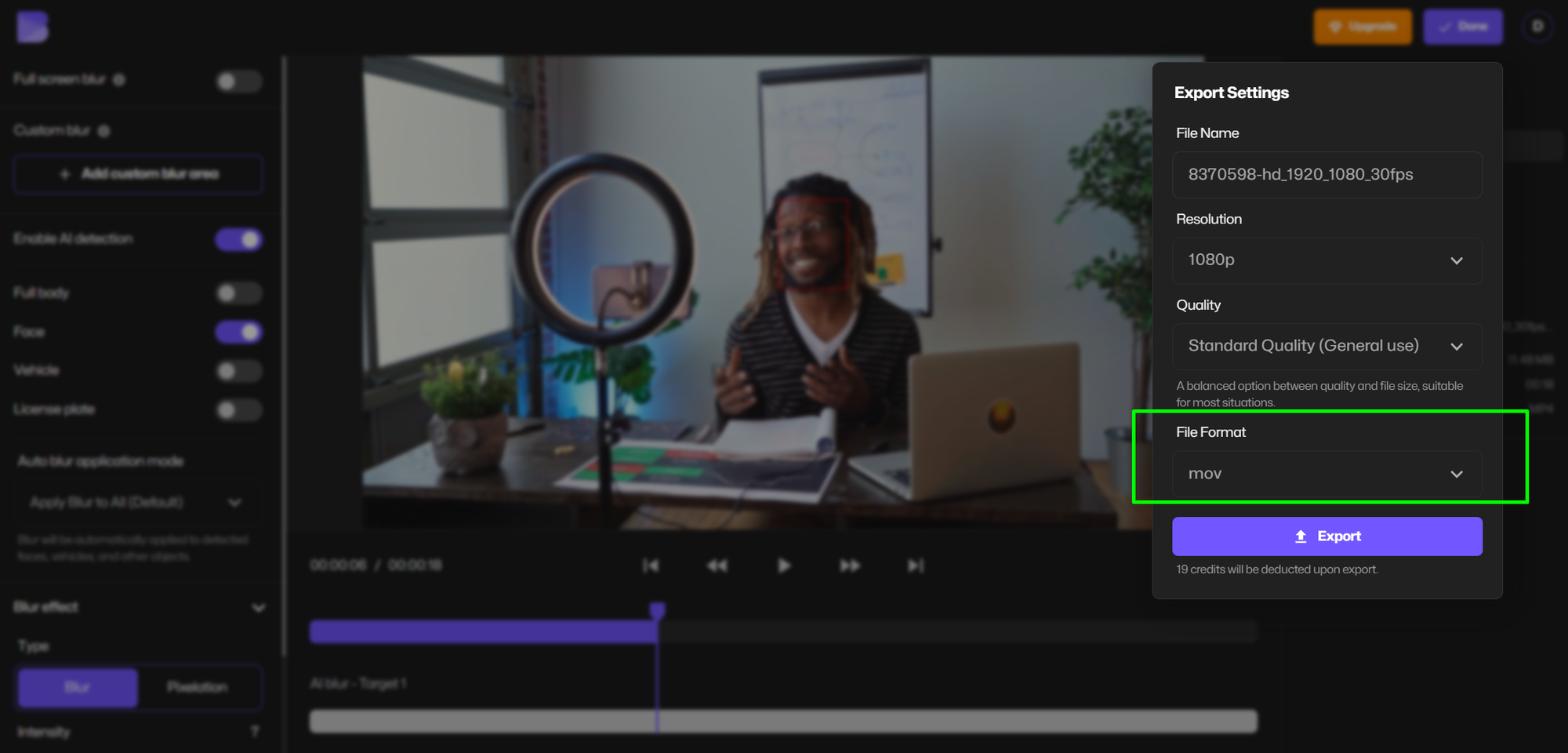
Step 4: Convert MKV to MOV
BlurMe processes the video online using optimized encoding for quality preservation.
Step 5: Download Your MOV File
Once complete, click Export to download your converted MOV file instantly.
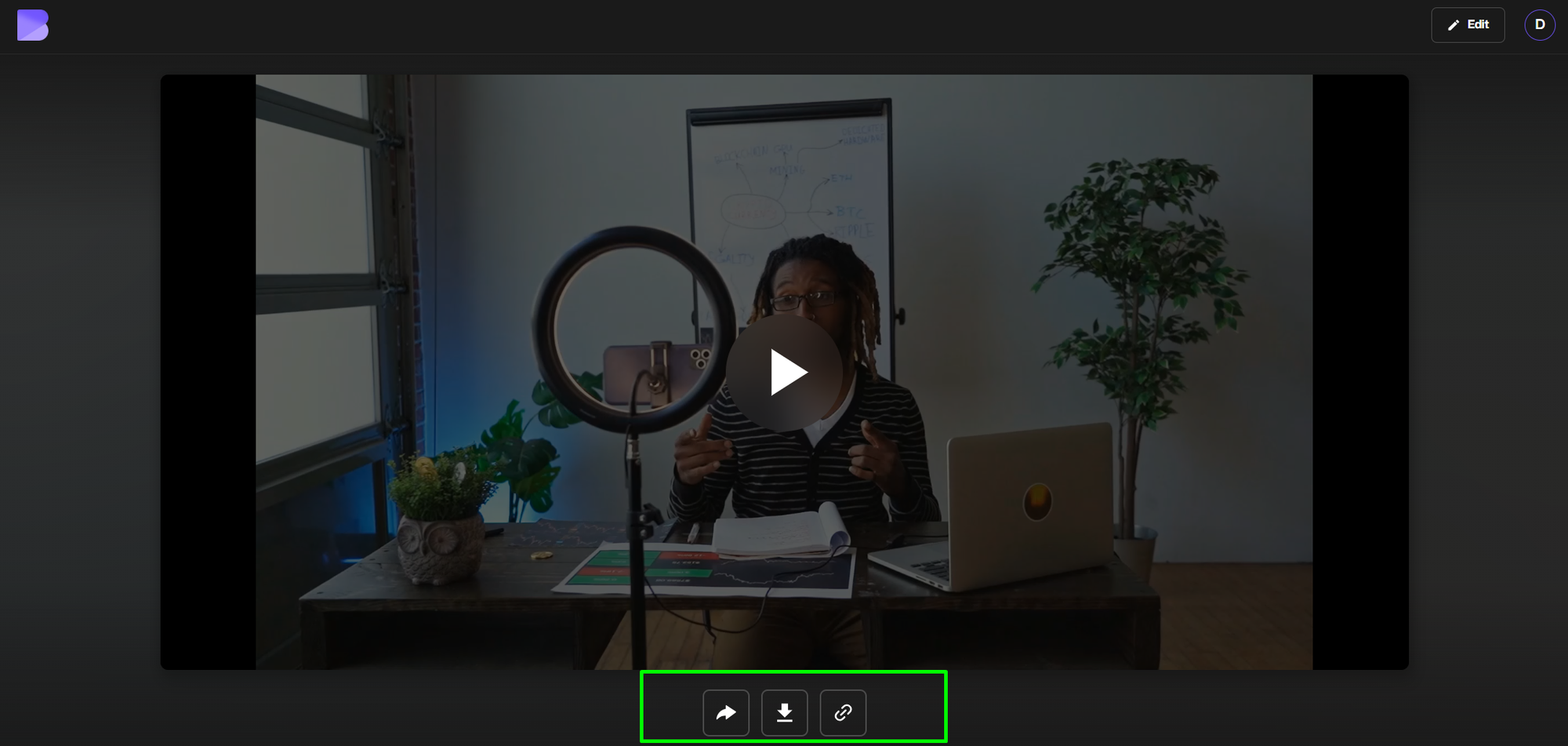
That’s it—you’ve successfully converted MKV files online in just a few clicks.
Convert MKV Files Online Without Losing Quality
Unlike many free video converters, BlurMe's Video Conversion Tool is built for creators and professionals. Your video is converted using modern codecs that maintain:
- Original resolution
- Frame rate accuracy
- Audio synchronization
BlurMe is more than a basic video converter—it’s a full online video processing studio.
Convert Video Files Online and Edit Them at the Same Time
One major advantage of BlurMe is that you can convert video files online and edit them in the same workflow.
After converting MKV to MOV, you can instantly:
- Blur Video Online
- Pixelate Videos
- Blur Face in Video using AI detection
- Use the Blur Background Tool
This is especially useful if your video contains people, sensitive information, or needs privacy protection before sharing.
MKV to MOV Converter vs Desktop Software
| Feature | BlurMe Online Converter | Desktop Software |
|---|---|---|
| No installation | Yes | No |
| Works on Mac & Windows | Yes | Limited |
| Free to use | Yes | Often paid |
| Built-in video editing | Yes | Rare |
| Privacy-friendly | Yes | Varies |
BlurMe is ideal if you want to convert MKV to MOV quickly without downloading software.
Why Convert MKV to MOV?
MOV is Apple’s preferred video container and works seamlessly across macOS, iOS, and professional editing environments.
Benefits of MOV Format
- Native compatibility with Mac, iPhone, and iPad
- Ideal for Final Cut Pro, iMovie, and QuickTime
- Better support for editing and exporting
- Smooth playback without third-party codecs
If you’re wondering how to convert MKV to MOV on Mac, using an online converter like BlurMe is the fastest option.
When Should You Convert MKV to MOV?
You should convert MKV to MOV if:
- Your MKV file won’t open on Mac
- You’re editing in Final Cut Pro or iMovie
- You need QuickTime compatibility
- You’re uploading to Apple-optimized platforms
For other format needs, BlurMe also supports tools like:
- AVI to MOV Converter
- MOV to MP4 Converter
- Full guides under How to Convert MKV Videos and How to Convert MOV Videos.
Tips for Best MKV to MOV Conversion Results
- Upload the original MKV file for best quality
- Avoid re-compressing already compressed videos
- Convert once, then edit—multiple conversions reduce quality
- Use BlurMe’s blur or pixelation tools after conversion for clean results
FAQ: MKV to MOV Conversion
Can I convert MKV to MOV for free?
Yes. BlurMe lets you convert MKV to MOV online for free directly in your browser.
How do I convert MKV to MOV on Mac?
Use BlurMe’s MKV to MOV converter—no Mac software or plugins required.
Is converting MKV to MOV safe?
Yes. BlurMe processes files securely and deletes them automatically after conversion.
Can I edit my video after converting it?
Absolutely. After conversion, you can blur faces, pixelate areas, or edit using BlurMe Studio's blur face tool.
Does BlurMe support other formats?
Yes. You can convert many formats using BlurMe’s video converter tools, including AVI, MOV, MP4, and more. See the full Video Editing Tools section.
Convert MKV to MOV Online with BlurMe Today
If you need a fast, reliable, and free way to convert MKV to MOV online, BlurMe gives you more than just conversion—it gives you control.
Convert your video, protect privacy with AI blur tools, and export in a format that works everywhere.
Try the BlurMe MKV to MOV converter now and convert your video in minutes—no downloads required.