DOCX提取文本

將Word中的文字保存為UTF-8 TXT。

免費 · 無須註冊 · 無須上載檔案

將檔案拖放到這裡

支援的檔案: DOCX · 1 個檔案 · 最多 25 MB

→ TXT

不支持舊版格式、加密文檔或含宏的文檔。

如何使用DOCX提取文本

  1. 選擇一個DOCX文件。不支持舊版Office格式、宏或加密文檔。

  2. 選擇DOCX並提取文字,查看文本預覽。

  3. 在操作面板檢查結果;生成文件後即可下載。

瞭解DOCX提取文本的輸出

提取書面內容及段落分隔,便於搜索、引用或繼續編輯草稿。

不會保留圖片、顏色和表格佈局,也不會識別圖片內的文字。

支援的檔案

DOCX → TXT

  • 1 個檔案 · 最多 25 MB
  • 輸入總大小: 300 MB
  • 輸出總大小: 150 MB
  • 頁碼: ≤ 50

結果範例

原始檔案

結果

An unhurried weekend

Two days by the coast


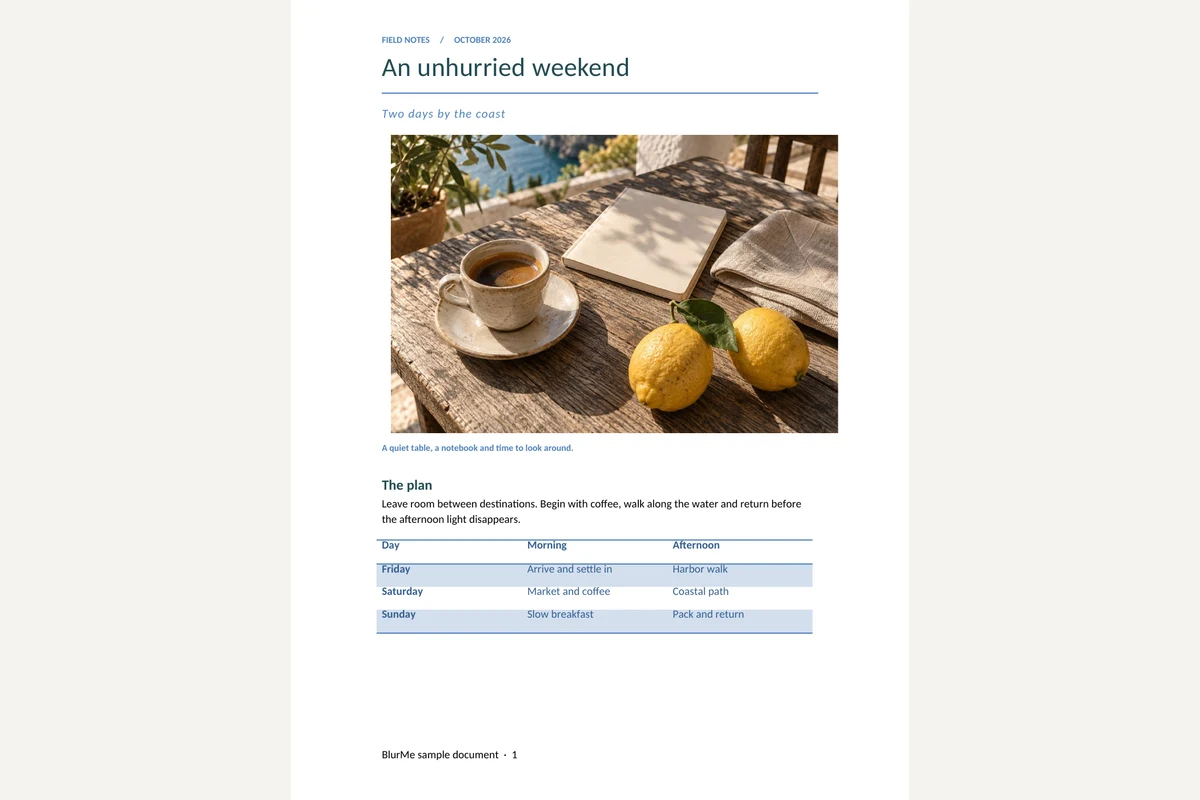
A quiet table, a notebook and time to look around.

The plan

Leave room between destinations. Begin with coffee, walk along the water and return before the afternoon light disappears.

Day

Morning

Afternoon

Friday

Arrive and settle in

Harbor walk

Saturday

Market and coffee

Coastal path

Sunday

Slow breakfast

Pack and return


Details worth keeping

The itinerary is a suggestion, not a timetable. Keep the afternoon free if the weather is good.

Packing list

Notebook and a pen

Water bottle and a light jacket

A camera, with room for more pictures

Shared notes

한국어 문서 · 日本語の文書 · العربية · Grüße aus Berlin

Reference: 001234567890123456789

Prepared as an original BlurMe example. All names and amounts are fictional.

More information: BlurMe

常見問題

DOCX提取文本會保留哪些內容?
提取書面內容及段落分隔,便於搜索、引用或繼續編輯草稿。
使用DOCX提取文本時需要檢查什麼?
不會保留圖片、顏色和表格佈局,也不會識別圖片內的文字。
如何使用DOCX提取文本的結果?
用TXT進行搜索或編輯;原有格式保留在DOCX中,也可將原文轉為PDF。
如何使用DOCX提取文本
選擇DOCX並提取文字,查看文本預覽。
檔案會上載到伺服器嗎?
不會。檔案在這部裝置的瀏覽器中處理,不會傳送到 BlurMe 伺服器。

相關工具

所有工具