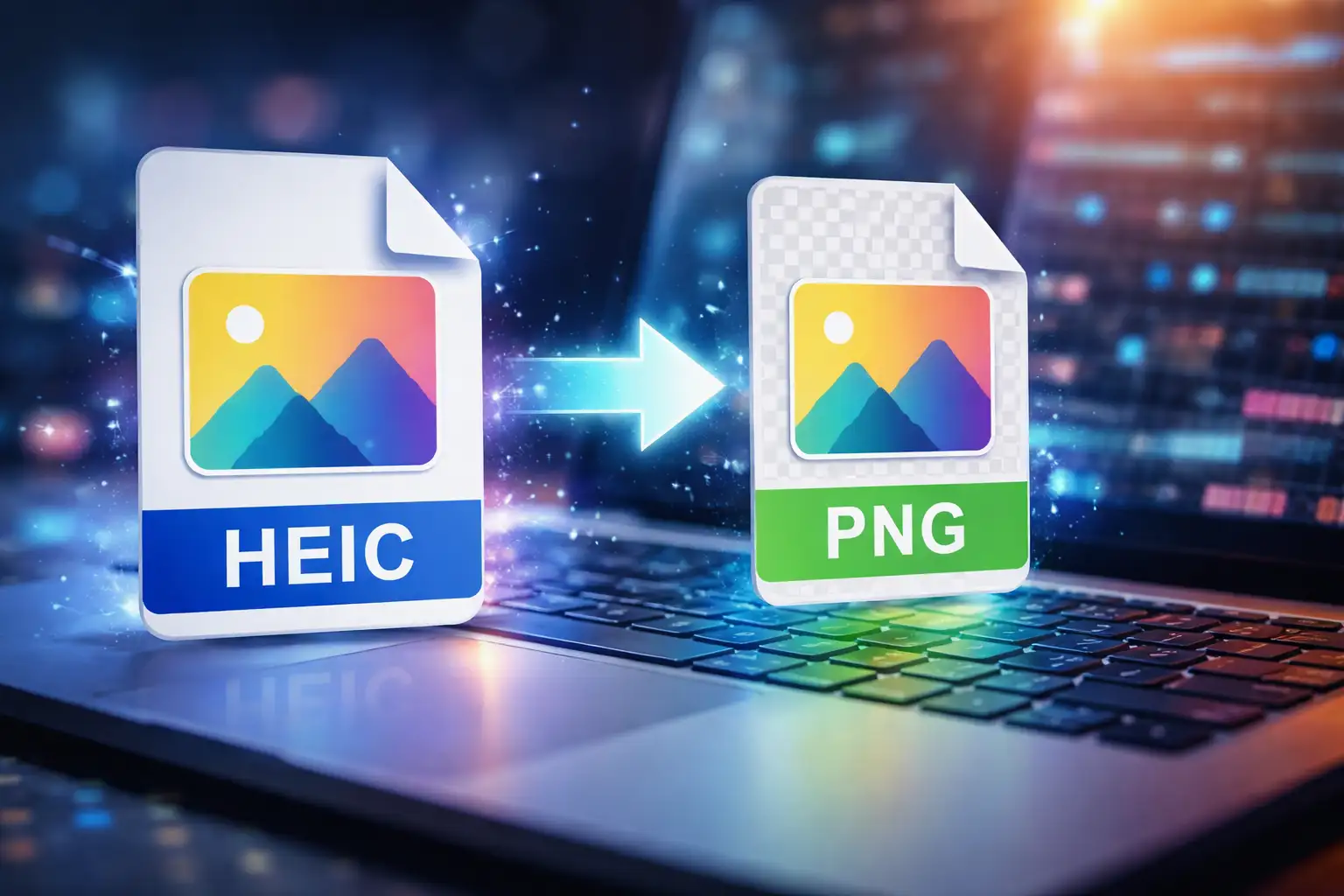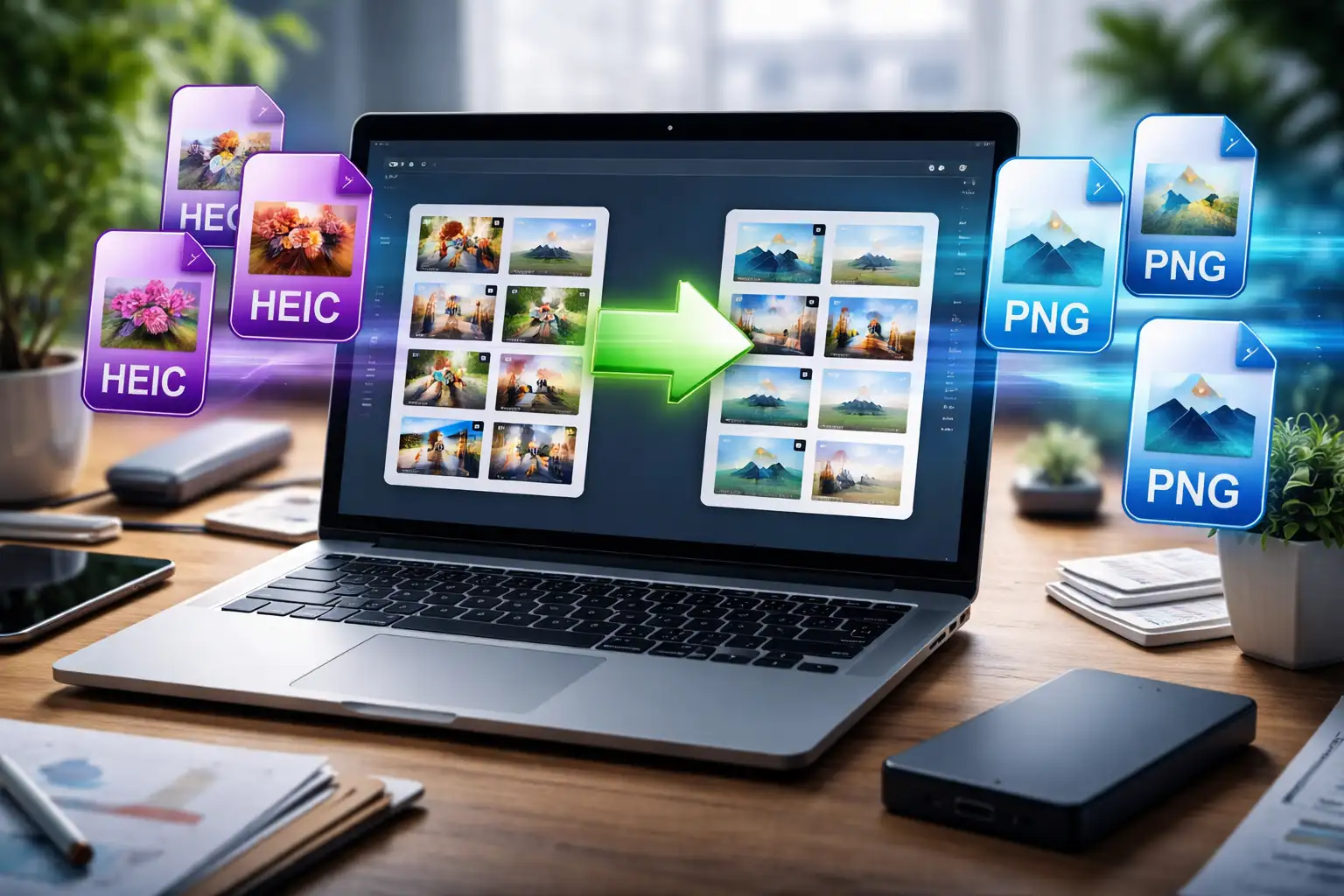
Batch convert HEIC to PNG when you need universal compatibility, transparent backgrounds, or consistent image quality across devices. HEIC files save space, but they often break workflows, especially when sharing images online, uploading to CMS platforms, or editing on Windows.
This guide shows how to batch convert HEIC to PNG without losing quality, whether you’re working on a Mac, iPhone, or Windows PC using BlurMe’s free HEIC to PNG converter.
Why Convert HEIC to PNG in Bulk?
Apple introduced HEIC (High Efficiency Image Container) to reduce file size while preserving quality. The problem? HEIC isn’t universally supported.
PNG, on the other hand, is:
- Compatible with all browsers and operating systems
- Ideal for design, web, and editing workflows
- Perfect for transparency and overlays
If you’re working with dozens—or hundreds—of images, bulk converting HEIC to PNG saves time and avoids manual re-exports.
How to Batch Convert HEIC to PNG Online (Best Method)
The fastest and most reliable way to convert HEIC to PNG in bulk is using an online converter that preserves original resolution.
Step-by-Step: Batch Convert HEIC to PNG with BlurMe
BlurMe offers a free, browser-based HEIC to PNG converter—no downloads, no watermarks, no quality loss.
- Open BlurMe’s HEIC to PNG Converter
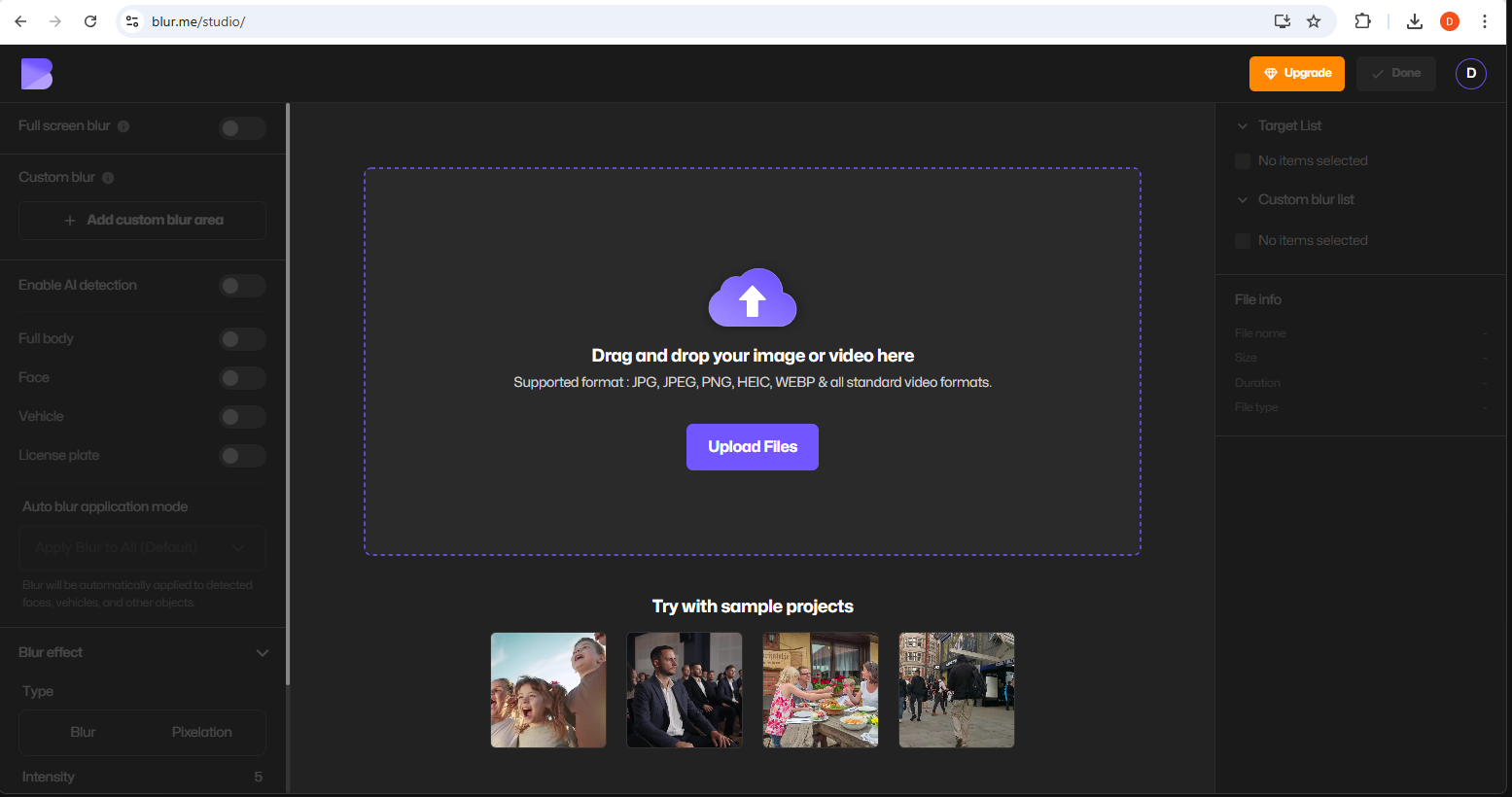
- Upload multiple
.heicfiles at once (drag & drop supported)

- Select all the HEIC files you want to convert
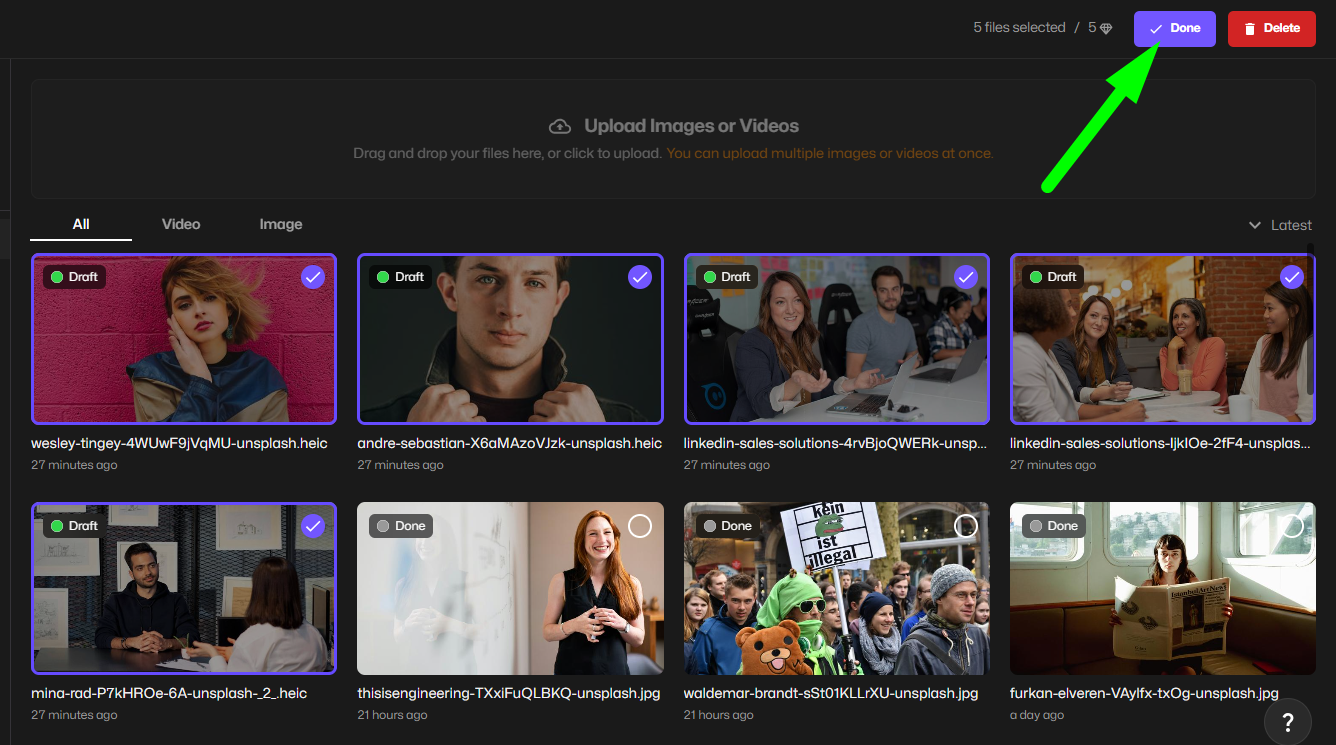
- Select PNG as your output format
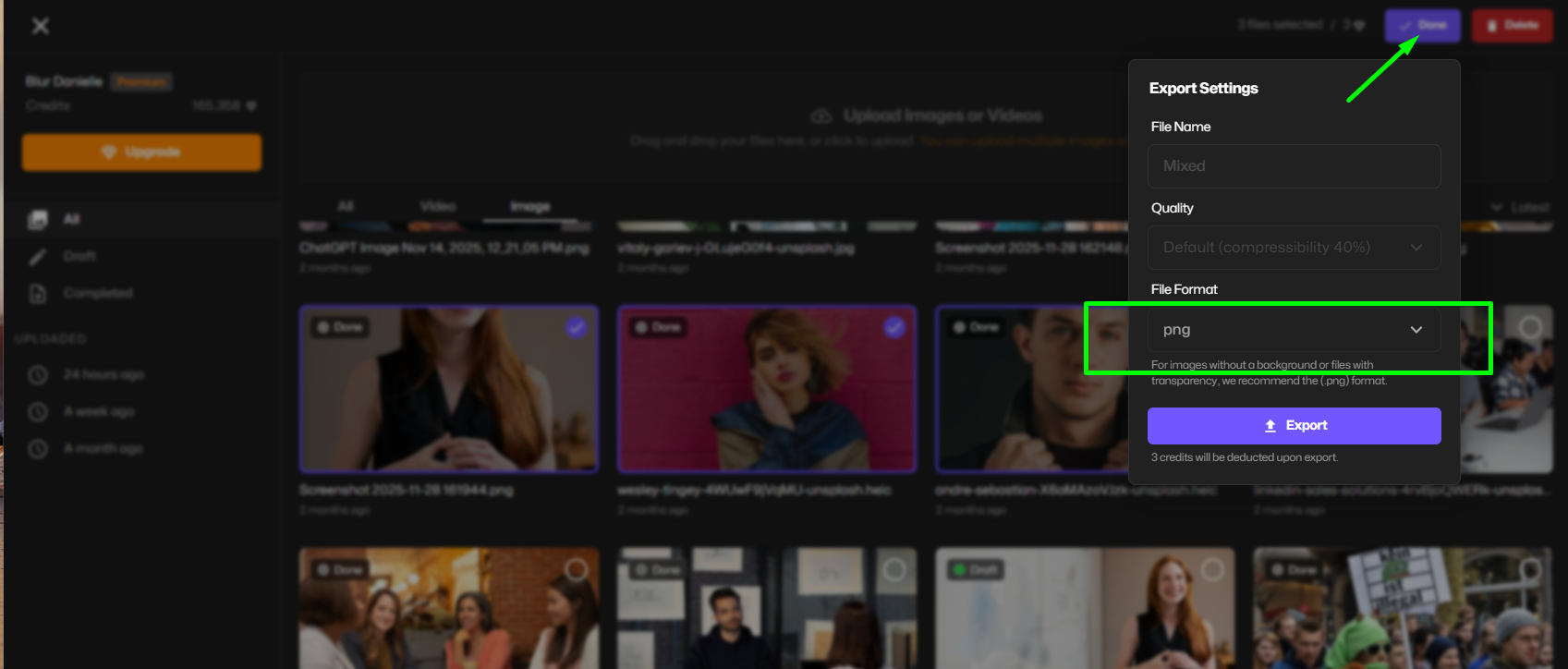
- Click Export to begin converting HEIC to PNG
- Download all converted PNG files instantly
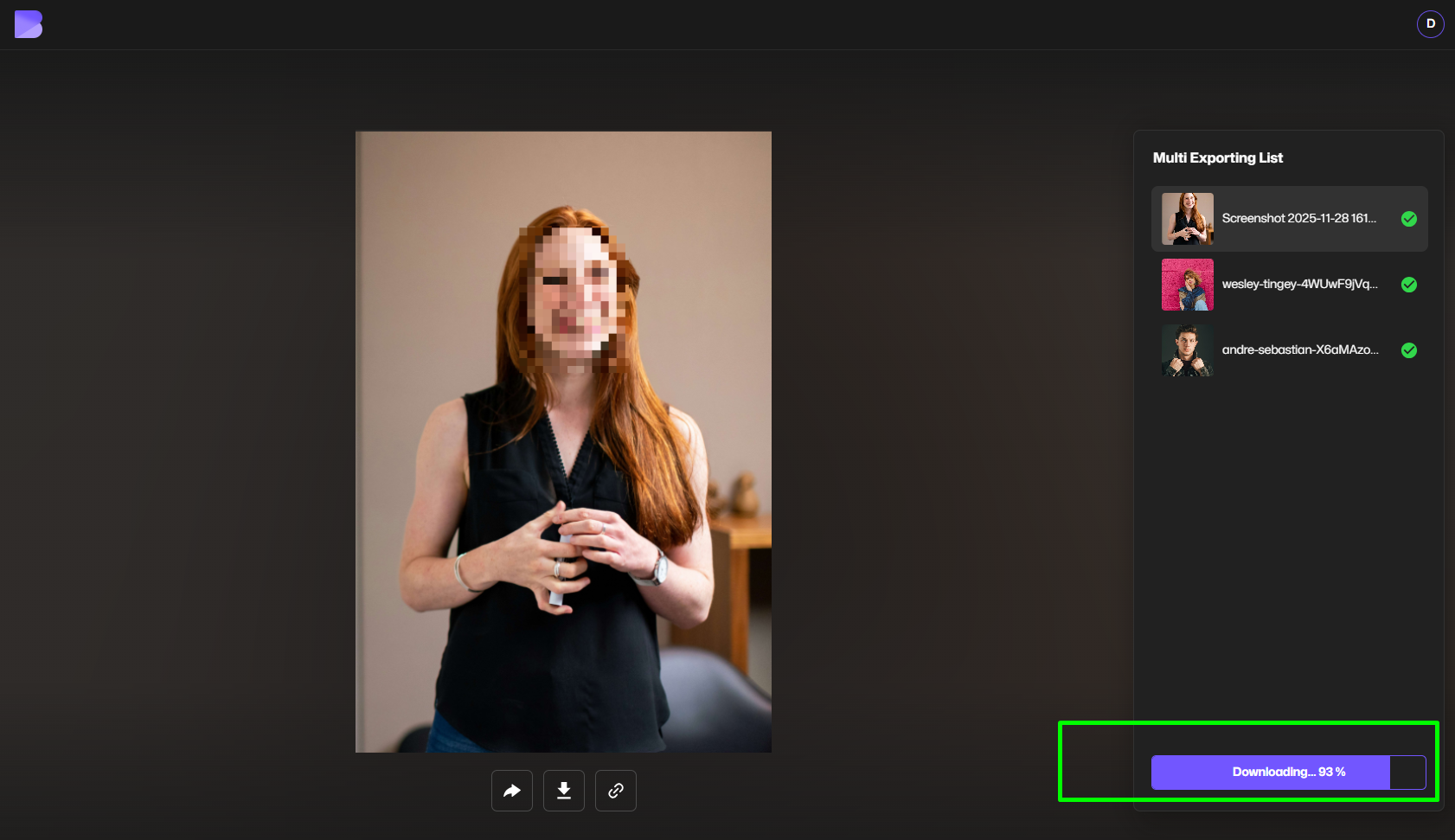
This method works on Mac, Windows, Linux, and Chromebook, making it ideal for teams and cross-platform workflows.
👉 You can also explore BlurMe’s full Image Converters suite if you need other formats.
How to Mass Convert HEIC to PNG Without Losing Quality
Quality loss usually happens when:
- Images are re-compressed
- Metadata is stripped
- Resolution is downscaled
BlurMe avoids this by using lossless conversion, ensuring:
- Original resolution is preserved
- Color depth remains intact
- No compression artifacts are introduced
If image fidelity matters—especially for professional or commercial use—this is the safest way to convert HEIC files to PNG.
How to Convert Multiple HEIC Files to PNG on iPhone
If you’re working directly on your iPhone, you have a few options.
Option 1: Change iPhone Camera Settings (Future Photos Only)
- Go to Settings → Camera → Formats
- Select Most Compatible
This saves future photos as JPEG, not PNG, and doesn’t help with existing HEIC files.
Option 2: Use an Online HEIC to PNG Converter
The easiest way to convert HEIC to PNG on iPhone is still via a browser:
- Open Safari
- Upload HEIC files to BlurMe
- Convert and download PNGs directly to Files
This works even for batch conversions, which the iOS Photos app does not support.
How to Convert HEIC to PNG on Windows
Windows users often run into HEIC compatibility issues.
Native Windows Limitations
- Requires HEIF extensions
- Still limited support in many apps
- No built-in batch PNG export
Best Solution: Online HEIC to PNG Converter
Using BlurMe:
- No HEIC extensions needed
- Convert HEIC to PNG on Windows instantly
- Supports mass conversion
This is the most reliable way to convert HEIC to PNG on Windows without quality loss.
Batch Convert HEIC to PNG vs JPG: Which Is Better?
| Feature | PNG | JPG |
|---|---|---|
| Compression | Lossless | Lossy |
| Transparency | Yes | No |
| File Size | Larger | Smaller |
| Editing | Better | Limited |
If you need smaller files, consider BlurMe’s HEIC to JPG Converter. For maximum quality, PNG is the better choice.
Tips for Bulk Converting HEIC Images Efficiently
- Convert images before editing to avoid re-compression
- Keep original HEIC files as backups
- Use PNG when working with graphics, UI, or overlays
- Compress PNGs afterward using an Image Compressor if file size matters
Frequently Asked Questions
How do I batch convert HEIC to PNG online?
Use BlurMe’s HEIC to PNG Converter to upload and convert multiple HEIC files at once directly in your browser.
Can I convert HEIC to PNG without losing quality?
Yes. BlurMe uses lossless conversion, preserving resolution and color accuracy.
What’s the best free HEIC to PNG mass converter?
BlurMe’s online converter is free, browser-based, and supports bulk uploads without watermarks.
How do I convert HEIC to PNG on Windows?
The easiest method is using an online tool like BlurMe—no HEIC extensions or software installs required.
Can I convert HEIC to other formats?
Yes. BlurMe also supports Batch Convert HEIC to JPG
Read more at How to Convert Images.
Why Use BlurMe for HEIC to PNG Conversion?
BlurMe Face Blur isn’t just a blur tool with a converter—it’s a full image processing platform trusted by creators, businesses, and professionals worldwide.
With BlurMe, you get:
- Free HEIC to PNG batch conversion
- No quality loss
- No downloads or installs
- Works on iPhone, Mac, and Windows
- Secure, browser-based processing
Convert HEIC to PNG in Bulk — Free with BlurMe
If you’re tired of compatibility issues and slow manual exports, BlurMe makes batch converting HEIC to PNG fast, simple, and reliable.
👉 Try BlurMe’s HEIC to PNG converter now and convert multiple HEIC files to PNG in seconds—without losing quality.