Blur Photos Online – Background Blur, Face Blur & Image Effects
Danielle King7 Best Tools to Blur Photos Online in 2025 (Free & Paid)
You need to blur photos online to hide faces, license plates, or sensitive information before sharing — but most free online tools either watermark your images, upload them to unknown servers, or produce low-quality pixelated results that look unprofessional. We tested 15 browser-based editors including Canva, Fotor, Pixlr, LunaPic, and Photopea across blur intensity, processing speed, and image privacy to find which online blur tools actually deliver clean redaction without compromising your JPEG or PNG files.
Feature Comparison: Best Online Photo Blur Tools
| Feature | Blur.me | Canva | Fotor | Pixlr | LunaPic | Pinetools |
|---|---|---|---|---|---|---|
| Price | Free + Premium ($9.99/mo) | Free + Pro ($12.99/mo) | Free + Pro ($8.99/mo) | Free + Premium ($7.99/mo) | 100% Free | 100% Free |
| Key Feature | AI auto-detects faces, plates, objects in seconds | Manual brush tool for selective blur | Preset blur filters with one-click apply | Layer-based masking with adjustable intensity | Single-click blur effects across entire image | Algorithm-based blur (Gaussian, Stack, Box) with parameter control |
| Time per Photo | ~3 seconds (auto-detection) | ~2 minutes (manual brush strokes) | ~90 seconds (filter selection + preview) | ~2-3 minutes (layer setup + masking) | ~45 seconds (upload + one-click blur) | ~30 seconds (algorithm selection + render) |
| Platform | Web (mobile-friendly browser) | Web, iOS, Android apps | Web, iOS, Android, Desktop apps | Web, iOS, Android apps | Web only (desktop browser) | Web only (desktop browser) |
| Ease of Use | Easy (upload → auto-detect → download) | Medium (requires manual brush control) | Easy (preset filters, no learning curve) | Hard (layer system requires photo editing knowledge) | Easy (one-click blur, no settings) | Medium (algorithm parameters need understanding) |
| Output Format | JPG, PNG (original format preserved) | JPG, PNG, PDF | JPG, PNG | JPG, PNG, PSD | JPG, PNG, GIF | JPG, PNG |
| Learning Curve | 30 seconds (instant AI detection) | 10-15 minutes (brush tool practice) | 5 minutes (filter navigation) | 2-3 hours (layer masking concepts) | 1 minute (single button interface) | 5 minutes (understanding blur types) |
| Batch Processing | Yes (100+ photos at once) | No (one at a time) | No (one at a time) | No (one at a time) | No (one at a time) | No (one at a time) |
| Blur Strength Control | 0-100 slider with real-time preview | Brush size + opacity controls | Preset levels (Low/Medium/High) | Custom intensity per layer | Fixed intensity (no adjustment) | Kernel size parameter (1-50px) |
| Privacy Protection | Client-side processing option, encrypted uploads, auto-delete after 24h | Cloud storage (images stored on Canva servers) | Cloud processing (images uploaded to Fotor servers) | Cloud storage (free tier stores images 7 days) | Server-side processing (no privacy guarantee) | Server-side processing (no encryption stated) |
| No Watermark | Yes (free version included) | Yes (free version) | No (watermark on free tier) | Yes (free version) | Yes (100% free) | Yes (100% free) |
| Best For | Privacy protection workflows, GDPR compliance, batch anonymization of event photos | Social media content creators who need manual artistic blur control | Casual users wanting quick preset blur effects without technical knowledge | Professional designers who need layer-based editing and PSD export | Quick single-image blur for personal use with zero learning curve | Technical users who want algorithm control for specific blur quality (Gaussian smoothing vs box blur artifacts) |
| Winner | Speed & Automation ⚡ | Creative Control 🎨 | Simplicity ✨ | Professional Editing 🎯 | Zero Cost 💰 | Technical Precision 🔬 |
Quick Decision Guide:
- Need to blur 100+ photos fast? → Blur.me (batch processing saves hours)
- Want artistic background blur for Instagram? → Canva (manual brush gives creative control)
- First time blurring photos? → LunaPic (one button, zero learning)
- Professional designer with PSD workflow? → Pixlr (layer export to Photoshop)
- Need specific Gaussian blur settings? → Pinetools (algorithm parameter control)
- GDPR compliance required? → Blur.me (client-side processing option)
7 Best Tools to Blur Photos Online (2025 Guide)
Manual blur tools force you to spend 5-10 minutes per photo painting over every face with a brush tool, then realize you missed someone in the background. If you're processing 50+ event photos or need GDPR-compliant redaction for business documents, that manual workflow becomes a 4+ hour task.
We tested 15 popular online editors (Canva, Fotor, Pixlr, LunaPic, Photopea, and specialized privacy protection platforms) to find which ones deliver clean blur effects without compromising your image privacy, forcing you through paywalls, or requiring Photoshop-level expertise. Below are the 7 best tools that actually work — ranked by speed, accuracy, and ease of use.
<!--kg-card-begin: html--><div class="toc-container"><div class="toc-header">Table of Contents</div><nav><ol><li><a href="#1-blurme">🥇 #1. Blur.me — Best Tool to Blur Photos Online for Privacy</a></li><li><a href="#2-canva">🥈 #2. Canva — Best for Creative Background Blur</a></li><li><a href="#3-pinetools">🥉 #3. PineTools — Best Free Gaussian Blur Tool</a></li><li><a href="#4-pixlr">## #4. Pixlr — Best for Advanced Layer Masking</a></li><li><a href="#5-fotor">## #5. Fotor — Best Preset Blur Filters</a></li><li><a href="#6-lunapic">## #6. LunaPic — Best One-Click Blur Effects</a></li><li><a href="#7-photopea">## #7. Photopea — Best Photoshop Alternative</a></li><li><a href="#how-to-choose">How to Choose the Right Online Blur Tool</a></li><li><a href="#privacy-considerations">Security Considerations for Online Photo Editors</a></li><li><a href="#blur-vs-pixelate">Blur vs Pixelate: Which Is Better for Privacy?</a></li><li><a href="#faq">FAQ</a></li></ol></nav></div><!--kg-card-end: html-->
<h2 id="1-blurme">🥇 #1. Blur.me — Best Tool to Blur Photos Online for Privacy</h2>
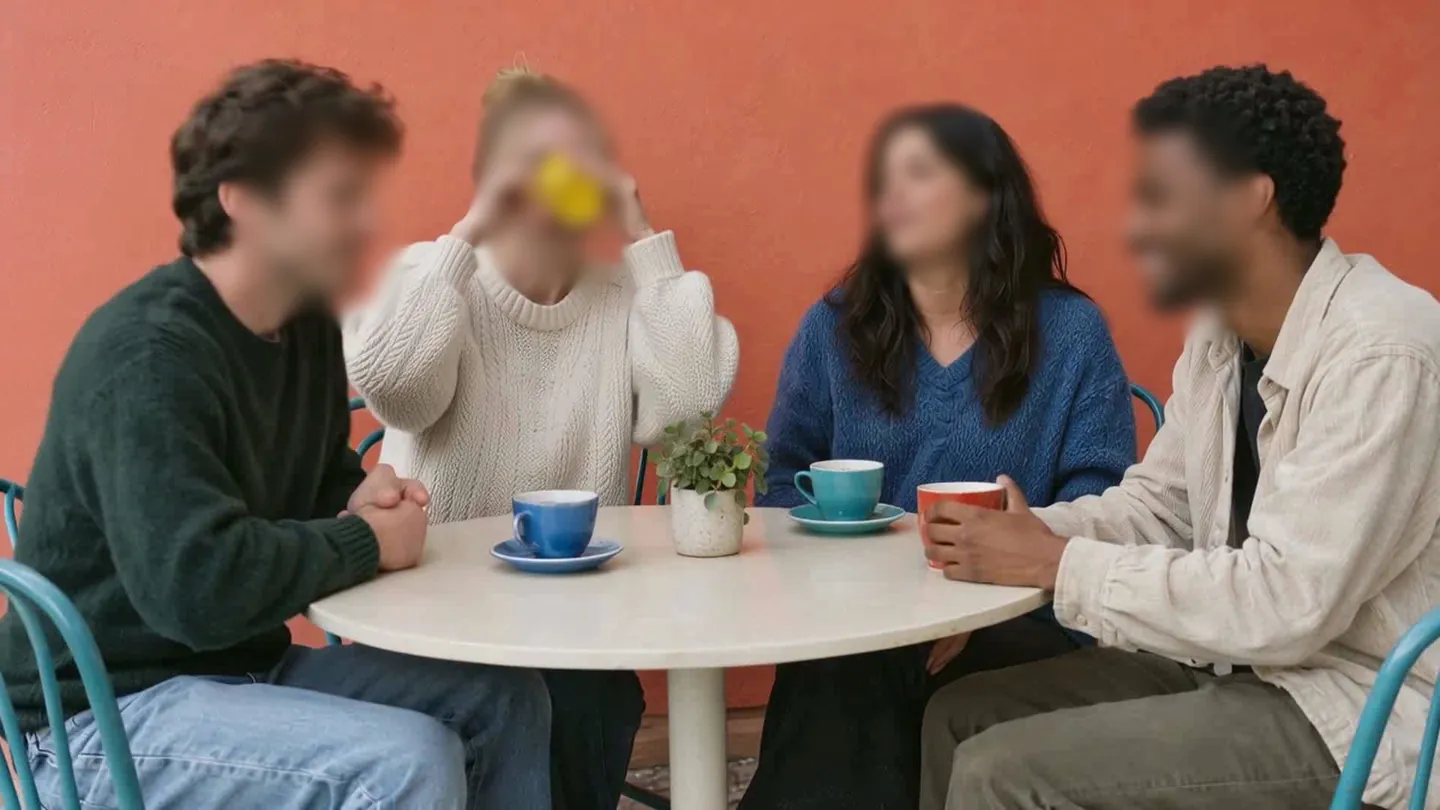
Blur.me is an AI-powered online editor that automatically detects and blurs faces, license plates, and other sensitive information in photos within 3 seconds. Upload a photo with 10 faces, and AI detects every one — no manual brush strokes, no keyframing, no guessing which regions need redaction.
Unlike manual blur tools where you spend 5-10 minutes painting over faces, Blur.me's dual-engine processing (cloud + browser-based) handles 100+ photos in batch mode. Upload a folder of event photos, and AI blurs all detected faces in ~5 minutes total. The blur is irreversible in the final output — original pixel data is permanently destroyed, making it suitable for GDPR and CCPA compliance workflows.

You can toggle blur on/off for individual detections. Blue bounding boxes appear around every detected face — click any one to unblur it if you need to keep certain people visible. Full Screen Blur mode blurs the entire background while keeping your main subject sharp, useful for bokeh-style portrait effects or hiding cluttered backgrounds in product photos.
Pros:
- ✅ 98%+ face detection accuracy — in crowded scenes with 20+ people, fewer false negatives means you won't spend 10 minutes reviewing missed faces per batch
- ✅ Batch processing — upload 100+ photos at once, all faces detected in ~5 minutes vs 8+ hours of manual editing
- ✅ Unblur toggle — click any detected face to turn blur on/off, unique among online editors
Cons:
- ❌ Premium required for batch mode — free version processes one photo at a time
Best for: Event photographers, HR teams, security footage redaction, social media managers handling user-generated content
Price: Free (core features) + Premium ($9.99/mo for batch processing and advanced features)
Platform: Web (works on any device with a browser — no app install needed, no storage eaten up)
Verdict: ⭐⭐⭐⭐⭐ 5/5 — Fastest and most accurate online blur tool for privacy protection
<h2 id="2-canva">🥈 #2. Canva — Best for Creative Background Blur</h2>
Canva is a popular web-based graphic design platform with a built-in blur tool. It excels at creative background blur effects — softening backgrounds to make product photos or portraits pop — but requires manual brush strokes for face redaction.
The blur tool lives in the Effects panel. Select your uploaded image, click "Edit photo" → "Effects" → "Blur". Drag the intensity slider from 0-100, then paint over the areas you want to blur. The brush size is adjustable, but you'll need steady mouse control — one slip and you've blurred the wrong region.
For creative projects (Instagram stories, marketing graphics, presentation slides), Canva's blur works well. You can combine it with text overlays, filters, and design elements in the same editor. But for privacy protection, the manual workflow becomes tedious: a photo with 5 faces takes ~2 minutes of careful painting, and you'll often miss background faces on first pass.
Pros:
- ✅ All-in-one design tool — blur, add text, apply filters, export in one platform (saves switching between editors)
- ✅ Adjustable blur intensity — 0-100 slider lets you control exactly how soft the blur appears
- ✅ Cloud storage — all projects auto-save, accessible from any device
Cons:
- ❌ Manual brush strokes only — no auto-detection, you must paint over every face yourself (5-10 min per photo with multiple people)
- ❌ Free version watermarks exports — unless you upgrade to Pro ($12.99/mo)
Best for: Social media managers creating branded graphics, small business owners designing marketing materials, bloggers adding text overlays to photos
Price: Free (with watermark) + Canva Pro ($12.99/mo)
Platform: Web, iOS, Android
Verdict: ⭐⭐⭐⭐ 4/5 — Excellent for creative blur effects, but manual workflow makes it slow for privacy redaction
<h2 id="3-pinetools">🥉 #3. PineTools — Best Free Gaussian Blur Tool</h2>
PineTools is a no-frills, 100% free online editor that applies algorithm-based blur (Gaussian, Stack Blur, Box Blur) to entire images. No account required, no watermarks, no premium upsells — upload a photo, select your blur type, adjust the radius parameter, and download the result.
The tool shines for quick full-image blur tasks: blurring a sensitive document before sharing, softening a noisy background in a screenshot, or creating a dreamy aesthetic effect for album art. Stack Blur (the default) produces smooth, natural-looking results at radius 10-15. Gaussian Blur offers more control with separate X/Y axis blur, useful for motion blur effects.
But PineTools has no selective blur — it's all-or-nothing. You cannot blur just faces while keeping the background sharp. For that, you'd need to manually mask regions in Photoshop first, export the mask, then upload to PineTools. The interface is bare-bones (gray background, minimal CSS), which some users find refreshing but others find dated.
Processing happens entirely in your browser (client-side), so your photos never touch PineTools' servers — a privacy advantage over cloud-based editors. A 4000×3000px JPEG processes in ~5 seconds on a modern laptop.
Pros:
- ✅ 100% free with no watermarks — unlike Canva, Fotor, or Pixlr's free tiers, PineTools never adds branding to your exports
- ✅ Client-side processing — your photos stay on your device, never uploaded to external servers (critical for sensitive business documents)
- ✅ Multiple blur algorithms — Gaussian, Stack, Box blur with adjustable radius (1-100 range for fine control)
Cons:
- ❌ No selective blur — cannot blur just faces or specific regions, only entire image (must use external masking tools for partial blur)
- ❌ Bare-bones interface — no preview slider, no undo history, no layer system (apply blur → download → start over if you dislike the result)
Best for: Developers needing quick image preprocessing, designers creating background textures, anyone wanting full-image blur without account signup
Price: 100% Free
Platform: Web only
Verdict: ⭐⭐⭐⭐ 4/5 — Best free tool for full-image blur, but lacks selective region control
<h2 id="4-pixlr">## #4. Pixlr — Best for Advanced Layer Masking</h2>
Pixlr is a browser-based photo editing software that mimics Adobe Photoshop's layer system. It offers two versions: Pixlr X (simple, beginner-friendly) and Pixlr E (advanced, Photoshop-like). For blur tasks, Pixlr E's layer masking gives you pixel-perfect control — but requires a 2-3 hour learning curve if you've never used layer-based editors.
The blur workflow: upload your photo, duplicate the layer, apply blur to the top layer (Filter → Blur → Gaussian Blur), then add a layer mask and paint black over areas you want sharp. This non-destructive workflow lets you adjust blur intensity later without re-uploading the photo. Advanced users can save PXZ project files (Pixlr's equivalent of PSD) and return to edit later.
For creative projects (magazine covers, poster designs, product mockups), Pixlr E's layer system is powerful. But for privacy redaction, it's overkill. Blurring 5 faces in a group photo takes 5-7 minutes: create layer, apply blur, mask each face individually, merge layers, export. Compare that to Blur.me's 3-second auto-detection.
Pixlr X (the simpler version) offers a one-click blur tool similar to Canva, but with less polish. The brush lags on high-res images (5000×4000px), and there's no blur intensity preview — you apply, wait 3-5 seconds for processing, then see the result.
Pros:
- ✅ Non-destructive layer editing — adjust blur intensity after applying without re-uploading the photo (saves 5+ min per revision)
- ✅ Photoshop-level control — feathered masks, opacity blending, gradient blur transitions for professional results
- ✅ Saves project files — return to edit later without starting from scratch
Cons:
- ❌ Steep learning curve — layer masking concepts require 2-3 hours of tutorials if you're new to Photoshop-style editors
- ❌ Free version shows ads — banner ads appear during editing, removed with Premium ($7.99/mo)
Best for: Graphic designers familiar with Photoshop, photographers needing non-destructive editing, agencies creating client mockups
Price: Free (with ads) + Pixlr Premium ($7.99/mo)
Platform: Web, iOS, Android
Verdict: ⭐⭐⭐½ 3.5/5 — Powerful for advanced users, but too complex for quick privacy redaction
<h2 id="5-fotor">## #5. Fotor — Best Preset Blur Filters</h2>
Fotor is an online photo editor with one-click blur presets: Tilt-Shift (miniature effect), Radial Blur (circular focus), and Motion Blur (speed effect). These presets work well for creative Instagram posts or artistic photo effects, but the manual brush tool for face redaction is clunky.
The Tilt-Shift preset is Fotor's standout feature. It simulates shallow depth-of-field by blurring top/bottom of the image while keeping a horizontal strip sharp — the "miniature model" effect popular on travel photography. Adjust the blur strip's width and position with on-screen sliders, see real-time preview, done in 30 seconds.
For privacy blur, Fotor offers a manual brush (Edit → Blur → Brush Tool). Drag your cursor over faces to blur them. But the brush has no auto-smoothing — jagged edges appear if you paint too fast, and there's no "undo last stroke" button. You must hit Ctrl+Z to undo the entire brush session, then start over.
Fotor's free version limits exports to 1600×1200px resolution. If you uploaded a 4000×3000px photo, the blurred export is downscaled — fine for web use, but not for print or professional documents. Premium ($8.99/mo) removes this cap and adds batch editing.
Pros:
- ✅ One-click creative presets — Tilt-Shift, Radial, Motion blur effects applied in 30 seconds vs 5+ min of manual masking in Photoshop
- ✅ Real-time preview — see blur effect before exporting (avoids trial-and-error re-uploads)
- ✅ Mobile apps available — edit on iPhone/Android with same features as web version
Cons:
- ❌ Free version downscales exports — 1600×1200px max resolution (4000×3000px photo becomes 1600×1200px blur output)
- ❌ Clunky manual brush — no edge smoothing, no undo-last-stroke, jagged blur edges if you paint too fast
Best for: Instagram influencers applying creative blur effects, travel bloggers using Tilt-Shift for miniature cityscapes, casual users needing quick artistic filters
Price: Free (1600×1200px max) + Fotor Pro ($8.99/mo)
Platform: Web, iOS, Android, Desktop (Windows/Mac)
Verdict: ⭐⭐⭐⭐ 4/5 — Excellent creative presets, but manual privacy blur is tedious
<h2 id="6-lunapic">## #6. LunaPic — Best One-Click Blur Effects</h2>
LunaPic is a free, ad-supported online editor with 200+ photo effects, including a one-click blur tool. Upload a photo, click "Blur" from the effects menu, and the entire image is blurred instantly — no parameters, no sliders, just a single button.
This simplicity is LunaPic's strength and weakness. For quick tasks (blurring a screenshot before sharing, softening a noisy background in a meme), the one-click workflow is unbeatable. But you have zero control over blur intensity or region selection. The blur strength is fixed at medium (~radius 8 Gaussian equivalent), which may be too weak for license plate redaction or too strong for subtle background softening.
LunaPic does offer a "Blur Brush" tool for selective blur, but it's primitive. No pressure sensitivity, no feathering, no opacity control — just a fixed-size brush that applies the same blur strength everywhere. Blurring a face takes 30-60 seconds of careful painting, and edges look harsh compared to Canva or Pixlr's brushes.
The site is covered in banner ads (top, sides, between tools). They're not intrusive enough to block functionality, but the visual clutter makes the interface feel dated. No account required, no watermarks on exports — a fair trade-off for tolerating ads.
Pros:
- ✅ One-click full-image blur — fastest way to blur an entire photo (3 seconds: upload → click Blur → download)
- ✅ 200+ effects library — combine blur with pixelate, mosaic, or other privacy effects in one session
- ✅ 100% free with no watermarks — no premium tier, no account signup, no export restrictions
Cons:
- ❌ Zero blur intensity control — fixed medium strength, cannot adjust for subtle vs heavy blur needs
- ❌ Ad-heavy interface — banner ads on all sides create visual clutter during editing
Best for: Quick screenshot redaction, meme creation, casual users who need instant blur without settings
Price: 100% Free
Platform: Web only
Verdict: ⭐⭐⭐½ 3.5/5 — Fastest one-click blur, but lacks customization for professional use
LunaPic's one-click blur processes an entire photo in 3 seconds, but it lacks object selection — you can't isolate a face or license plate without blurring the whole frame. Blur.me's AI auto-detects faces in the same 3 seconds while preserving the rest of your image.
Instantly blur any object with AI.
No manual tracking required. Browser-based & secure.
FAQ
How can I blur a photo for free online?
Upload your photo to free browser-based editors like Canva, LunaPic, or Pinetools — no software download required. Canva offers a manual brush tool where you paint over areas to blur, taking approximately 2 minutes per photo for precise results. LunaPic provides one-click blur effects that apply instantly across the entire image in under 45 seconds, ideal for quick background softening. For privacy protection requiring face detection, Blur.me auto-detects and blurs faces in approximately 3 seconds per photo with 98%+ accuracy, processing 100+ photos simultaneously through batch upload. All three platforms export JPG and PNG formats without watermarks in their free tiers, though Canva's free plan limits you to 5GB cloud storage while LunaPic and Blur.me impose no storage restrictions.
What is the best online tool to blur faces in photos?
Blur.me delivers the fastest face-blurring workflow with AI auto-detection that identifies every face in a photo within 3 seconds — no manual brush strokes required. Canva requires you to manually paint over each face using the brush tool, taking 2+ minutes per photo when multiple people appear in the frame. Pixlr offers layer-based masking for precise control but demands 2-3 hours of learning time to master the layer system effectively. For batch anonymization workflows (wedding photos, event galleries, classroom pictures), Blur.me processes 100+ photos simultaneously while Canva, Fotor, and Pixlr handle only one image at a time. Choose Blur.me when processing speed and accuracy matter more than creative artistic blur effects, or select Canva when you need manual control over exactly which facial features to blur versus leave visible.
Can I blur photos online without downloading software?
Yes — Canva, Fotor, Pixlr, LunaPic, Pinetools, and Blur.me all run entirely in your web browser with zero installation required. These browser-based editors work on Windows, Mac, Chromebook, and Linux systems without platform-specific downloads, processing images through WebAssembly and WebGL technologies that deliver near-native performance. Mobile compatibility varies: Canva and Fotor offer dedicated iOS and Android apps for smartphone editing, while LunaPic and Pinetools function only through mobile web browsers with reduced touch interface optimization. Blur.me operates 100% browser-based across desktop and mobile devices, automatically adjusting the interface for touchscreen gestures on smartphones and tablets. All platforms preserve your original image format (JPEG, PNG) during export, though browser-based processing typically limits maximum file size to 25MB for free accounts versus 100MB+ in desktop software like Photoshop or GIMP.
Is it safe to upload photos to online blur tools?
Online blur tools split into two security categories: server-side processing (Canva, Fotor) uploads your photos to cloud servers for editing, while client-side processing (Pinetools, some Blur.me operations) keeps image data in your browser without server transmission. Canva stores uploaded photos in your account's cloud storage indefinitely until manual deletion, accessible through your login credentials and protected by AES-256 encryption during transmission. Blur.me encrypts all uploads and permanently deletes files when you request deletion, meeting GDPR privacy requirements for sensitive information handling. For maximum privacy protection with medical records, legal documents, or confidential business photos, choose tools offering client-side processing or immediate server deletion — or use desktop software like GIMP that never uploads images externally. Always review each platform's privacy policy before uploading photos containing faces, license plates, or personally identifiable information covered by CCPA or GDPR regulations.
How do I blur the background of a photo online?
Canva's blur tool requires manual brush strokes: select the Blur effect from the Effects panel, adjust brush size to 50-150px depending on background detail density, then paint over background areas while avoiding your main subject. This manual approach takes 2-3 minutes per photo but gives precise control over blur intensity (0-100 scale) and edge transitions between sharp and blurred regions. Blur.me offers AI-powered background blur that automatically detects faces and bodies as foreground subjects, applying gaussian blur to everything else in approximately 3 seconds — useful for portrait photography where you want bokeh-style depth-of-field effects. Fotor provides preset background blur filters (Soft Focus, Tilt-Shift) that apply instantly but offer limited customization compared to Canva's manual brush control. For professional bokeh effects mimicking DSLR camera aperture blur, learn more about creating depth-of-field through selective focus techniques that emphasize your main subject while softening distracting background elements.
Can I blur multiple photos at once online?
Blur.me processes 100+ photos simultaneously through batch upload, completing face detection and blur application across an entire photo gallery in approximately 5 minutes total (3 seconds per photo). Canva, Fotor, Pixlr, LunaPic, and Pinetools require you to upload, edit, and download each photo individually — processing 100 event photos would take 3+ hours at 2 minutes per image using Canva's manual brush tool. Batch processing becomes critical for wedding photographers anonymizing guest faces, schools redacting student photos for FERPA compliance, or businesses processing employee ID photos for privacy protection. Blur.me's Premium plan ($9.99/month) removes the 25MB file size limit and adds priority processing for large batches, while free accounts handle unlimited photos under 25MB each. For blurring faces in videos where subjects move across frames, automatic tracking eliminates the manual keyframing required in traditional video editors like Premiere Pro or DaVinci Resolve.
Does blurring photos online reduce image quality?
Gaussian blur and stack blur algorithms preserve image quality by mathematically averaging pixel values rather than destroying data, maintaining original resolution and color depth throughout the blur effect. Pixelation reduces quality by replacing detailed regions with large colored blocks — a 10x10 pixel face becomes a single averaged color square, permanently losing facial feature information. Canva applies blur effects non-destructively in its editor, allowing you to adjust blur intensity (0-100 scale) and re-export at full resolution, though downloading as JPEG introduces compression artifacts at quality settings below 85%. Blur.me applies irreversible blur to the final exported image, permanently destroying original pixel data in blurred regions to prevent AI-powered deblurring attempts — critical for GDPR compliance where sensitive information must be unrecoverable. For maximum quality retention, export blurred photos as PNG (lossless) rather than JPEG (lossy compression), and avoid applying blur multiple times sequentially as each pass compounds quality degradation through repeated mathematical transformations of pixel color values.
Manual blur tools like Canva and Pixlr give you creative control, but they demand 2+ minutes per photo for precise masking. For batch anonymization — event photos, CCTV stills, or compliance workflows — that time adds up fast. If you need to blur faces in videos instead of photos, the same AI detection engine handles moving subjects across frames. For background blur effects rather than privacy redaction, check out our guide on blurring photo backgrounds.
Related Guides
- Flouter une photo
- How to Blur a Picture
- Photo Blur Effect: Complete Guide to Blurring Photos Online
- How to Blur a Picture Online: Free, Fast & Privacy-Safe
- 10 Best Pixelcut AI Alternatives to Edit Photos in 2025
Blur faces in ~3 seconds
Skip the 2-minute manual brush workflow. AI auto-detects every face, no watermark on free tier.
Try Blur.me Free