Pixelate Multiple Faces and Photos: A Review Workflow
Maya Chen — Tech Writer & Privacy Advocate Part of: Blur Photo Complete Guide: Methods, Tools & Best Practices (2026)Read the complete guide →
Pixelating a collection is easier when every image follows the same review process. The goal is not simply to apply one setting repeatedly: it is to cover the intended people and details in every delivered file while keeping the useful parts of the photos clear.
Make a coverage plan for the set
Group files by context, such as an event, classroom activity or set of screenshots. Decide which subjects should remain visible and which details should be obscured. Record exceptions before editing so that the rule does not drift halfway through the collection.
Use simple states such as “not started,” “edited,” “exported” and “checked.” A file is complete only after the exported copy has been inspected. This prevents a previewed edit from being mistaken for a finished deliverable.
Process one representative photo first
Choose an image with the difficult features in your set: several people, a small background face or a badge near the edge. Open the pixelate image tool and complete a test export. For the individual controls, follow the single-image pixelation tutorial.
The test establishes a useful visual treatment and exposes output requirements early. Confirm the format, dimensions and intended appearance before continuing. Do not assume every image can use identical block sizes simply because the files came from the same camera.
Review multiple faces in a fixed order
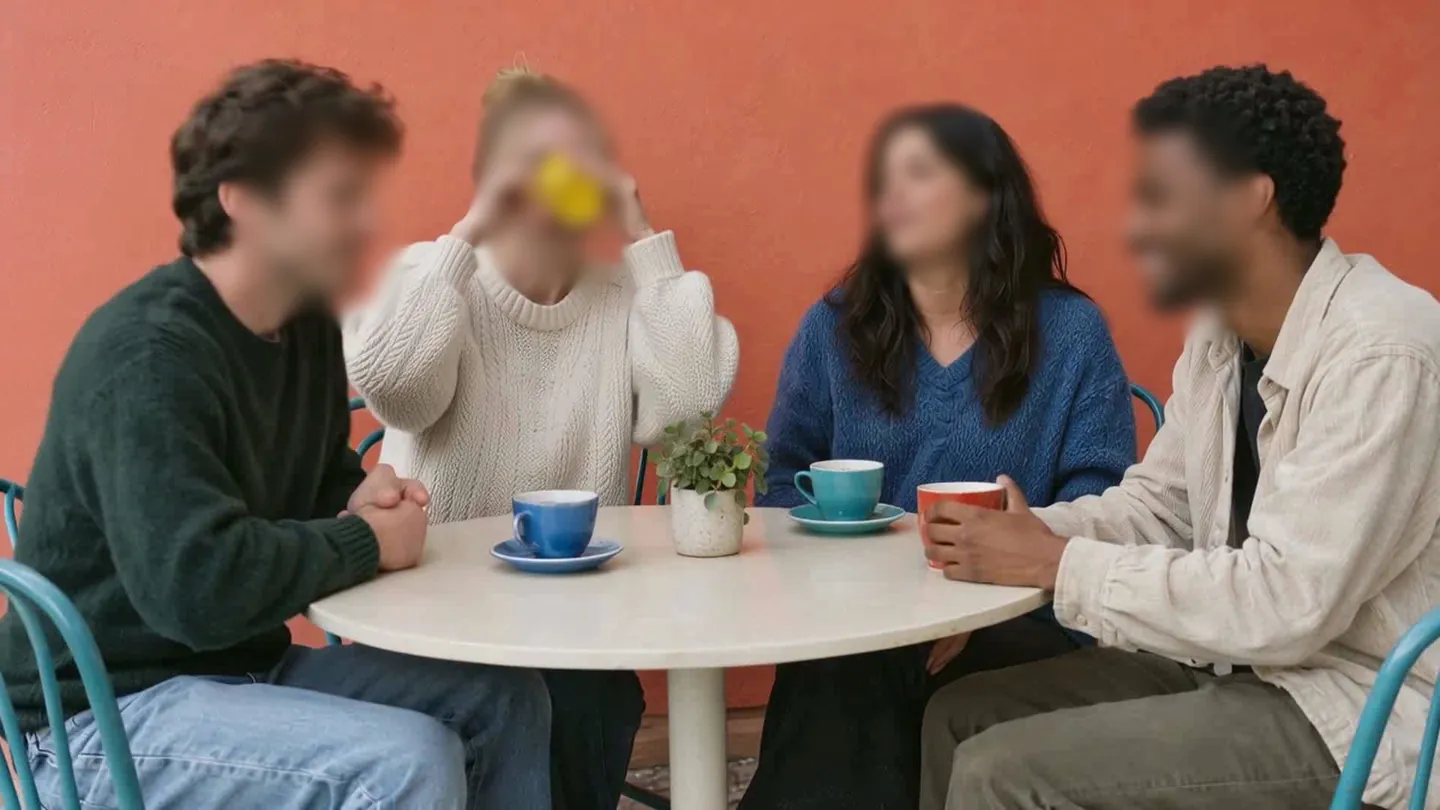
Move across the image in a consistent direction, then inspect the background separately. Check each face against the coverage plan. Look for partially visible subjects at the frame edge, people behind the main group and reflections.
Automatic detection can provide starting regions, but manually check both missed subjects and regions that cover people meant to remain visible. For each included region, inspect its edges and adjust the effect for that subject’s size.
Separate repeated settings from repeated decisions
Reusing an effect style makes a collection look consistent. The decision about where to apply it still belongs to each image. A face may be close to the camera in one picture and tiny in the next; a badge may only be visible in a few frames of a photo sequence.
Batch features can help with handling files where available in your plan. Whether you process files individually or in a batch, retain per-image review. A batch finishing successfully confirms processing, not that every intended region was chosen.
Create a checked delivery folder
Save reviewed exports in a separate folder and use filenames that identify the corresponding source. If another person checks the results, give them the coverage rule and exception list. Ask them to inspect the delivered files, not only screenshots of the editor.
Before sharing the set, confirm the output count and reopen a file from each subgroup. Keep originals and editable working copies separately so they do not enter the delivery folder by mistake. This makes later corrections straightforward: replace the affected output and update its review state.
FAQ
Can I use one pixelation setting for every photo?
You can start with a consistent style, but check it on each subject. Different resolutions and face sizes can require different adjustments.
Does batch processing remove the need to review images?
No. It changes how files are processed, not the decision about which details each image should show. Review every delivered output.
Which BlurMe plan includes batch features?
Batch and Magic Blur options depend on the plan. Check the current pricing page for your workflow; Free Studio exports include a watermark.

Faces to hide in a photo? Upload it and the AI finds them.
Nothing to install. Start right away.