Photo Blur Editors for Desktop and Mobile: How to Choose
Maya Chen — Tech Writer & Privacy Advocate
An installed photo editor is useful when blurring is one part of a larger editing job. You can work on the crop, color and selective effects in the same project, then export a finished image. The main choice is between detailed desktop selections and a touch-first creative workflow.
Faces to hide in a photo? Upload it and the AI finds them.
Desktop or mobile: choose by the next edit
| Editor | Useful starting task | Selection approach |
|---|---|---|
| Photoshop on desktop | Layered photo editing with adjustable effects | Selections, masks and Smart Filters |
| GIMP on desktop | Manual region blur or mosaic | Selections and filter settings |
| Snapseed on mobile | Creative focus and background softness | Lens Blur focus shape |
These are workflow distinctions, not a laboratory ranking. If you want to start without installing an editor, compare browser photo blur tools.
Photoshop: keep the effect adjustable
Photoshop’s Smart Filters support revisiting filter settings during a layered edit. This is useful when a photo will be cropped into several layouts or a reviewer may ask for a different amount of blur.
Use a selection or mask to define the area and inspect its boundary before exporting. Keep an editable working file for your own revisions, and share the rendered image intended for the audience. That distinction avoids confusing the working project with the finished deliverable.
GIMP: manual blur and mosaic controls
GIMP’s Gaussian Blur can operate on a selected area. Its separate Pixelize filter creates color blocks with adjustable width and height. Choose between them according to the look you need.
This is a useful route for a handful of irregular details: select each area, adjust the effect and inspect the result. For repeated faces across many photos, consider whether automatic selection would reduce the amount of drawing, using the manual versus automatic workflow guide.
Snapseed: creative focus on a phone
Snapseed’s Lens Blur uses a linear or elliptical focus area with controls for blur strength and transition. It suits a composition where the subject remains sharp and the surrounding image becomes softer.
Treat that focus effect as a creative choice. If your task is to cover several separate faces while keeping everything else sharp, choose a workflow that gives you separate regions to inspect. On iPhone, the photo face-blur methods guide explains that choice in more detail.
A practical selection checklist
Look for three things in an installed editor: a comfortable way to select the target, a way to revisit the effect and an export that you can inspect outside the editor. Try the most awkward area first, such as a face near a bright edge or a label crossing a textured background.
Do not judge an export only from a small preview. Open it at the size people will receive and check that important unaffected details remain readable. For direct face selection in a browser, open BlurMe’s photo tool.
FAQ
Which desktop filter creates square blocks?
GIMP calls it Pixelize. Soft Gaussian blur and pixelation have different appearances, so choose the effect deliberately rather than relying on the editor name.
Is a Lens Blur effect the same as covering a face?
No. A focus effect usually keeps a subject sharp and softens the surrounding area. Covering a particular face requires checking that the face itself is inside the affected region.
Do I need installed software for one photo?
No. A browser editor may be enough. Installed editors are particularly useful when you also need a broader photo-editing project.

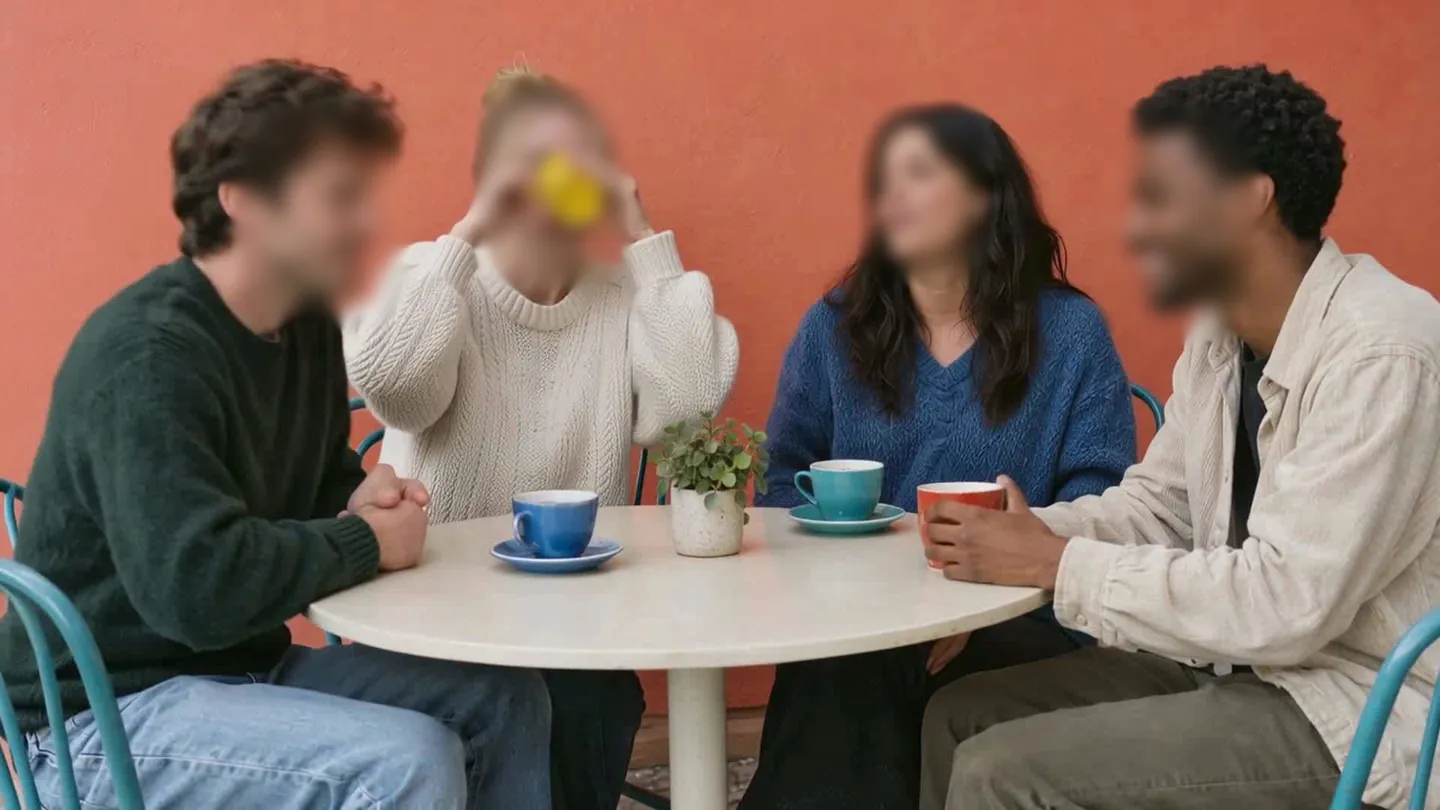
Faces to hide in a photo? Upload it and the AI finds them.
Nothing to install. Start right away.