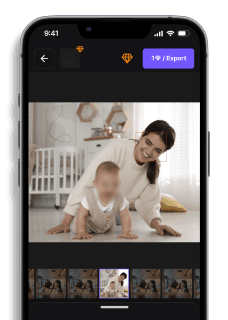
How to Blur Faces on iPhone (3 Easy Methods)
Maya Chen — Tech Writer & Privacy Advocate Part of: Blur Photo Complete Guide: Methods, Tools & Best Practices (2026)Read the complete guide →
How to Blur Faces on iPhone (3 Easy Methods)
You just shot 50 photos at a birthday party and now need to blur every guest's face before posting to your photography portfolio—but the iPhone's native Markup tool forces you to manually paint over each face, one stroke at a time. The process takes 5 minutes per photo and 6 tedious steps: open Photos, tap Edit, select Markup, choose the blur brush, paint over each face, then save. Miss a single face in the background and you risk violating privacy laws like FERPA or exposing minors without parental consent. Learning how to blur faces on iPhone efficiently isn't just about saving time—it's about protecting people's identities at scale. What if you could reduce that 5-minute workflow to 30 seconds with automatic face detection instead of manual painting?
How to Blur Faces in iPhone Photos (Manual Method)
Apple's native Photos app doesn't include a dedicated face blur tool, but you can achieve basic blurring through Portrait Mode's Depth Effect or the Markup tool's pixelation feature. For precise face anonymization, you'll need a third-party blur app from the App Store. This workflow combines both approaches.
Step 1: Open Your Photo in the Photos App
Launch the Photos app and navigate to the image containing faces you want to blur. Tap the photo to open it in full-screen view, then tap Edit in the top-right corner. This enters the photo editing interface where you can access Apple's built-in tools. The Photos app organizes edits non-destructively, meaning you can revert changes later without losing the original image.
Step 2: Use Markup for Quick Pixelation
In the editing screen, tap the three-dot icon (•••) in the top-right corner, then select Markup from the menu. This opens Apple's annotation toolset. Tap the pen icon at the bottom to reveal drawing tools, then select the highlighter (the thick marker). Choose black or a solid color from the color palette. Draw over the face you want to obscure — the highlighter creates a semi-transparent overlay that partially conceals features.
Step 3: Download a Dedicated Blur App
Exit the Photos app and open the App Store. Search for "blur face" or "face blur photo editor". Download one of these recommended apps:
- Blur Photo Editor (free with in-app purchases) — automatic face detection with adjustable blur intensity
- TouchRetouch ($1.99) — professional-grade object removal and blur tools
- Video Mosaic (free) — specialized for batch face blurring across multiple photos
Install your chosen app and grant it Photos access when prompted. This allows the app to read and save images from your photo library without manually exporting files.
Step 4: Import the Photo into Your Blur App
Open your blur app and tap Select Photo or the photo library icon. Navigate to the image you want to edit. Most blur apps display your entire Photos library organized by albums and dates. Select the photo — it loads into the app's editing workspace. Apps like Blur Photo Editor automatically scan for faces using Apple's Face ID detection framework and highlight them with blue bounding boxes.
Step 5: Apply and Adjust the Blur Effect
Tap each detected face or manually select the face region. The app applies a blur overlay — most apps default to Gaussian blur at medium intensity. Drag the Blur Intensity slider (usually at the bottom of the screen) to increase or decrease the effect. For privacy protection, set intensity to 80-100% so facial features are completely unrecognizable. Some apps offer Mosaic (pixelation) or Black Bar options instead of blur — these provide stronger anonymization for GDPR or HIPAA contexts.
The blur renders in real-time as you adjust the slider. Pinch to zoom and verify that eyes, nose, and mouth are fully obscured. If the blur area is too large or small, most apps let you resize the selection box by dragging corner handles.
Step 6: Save the Edited Photo
Tap Save or Export (icon varies by app). The app prompts you to choose a save location — select Save to Photos to add the blurred version to your library. The edited photo appears as a new file, preserving the original unedited version. Some apps add a watermark to free exports — remove it by upgrading to the paid version (typically $2.99-$4.99 one-time purchase) or choosing Save without watermark if available.
That's 6 steps and roughly 5 minutes per photo. Batch-editing 10 photos takes 20-30 minutes depending on the app's workflow efficiency.
Best iPhone Apps for Blurring Faces
If you regularly need to anonymize faces, these iOS apps offer faster workflows than the manual Markup method:
CapCut (free) — TikTok's video editor includes an auto face blur feature that works on both photos and videos. Tap Effects → Body Effects → Face Blur to apply automatic tracking. Best for social media creators who need quick anonymization without precision. The free version includes a watermark; remove it with CapCut Pro ($7.99/month).
Snapseed (free, Google LLC) — Professional photo editor with a Selective tool that applies Gaussian blur to specific regions. Tap the + icon, place a control point on the face, then drag down to increase blur intensity. More precise than CapCut but requires manual selection for each face. Ideal for photographers who want editorial control over blur shape and feathering.
Focos (free with in-app purchases) — Uses Portrait Mode's depth data to relight and reblur faces after the photo is taken. Only works on images shot in Portrait Mode on iPhone 7 Plus or newer. Tap a face to select it, then adjust the Aperture slider to increase background and face blur simultaneously. Best for portrait photographers who want natural-looking bokeh effects rather than privacy anonymization.
Video Mosaic (free) — Specializes in batch face blurring across multiple photos and videos. Import up to 50 photos, tap Auto Detect Faces, then apply pixelation or blur to all detected faces in one action. Processes 20 photos in ~2 minutes. Best for event photographers who need to anonymize attendee faces in bulk before posting online. Free version limits batch size to 10 photos; unlock unlimited processing for $4.99.
For beginners who want one-tap anonymization, CapCut offers the fastest workflow. For professional-quality blur with precise control, Snapseed provides the most editing flexibility. If you're blurring faces in Portrait Mode photos specifically, Focos leverages Apple's depth mapping for the most natural results.
Blur Faces on iPhone with AI (Blur.me)
Need to blur from any device without installing an app? Blur.me works right in your mobile browser — no App Store download, no storage eaten up.
Drop your photo into Safari or Chrome — blue bounding boxes appear around every detected face within 3 seconds, even if you shot 20 people at once.
Tap any face to toggle — the AI Blur toggle in the toolbar lets you selectively unmask individuals (keep your friend visible, blur the strangers behind).
Download at original resolution — batch-process 100 event photos in ~5 minutes total, vs 6+ hours marking faces one by one in third-party apps.
If you shot 20 people at once and need to blur strangers while keeping friends visible, the toggle-by-face workflow saves 6+ hours compared to marking faces one by one in third-party apps.
Faces or plates to hide in your photo?
Upload and the AI blurs them automatically in seconds.
Quick Comparison: How to Blur Faces on iPhone Tools
| Feature | Blur.me | iPhone Photos Markup | Snapseed | TouchRetouch | Facetune |
|---|---|---|---|---|---|
| Price | Free (10 photos/mo), Pro $9/mo | Free (built-in) | Free | $1.99 one-time | Free (in-app purchases) |
| Face Detection | AI auto-detect | Manual selection only | Manual selection only | Manual selection only | AI-assisted detection |
| Automation Level | Full auto (AI detection + tracking) | Manual (draw each blur) | Manual (brush each area) | Manual (tap each face) | Semi-auto (detects, you confirm) |
| Blur Intensity Control | 0-100 slider (real-time preview) | Fixed opacity | Adjustable 0-100 | Fixed blur strength | Adjustable with feathering |
| Steps Required | Upload → auto-detect → download | Open → Markup → draw → save (6 taps) | Open → Tools → Lens Blur → brush → export | Open → select tool → tap faces → save | Open → Retouch → confirm faces → save |
| Batch Processing | Yes (100+ photos) | No (one at a time) | No (one at a time) | No (one at a time) | No (one at a time) |
| Platform | Web + iOS app | iOS only | iOS/Android | iOS only | iOS/Android |
| Best For | Batch privacy redaction (event photos, classroom pics) | Quick single-photo edits with Apple Pencil precision | Creative bokeh effects + selective focus | Removing unwanted objects + face blur | Portrait retouching + social media privacy |
iPhone Photos Markup works for quick one-off edits but requires manual drawing over each face — tedious for group photos with 10+ people. Snapseed offers the best free creative control with adjustable depth effect and bokeh simulation, ideal if you want artistic background blur rather than privacy redaction. Blur.me justifies its $9/mo cost when you need to anonymize faces in bulk — 100 event photos processed in ~5 minutes vs 50+ minutes of manual markup work.
FAQ
Can you blur faces in iPhone photos app?
Yes, iPhone's native Photos app offers face blurring through the Markup tool. Tap Edit → three-dot menu → Markup → select the pen tool, set it to maximum thickness, then draw over faces. This works for static images but requires manual tracing for each face. For multiple faces or batch processing photos, third-party apps like Blur Photo Editor detect faces automatically. Portrait Mode creates natural background blur but doesn't specifically target faces for privacy protection.
How do I blur out a face in a picture?
Open your photo in the Photos app, tap Edit, then the three-dot icon to access Markup. Select the pen tool, increase thickness to maximum (around 50-100 pixels), choose black or a solid color, and manually trace over the face. This takes 15-30 seconds per face depending on size. For faster results with multiple faces, apps like TouchRetouch or Facetune detect faces automatically in under 3 seconds per photo and apply consistent blur intensity across all detected regions.
What app blurs faces on iPhone?
The App Store offers several face-blurring apps: Blur Photo Editor (free with ads, $4.99/month premium), TouchRetouch ($1.99 one-time), Facetune (free trial, $5.99/month), and Video Mosaic for video content ($2.99). Native iPhone Photos handles basic blurring through Markup but lacks automatic face detection. Third-party apps use Face ID technology to detect and blur multiple faces simultaneously — Blur Photo Editor processes 10 faces in under 5 seconds versus 3+ minutes of manual Markup work.
Can you blur faces in iPhone videos?
iPhone's native Photos app doesn't support video face blurring — Markup only works on still images. You need third-party apps like Video Mosaic ($2.99), which applies pixelation to moving faces, or blur faces in videos using specialized tools. Video Mosaic tracks faces frame-by-frame but requires manual adjustment for fast motion or profile angles. A 30-second clip with 2 faces takes 3-5 minutes to process depending on movement complexity and lighting conditions.
Is there a free face blur app for iPhone?
Blur Photo Editor offers a free tier with watermarks and ads — upgrade to premium ($4.99/month) removes both. FaceBlur provides 3 free blur operations daily before requiring a $2.99 one-time unlock. The native Photos app's Markup tool is completely free but lacks automatic face detection, requiring manual tracing for each face. For privacy-critical use cases like FERPA compliance in schools or HIPAA-regulated healthcare settings, free apps may not meet audit trail requirements that paid enterprise solutions provide.
Manual Markup works for one-off edits, but if you're processing multiple photos regularly, automatic face detection saves hours. For batch workflows or tighter privacy requirements, explore how to blur faces in videos using the same detection logic.
Faces or plates to hide in your photo?
Drop a photo or video in your browser and the AI auto-blurs faces, license plates, and personal info in seconds.
Upload free