Online Pixelation Tools: Choose an Editor for Your Photo
Maya Chen — Tech Writer & Privacy Advocate
Online pixelation tools turn image detail into visible blocks. The important difference is where those blocks are applied: a selected face, a rectangular detail or the entire picture. Choose a selective workflow when the rest of the image needs to stay sharp.
Blur faces or text in a photo, right in your browser.
Three browser workflows to compare
| Starting point | Best-matched task | Main control to inspect |
|---|---|---|
| BlurMe pixelation tool | Selected faces or details | Coverage and mosaic strength |
| PineTools Censor Photo | Manually chosen areas | Region placement and pixelation settings |
| PineTools Pixelate Effect | Whole-image block effect | Pixel size across the full picture |
The two PineTools entries are different workflows within the same service, not separate products. Desktop-only editors are covered in the installed photo editor comparison, rather than presented here as browser tools.
BlurMe: selected faces and details
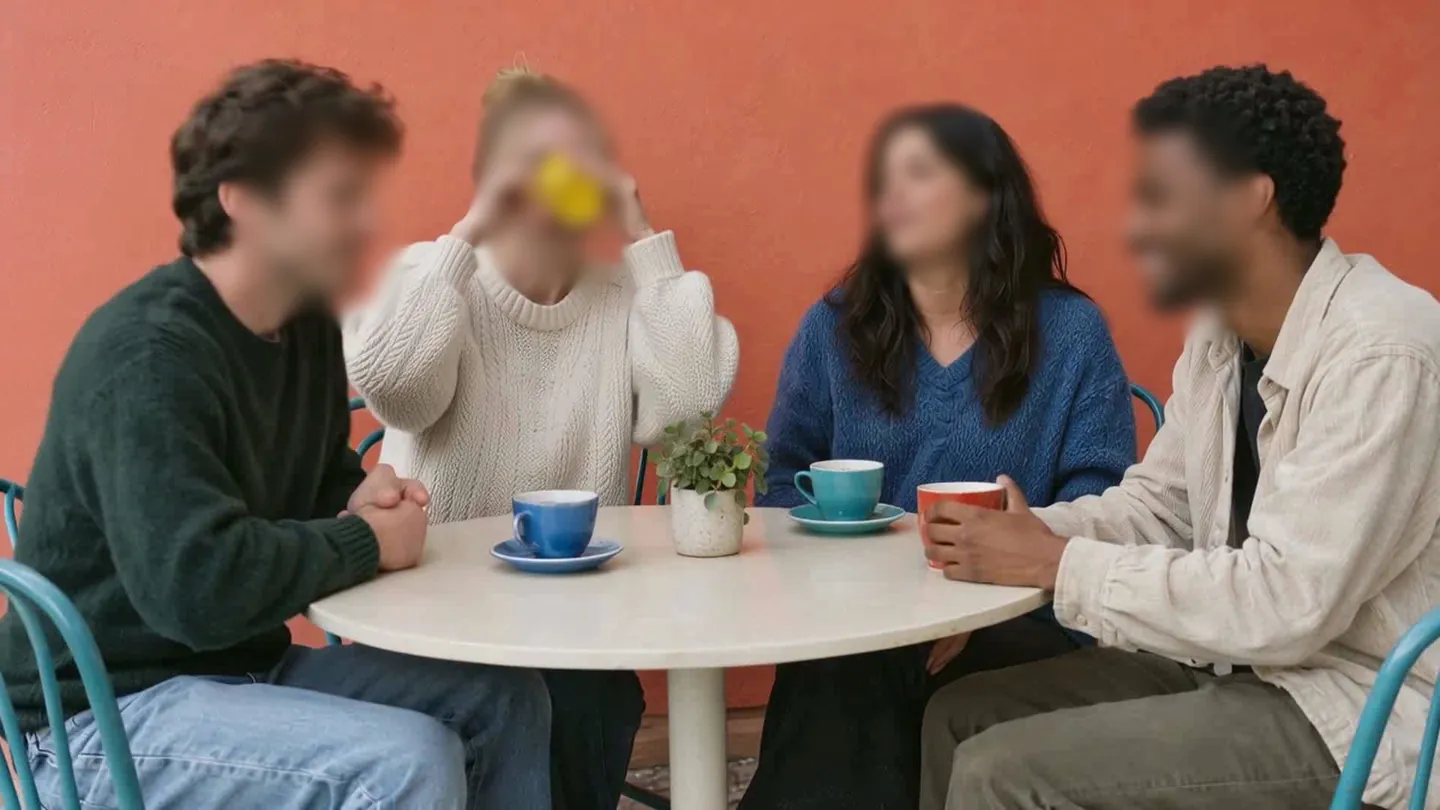
Use the pixelate image tool when the goal is to keep a photograph useful while obscuring particular regions. Start with faces or manual areas, choose a pixelated effect, then inspect each region. A face close to the camera may need a different adjustment from a much smaller face in the background.
If you already know you want this workflow, go directly to the single-image tutorial. This comparison focuses on choosing the editor, rather than repeating all of those steps.
PineTools: manual censoring or a full-image effect
PineTools Censor Photo offers a focused route for obscuring selected areas. Its separate Pixelate Effect is a starting point for a blocky image-wide treatment.
That distinction matters for screenshots and forms. If only an account name should be obscured, blurring or pixelating the whole screenshot makes the surrounding explanation harder to read. For a decorative pixel-art look, however, an image-wide effect can be exactly what you want.
Compare the result, not the slider number
Two editors can use different scales for their pixel-size controls. Judge each exported image at the intended display size. Check the covered area, its boundary and the parts that should remain sharp. Avoid treating a fixed slider value as a universal setting for every resolution.
Keep the original file separate from the delivery copy. Export a test before editing a larger collection, especially if you need a particular format or resolution. That reveals a workflow mismatch earlier than processing every image first.
When several files need the same treatment
A consistent appearance does not mean using identical settings blindly. Image dimensions, subject size and the number of faces vary. Make a coverage checklist and inspect each output. See pixelating multiple faces and photos for a repeatable review process.
For touch-based editing, compare iPhone pixelation methods. A small phone screen makes zoom and selection adjustments especially important; the same browser tool can feel different on desktop and mobile.
FAQ
Is pixelation the same as blur?
Pixelation replaces detail with visible blocks; blur softens transitions. Choose by the effect you want and inspect the complete covered area.
Which online workflow preserves the rest of my photo?
Choose selected-area editing. Whole-image pixelation also changes details outside the subject you meant to obscure.
Can I try BlurMe before choosing a plan?
Yes. Free Studio exports include a watermark. Check current plans for export and batch options before a larger job.

Blur faces or text in a photo, right in your browser.
Nothing to install. Start right away.