Blur logos in video online quickly and accurately using modern blur tools designed for motion tracking. Logos appear everywhere in video content, and sometimes they need to be hidden before publishing or sharing footage.
In this guide, you'll learn how to blur logos using BlurMe's Blur Video tool, which allows the blur to follow moving objects frame by frame. We’ll also cover how to blur text, how to blur logos that move across the screen, and practical tips for accurate logo redaction in videos.
Why You Might Need to Blur Logos in Video
Logos often appear unintentionally in recorded footage. While sometimes harmless, visible branding can create legal, privacy, or licensing issues depending on how the video is used.
Common reasons creators blur logos include:
- Avoiding trademark conflicts in commercial content
- Protecting confidential company material
- Cleaning up background branding in social media videos
In many professional workflows, this process is considered part of video redaction, where sensitive visual information is hidden before footage is shared.
Using a dedicated blur tool allows editors to remove branding quickly while maintaining the quality of the video.
How to Blur Logos in Video Online
One of the easiest ways to blur logo in video is by using BlurMe’s online blur tool, which works directly in your browser.
Step 1: Upload Your Video
Open Blur Video and upload the video that contains the logo you want to blur.
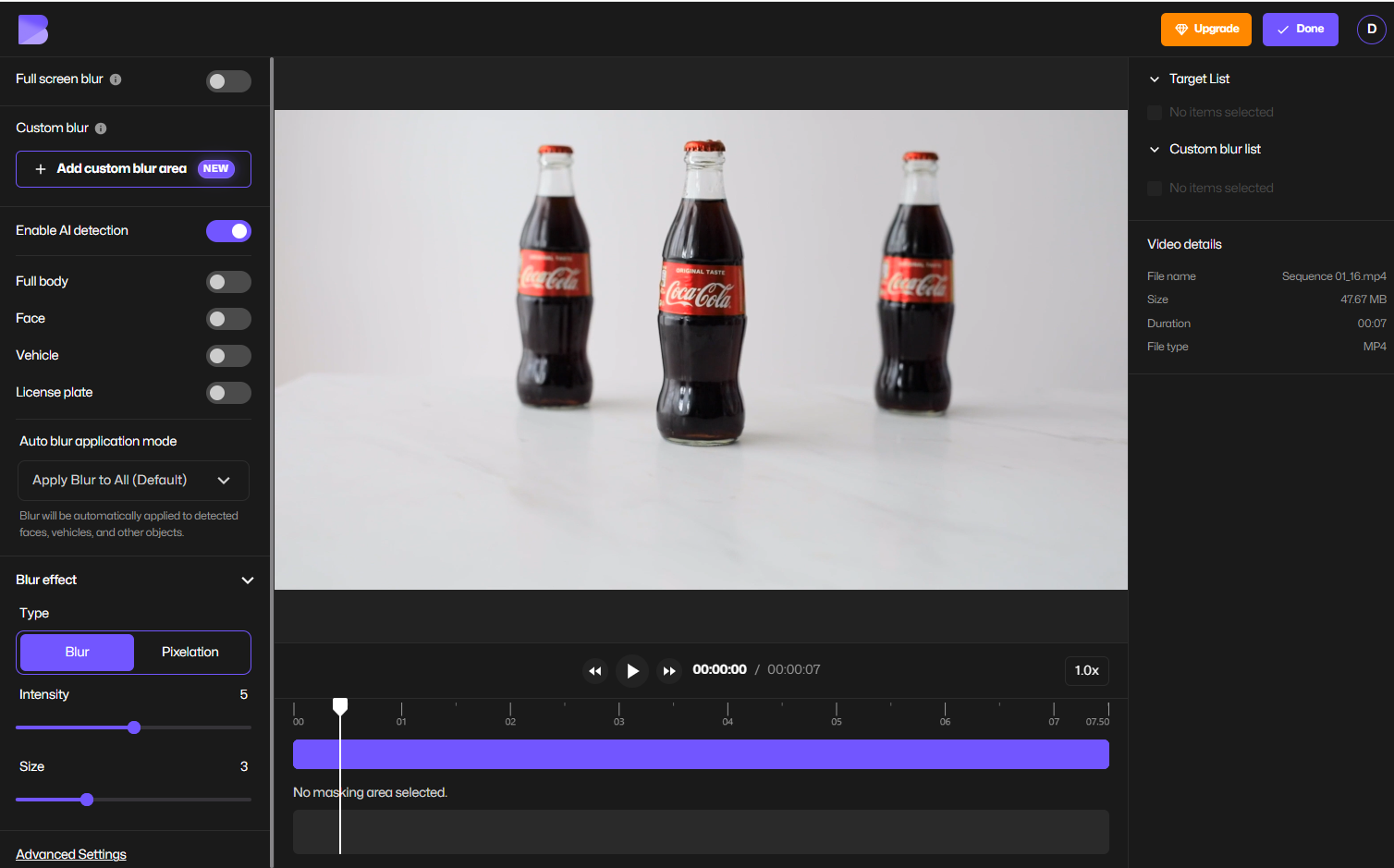
BlurMe runs 100% online, which means you don’t need to install video editing software or plugins.
Step 2: Select the Custom Blur Tool
Once your video loads, select Custom Blur.
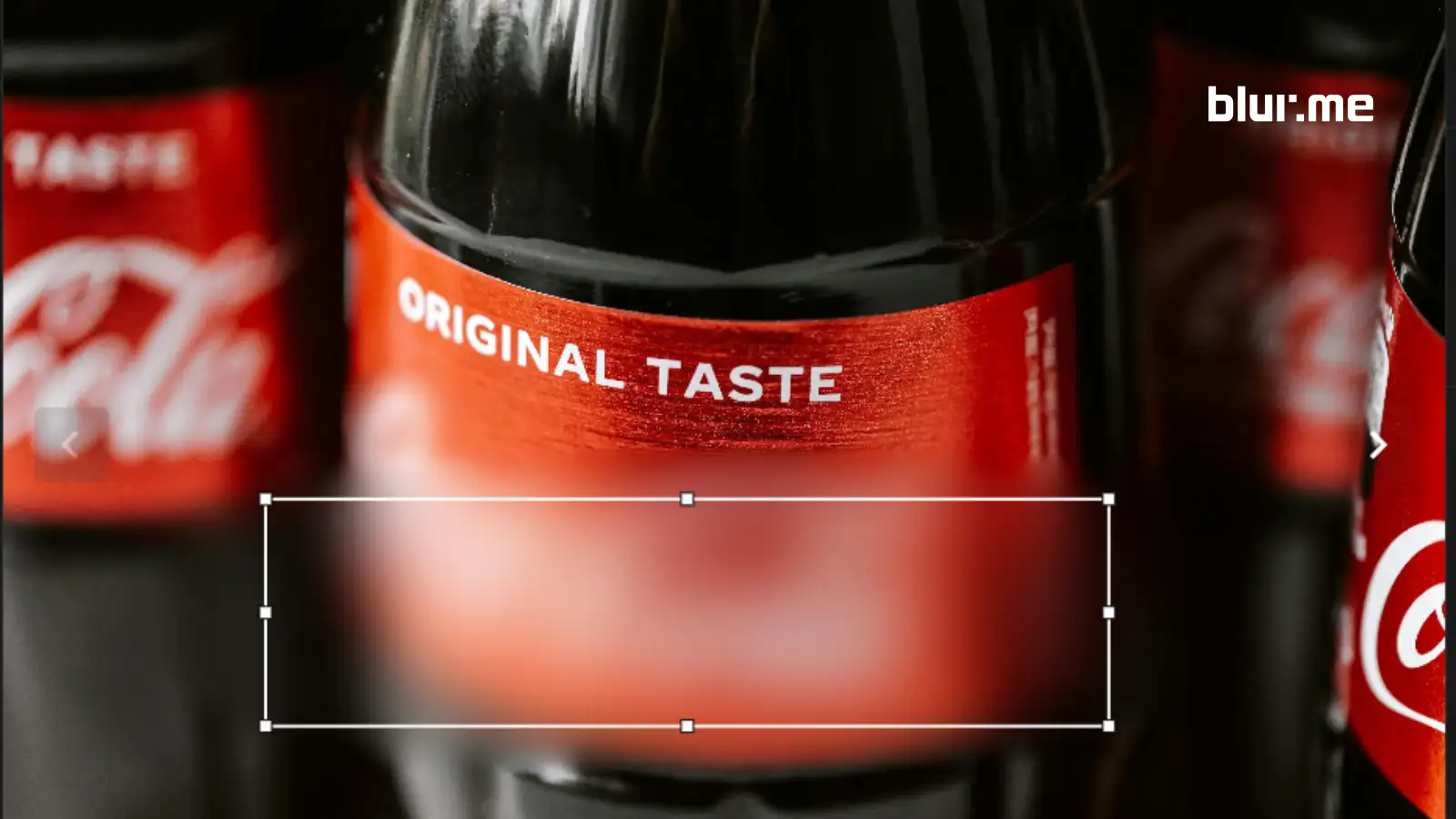
A blur box will appear in the video preview. Drag the blur box over the logo you want to hide.
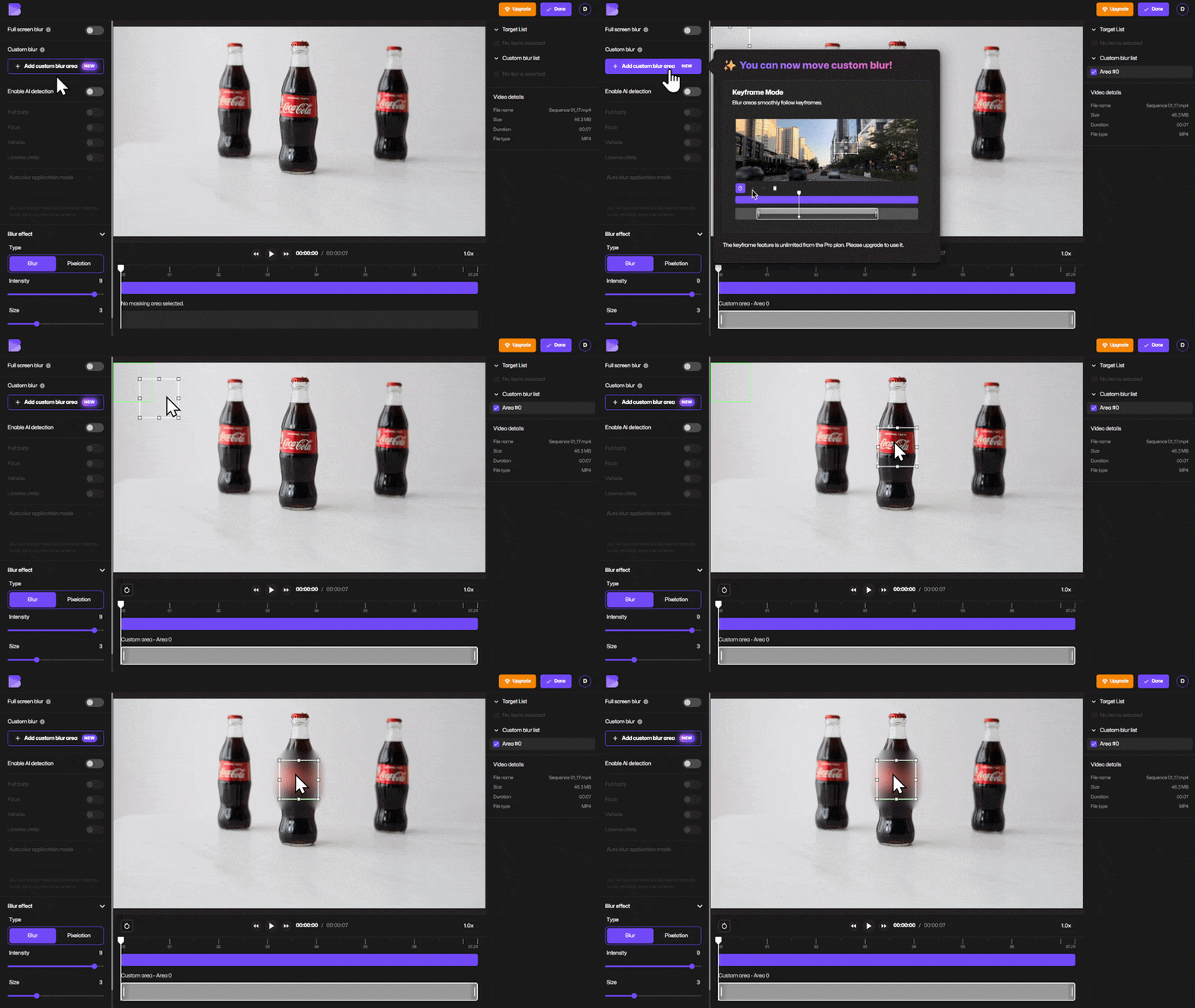
This blur tool works for:
- brand logos
- product labels
- company trademarks
- watermarks
- visible text in video
You can also use the same tool if you need to blur text or other identifying details.
Step 3: Adjust the Blur Area
Resize the blur box so it fully covers the logo.
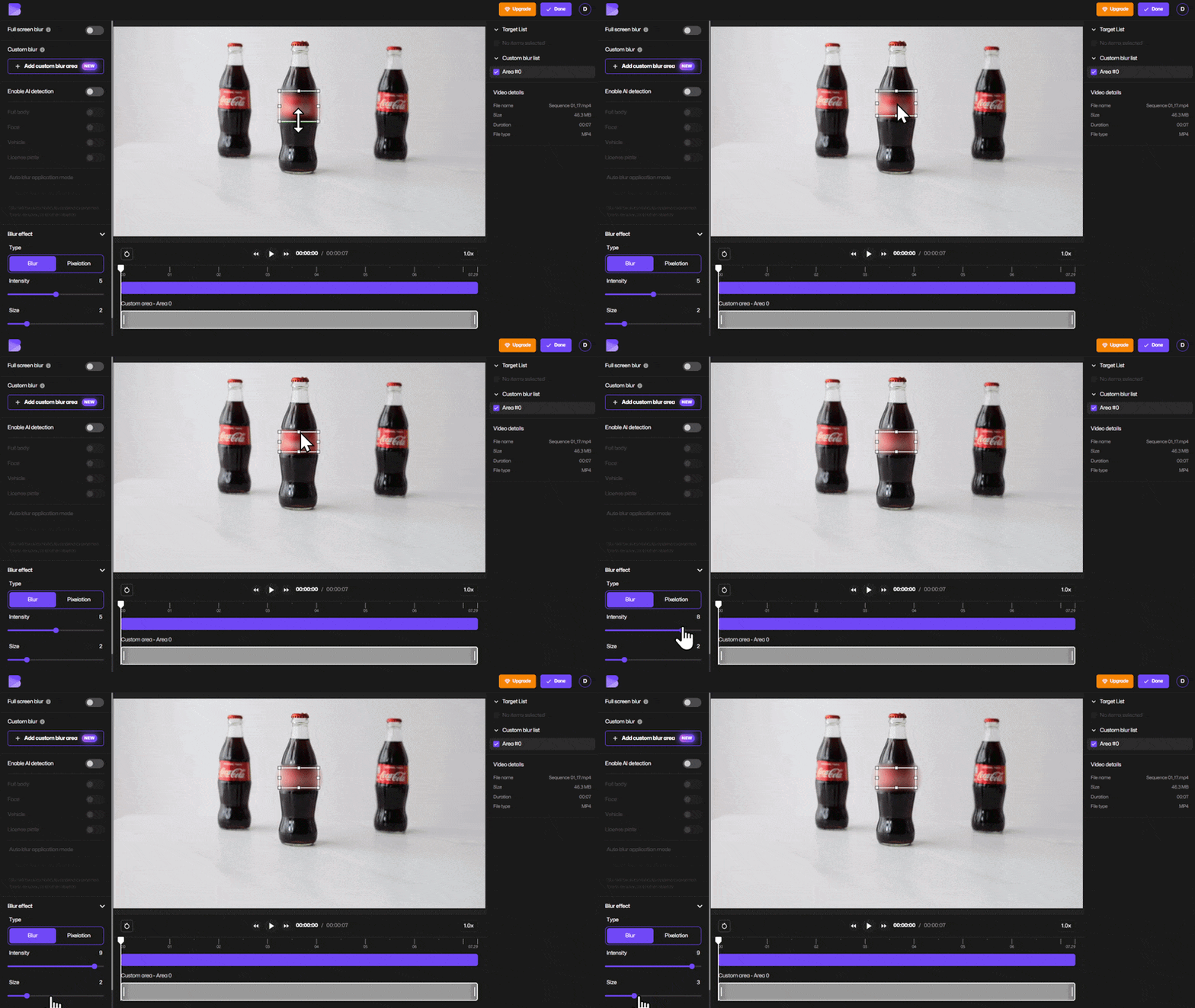
BlurMe allows you to control:
- blur size
- blur intensity
- blur placement
If you're working with small logos or detailed branding, slightly increasing the blur area helps ensure the logo stays hidden.
Step 4: Enable Keyframe Mode to Track the Logo
If the logo moves across the frame—such as on a person’s shirt or a moving vehicle—you’ll need the blur to move with it.
Enable Keyframe Mode in the timeline.
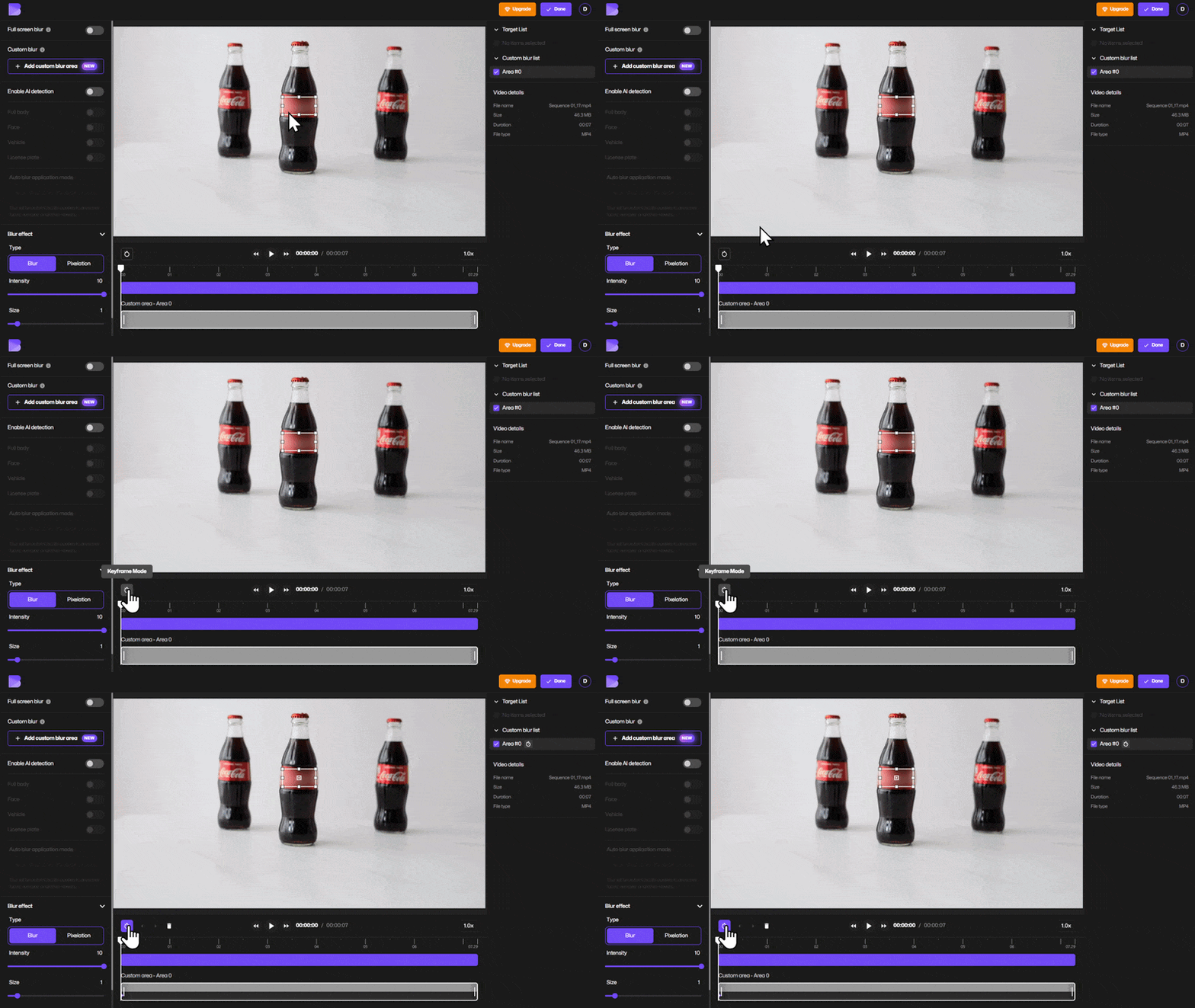
This allows you to reposition the blur at different points in the video so it follows the logo.
Step 5: Track the Logo Frame by Frame
Move through the video timeline and watch the logo's movement.
When the logo moves outside the blur area:
- Drag the blur box back over the logo
- BlurMe will create a keyframe marker
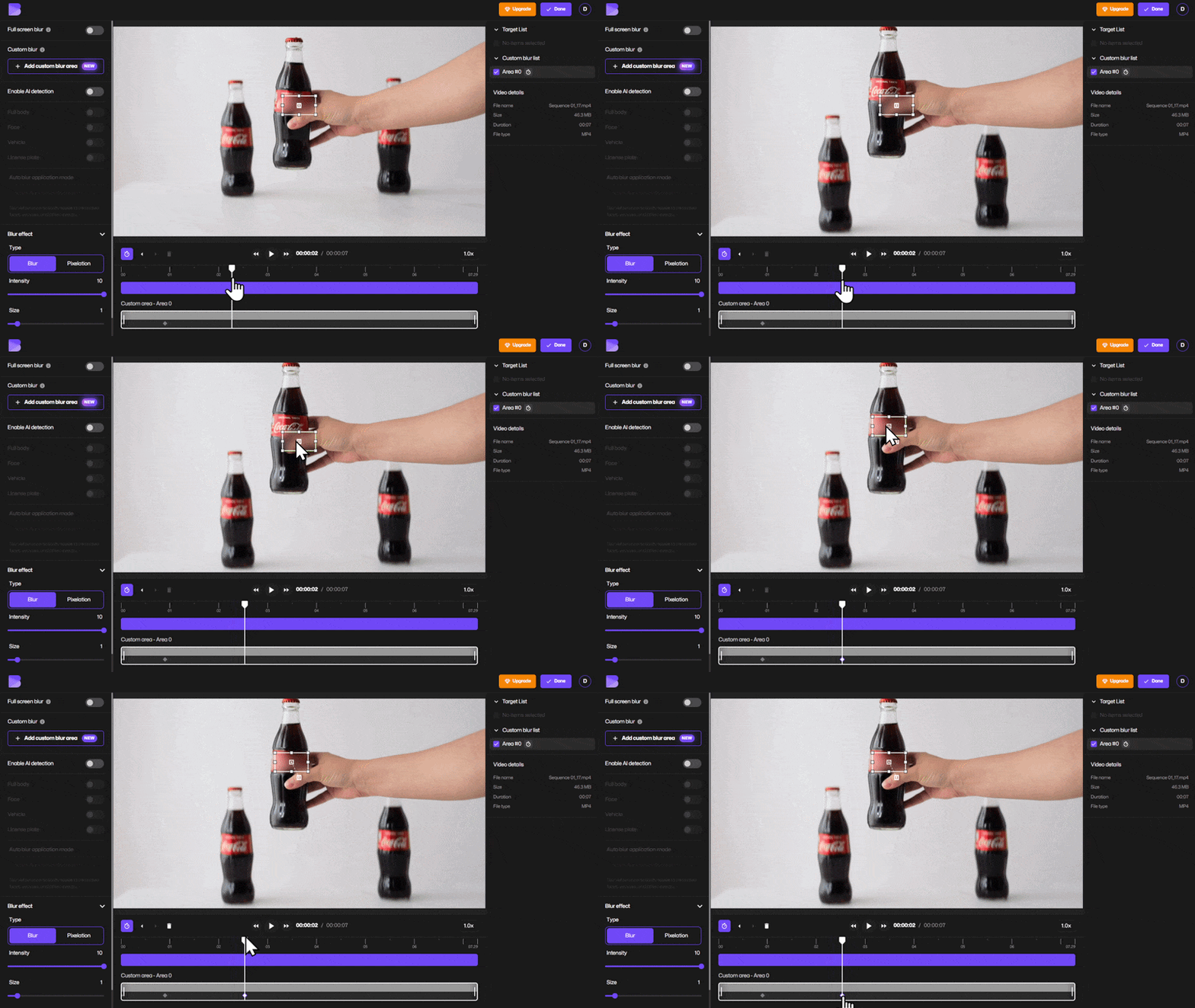
The software automatically transitions the blur between those keyframes, creating smooth motion tracking.
This method is ideal for blurring moving logos or branding in dynamic footage.
Step 6: Preview the Video
Click Play to preview the blur tracking.
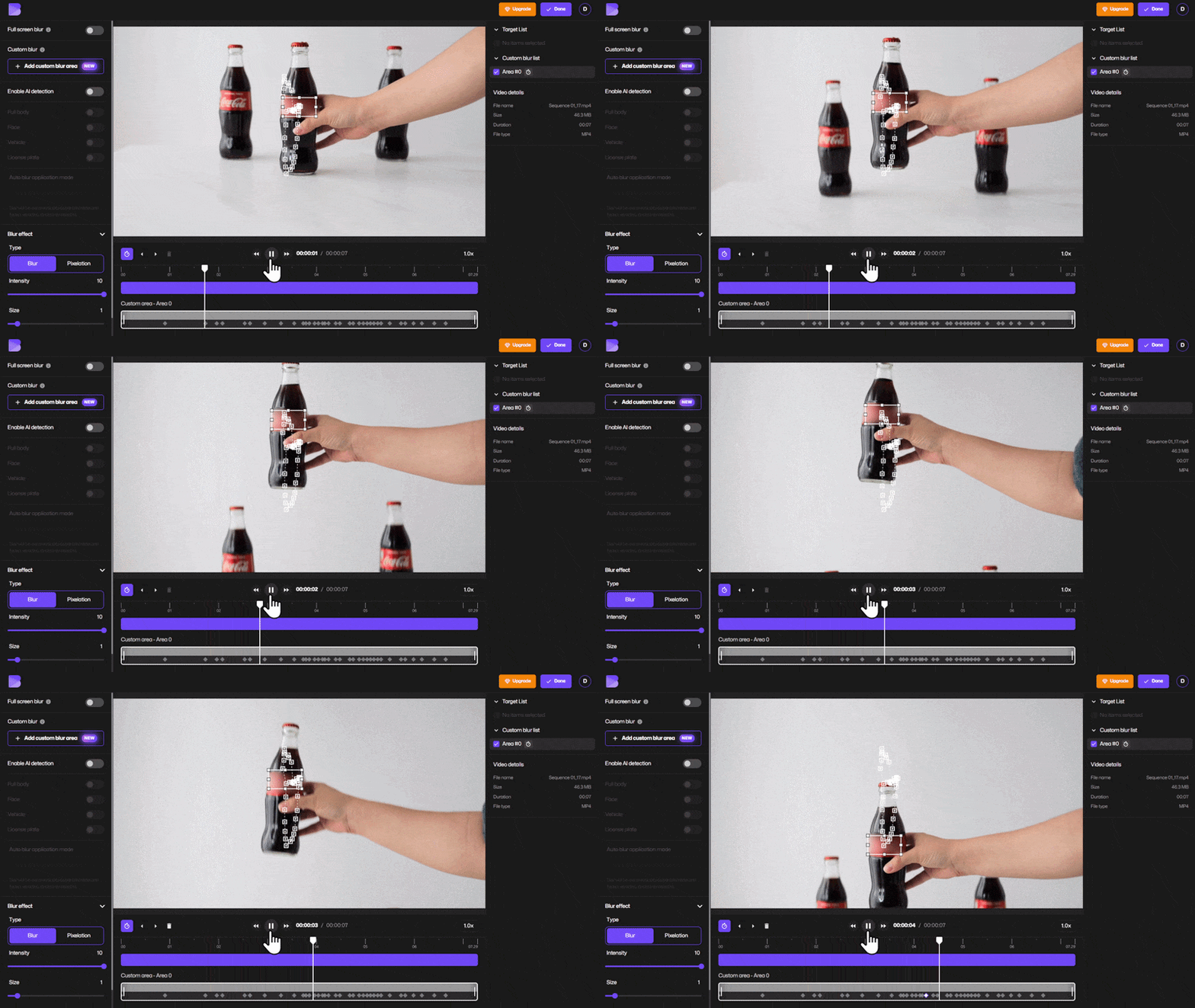
If the blur slips off the logo at any point, simply move to that frame and adjust the blur position again.
- To preview the video without the keyframe markers visible, simply click anywhere on the video screen to hide them.
- If you want to see the markers again or re-enter Keyframe Mode, look in the side panel under the Custom Blur list and click the blur area that shows the keyframe icon.
Step 7: Export the Edited Video
When you're satisfied with the results:
- Click Done
- Select Export
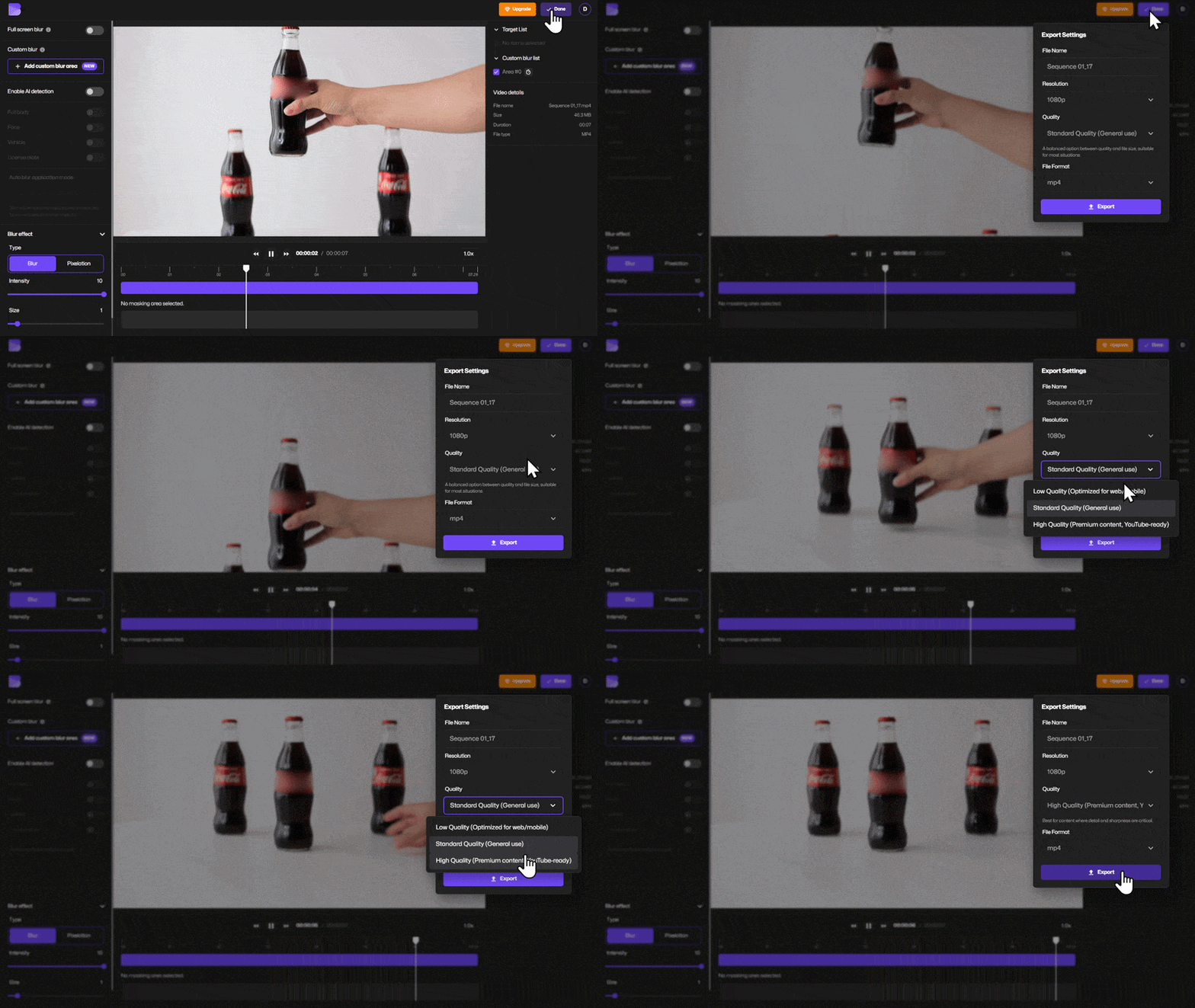
During export you can also:
- compress the video file
- convert formats
Once processing finishes, you can download the video or share it with a link.
How to Blur Text in Video Using the Same Method
The same process works if you need to blur text in video.
Examples include:
- private messages on phone screens
- confidential documents
- email addresses
- license numbers
- addresses or sensitive information
Simply place the blur box over the text and track its movement using Keyframe Mode.
If you’re wondering how to blur text quickly, using a flexible blur tool like BlurMe makes the process simple.
Tips for Blurring Logos Accurately
Blurring logos effectively requires precise tracking. These tips can help improve your results.
Keep the Blur Slightly Larger Than the Logo
A slightly larger blur ensures the logo stays hidden even if the object shifts quickly.
Add Keyframes Only When Necessary
Too many keyframes can make adjustments harder. Add them only when the logo changes position significantly.
Use Preview Often
Preview the video frequently to ensure the blur stays aligned throughout the clip.
Combine AI Blur With Manual Blur
BlurMe’s face blur technology can automatically detect faces while you manually blur logos or other branding in the same video.
When to Blur Logos vs Pixelate Logos
Blurring is the most common method for hiding branding, but pixelation can also be useful.
If you prefer the pixelated effect used in broadcast television, you can pixelate video instead of applying blur.
Both methods effectively hide logos while keeping the video watchable.
Blur Logos and Background Branding
Sometimes logos appear not only on objects but also in the environment.
Examples include:
- store signs
- billboards
- event banners
- branded backdrops
If the branding covers large areas of the scene, you may want to blur video background elements instead of individual logos.
Expert Insight on Logo Redaction in Video
Video branding removal is increasingly important for online creators and organizations.
“Many videos contain brand logos that creators never intended to promote. Motion tracking blur tools allow editors to remove those logos quickly while keeping the footage usable.”
— Park Jaemin, Chief Strategy Officer at BlurMe
FAQ
What is the easiest way to blur a logo in video?
The fastest and easiest way is to use an online blur tool like BlurMe. You can upload your video, apply Custom Blur, enable Keyframe Mode, and track the logo as it moves. Start with the Blur video editor.
How do you blur logos that move in a video?
To blur moving logos, you need motion tracking or keyframes. BlurMe allows you to reposition the blur box across the timeline so it follows the logo frame by frame.
Can I blur text and logos at the same time?
Yes. You can place multiple blur boxes in the video and track each one individually. This is useful for hiding logos, text, or other sensitive elements in the same clip.
What is video redaction?
Video redaction is the process of hiding sensitive visual information in footage before sharing it. Organizations often use an ai video redaction service to automatically detect faces or confidential details.
Where can I learn how to track blur movement in BlurMe?
You can follow the full tutorial in How to use BlurMe Custom Blur Keyframe Mode, which explains how to track blur across moving objects.
Blur Logos in Video in Minutes With BlurMe
Logos appear everywhere in modern video content, but they don’t always belong in the final edit. Whether you're removing branding, protecting privacy, or cleaning up footage, knowing how to blur logos in video online is a valuable skill, especially quickly and easily.
With BlurMe’s Custom Blur and Keyframe Mode, you can track logos across moving scenes and hide them accurately in minutes.
Start now with BlurMe and blur logos, blur text, and redact sensitive elements directly from your browser.