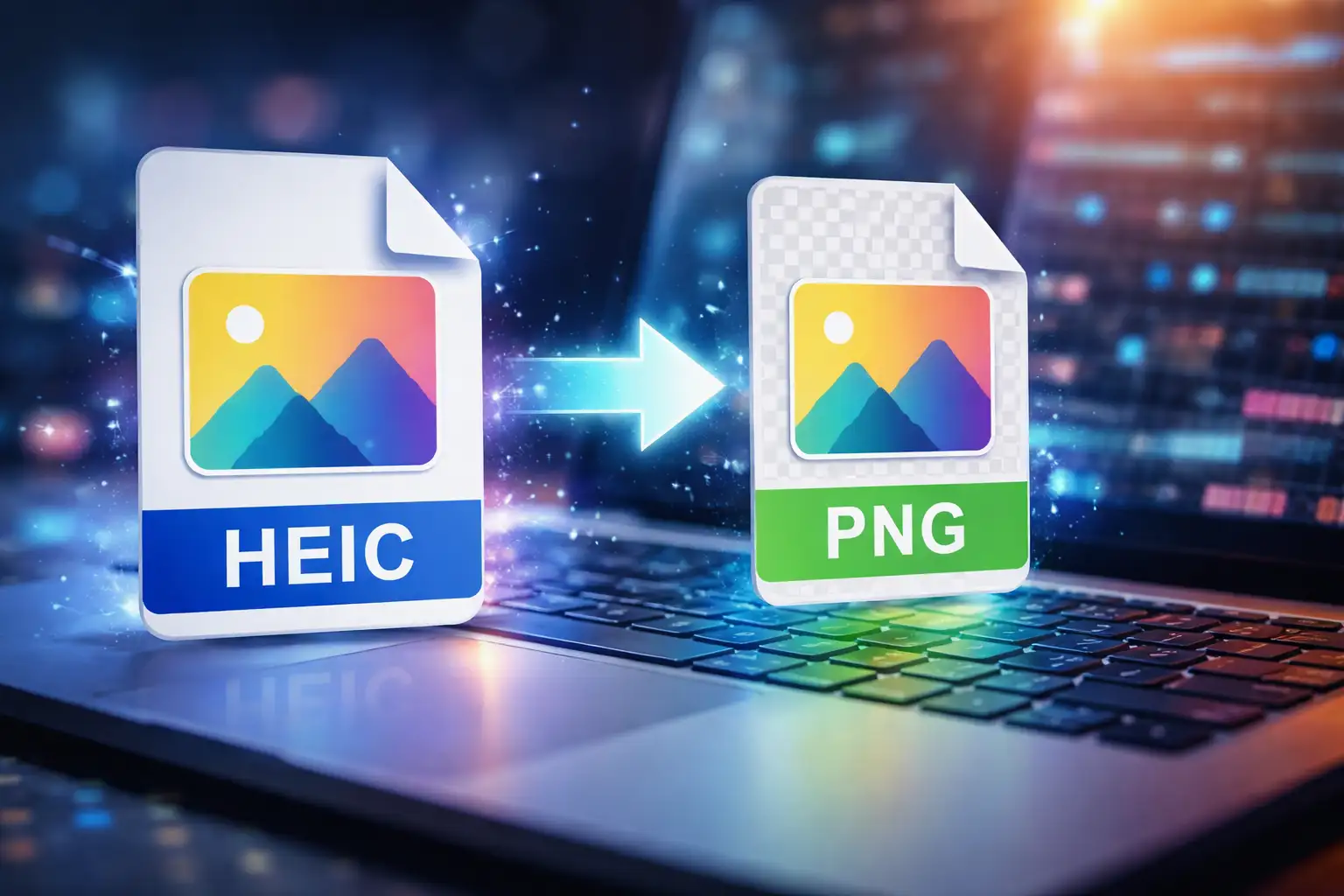
HEIC to PNG conversion is often necessary when HEIC files won’t open, upload, or display correctly outside Apple devices. HEIC (High Efficiency Image Container) is efficient and high-quality, but compatibility remains limited across browsers, design tools, CMS platforms, and Windows systems.
PNG, on the other hand, is universally supported, lossless, and ideal for transparency, web uploads, and editing workflows.
If you’ve ever:
- Tried uploading a photo and received a “file format not supported” error
- Needed transparency for a design or website
- Shared images with Windows users
- Converted screenshots, product images, or social media assets
Then converting HEIC files to PNG is the correct solution.
This guide walks you through how to convert HEIC to PNG, including Windows-specific methods, batch conversion, and the easiest online option using BlurMe HEIC Converter.
Best Way to Convert HEIC to PNG Online (Recommended)
The fastest and most reliable method is using an online HEIC to PNG converter—no downloads, no plugins, no OS limitations.
How to Convert HEIC to PNG with BlurMe (Step-by-Step)
BlurMe’s HEIC to PNG Converter is browser-based, free, and works on any device.
Steps:
- Open BlurMe's online HEIC to PNG Converter
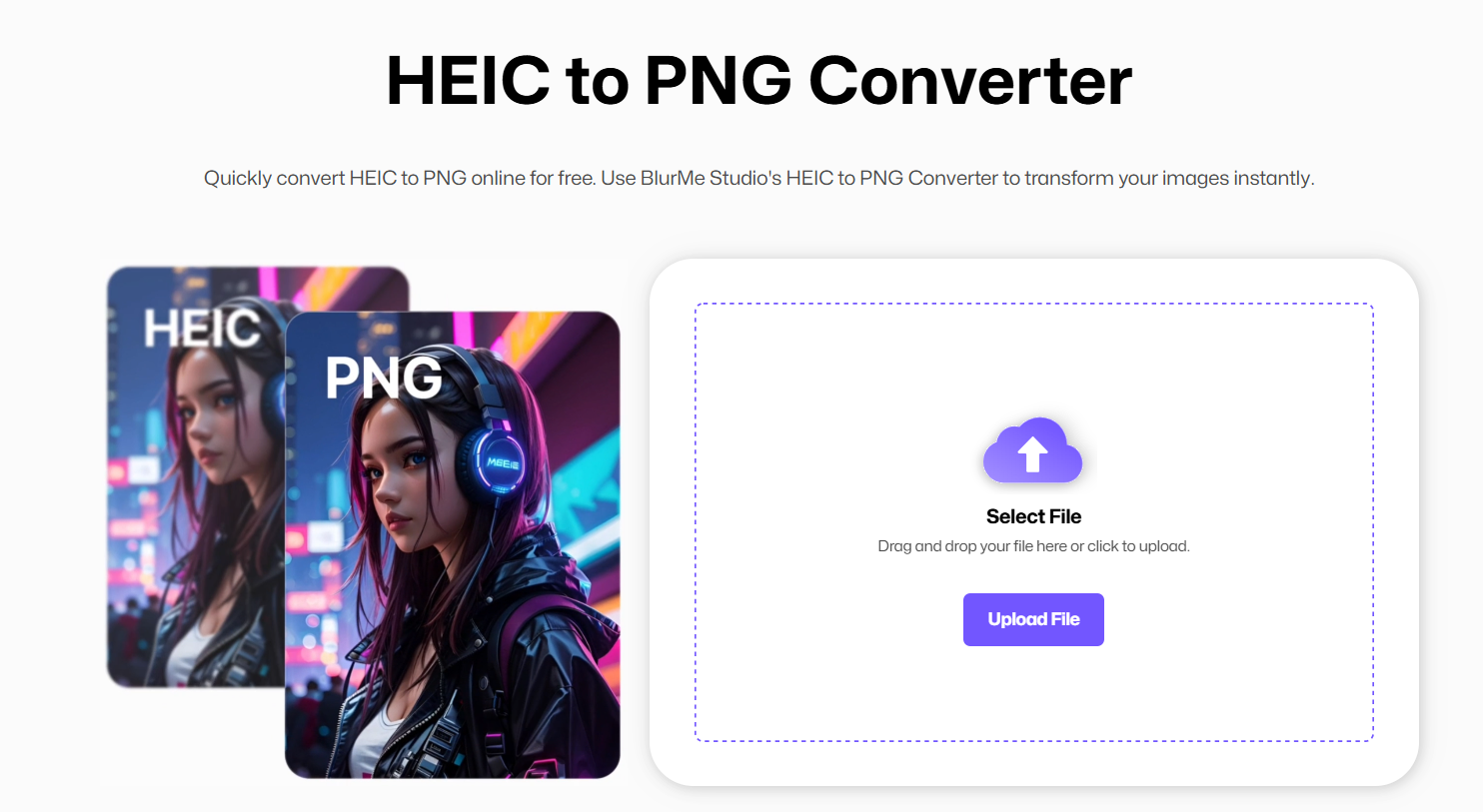
- Upload your
.heicfile (or multiple files)

- Select PNG as the output format

- Export and download your PNG file instantly

This method works for:
- Single HEIC files
- Batch conversion
- HEIC to PNG on Windows
- HEIC photos from iPhone or iCloud
Batch Convert HEIC to PNG (Multiple Files at Once)
If you’re dealing with folders of photos, batch conversion saves time.
With BlurMe, you can:
- Upload multiple HEIC files at once
- Convert HEIC files to PNG in one action
- Download all PNG files together
This is ideal for:
- Content creators
- Website migrations
- Photo archives
- Product image libraries
Batch converting HEIC to PNG online avoids desktop software limitations and OS-specific tools.
How to Convert HEIC to PNG on Windows
Windows users often struggle with HEIC support.
Option 1: Online HEIC to PNG Converter (Best Choice)
Using BlurMe eliminates the need for codecs or Microsoft Store extensions.
Benefits:
- Works on Windows 10 & 11
- No HEIC codec installation
- Faster than native apps
This is the simplest way to convert HEIC to PNG on Windows.
Option 2: Install HEIC Codec (Limited)
Windows can open HEIC files after installing extensions, but conversion options are limited and inconsistent.
For reliability, online conversion is strongly recommended.
Convert .HEIC to PNG Without Losing Quality
PNG conversion preserves image detail when done correctly.
BlurMe ensures:
- No visible quality loss
- No resolution downgrade
- Clean color preservation
Unlike some free converters that compress PNG files aggressively, BlurMe prioritizes accuracy and output integrity.
Why Convert HEIC to PNG Instead of JPG?
While JPG is common, PNG offers key advantages in specific workflows.
Convert HEIC to PNG when you need:
- Lossless image quality
- Transparent backgrounds
- Web-safe uploads
- Editing without compression artifacts
If file size is your priority, you may prefer JPG (see our HEIC to JPG Converter). But for quality and compatibility, PNG is the better option.
HEIC to PNG Converter Free: What to Look For
Not all converters are equal.
A good HEIC to PNG converter free should offer:
- No forced sign-up
- Batch conversion support
- Secure uploads
- Fast processing
BlurMe Image Converter meets all of these requirements.
More Than Conversion: Blur & Edit After Converting
Once your HEIC file is converted to PNG, you can immediately:
- Blur faces
- Blur sensitive information
- Blur backgrounds
- Prepare images for publishing
BlurMe integrates conversion with privacy-focused editing tools. Do more by checking out our Blur Image tool.
Related Image Conversion Tools from BlurMe
If you work with multiple formats, these guides may help:
Each tool also provides walks through format-specific use cases and conversion tips.
HEIC to PNG Conversion FAQ
How do I convert a HEIC to PNG online?
Upload the HEIC file to BlurMe’s HEIC to PNG Converter, select PNG, and download the converted image.
Can I convert HEIC to PNG on Windows?
Yes. Using an online converter like BlurMe is the easiest way to convert HEIC to PNG on Windows without installing codecs.
Is HEIC to PNG conversion free?
BlurMe offers a free HEIC to PNG converter with no account required.
Can I batch convert HEIC files to PNG?
Yes. BlurMe supports batch conversion so you can convert multiple HEIC files to PNG at once.
Will converting HEIC to PNG reduce quality?
PNG is a lossless format. With BlurMe, image quality is preserved during conversion.
Final Thoughts: The Easiest Way to Convert HEIC to PNG
If you want a fast, reliable, and beginner-friendly way to convert HEIC to PNG, BlurMe is the most practical solution.
- Works on all devices
- No installation required
- Supports batch conversion
- Free and browser-based