How to Blur a Face in a Picture (3 Fast Methods)
Maya Chen — Tech Writer & Privacy Advocate Part of: Blur Photo Complete Guide: Methods, Tools & Best Practices (2026)Read the complete guide →
How to Blur a Face in a Picture (3 Fast Methods)
You just shot 200 family photos at the park and now need every bystander's face blurred before posting to social media. Learning how to blur a face in a picture manually means 2 minutes of selection work per photo — 6+ hours for the full batch. Miss a single face and you risk privacy complaints or GDPR fines up to €20 million for organizations. The good news: modern photo editing tools can automate face detection and apply blur effects in seconds, whether you're using Photoshop on desktop, the iPhone Photos app, or free online editors like Canva.
Common Approaches to How To Blur A Face In A Picture
Blurring faces in photos requires different tools depending on your device and workflow. The four main approaches are mobile apps, desktop photo editors, online blur tools, and AI-powered automatic detection. Each method works best for specific scenarios.
Mobile Apps (iPhone and Android)
iPhone Photos app includes a built-in markup tool that works for quick edits. Open your photo, tap Edit → three-dot menu → Markup. Select the blur pen tool and paint over the face manually. The blur intensity is fixed, so you can't adjust strength. This works for casual social media posts but produces uneven edges if you're not precise.
Snapseed (free for iOS and Android) gives you more control. Import your photo, tap Tools → Lens Blur, then drag the circular blur region over the face. Pinch to resize the blur area and adjust the transition slider to soften edges. The blur strength slider ranges from 0-100, letting you choose between light privacy protection and full anonymization. The limitation: you manually position each blur circle, which takes time for group photos with 10+ people.
Facetune and PicsArt offer similar manual blur brushes with intensity controls. Both apps include mosaic effect and pixelate options as alternatives to Gaussian blur. The trade-off: free versions watermark your photos or limit exports to lower resolution.
Desktop Photo Editing Software
Adobe Photoshop remains the standard for professional image editing. Open your photo, select the Lasso Tool (L key), and draw around the face you want to blur. Go to Filter → Blur → Gaussian Blur, then adjust the radius slider until the face is unrecognizable—typically 15-30 pixels for a standard portrait. Click OK and deselect (Ctrl+D). This gives you precise edge control and repeatable blur intensity.
GIMP (free, open-source) follows a nearly identical workflow. Use the Free Select tool to outline the face, then Filters → Blur → Gaussian Blur. GIMP's blur filter includes a preview window so you can see the effect before applying it. The key limitation: both Photoshop and GIMP require manual selection for every face, making them impractical for batch processing 50+ event photos.
Canva (free tier available) simplifies the process for non-designers. Upload your photo, click Effects → Blur Background, then use the brush tool to paint blur onto specific areas. Canva's interface is more intuitive than Photoshop, but the free version limits you to 5 photo exports per month and adds a small watermark.
Online Blur Tools
iLoveIMG Blur Face and Adobe Express let you blur photos without installing software. Upload your image, draw a rectangle or circle over each face, adjust the blur intensity slider, then download the edited photo. These tools work on any device with a browser and don't require account creation for single-photo edits.
The advantage: instant access from school computers, work laptops, or borrowed devices. The downside: you upload photos to third-party servers, which creates privacy concerns if you're redacting sensitive images for GDPR compliance or FERPA-protected student photos. Free tiers also compress your output image, reducing quality from the original.
AI-Powered Automatic Detection
Google Photos includes automatic face blur in some regions. Select a photo, tap Edit → Tools → Blur, and the app attempts to detect faces automatically. The feature works inconsistently—it often misses faces in profile view or partially obscured by objects.
Blur Photo Editor (iOS/Android) and similar apps use facial recognition algorithms to find faces automatically, then apply blur with one tap. You can toggle individual faces on/off if the detection catches someone in the background you want to keep visible. This approach saves time on group photos but requires reviewing each auto-detected face to ensure accuracy.
The limitation across all automatic tools: detection fails in low-light photos, extreme angles, or when faces are partially covered by hands or sunglasses. You'll still need manual touch-up for 15-20% of images in a typical batch.
Each method balances speed, control, and accessibility differently. Mobile apps work for quick edits on the go. Desktop software gives you pixel-perfect control for professional work. Online tools require no installation but sacrifice privacy. AI detection saves time on large batches but needs manual verification.
Blur a Face in a Picture with AI (Blur.me)
You just shot 100 event photos with attendees in the background — Photoshop's manual selection workflow would take 5+ hours.
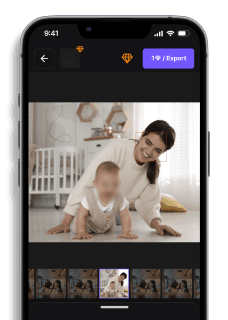
Drop your image in — blue bounding boxes appear around every detected face within 3 seconds, no manual selection needed.
Click to toggle individuals — tap any face to keep it sharp (the speaker stays visible, attendees stay blurred).
Export at original resolution — 100 photos processed in ~5 minutes total, zero quality loss.
Blur.me runs entirely in your browser — no app download, works on Safari and Chrome. Give it a try with unlimited free testing to see how fast batch processing really is.
If you're batch-processing 100+ photos where every face needs blurring, Photoshop's manual selection workflow scales poorly — blur.me detects all faces in ~3 seconds per photo and processes the entire batch in under 5 minutes.
Faces or plates to hide in your photo?
Upload and the AI blurs them automatically in seconds.
Quick Comparison: Face Blurring Tools
| Feature | Blur.me | Photoshop | Snapseed | GIMP | Canva |
|---|---|---|---|---|---|
| Price | $0 (free tier), $9/mo Pro | $54.99/mo (Photography plan) | Free | Free (open-source) | Free, $15/mo Pro |
| Face Detection | AI auto-detect (98%+ accuracy) | Manual selection only | Manual selection only | Manual selection only | Manual selection only |
| Automation Level | Full auto (batch 100+ photos) | Manual per photo | Manual per photo | Manual per photo | Semi-auto (templates) |
| Time per Photo | ~3 seconds | ~2 minutes | ~90 seconds | ~2-3 minutes | ~60 seconds |
| Blur Control | Intensity slider (0-100) | Gaussian Blur filter (radius 1-250px) | Lens Blur tool (0-100) | Blur filters (IIR, Gaussian, Pixelize) | Blur intensity slider |
| Platform | Web, iOS, Android | Windows, macOS | iOS, Android | Windows, macOS, Linux | Web, iOS, Android |
| Batch Processing | Yes (unlimited) | Actions required | No | Scripts required | No |
| Best For | Privacy redaction at scale (GDPR/HIPAA) | Professional photo retouching with precision control | Quick mobile edits on-the-go | Budget desktop users needing advanced filters | Social media creators with design templates |
Verdict: Snapseed wins for free mobile editing with intuitive controls, but you'll manually paint each face. Photoshop justifies its cost with pixel-perfect Gaussian Blur control and Actions for batch workflows. Blur.me processes 100 photos in ~5 minutes with zero manual selection — choose it when speed and automatic detection matter more than artistic blur styles.
FAQ
How to blur out faces on a photo?
Open your photo in an image editor like Photoshop, GIMP, or Canva. Select the face using the lasso or ellipse tool, then apply a Gaussian blur filter (intensity 15-25 pixels for natural results). Mobile users can tap the face in apps like Snapseed or iPhone Photos and drag the blur slider. Blur faces in video requires motion tracking, but photos need just one-time selection. Batch-process 100 photos in ~5 minutes using desktop tools with automatic facial recognition.
How to blur an already taken photo?
You don't need to retake the photo. Import it into any photo editor (Photoshop $22.99/month, or free tools like GIMP). Select the face area manually or use automatic detection in apps like Facetune or PicsArt. Apply blur intensity between 10-30 pixels depending on anonymization needs—GDPR compliance typically requires 25+ pixels where facial features become unrecognizable. Save as a new file to preserve the original. Desktop software handles higher-resolution images better than mobile apps.
What is the best free face blurring tool?
GIMP offers professional-grade Gaussian blur and pixelate filters at zero cost, matching Photoshop's quality for still images. Mobile users get solid results with Blur Photo Editor (iOS/Android) or Snapseed's selective blur. Online tools like iLoveIMG process photos in-browser without downloads but limit file sizes to 10MB. Choose GIMP when editing high-res photos (20+ megapixels), mobile apps for quick social media edits, or online tools when you can't install software.
Can iPhone blur faces automatically?
iPhone Photos app requires manual selection—tap Edit, then use Markup tools to draw over faces. Third-party apps like FaceBlur or Adobe Express detect faces automatically and apply blur with one tap. Automatic detection saves 15-20 seconds per face in group photos with 5+ people. Processing happens on-device, so no privacy risk from cloud uploads. Android users get similar auto-detection in Google Photos' built-in editor or PicsArt mobile app.
How much blur intensity removes identity?
GDPR and CCPA compliance require facial features (eyes, nose, mouth) become unrecognizable. Gaussian blur at 25+ pixels achieves this—a face occupying 200×200 pixels needs 12-15% blur radius. Pixelate/mosaic effect at 20×20 pixel blocks works faster but looks less natural. Test by zooming to 200% view—if you can still identify the person, increase intensity by 30%. Schools following FERPA guidelines typically use 30-35 pixel blur for student photos to prevent re-identification through facial recognition software.
Manual face blurring works fine for one-off edits, but batch-processing 100 photos takes hours. If you're handling event photos, compliance documents, or daily workflows, automatic detection cuts that time to minutes. For video content with moving faces, check out how to blur faces in video — the workflow differs with motion tracking.
Faces or plates to hide in your photo?
Drop a photo or video in your browser and the AI auto-blurs faces, license plates, and personal info in seconds.
Upload free