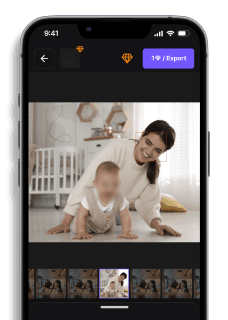
How to Blur a Photo on iPhone (3 Easy Methods)
Maya Chen — Tech Writer & Privacy Advocate Part of: Blur Photo Complete Guide: Methods, Tools & Best Practices (2026)Read the complete guide →
How to Blur a Photo on iPhone (3 Easy Methods)
You just downloaded a batch of vacation photos and realized strangers' faces fill every background shot. Learning how to blur a photo on iPhone becomes urgent when you need to protect privacy before posting to social media, but iOS's native tools scatter the process across three different apps. Spend 5 minutes per photo navigating between Portrait Mode depth adjustments, the Markup tool's clunky brush, and third-party apps that demand subscriptions — or miss a face and risk exposing someone's identity online. iPhone offers built-in blur options through the Photos app and camera features, but most users don't know which tool works for which scenario. This guide walks you through every iPhone blur method — from Portrait Mode's automatic background bokeh to manual redaction with Markup and specialized apps like Snapseed — so you can blur faces, license plates, or sensitive text in under 30 seconds per image.
How to Blur Photos in iPhone Photos (Manual Method)
iPhone's built-in Photos app offers limited blur options through Portrait Mode depth editing and the Markup tool. For full control over what you blur—faces, license plates, backgrounds, or text—you'll need a third-party app from the App Store. Here's the complete workflow.
Step 1: Check if Your Photo Has Depth Data
Open the Photos app and select the image you want to blur. Tap Edit in the top-right corner. If you see a Depth button (f-stop icon) at the top of the screen, your photo was taken in Portrait Mode and contains depth information. This depth data lets you adjust background blur intensity after the fact.
If the Depth button appears, tap it and drag the f-stop slider left (lower f-number = more blur) or right (higher f-number = sharper background). The foreground subject stays sharp while the background blurs. This mimics the bokeh effect you'd get from a DSLR with a wide aperture.
Step 2: Use Markup for Manual Blur (Limited to Pixelation)
If your photo lacks depth data or you need to blur specific objects (not just backgrounds), tap Edit → three-dot menu (•••) → Markup. Tap the plus (+) icon in the bottom-right corner, then select the pixelate tool (looks like a mosaic square).
Drag your finger over the area you want to blur—faces, license plates, text on documents. The pixelated region appears as a blocky mosaic, not a smooth Gaussian blur. This works for basic privacy redaction but looks crude compared to professional blur effects.
Step 3: Download a Third-Party Blur App
For smooth Gaussian blur, selective focus, or face detection, open the App Store and search "blur photo editor". Popular options include Touch Retouch ($1.99, precise object removal and blur), Snapseed (free, professional-grade selective blur), and Blur Photo Editor (free with ads, auto face detection).
Download your chosen app and grant it Photos access when prompted. Most apps require full library access to import and export edited images.
Step 4: Import Your Photo and Select Blur Type
Open the blur app and tap Import or Open Photo. Navigate to your photo in the library. Once loaded, choose your blur style from the app's menu:
- Gaussian Blur: Smooth, natural-looking blur for backgrounds or privacy
- Pixelate: Blocky mosaic effect (similar to Markup but with adjustable intensity)
- Radial Blur: Keeps the center sharp, blurs edges (tilt-shift effect)
Tap the blur type that matches your goal. For face redaction or license plate privacy, Gaussian Blur or Pixelate work best.
Step 5: Apply Blur to Specific Areas
Use your finger or an Apple Pencil to paint over the regions you want blurred. Most apps show a red or blue overlay indicating the selected area. Adjust the brush size slider to cover large areas quickly or fine-tune small details like text.
If the app offers blur intensity, drag the slider to control how strong the effect appears. Higher intensity = more obscured. Some apps like Snapseed let you invert the selection—blur everything except your subject.
Step 6: Save and Export
Tap Save, Export, or the checkmark icon (varies by app). The app renders your edits and saves the blurred version to your Photos library. The original photo remains untouched unless you chose "Replace Original."
Check the exported image in Photos to confirm the blur covers your target areas completely. If edges look jagged or the blur is too weak, reopen the app and increase intensity or refine the selection.
That's 6 steps and roughly 5 minutes for a single photo. Blurring multiple images means repeating this workflow for each one—no batch processing in native iPhone tools.
Best iPhone Apps for Blurring Photos
CapCut (free) auto-detects faces in photos and applies blur with one tap—ideal for quick social media posts where you need to hide bystanders. The free version includes watermarks; remove them with a $9.99/month subscription.
Snapseed (free, by Google LLC) offers professional selective blur with feathering control. Use the Lens Blur tool to mimic Portrait Mode depth effects on non-Portrait photos. The Selective tool lets you blur specific objects by dropping control points. No ads or watermarks.
Focos (free, $7.99 for Pro) specializes in depth editing. Import any photo and Focos generates synthetic depth data using AI, letting you adjust aperture and focus points as if you shot in Portrait Mode. Best for background blur on older iPhone models without dual cameras.
Touch Retouch ($1.99) excels at precision work—blur small text, remove objects, or obscure faces in crowded scenes. The brush tool has edge detection to avoid bleeding blur into sharp areas. One-time purchase, no subscription.
Blur Photo Editor (free with ads) provides auto face detection and batch blur for multiple photos at once. The free tier limits export resolution to 1080p; unlock full resolution with a $4.99/month subscription. Best for quick privacy redaction when you need to process 10+ event photos.
For beginners, start with Snapseed—it's free, ad-free, and offers the most control without overwhelming menus. Advanced users who need batch processing should try Blur Photo Editor or CapCut for speed.
Blur a Photo on iPhone with AI (Blur.me)
Need to blur from any device without installing an app? Blur.me works right in your mobile browser—no App Store download, no storage drain.
Open blur.me in Safari — tap the demo link, then upload straight from your Photos app. The AI detects your subject within 3 seconds and isolates it from the background.
Tap AI Blur — the background instantly blurs while your subject stays sharp. Drag the intensity slider from 0 to 100 to control the depth-of-field effect in real-time preview.
Download at full resolution — your blurred photo saves to your iPhone at the same quality you uploaded. Batch-process 100 event photos in ~5 minutes total.
Try it free today and give your photos that perfect professional finish.
If the native Portrait Mode lighting doesn't match your scene or you need to blur multiple photos with the same settings, blur.me processes batches in your browser. The same AI that detects subjects in 3 seconds can apply consistent background blur across 100 event photos in ~5 minutes total—no per-photo adjustments.
Faces or plates to hide in your photo?
Upload and the AI blurs them automatically in seconds.
Quick Comparison: How to Blur a Photo on iPhone Tools
| Feature | iPhone Photos (Portrait Mode) | Snapseed | Touch Retouch | Adobe Photoshop Express | blur.me |
|---|---|---|---|---|---|
| Price | Free (built-in) | Free | $1.99 one-time | Free (in-app purchases) | Free tier + $9/mo Pro |
| Face Detection | Manual selection only | Manual brush/region | Manual brush | Manual selection | AI auto-detect (98%+ accuracy) |
| Automation Level | Semi-auto (Portrait Mode depth data required) | Manual (brush each area) | Manual (brush each area) | Manual (select region + slider) | Full auto (AI detection + tracking) |
| Blur Control | Depth Control slider (f/1.4-f/16) | Gaussian blur 0-100 intensity | Blur + smudge brush | Blur intensity 0-100 | Blur intensity 0-100 + motion blur |
| Time per Photo | ~30 sec (if shot in Portrait Mode) | ~2-3 min per region | ~2-3 min per face | ~1-2 min per photo | ~3 sec (batch 100 photos in ~5 min) |
| Platform | iOS only (requires iPhone 7 Plus or newer for Portrait Mode) | iOS/Android | iOS only | iOS/Android/Web | Web + iOS/Android apps |
| Best For | Natural background blur on portraits shot in Portrait Mode | Creative blur effects (vignette, tilt-shift, lens blur) | Precise object removal + blur (license plates, text) | Quick edits with Adobe ecosystem sync | Privacy redaction at scale (events, dashcam photos, batch uploads) |
Verdict: iPhone Photos wins for free background blur if you shot in Portrait Mode — but it won't blur faces or objects, and older photos without depth data can't use this feature. Snapseed offers the most creative blur effects (gaussian blur, lens blur) but requires manual brushing for every region. For privacy redaction (blurring faces, license plates, text), blur.me's AI auto-detect processes 100 photos in ~5 minutes versus 3+ hours of manual brushing in Snapseed or Touch Retouch.
FAQ
How to blur a photo that's already been taken?
Open the image in the Photos app and tap Edit. Select the Markup tool (pen icon), then tap the + button and choose Blur. Drag your finger over areas you want to blur — faces, license plates, or backgrounds. The blur applies instantly. For stronger blur effects, swipe over the same area multiple times. This works on any photo in your library, even ones taken years ago without Portrait Mode.
Can I blur the background of a regular photo on iPhone?
Yes, but only if the photo was taken in Portrait Mode with depth data. Open the image, tap Edit, then adjust the f-stop slider (ƒ icon) to control blur intensity — lower f-stop values (f/1.4) create stronger background blur. Photos taken in standard mode lack depth information, so you'll need third-party apps like Snapseed or Blur Photo Editor to add artificial background blur.
How do I blur faces in photos on iPhone for privacy?
Use the Markup tool in Photos app: tap Edit → Markup → + → Blur, then swipe over each face. For batch processing or automatic face detection, download blur.me — it detects all faces in seconds and applies consistent blur across 100+ photos in under 5 minutes. Schools and healthcare facilities use this for FERPA and HIPAA compliance when sharing event photos or patient documentation.
What's the difference between Portrait Mode blur and Markup blur?
Portrait Mode creates natural bokeh by analyzing depth data during capture — you can adjust blur intensity after shooting using the f-stop slider (f/1.4 to f/16). Markup blur is a privacy tool that applies uniform gaussian blur to any area you select, regardless of depth. Portrait Mode mimics professional camera lenses; Markup obscures sensitive information. Use Portrait for artistic background separation, Markup for redacting text or faces.
Can I control blur strength when using iPhone's built-in tools?
Portrait Mode photos allow precise blur control via the Depth Control slider — drag to adjust aperture from f/1.4 (maximum blur) to f/16 (minimal blur). Markup blur has no intensity slider; you control strength by swiping over the same area multiple times. Third-party apps like Snapseed offer granular blur adjustment with brush size, feathering, and opacity controls — ideal when you need pixel-perfect selective blur around complex edges.
Conclusion
The built-in Markup tool works fine for one or two photos, but batch-processing 50+ event photos takes hours of repetitive swiping. If you're handling daily privacy workflows — classroom photos, medical images, or customer testimonials — automation saves 5 minutes per photo. For stronger blur effects or background isolation without Portrait Mode, check out how to blur the background of a photo using third-party apps.
Faces or plates to hide in your photo?
Drop a photo or video in your browser and the AI auto-blurs faces, license plates, and personal info in seconds.
Upload free