If you need to batch convert HEIC to JPG, BlurMe makes it fast, easy, and free. HEIC images, common on iPhones, offer high-quality photos in smaller file sizes but aren’t compatible with every device or platform. This guide shows you how to bulk convert images to JPG using BlurMe's HEIC to JPG converter while keeping original quality.
Why You Should Convert HEIC to JPG
HEIC (High Efficiency Image Format) is Apple’s standard for iPhone and iPad photos. While it reduces file size and preserves quality, not all devices, browsers, or social platforms support HEIC. Converting HEIC to JPG ensures your photos are:
- Universally compatible across devices
- Easier to share on social media or email
- Ready for editing in any photo software
With BlurMe, you can mass convert HEIC to JPG online, without installing software or losing image quality.
How to Batch Convert HEIC to JPG Online with BlurMe
Follow these simple steps to convert HEIC to JPG in bulk:
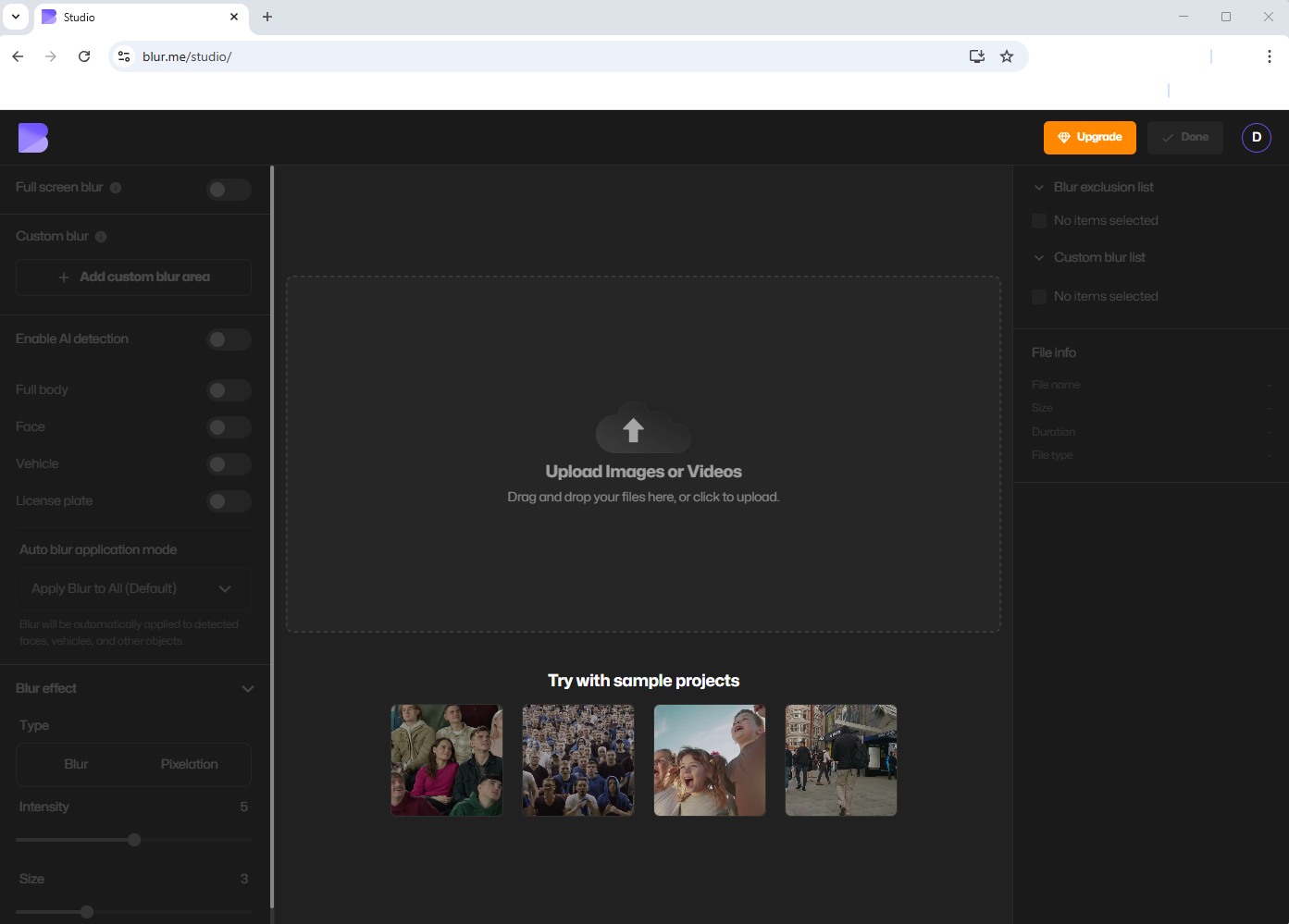
- Open BlurMe Studio in Your Browser
Go to BlurMe Studio and navigate to the HEIC to JPG converter.
- Upload Your HEIC Files
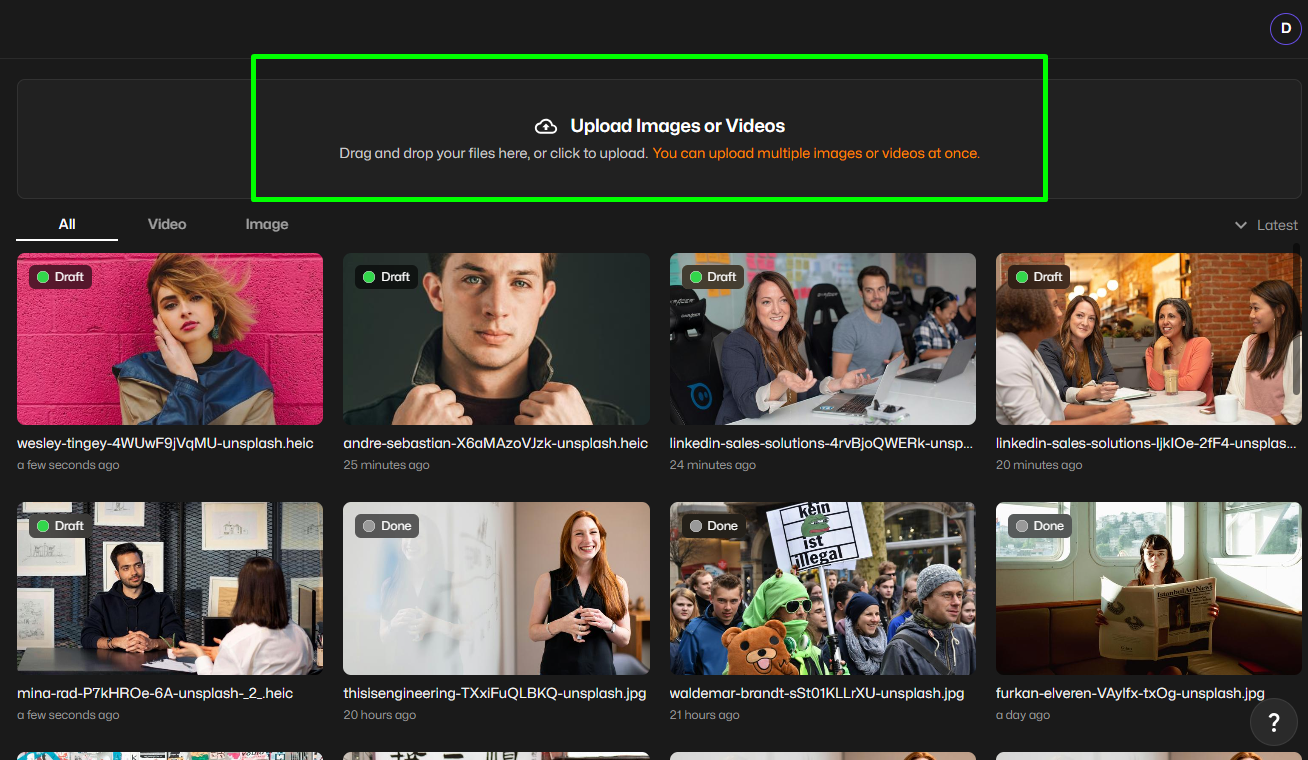
Select multiple HEIC photos to convert. BlurMe allows you to bulk convert images in one go.
- Select All Your HEIC Files
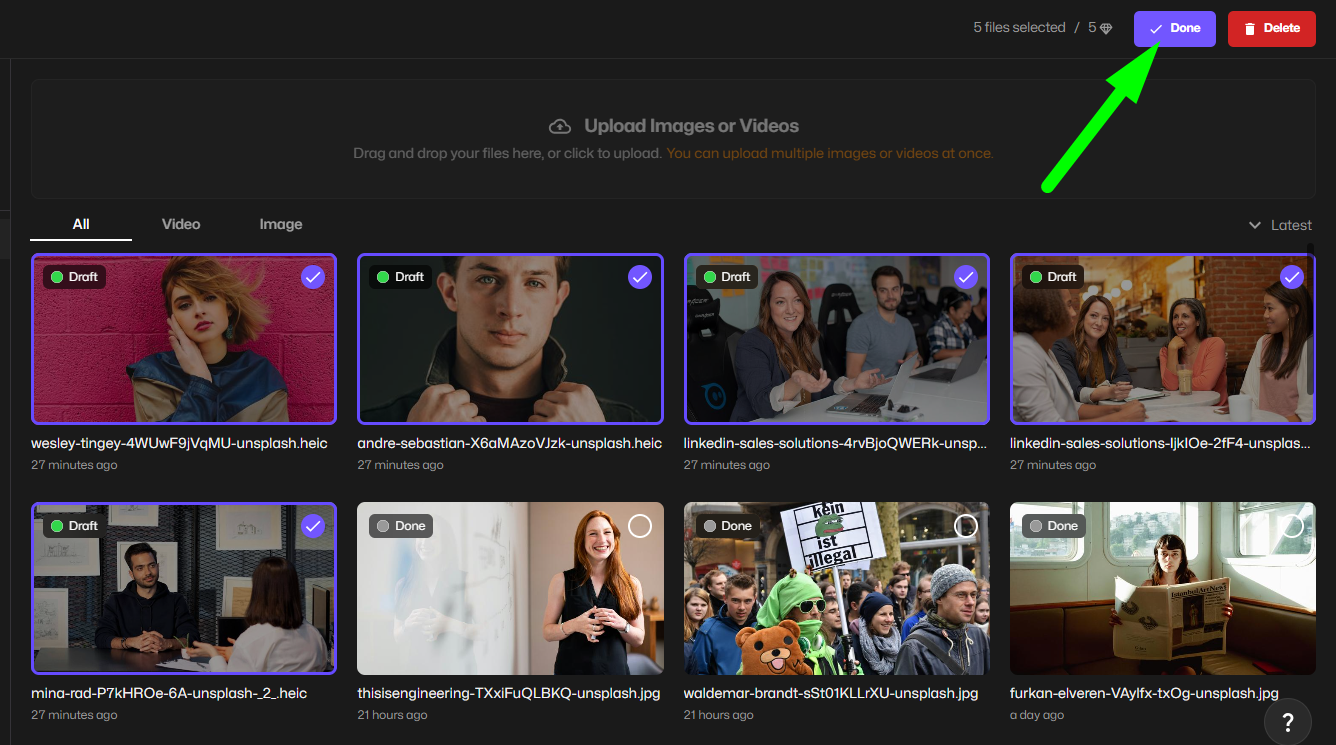
Select each HEIC file that you want to convert to JPG in the dashboard and click Done.
- Choose JPG as the Output Format
Set JPG as your target format. BlurMe ensures HEIC to JPG without losing quality.

- Export and Download JPG
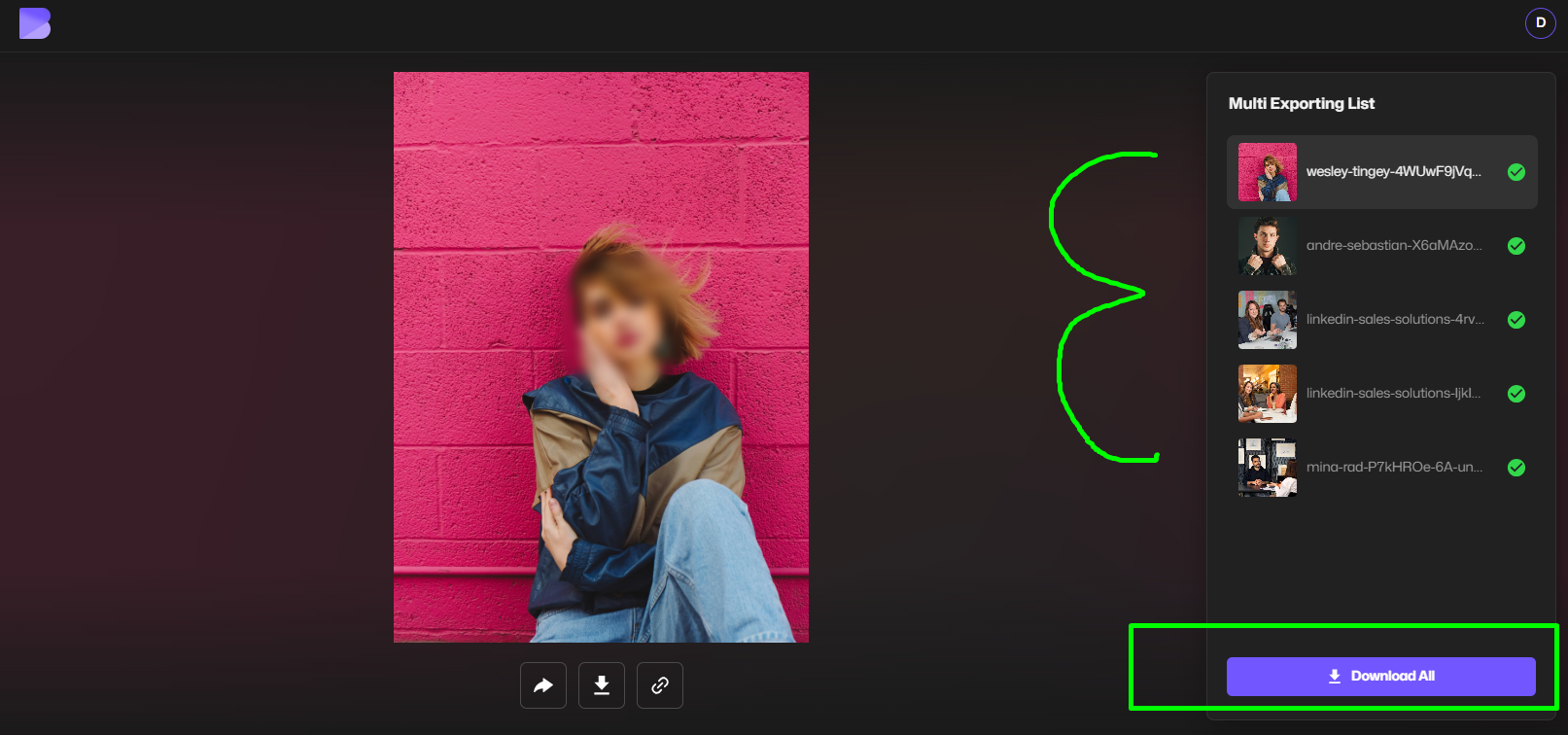
Click “Export” and wait for the process to finish. Then click Download All. The converted images are delivered in a ZIP file for easy download.
Optional: Use BlurMe AI Blur
After conversion, you can also protect privacy by blurring faces or sensitive areas in your images using BlurMe AI face blur.
How to Convert HEIC to JPG on iPhone
To convert HEIC to JPG on iPhone, follow these steps:
- Open BlurMe Studio in Safari.
- Upload HEIC images from your Camera Roll.
- Select JPG as export output.
- Convert and save the files directly back to your iPhone.
This method is perfect for users who want to how to mass convert HEIC to JPG without downloading additional apps.
How to Convert HEIC to JPG on Windows 10
Windows users can easily change HEIC to JPG using BlurMe:
- Open BlurMe Studio in your browser.
- Upload all HEIC images stored on your PC.
- Select JPG as export output and click Convert.
- Download the ZIP file containing all converted images.
This makes BlurMe the ultimate HEIC to JPG mass converter for Windows 10.
Handling Multiple HEIC Photos Efficiently
When converting large batches of HEIC photos, maintaining image quality is just as important as saving time. BlurMe’s HEIC Converter is designed to process multiple files at once while preserving resolution and color detail. For mixed-format batches, the Image Converter helps standardize images after conversion, and tools like the JPG Converter make it easy to finalize outputs for consistent use across platforms and devices.
Tips for a Smooth Bulk Conversion
- Organize your photos in a single folder before uploading for faster processing.
- Check internet connection to avoid interruptions during large batch conversions.
- Use BlurMe AI blur for any privacy-sensitive images post-conversion.
- Verify downloaded images to ensure quality is retained.
FAQs About Batch Converting HEIC to JPG
Q: Can I convert HEIC to JPG without losing quality?
Yes! BlurMe ensures HEIC to JPG without losing quality, preserving your original images.
Q: How do I batch convert HEIC to JPG on iPhone?
Use BlurMe in Safari. Upload your HEIC photos, select JPG, and download them—no extra apps needed.
Q: Is BlurMe free for bulk HEIC conversion?
Absolutely. BlurMe allows mass convert HEIC to JPG online for free.
Q: Can I also blur faces or sensitive info after converting?
Yes! After conversion, you can use Blur face in photo to protect privacy.
Q: Can I convert HEIC to JPG on Windows 10 without installing software?
Yes, BlurMe works entirely online. Check How to Convert HEIC to JPG on Windows for a detailed guide.
Conclusion
Converting HEIC to JPG has never been easier. With BlurMe, you can bulk convert images, mass convert HEIC to JPG, and convert HEIC to JPG in bulk without losing quality. Whether you’re on Windows, Mac, or iPhone, BlurMe is your go-to HEIC to JPG mass converter.
Start converting your photos now and protect privacy effortlessly with BlurMe AI blur!
Convert HEIC to JPG for Free with BlurMe and experience high-quality batch conversion in seconds.