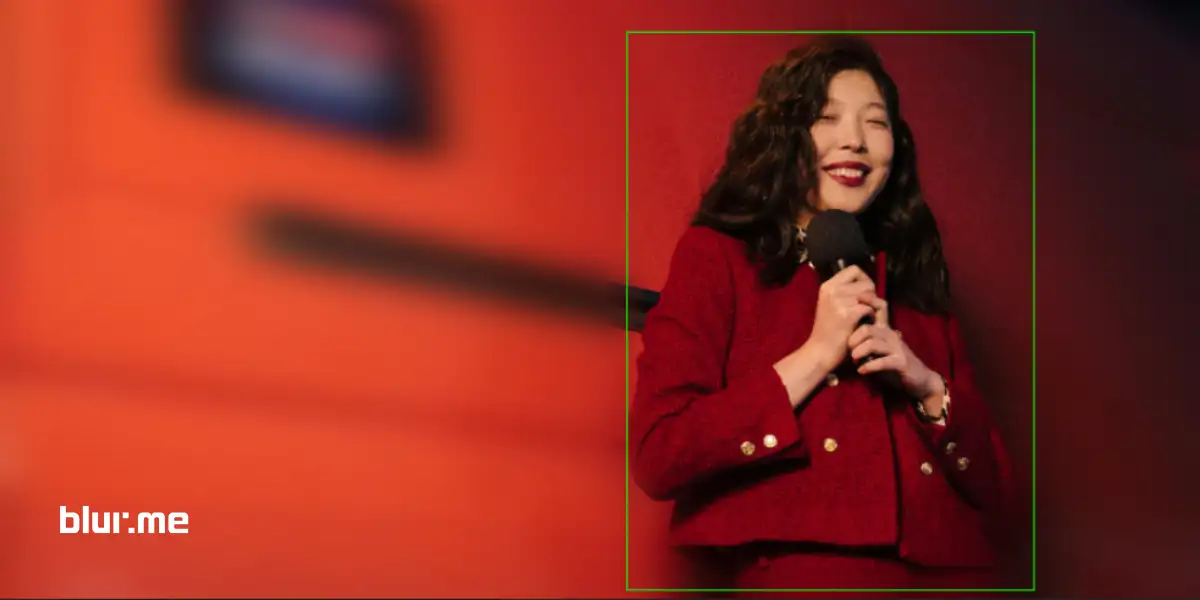
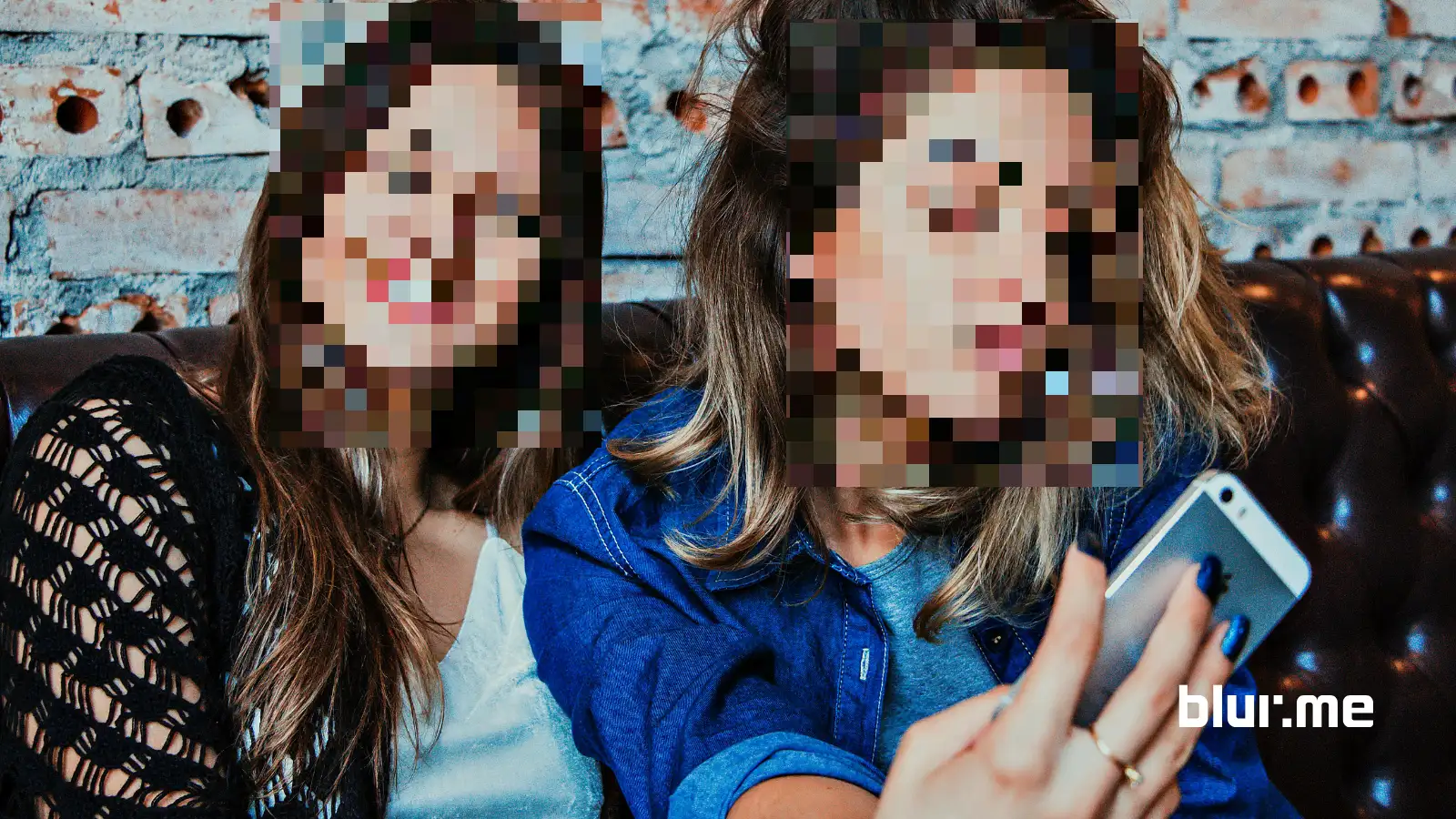
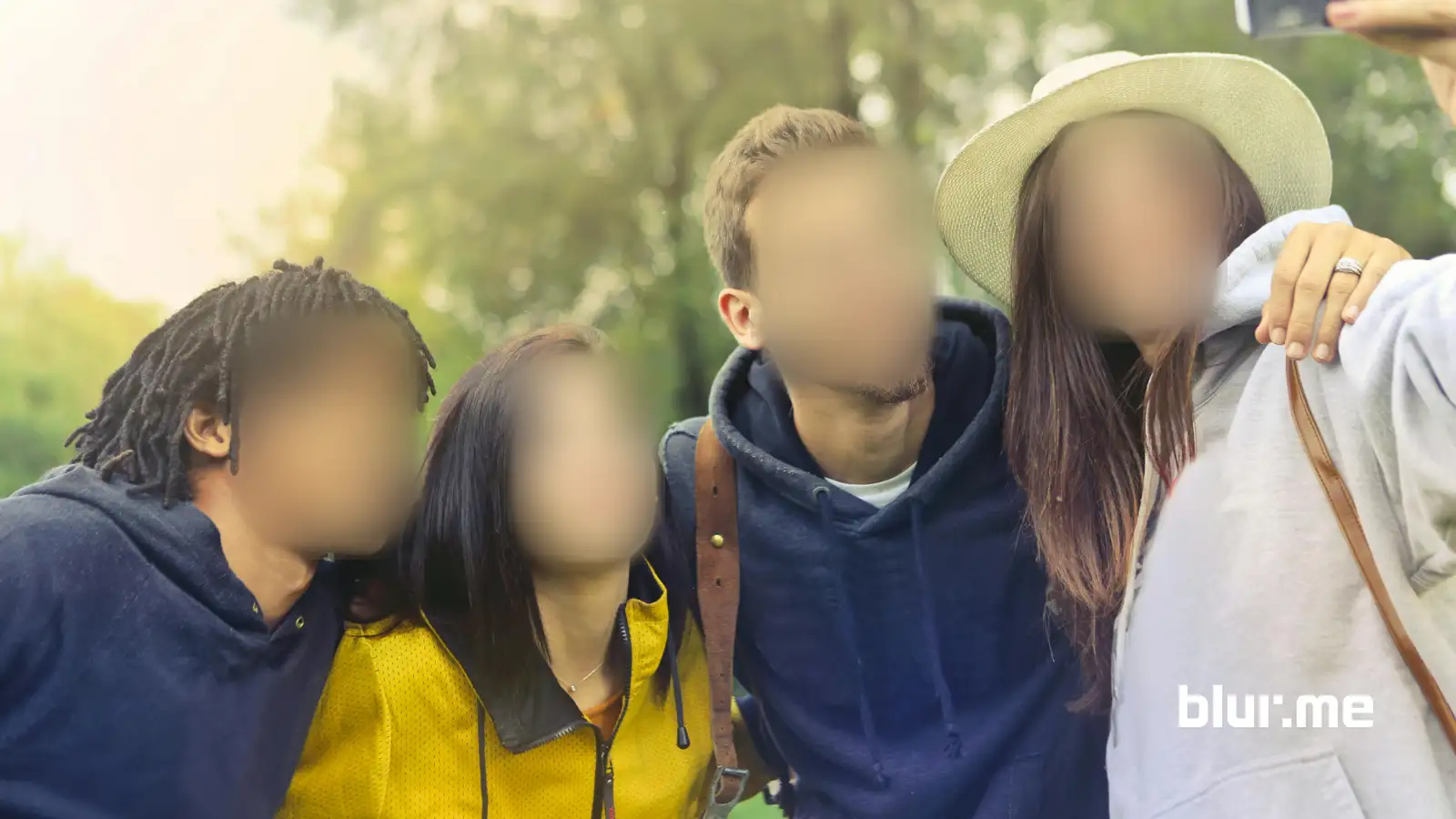
You can now blur image online for free in just a few clicks, without downloading or installing any software. Whether you need to hide a person’s identity using face blur, censor sensitive information, or create a soft, professional-looking background, modern browser tools make the process quick and simple. Instead of complicated editing programs, you can apply a blur effect directly from your browser and get clean results in seconds.
In this guide, you’ll learn how to blur an image step by step, explore different types of blur effects, and discover why BlurMe is one of the most reliable tools to blur images online for free.
How to Blur an Image Online with BlurMe
If you're wondering how to blur a picture or photo online for free, here's exactly how it works:
Step 1 – Upload Your Photo
Visit BlurMe Studio - blur image in your browser. Upload the image you want to blur, all image formats are supported.
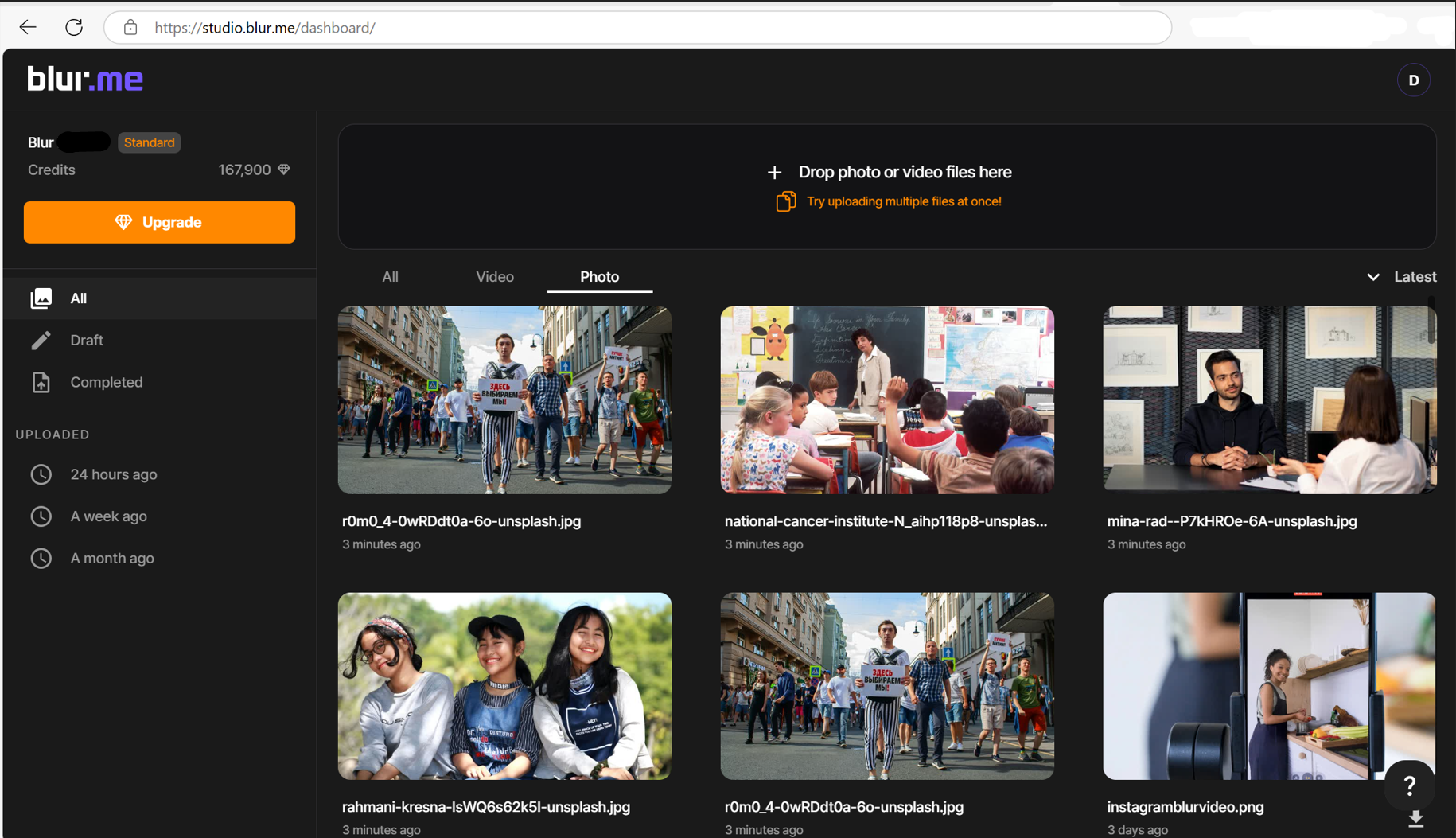
Step 2 – Choose Your Blur Type
BlurMe offers three core options:
1. AI Blur
Automatically detects and blurs all faces, bodies, cars, or license plates in your image. Perfect for creators, journalists, or educators needing a fast face blur effect.
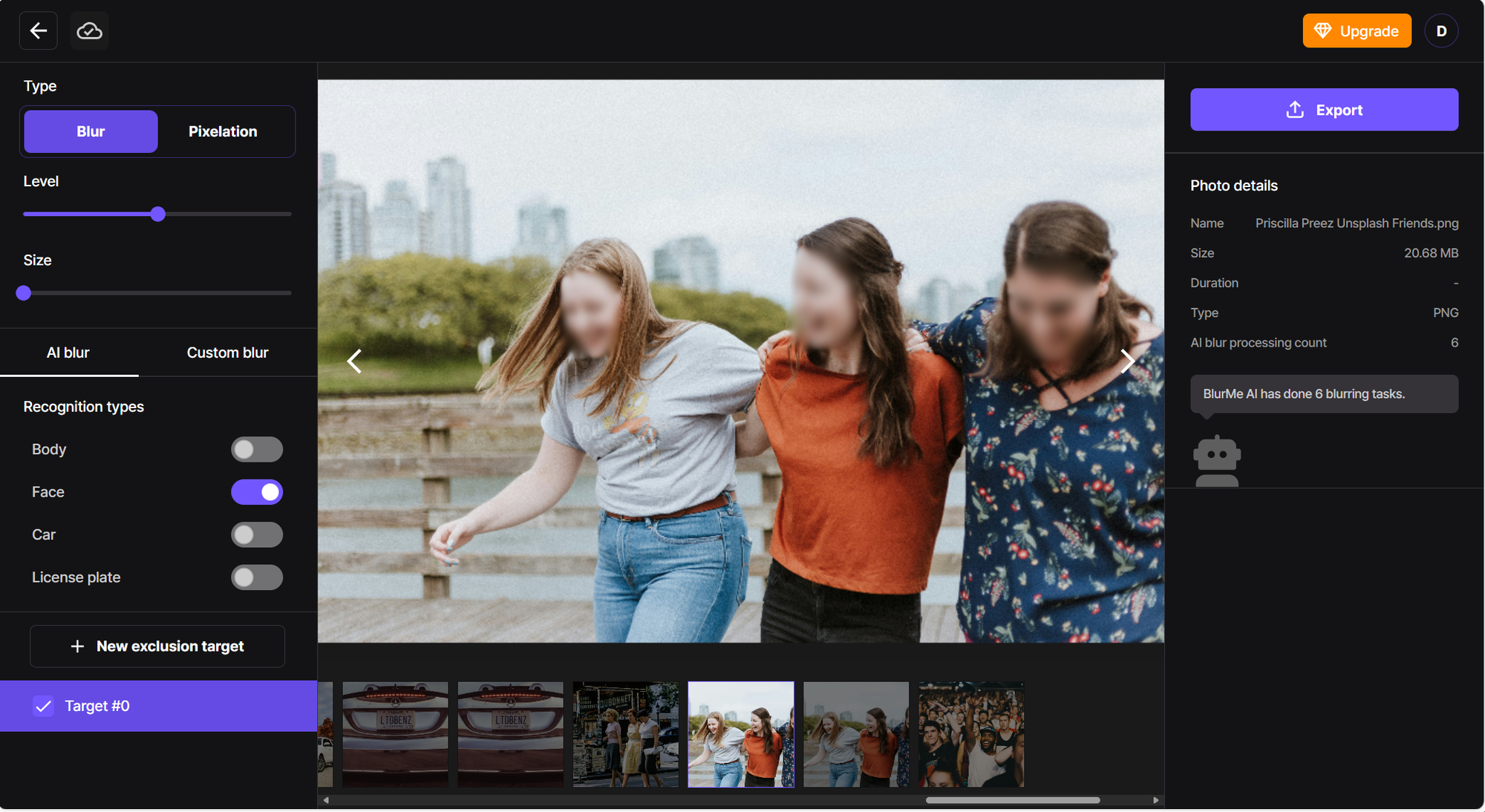
2. Custom Blur
Manually select and blur any area. This feature is perfect when you need to blur part of an image specifically or redact confidential areas.
3. Pixelation Effect
Turn any part of your image into pixel blocks. Ideal for censoring faces, license plates, or sensitive text with a bold, pixelated look.
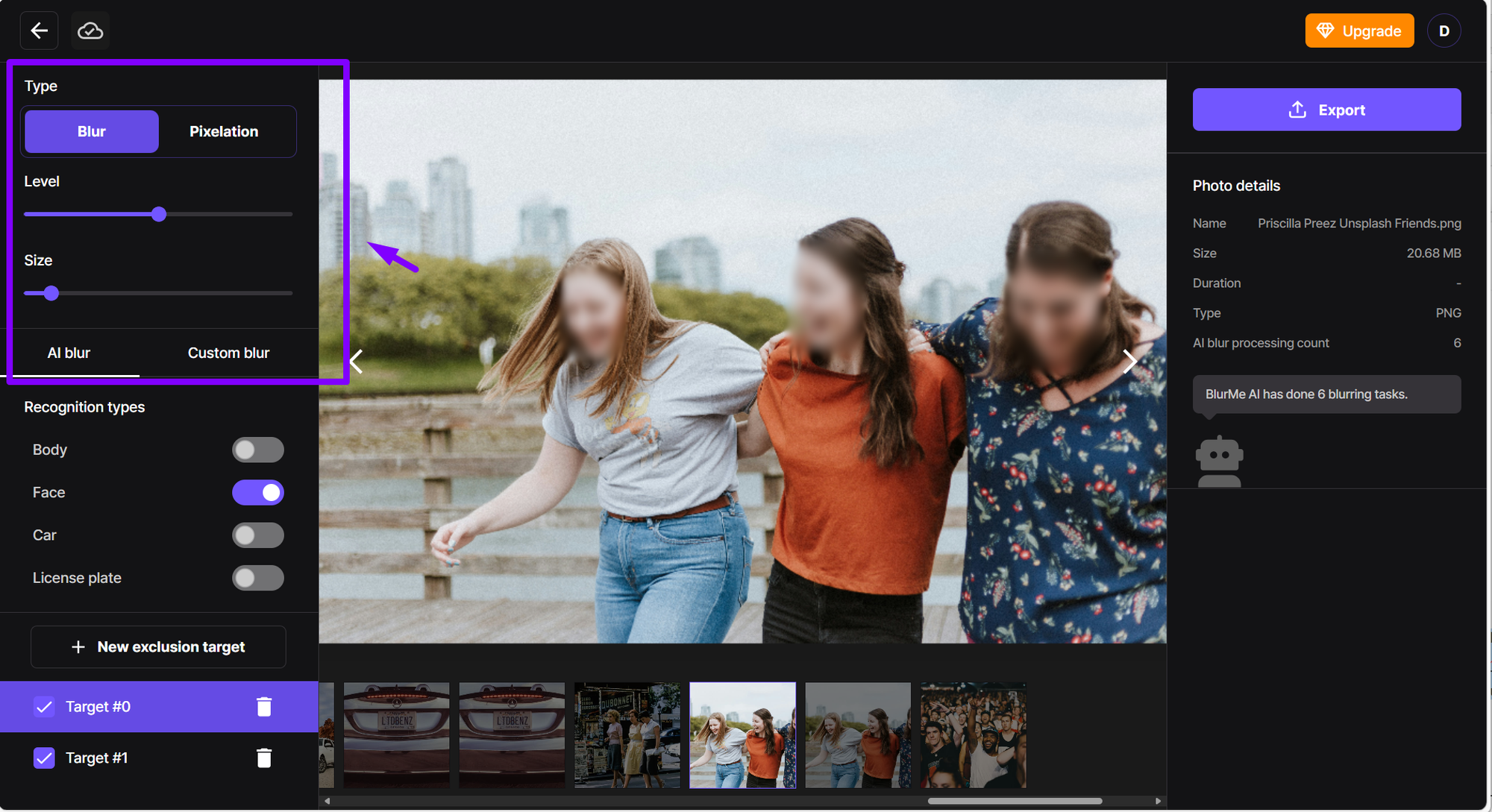
Step 3 – Adjust the Blur Level
Use the intensity slider to control how strong the blurred effect is. Need a soft focus? Slide it down. Want full censorship? Dial it up.
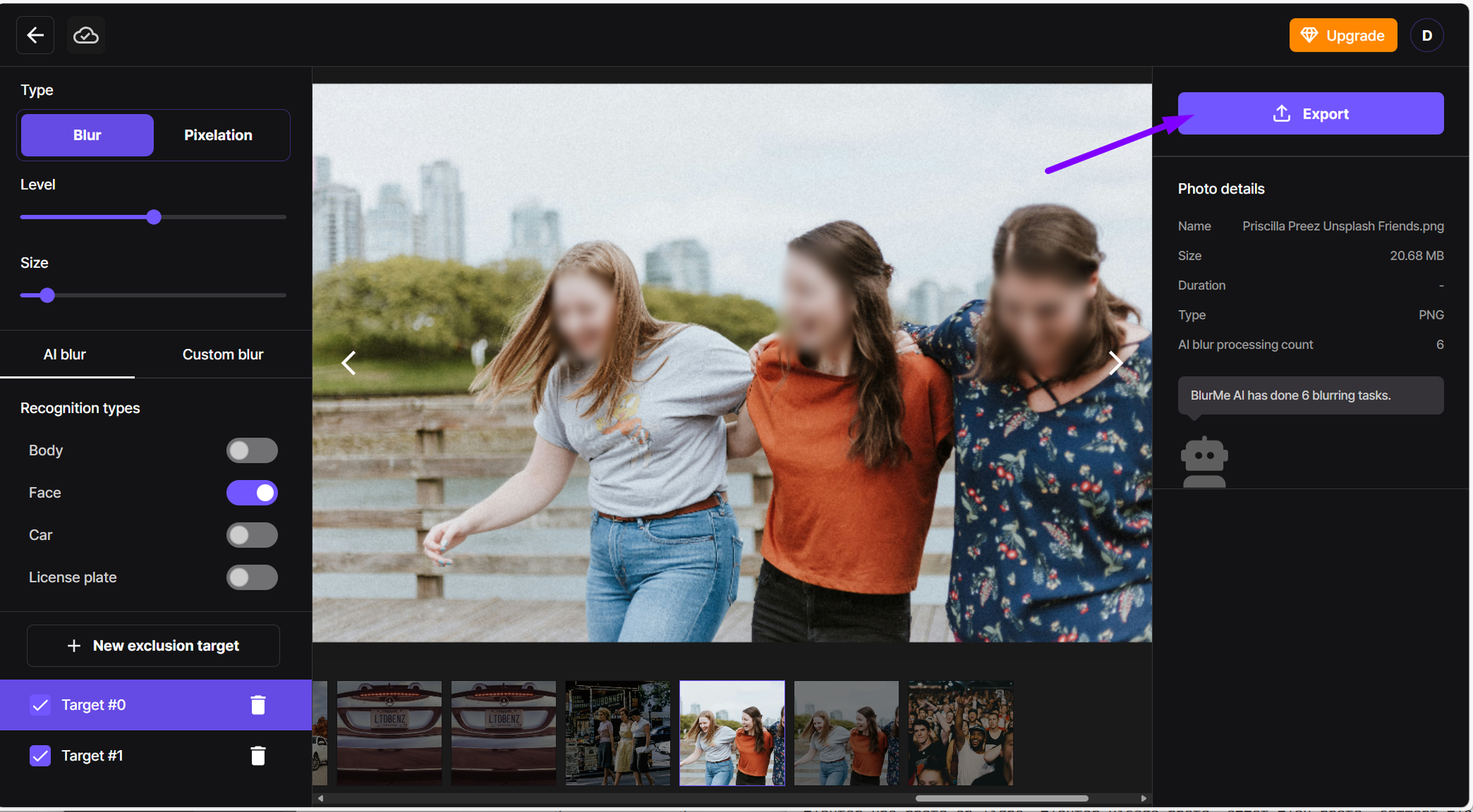
Step 4 – Export Your Image
Once you’re done, hit Export. Your blurred image is ready to download, watermark-free.
How to Blur Something in an Image (Faces, Backgrounds, or Specific Parts)
BlurMe lets you control what you blur and how you blur it:
- Blur faces in photos automatically with facial detection. Great for group shots, ID documents, or social content. [Blur a Face in a Picture →]
- Blur the background to highlight the subject and remove distractions. [Blur background of picture →]
- Blur screen content, documents, license plates, or logos for privacy or branding. [Blur text and screenshots →]
- Censor blur a specific area with pixelation or smooth blur for security reports or journalism. [Censor Images →]
Whether you're wondering how to blur something in a photo or want a quick fix for a redacted image, BlurMe’s got you.
Why BlurMe is the Best Tool to Blur Images Online
There are plenty of image blur tools online—but here’s why BlurMe stands out:
- 100% Online – No app downloads, ever.
- Fast AI – Detects and blurs faces and objects in seconds using its Blur Face AI.
- Free to Use – Full features at zero cost.
- Mobile-Friendly – Blur images on the go, including on iPhone or Android. [How to blur a picture on iPhone →]
- All-in-One – Blur, censor, pixelate, redact—all in one place.
It’s the ultimate blur editor for professionals, creators, and everyday users.
Why Blur Images with BlurMe and Not Photoshop?
You might search for how to blur in Photoshop, but let’s be honest—most users don’t want to learn complicated software just to blur a photo or blur a screen.
With BlurMe you can blur images easily and quickly:
- No installations
- No learning curve
- Full mobile support (blur images on iPhone or Android)
- Zero cost
How Professional Editing Benefits from AI Blur Tools
Creating visually appealing images isn’t just about aesthetics — it’s about precision and control. Professional photographers, designers, and content creators often rely on tools that allow them to selectively blur parts of an image, enhancing focus on the subject while keeping the rest of the composition intact.
AI-powered blur tools like BlurMe bring this level of precision to anyone, automatically detecting faces, objects, and backgrounds. This allows users to apply consistent, high-quality blur effects without manual effort, ensuring images look polished and professional. By leveraging AI for editing, you maintain clarity where it matters, eliminate distractions seamlessly, and produce results that reflect real skill and attention to detail — the kind of quality both viewers and search engines recognize.
FAQs About Blurring Photos Online
1. How do you blur a photo?
You can use BlurMe’s free online blur tools to blur a photo in just a few clicks. Upload, select your blur method, apply the effect, and download.
2. Can I blur just one part of a photo?
Yes! BlurMe’s Custom Blur tool lets you blur part of an image—whether it’s text, a face, or any area you choose.
3. How to blur in Photoshop?
In Photoshop, use filters like Gaussian Blur under the “Filter” > “Blur” menu. It gives advanced control but requires software and some editing knowledge—unlike BlurMe’s instant, no-learning-curve approach.
4. Is it possible to blur photos on iPhone?
Absolutely. With BlurMe, you can blur a picture on iPhone directly in your browser without needing an app.
5. How do I remove text from an image?
Use BlurMe’s Remove Text from Images tool to erase text cleanly without affecting the background—perfect for edits, templates, or watermarks.
6. Can I blur a PNG or PDF?
Yes! Read BlurMe’s blur PNG and Best PDF redaction software list lets you blur faces or text in PNGs and PDFs directly online—no conversions needed.
Try It Now – Blur Your Image Online for Free
Blurring an image doesn’t have to be complicated. Now you can blur faces and add a soft-focus blur motion effect, BlurMe makes it incredibly easy.
✨ Start blurring your image now on BlurMe Studio →
No downloads, no hassle. Just free, fast, and effective photo blurring.