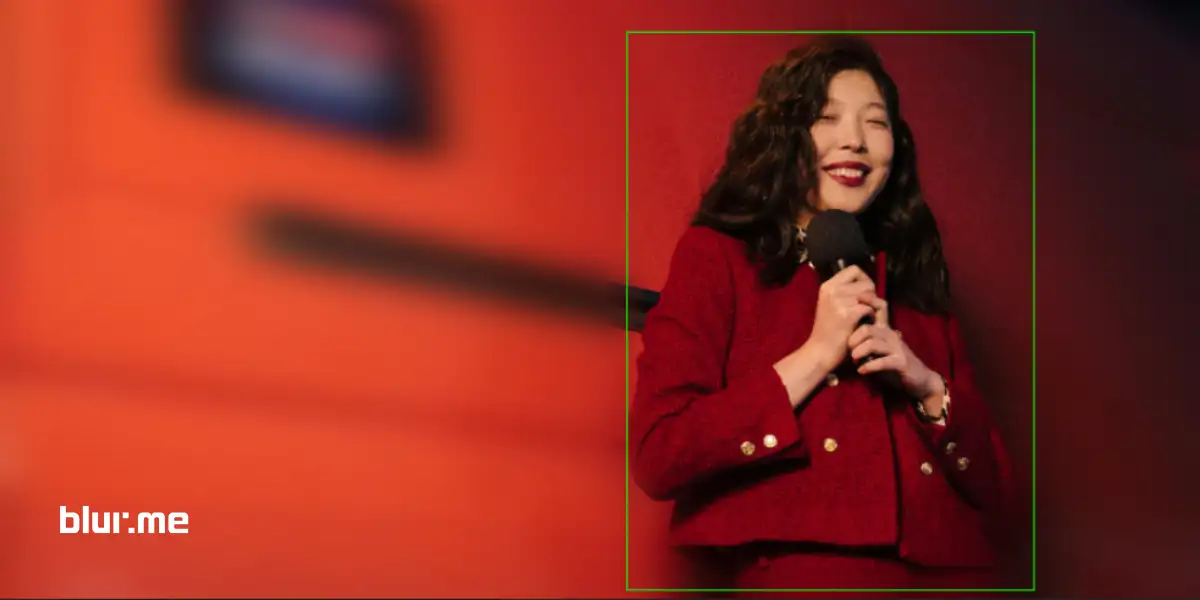
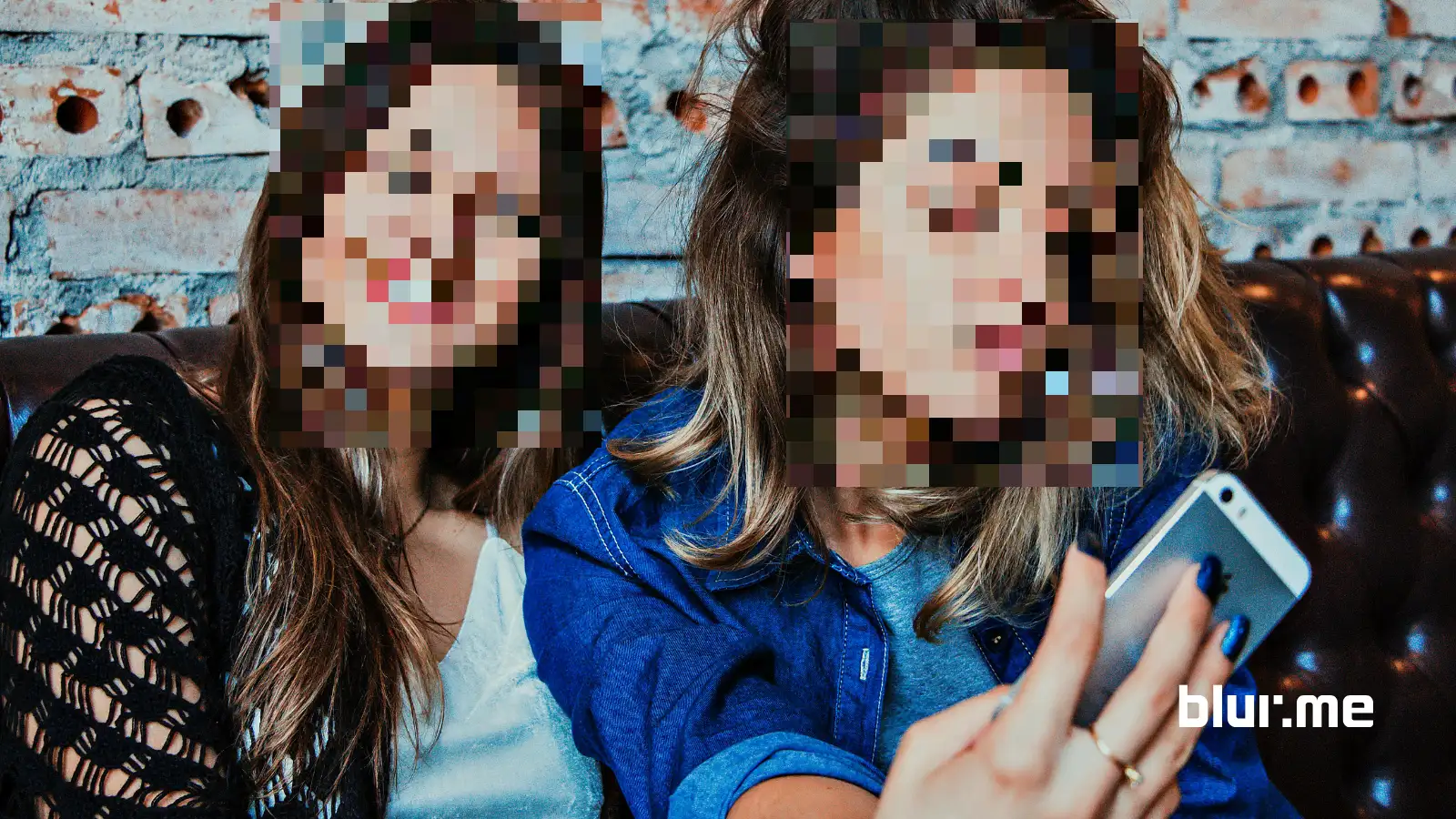
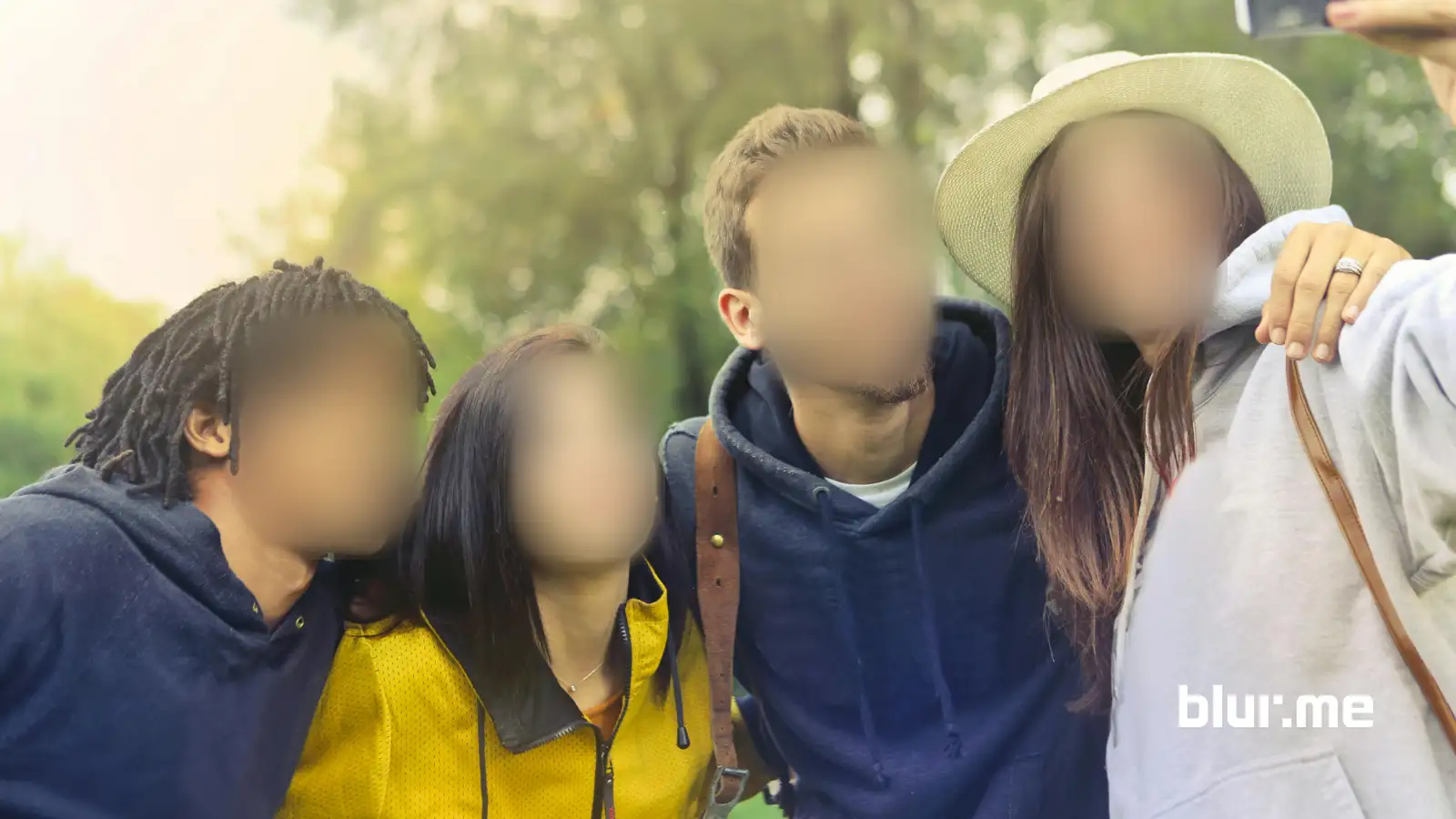
Blur image tools are essential for anyone who needs to blur photos for privacy, professionalism, or visual focus. From blurring faces in photos to blurring the background of a picture, modern users want fast, accurate, online solutions.
This guide covers the top 9 blur image tools in 2026, explains how each one works, and shows why BlurMe’s online AI Blur Image tool is the most complete solution for real-world use.
What Makes a Good Blur Image Tool?
A modern image blur tool should do more than apply a generic blur overlay. The best tools in 2026 offer:
- AI-powered face and subject detection
- Background blur without cutting out subjects
- Manual blur tools for specific areas
- High-quality exports (no compression loss)
BlurMe was built specifically around these needs.
1. BlurMe – Best Blur Image Tool Overall (AI + Manual Control)

Best for: Blurring faces, backgrounds, objects, sensitive details
Platform: 100% online (browser-based)
BlurMe is the most advanced blur image tool available in 2026. It combines AI face detection, background blur, and manual blur brushes in one streamlined editor.
Unlike apps that rely on filters, BlurMe is designed for real use cases: privacy protection, content moderation, journalism, education, and professional publishing.
How to Blur an Image Using BlurMe
- Open BlurMe's Blur Image Studio in your browser
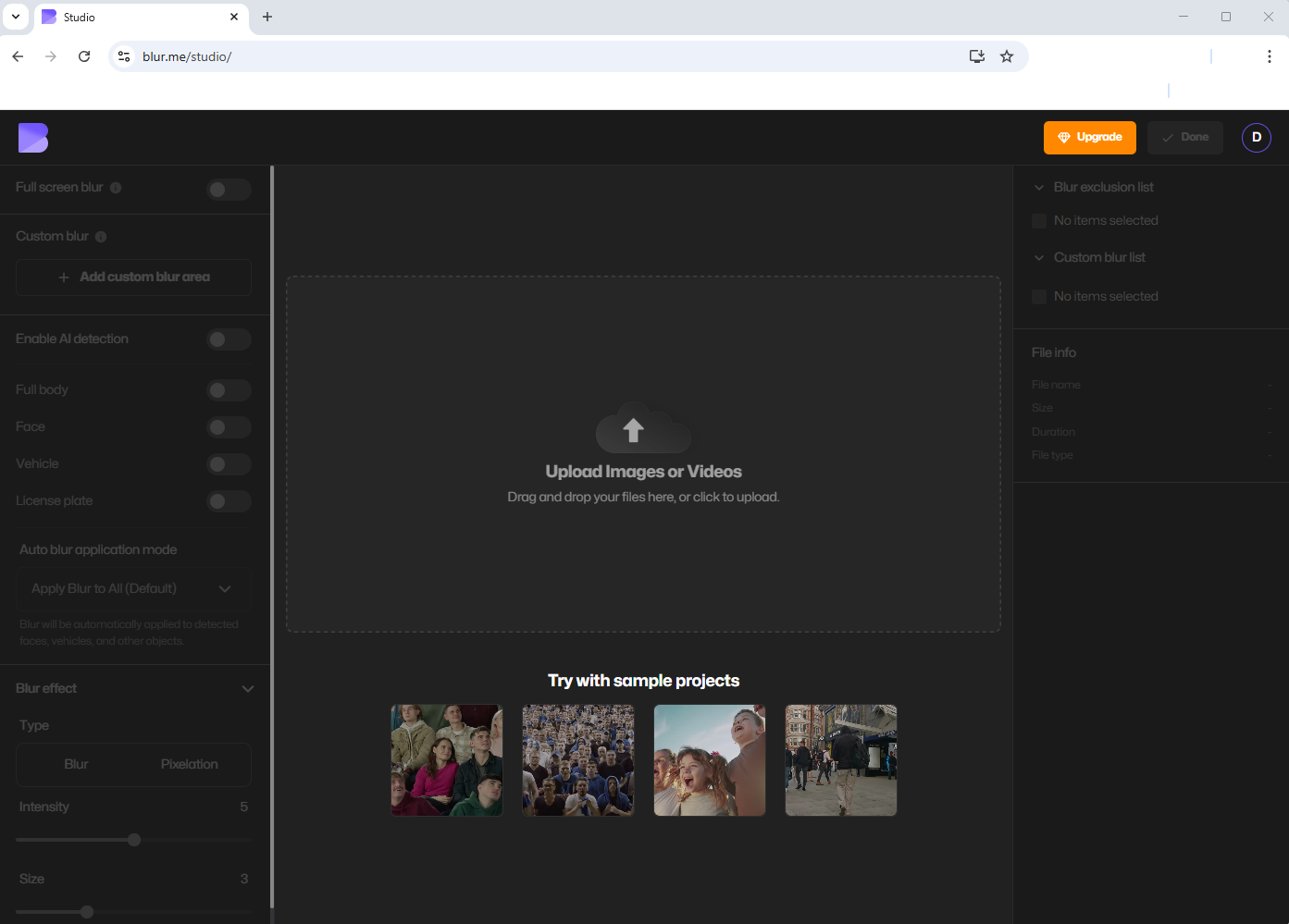
- Upload your photo
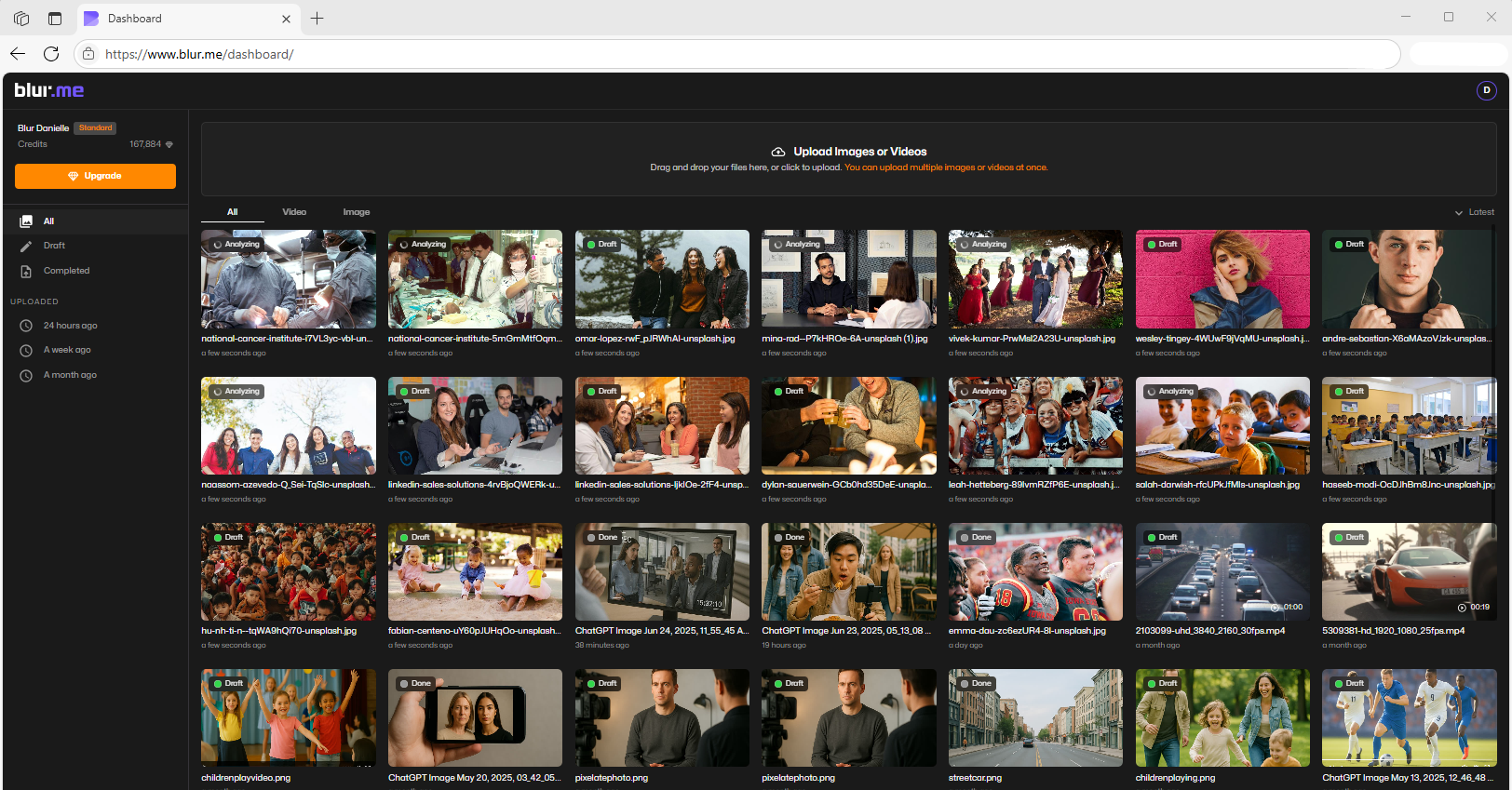
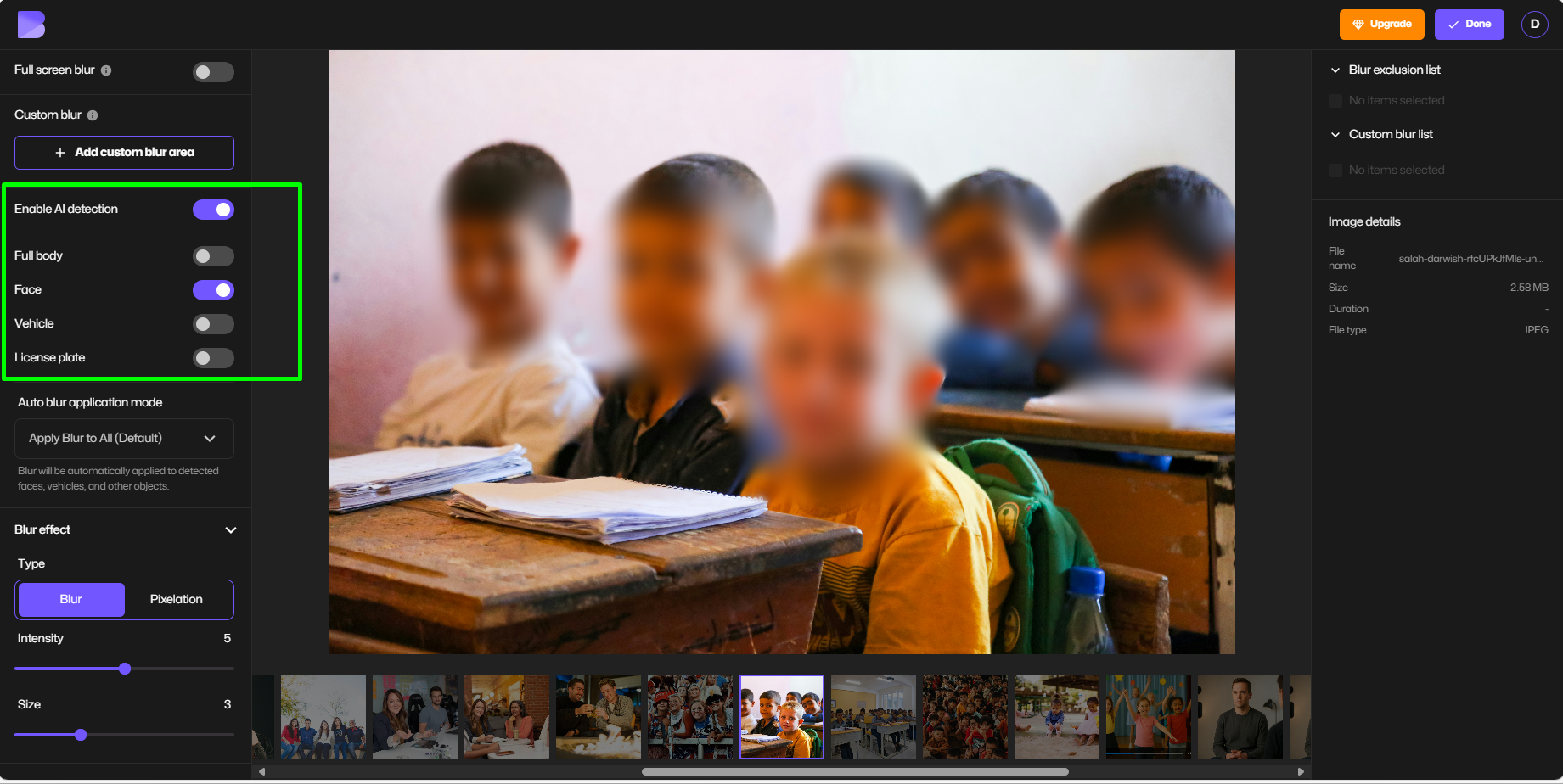
- Enable AI Blur to automatically detect faces or people
Choose what to blur:- Faces
- Background
- Specific areas like license plates and cars
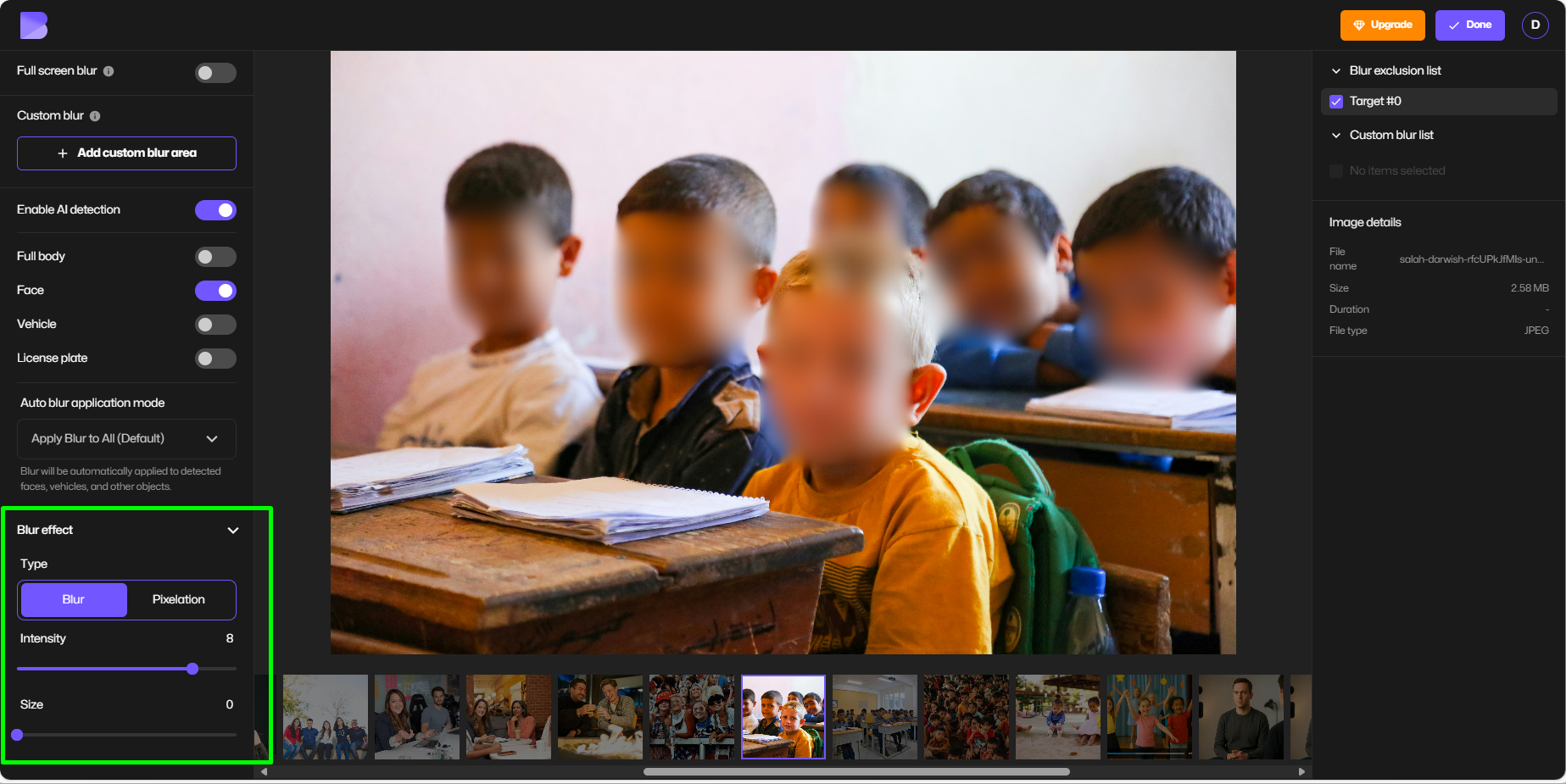
- Adjust blur intensity or switch to pixel blur
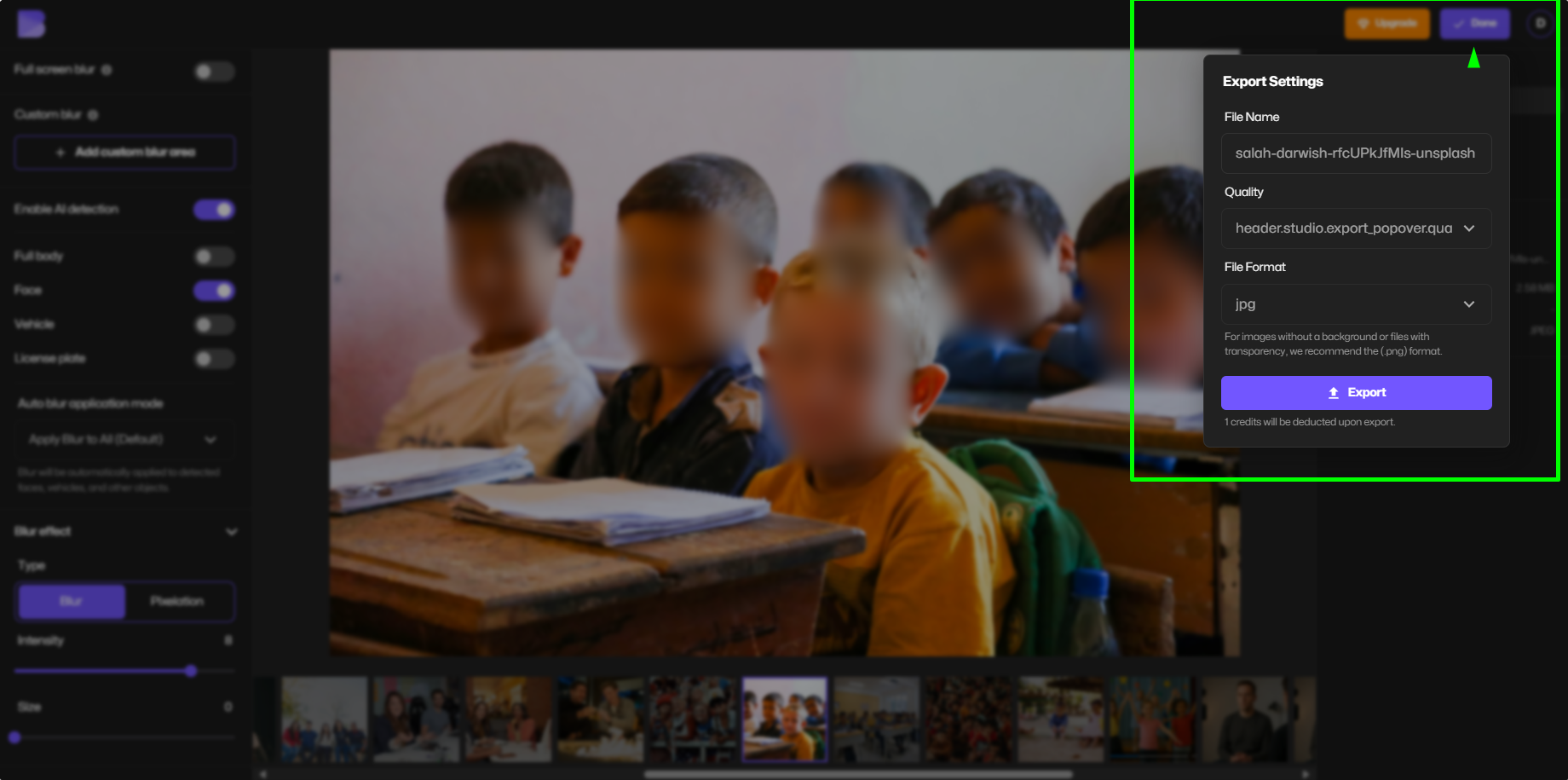
- Export your blurred image instantly
Why BlurMe Ranks #1
- Automatic detection of multiple faces
- Manual brush for precise control
- No software installation
- Designed for privacy compliance
2. Adobe Photoshop – Advanced Blur for Professional Editors
Best for: Designers, photographers, advanced users
Platform: Desktop (Windows, macOS)
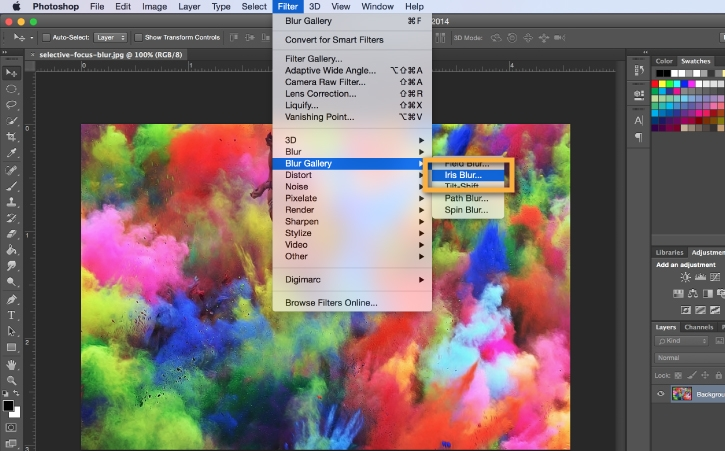
Adobe Photoshop offers the most technical control over blurring, including Gaussian Blur, Lens Blur, Field Blur, and layer masks. Users can blur photos, blur backgrounds, and blur specific objects with extreme precision.
How Photoshop Handles Blur
To blur an image in Photoshop, users typically:
- Duplicate the image layer
- Create a manual selection or mask
- Apply a blur filter
- Refine edges by hand
Limitations
- No automatic AI face blur for photos
- Steep learning curve for beginners
- Requires paid subscription and installation
- Time-consuming for simple tasks
Photoshop is powerful, but impractical for users searching how to blur a photo quickly.
3. Canva – Basic Blur Filters for Visual Design

Best for: Social media graphics, presentations
Platform: Web, iOS, Android
Canva includes simple blur filters that allow users to blur images or create background blur effects within designs.
What Canva Can Do
- Apply general blur filters
- Create soft background blur for layouts
- Blur pictures for aesthetic purposes
Where Canva Falls Short
- No AI face or object detection
- Cannot accurately blur faces in photos
- Limited control for selective blur
- Not suitable for privacy or compliance
Canva is a design tool, not a dedicated blur image solution.
4. Facetune – Portrait-Based Background Blur
Best for: Selfies, portraits
Platform: iOS, Android
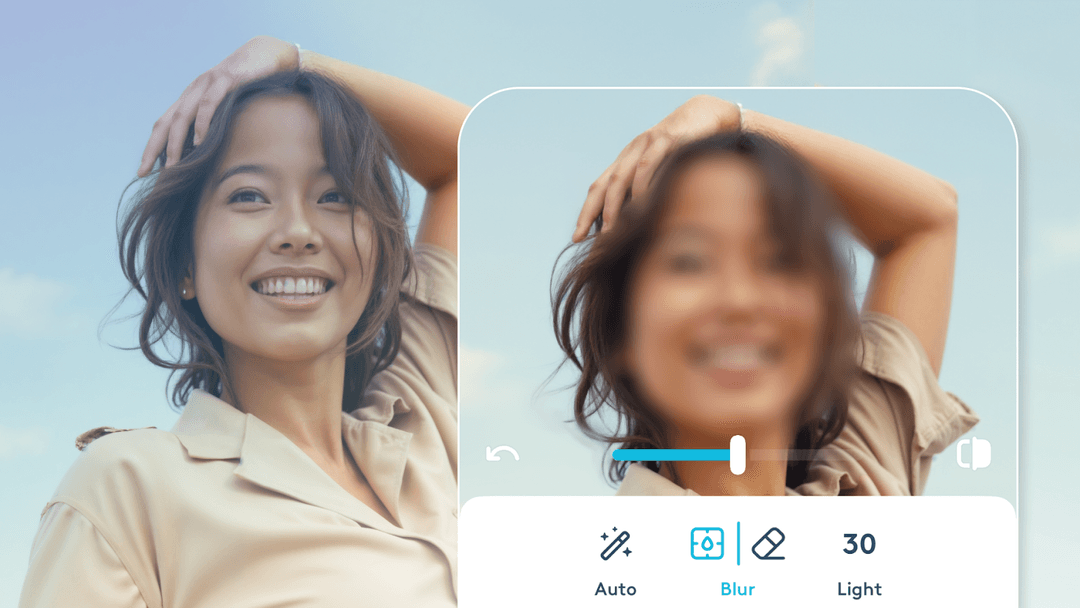
Facetune is commonly used for searches like facetune blur background or how to blur on facetune. It focuses on portrait enhancement rather than image redaction.
How Facetune Applies Blur
- Detects a single main subject
- Applies artificial background blur
- Combines blur with beauty effects
Limitations
- Not designed for multiple faces
- Limited object blurring
- Not suitable for professional or legal use
Facetune is stylistic, not privacy-focused.
5. Snapseed – Manual Blur on Mobile
Best for: Free mobile editing
Platform: iOS, Android
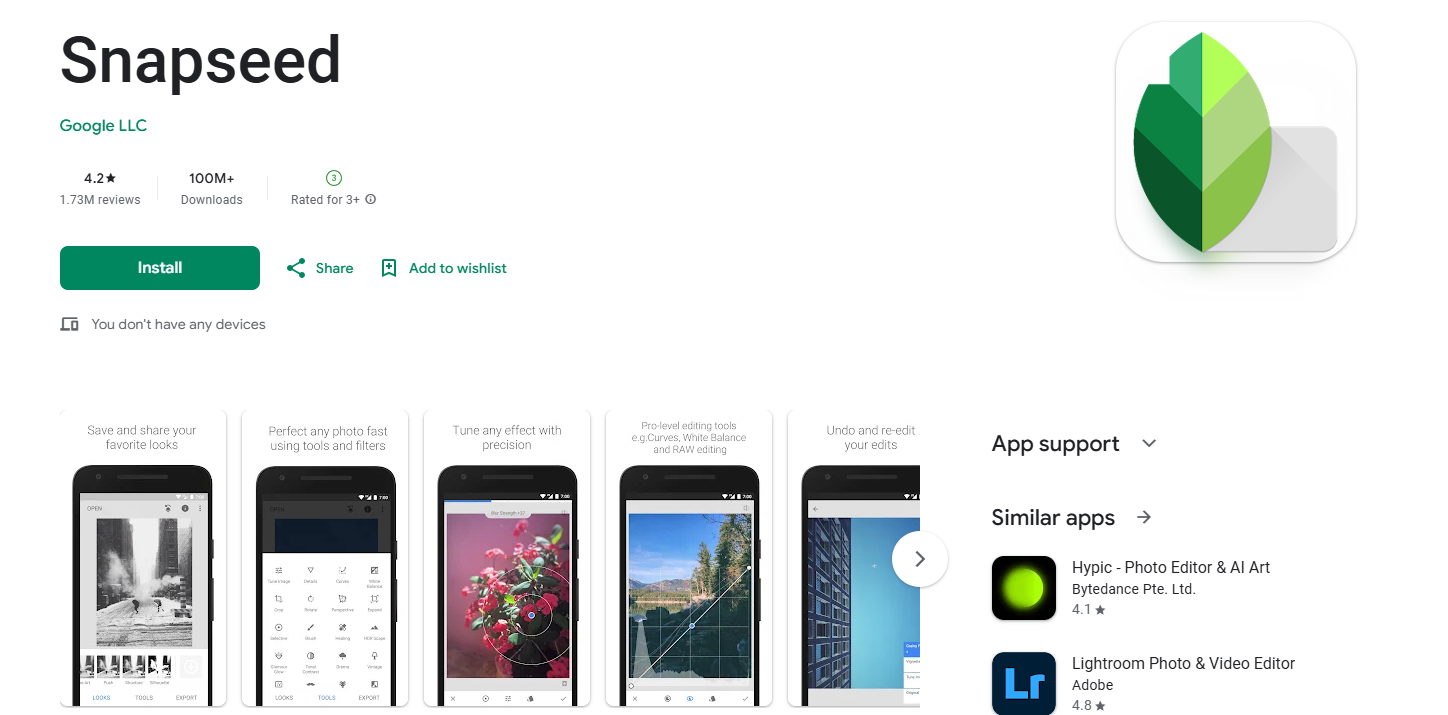
Snapseed offers blur and lens blur tools that allow users to manually blur part of a picture.
Strengths
- Free to use
- Adjustable blur strength
- Useful for simple edits
Weaknesses
- No AI detection
- Manual placement only
- Slow for multiple faces or objects
Snapseed works for casual edits but lacks automation.
6. Fotor – Online Blur Tool with Limited Precision
Best for: Quick online edits
Platform: Web, mobile
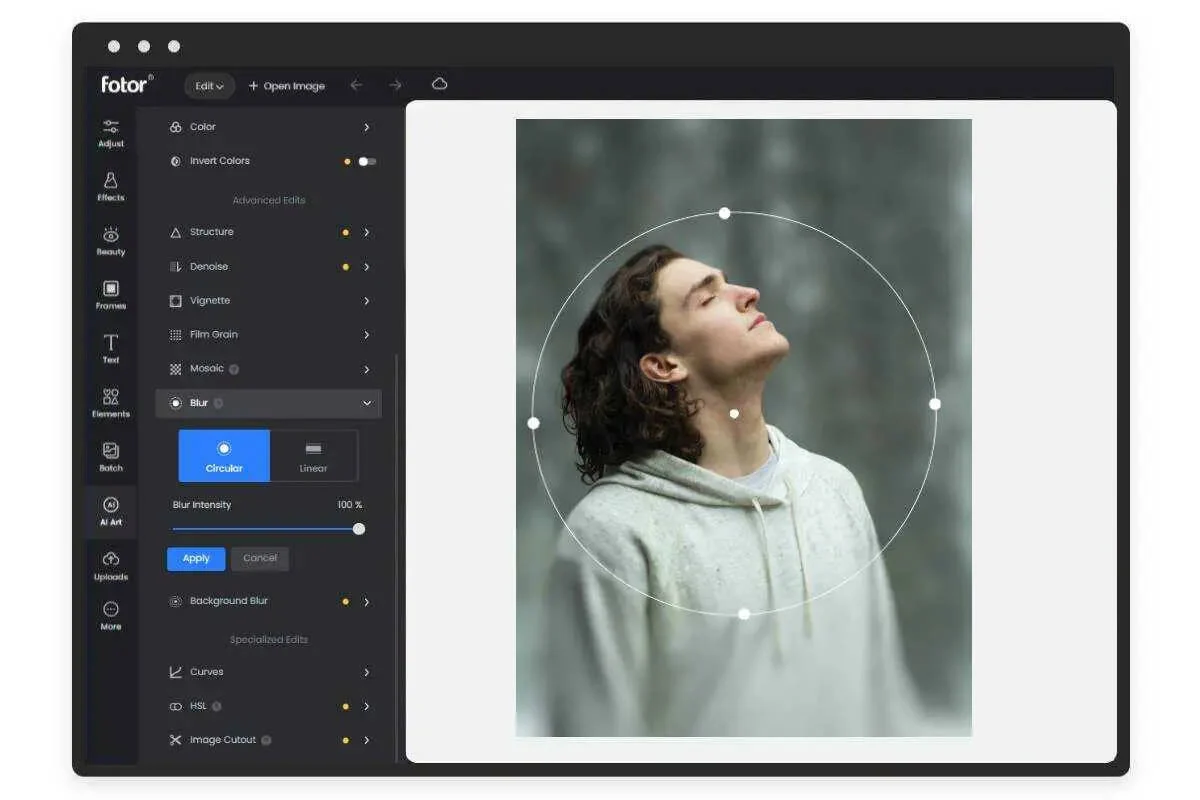
Fotor provides background blur and manual blur tools for users who want to blur photos online.
Pros
- Browser-based
- One-click background blur
Cons
- Inconsistent subject detection
- Edge artifacts around hair and objects
- Limited control for face blurring
Accuracy varies depending on the image.
7. Pixlr – Manual Blur with Layer-Based Editing

Best for: Users familiar with layered editors
Platform: Web
Pixlr offers blur filters, overlays, and brushes similar to Photoshop.
Capabilities
- Blur overlays
- Manual selection tools
- Layer editing
Limitations
- No AI face detection
- Slower workflow
- Requires editing experience
Pixlr is flexible but inefficient for fast blurring.
How to Blur the Background of a Photo (Best Method)
If your goal is background blur, an AI-based tool like BlurMe's Blur Background will produce the most natural results.
Recommended Method
- Upload your photo to BlurMe Blur Background page
- Select Full-Screen Blur to blur the whole screen
- After blurring the whole screen, simply select the target you want to show in the foreground while the background is blurred.
- Adjust blur intensity
- Export in full resolution
Tips for Creating a Natural Blurry Photo Effect
- Avoid maximum blur intensity
- Match blur depth to subject distance
- Use pixel blur for sensitive text
- Preview before exporting
When Blurring Images Is Necessary (Not Optional)
Blurring images is often required for:
- GDPR compliance
- Protecting identities
- Journalism and reporting
- Educational materials
- Content moderation
FAQ: Blur Image Tools
What is the best blur image tool?
BlurMe is the most complete blur image tool for 2026. For more tips on how to best blur images, visit our How to Blur Image Online guide
How do I blur a face in a photo?
Use AI face detection for automatic face blurring. We have a Blur Face in Photo tool and list of the Top Face Blur Apps to get you all sorted.
Can I pixelate instead of blur?
Yes, pixelation is often better for redaction. For more information on how to use our Pixelate Image tool, please read the How to Pixelate an Image guide.
How do I blur only part of a picture?
Use our Custom Blur blur tool to blur specific areas.
Why BlurMe Is the Best Blur Image Tool in 2026
BlurMe combines:
- AI face and people detection
- Background blur without cutouts
- Manual precision custom blur tools
- Online, no-download workflow
- Privacy-first processing
Blur Images Online with BlurMe
Stop struggling with basic filters and complex software.
Blur photos accurately, securely, and instantly with BlurMe’s AI Blur Image Tool.
👉 Try BlurMe AI Face Blur tools and blur images online today