How to Edit MP4 Movies and Videos Online
Danielle King Part of: Blur Video Complete Guide: Tools, Methods & Best Practices (2025)Read the complete guide →
MP4 is the format almost every platform accepts from YouTube and TikTok to client presentations and online courses. But recording a video is only half the job. Before you share it, you often need to edit an MP4 video, blur sensitive details, or convert it for the right platform.
The good news? You can now edit and convert MP4 videos online using AI tools directly in your browser, no complicated software required.
This guide shows you exactly how to blur, redact, and export MP4 videos in just a few steps.
Why MP4 Is the Standard Video Format
MP4 is widely used because it offers:
- High-quality video with manageable file sizes
- Compatibility with nearly all devices
- Support across social media and video platforms
- Easy streaming and downloading
Because MP4 is so universal, it’s also the most common format people need to edit, blur, or convert before publishing.
What You Can Edit in an MP4 Video
Modern AI tools go far beyond trimming and cutting. When you edit MP4 videos online, you can:
- Blur faces in MP4 movies
- Blur moving people or objects
- Blur backgrounds
- Hide license plates or street signs
- Redact screens, documents, or private details
- Apply pixelation instead of blur
- Track motion automatically so blur follows movement
These features are especially important for creators filming in public, businesses handling recorded meetings, or anyone sharing videos online.
How to Edit an MP4 Video Online with BlurMe (Step-by-Step)
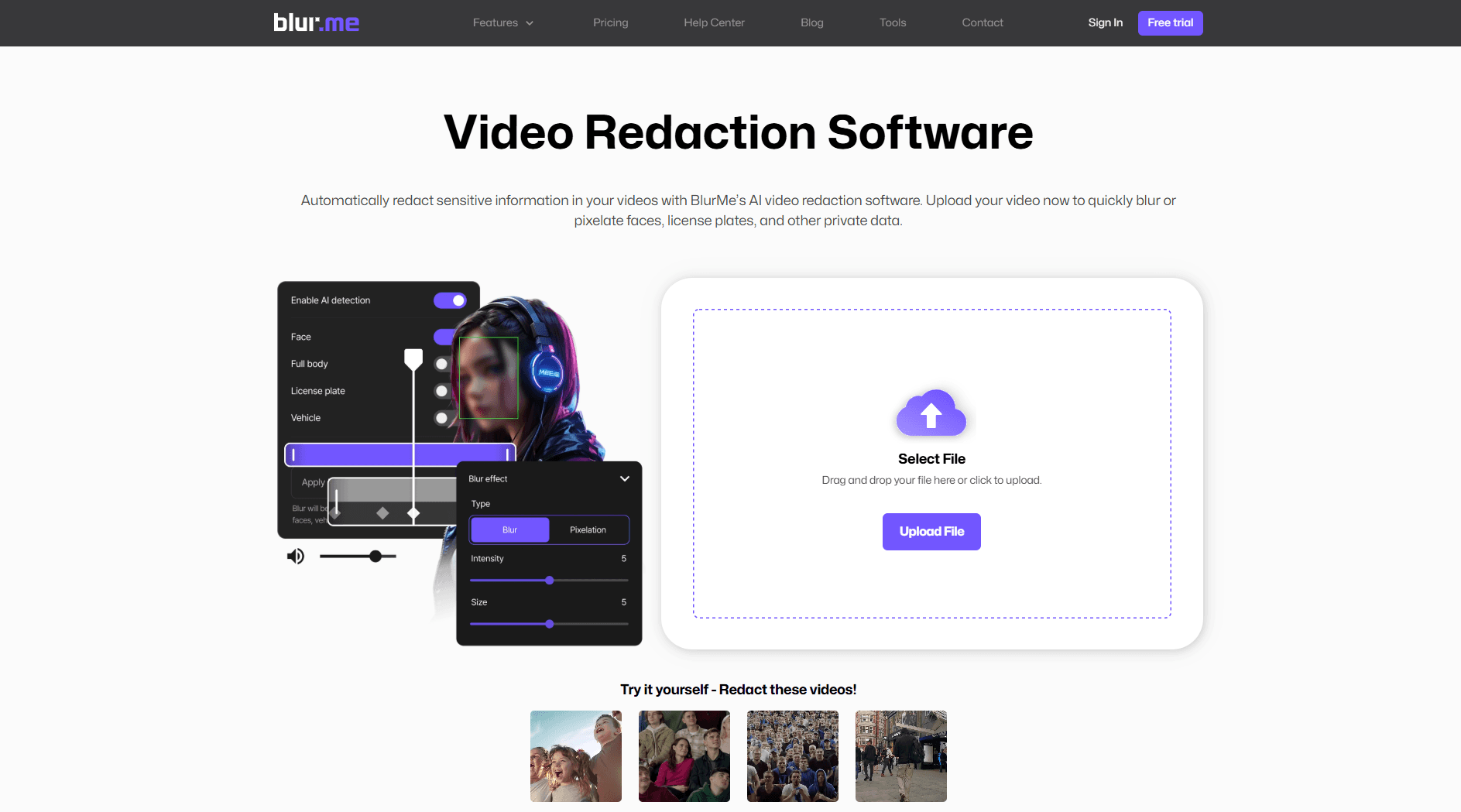
BlurMe is a browser-based AI MP4 video editor designed specifically for privacy protection and visual redaction. You don’t need to download software or learn complex timelines.
Step 1 — Upload Your MP4 Video
Go to BlurMe Studio in your browser and upload your MP4 file. The tool works entirely online, so no installation is required.
Step 2 — Let AI Detect Faces and Objects
Once uploaded, BlurMe’s AI automatically scans your MP4 video and detects:
- Faces
- People
- License plates
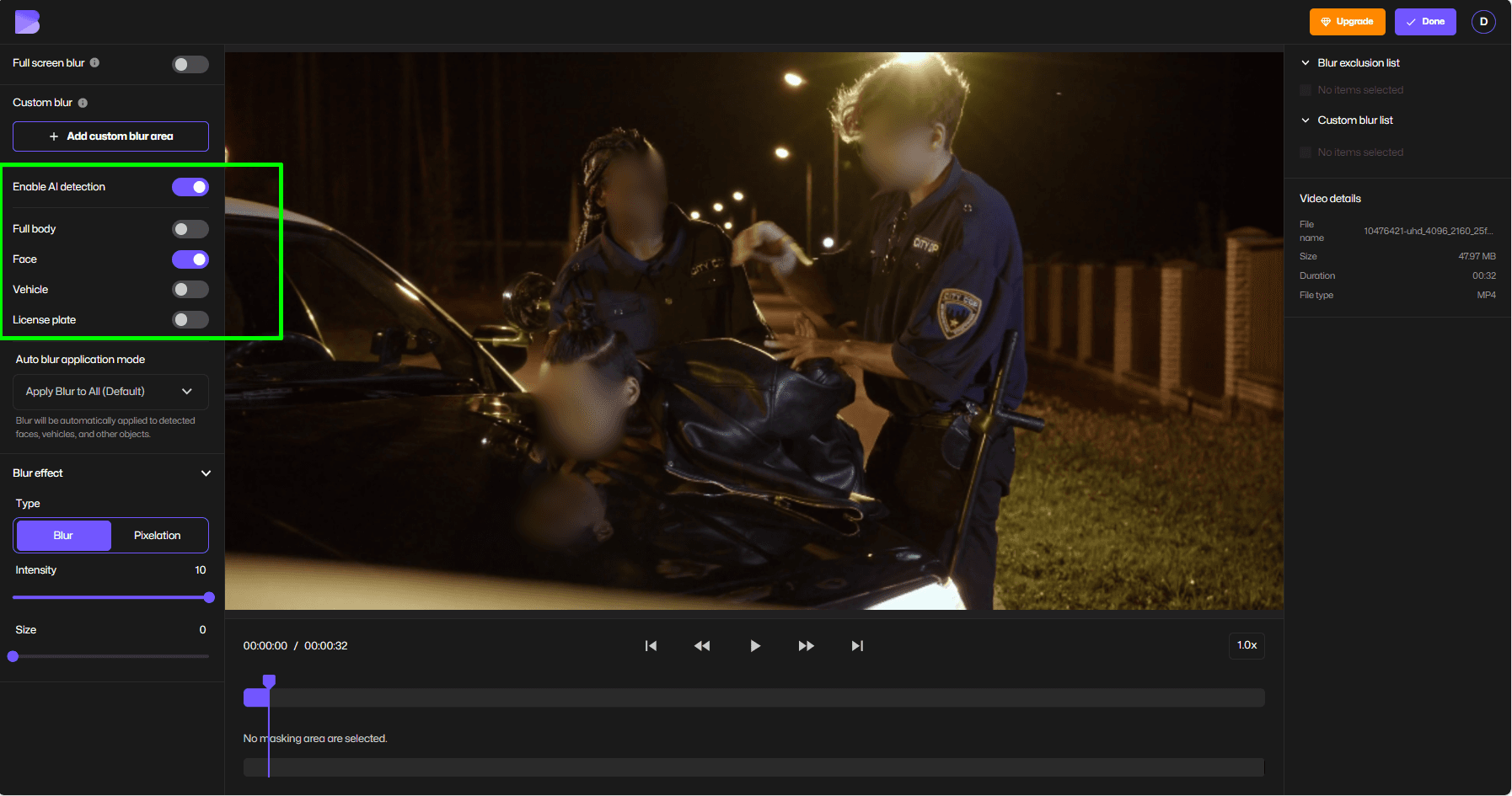
This saves hours of manual frame-by-frame editing.
Step 3 — Choose the Blur or Pixelation Style
You can select from Blur or Pixelation and adjust the size and intensity.
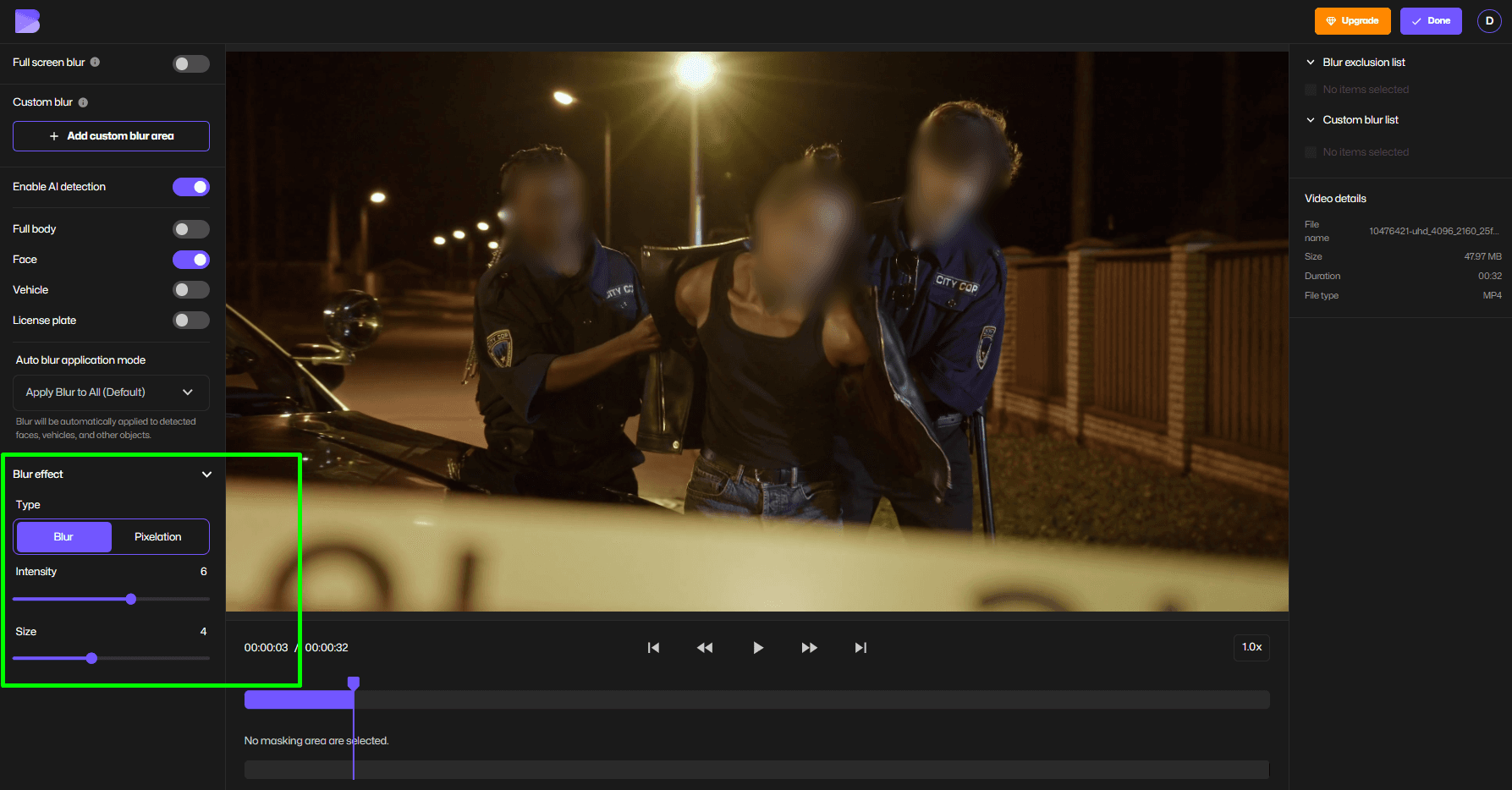
This allows you to match the style of your video while still protecting privacy.
Step 4 — Enable Motion Tracking
If a person or object moves, BlurMe tracks it automatically so the blur stays locked onto the subject throughout the MP4 video.
This is one of the biggest advantages of using an AI MP4 video editor online instead of manual editing tools.
Step 5 — Export Your Edited MP4 Video
Once you’re done, export your video in MP4 format, ready for upload to social media, YouTube, or sharing with clients.

When You Should Blur an MP4 Video
Not sure if your video needs editing? Here are common situations where people edit MP4movies online to add blur:
- Public filming — Strangers appear in the background
- Gym or street content — Faces you don’t have consent to show
- Dashcam footage — License plates and pedestrians
- Workplace recordings — Computer screens or documents visible
- Client projects — Confidential details in the frame
- YouTube or TikTok videos — Protecting identities before posting
Blurring helps you stay respectful of privacy and reduces legal or platform-related risks.
Want to make quick edits to your movies? A Blur Video, Blur Video Background or blur face on iPhone tool can help protect privacy in shared content.
Convert MP4 Videos to the Right Format Online
Sometimes editing isn’t enough — you may also need to convert your MP4 video for compatibility, file size, platform requirements or dimension changes, and a video resizer app can help with that before export.
Instead of using separate conversion software, online tools let you handle everything in one place.
Why Convert an MP4 Video?
You might convert an MP4 file to:
- Reduce file size for faster uploads
- Meet platform format requirements
- Improve playback compatibility
- Prepare a file for further editing
- Deliver videos to clients in specific formats
How to Convert MP4 Videos Online with BlurMe
BlurMe allows you to manage video exports directly in your browser after editing.
Step 1 — Upload Your MP4 File
Start by uploading your MP4 video to BlurMe Studio.

Step 2 — Edit or Blur (Optional)
Make any privacy edits first, such as blurring faces or objects.
Step 3 — Choose Export Settings
Select output settings optimized for:
- Web and social media
- Smaller file size
- High-quality playback

Step 4 — Download Your Processed Video
Export your video, ready for sharing, publishing, or sending to clients
Online MP4 Editor vs Desktop Software
| Feature | Online MP4 Editor (BlurMe) | Desktop Software |
|---|---|---|
| Installation required | No | Yes |
| AI face detection | Automatic | Often manual |
| Motion tracking | Built-in | Advanced skill needed |
| Format handling | Built into export | Extra tools needed |
| Device flexibility | Any browser | Device-dependent |
For quick privacy edits and format-ready exports, online tools are often faster and easier.
Can You Edit MP4 Videos Without Downloading Software?
Yes. Browser-based tools like BlurMe allow you to:
- Upload MP4 files
- Apply AI-powered blur or pixelation
- Track moving subjects
- Export edited videos
All directly online, without installing large editing programs.
This is ideal for creators, marketers, journalists, and teams who need fast privacy edits.
Edit and Convert MP4 Videos in One Workflow
Using an online AI MP4 video editor means you can:
- Blur sensitive details
- Track moving subjects
- Adjust export settings
- Prepare your video for sharing
All in one place, directly in your browser.
FAQs About Editing MP4 Videos Online
How do I blur a face in an MP4 video?
Upload your MP4 file to an AI editor, auto-detect faces, apply blur, enable motion tracking, and export.
Can I edit MP4 videos without installing software?
Yes, browser-based tools let you blur, redact, and export MP4 videos entirely online.
Why would I convert an MP4 video?
You may need a smaller file size, better compatibility, or specific export settings for different platforms.
Edit MP4 Videos Safely Before You Share
Once a video is online, you can’t take it back. Learning how to edit MP4 videos online — especially to blur faces and sensitive details — is one of the simplest ways to protect privacy while still creating and sharing content.
With AI-powered tools, what used to take hours of manual editing can now be done in minutes, directly in your browser. Try BlurMe Blur Face to edit your MP4 movies and videos today.