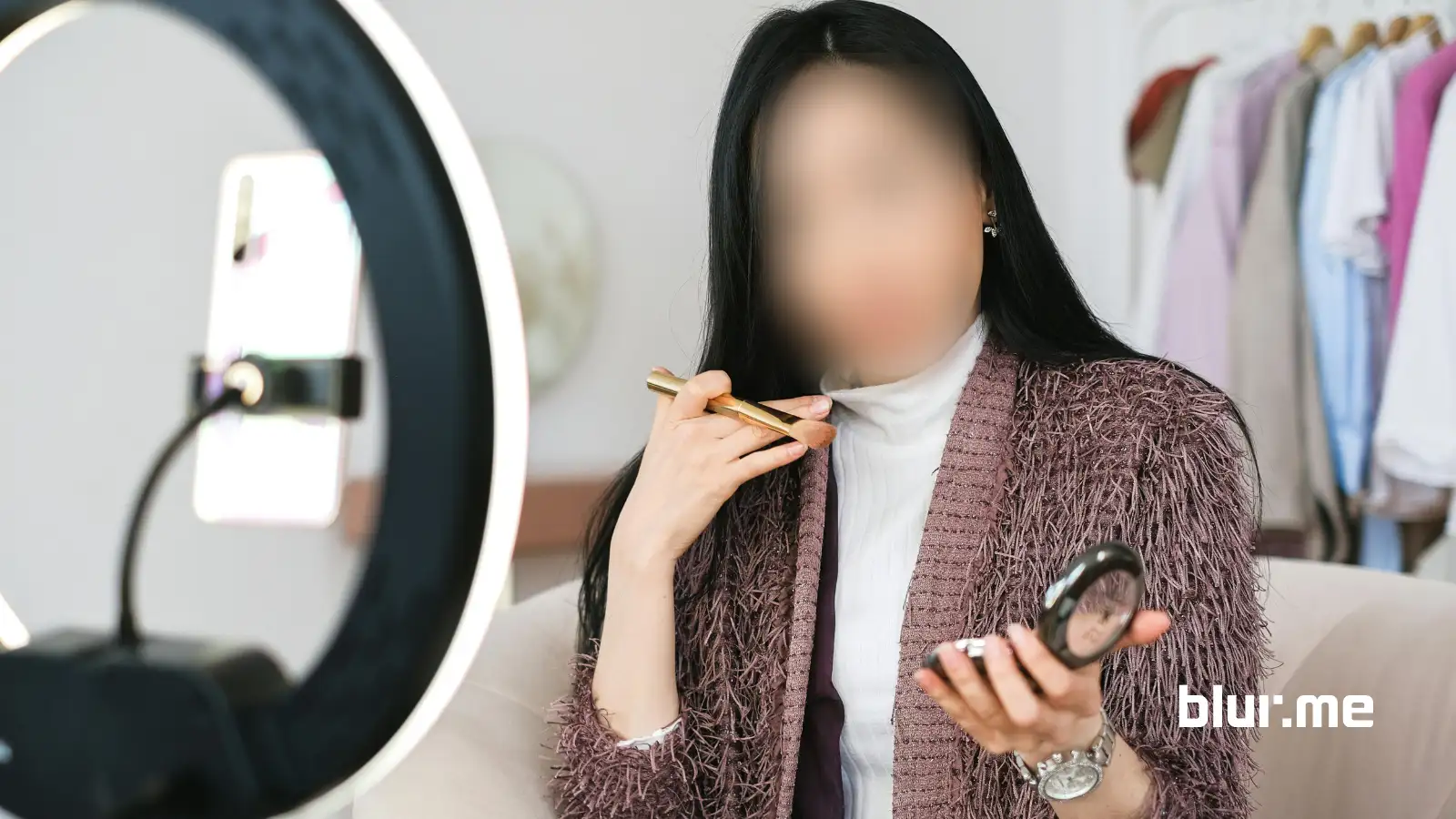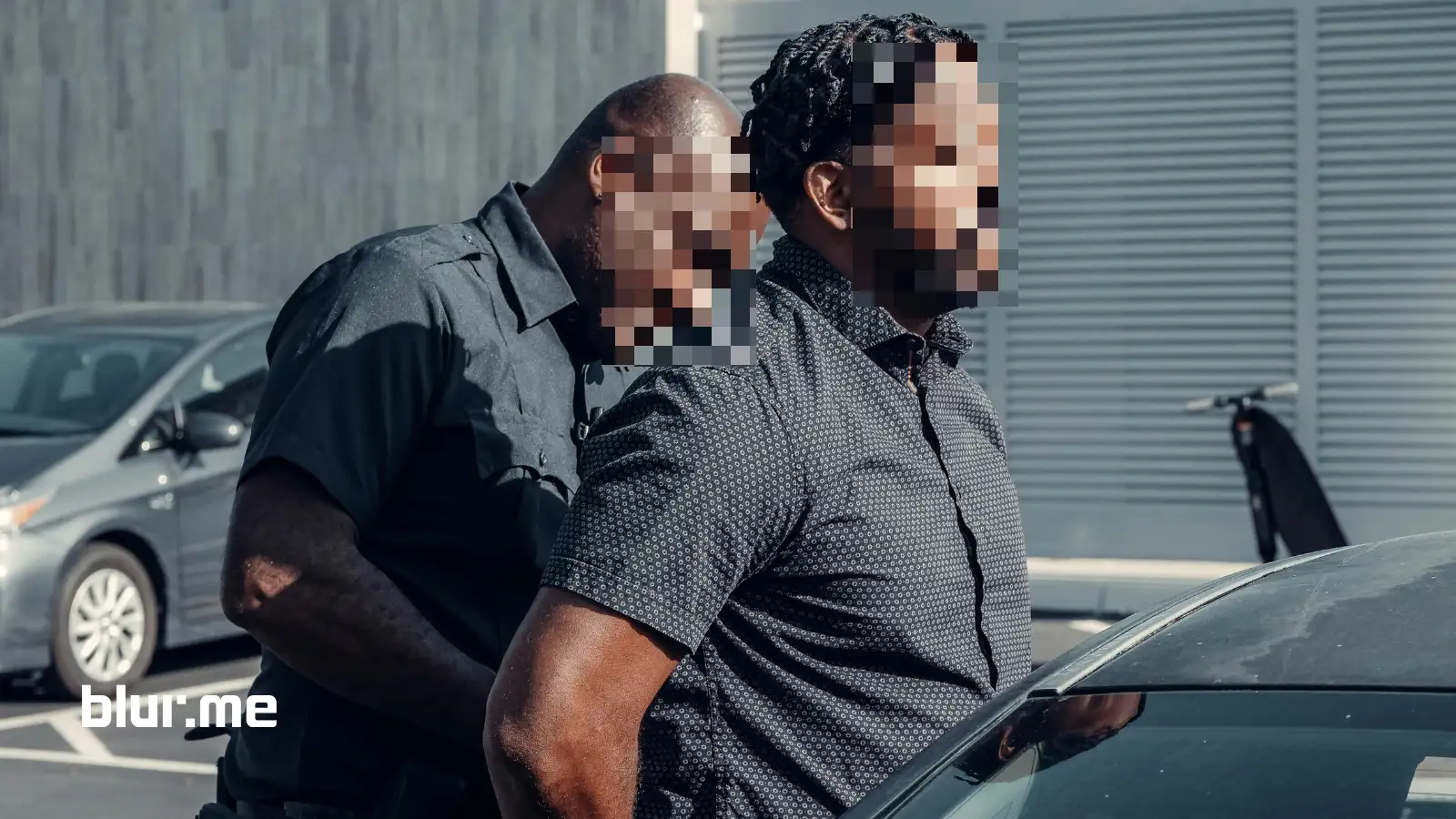
Blurring faces in photos is one of the easiest ways to protect privacy, hide identities, and make images safer to share online. Today, you can blur face in photos instantly using browser-based tools, without downloading apps or learning complicated editing software.
Online face blur tools designed to blur faces in photos combine automatic detection with simple controls, making it easy to get clean, natural-looking results directly from your browser.
Why BlurMe Is the Best Face Blurring App Online
Unlike traditional editors that require manual brushing, BlurMe uses AI to automatically detect faces in photos and apply a professional face blur effect in seconds.
With BlurMe, you get:
- AI face detection (multiple faces supported)
- One-click automatic blurring
- Manual control to blur or unblur specific faces
- Adjustable blur strength and size
- Works on desktop, iPhone, and Android
- 100% online — no downloads
This makes BlurMe one of the best tools to blur faces in any photo, whether you’re a creator, journalist, or business user.
How to Blur Faces in Photos Online for Free with BlurMe
Here’s exactly how to blur face in photo using BlurMe’s free online photo editor:
Step 1 — Upload Your Photo
Go to BlurMe Studio's Blur Face in Photo and upload any image.
You can use JPG, PNG, or most common formats.

Step 2 — Activate AI Face Blur
Select AI Face Blur.
BlurMe automatically scans the image and detects all visible faces.
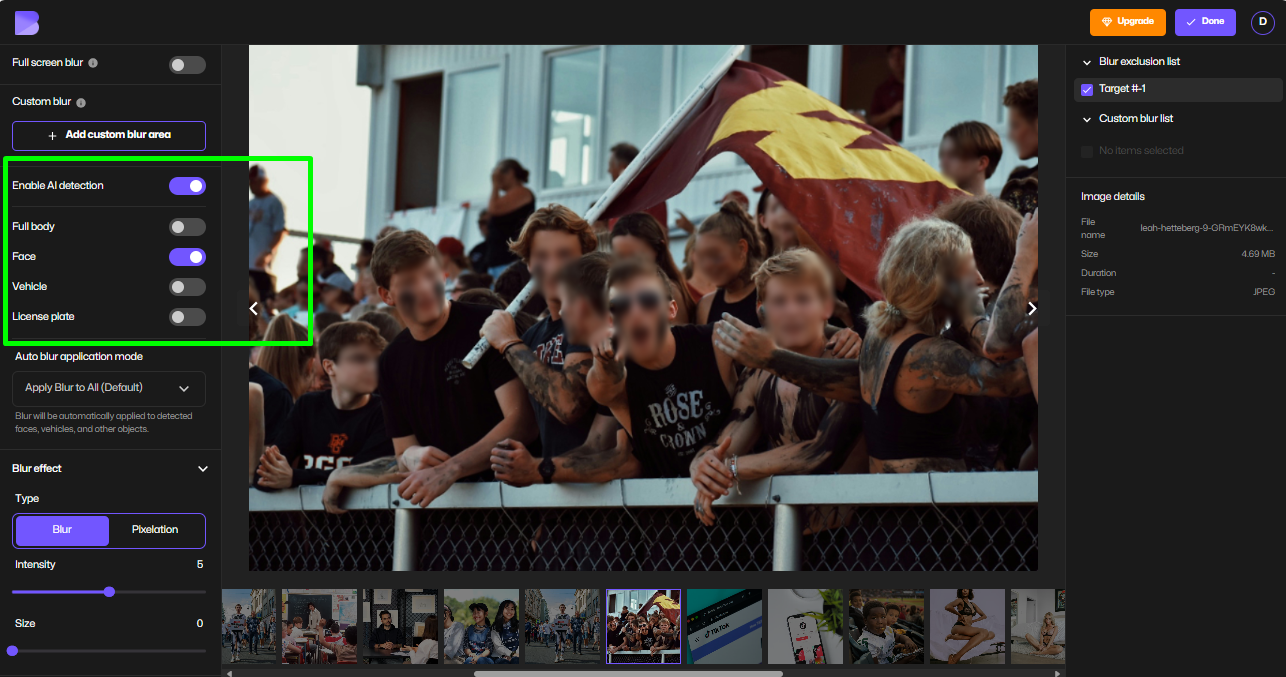
Step 3 — Choose Which Faces to Blur
You can:
- Blur all faces
- Blur only certain people
- Unblur your own face and blur everyone else
This is perfect if you need to blur other people’s faces and leave your face unblurred.
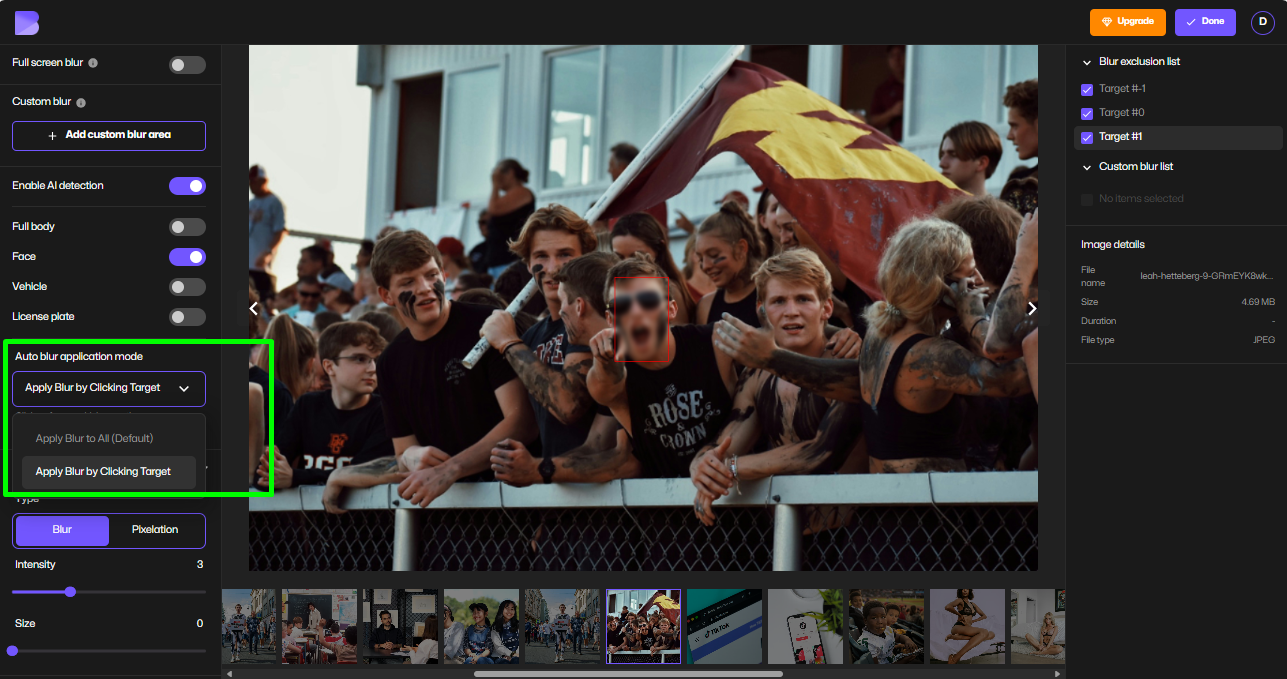
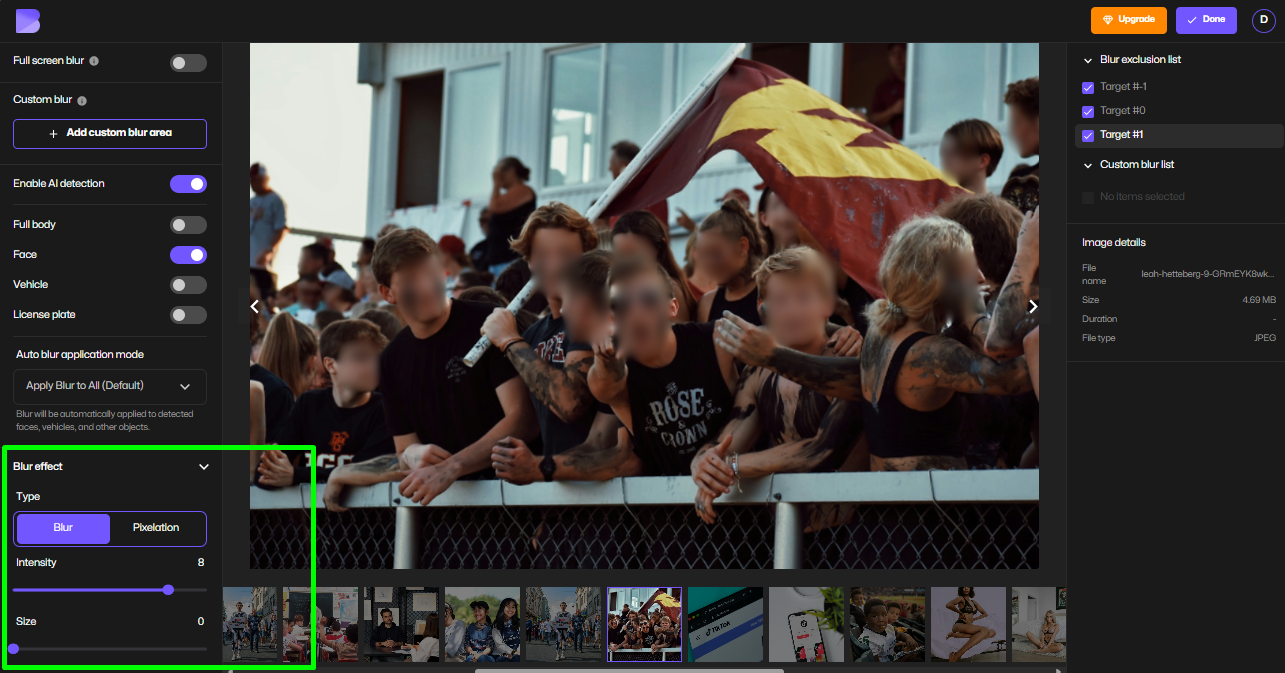
Step 4 — Adjust the Face Blur Effect
Customize:
- Blur intensity
- Blur size
- Soft or pixelated blur style
This lets you control how strong or subtle the face blurrer looks.
Step 5 — Download Your Photo
Export your blurred image instantly.
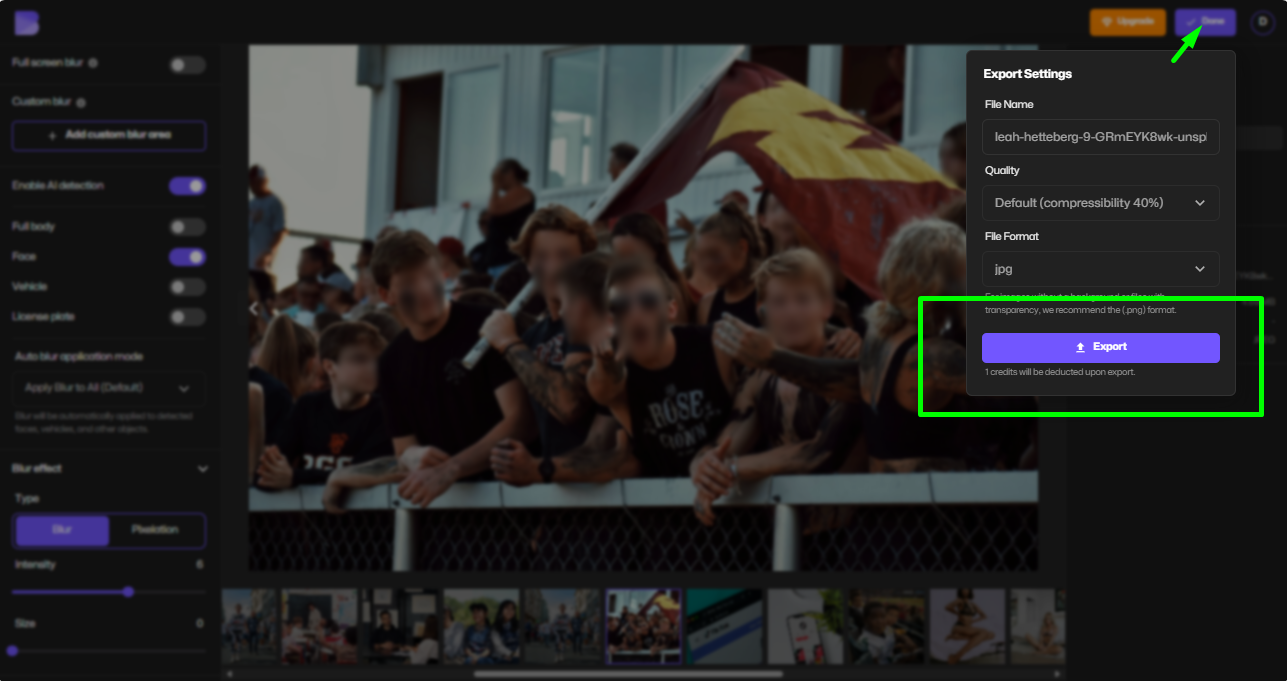
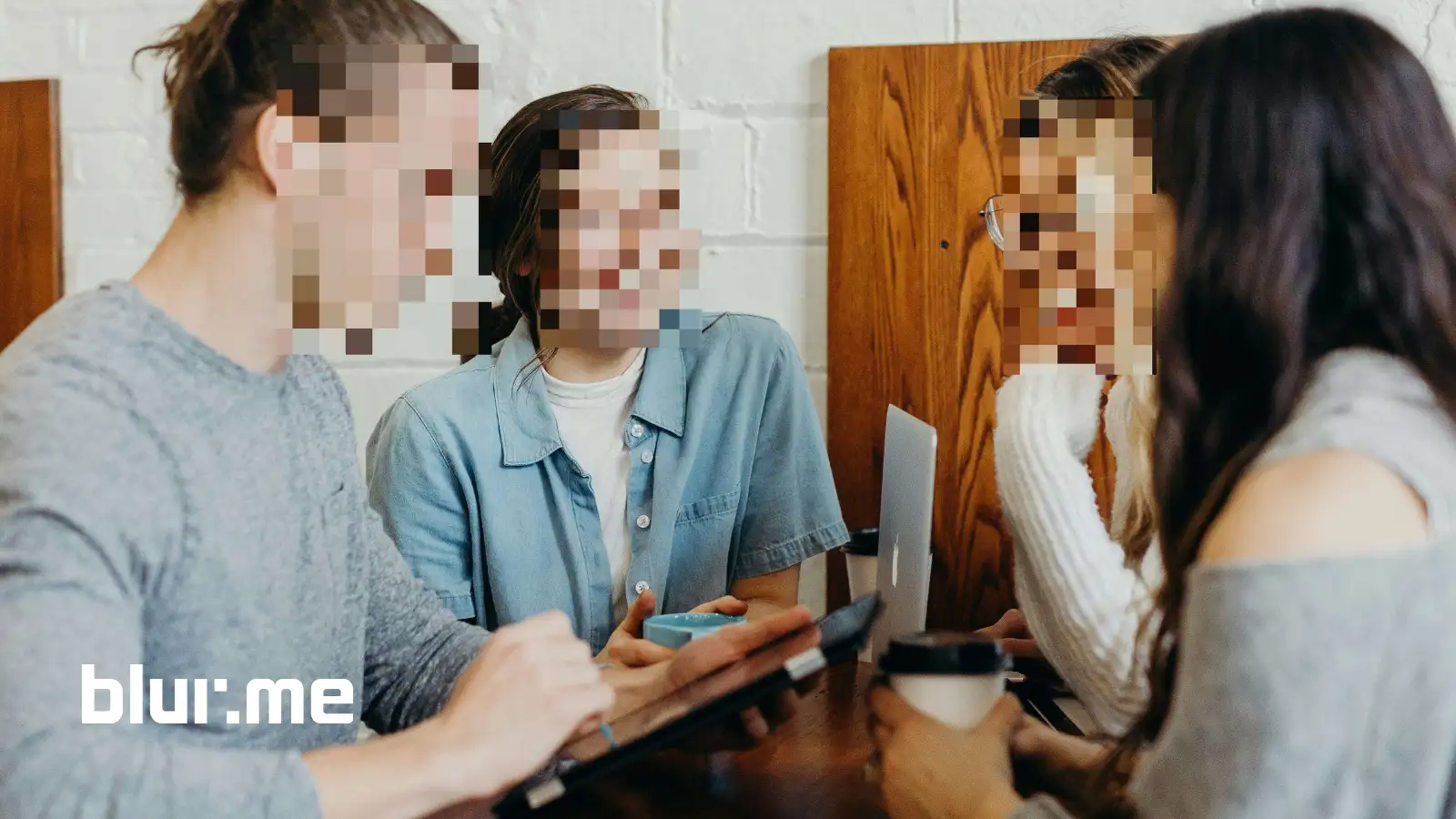
When working with group pictures, using an online tool to blur face in photos helps protect identities while maintaining overall image quality.
How to Blur Faces in the Background of Photos
Many photos include strangers behind you — especially gym selfies, street photos, or event shots.
With BlurMe:
- Run AI Face Blur
- Unblur your face
- Keep background faces blurred
This creates a clean, professional image while protecting everyone else’s privacy.
How to Blur Your Face in Photos
If you need to hide yourself instead of others:
- Enable AI Face Blur
- Leave all faces blurred
- Download your photo
This is commonly used for:
- Anonymous content
- Marketplace listings
- Legal or safety reasons
How to Blur Faces in Photos on iPhone (Online with BlurMe)
You don’t need an iOS app to blur faces in photos on iPhone.
Just:
- Open BlurMe in Safari or Chrome
- Upload a photo from your gallery
- Use AI Face Blur
- Download your image
No app installation required — BlurMe works entirely in the browser.
Blur Face vs Pixelate Face — What’s Better?
BlurMe lets you choose between:
- Smooth blur (natural look)
- Pixelated face (mosaic-style privacy)
If you need legal-grade anonymization, use Pixelate Photo.
For social media and aesthetics, use smooth face blur effect.
Pro Tips for Better Face Blurring
- Zoom in when selecting faces for precision
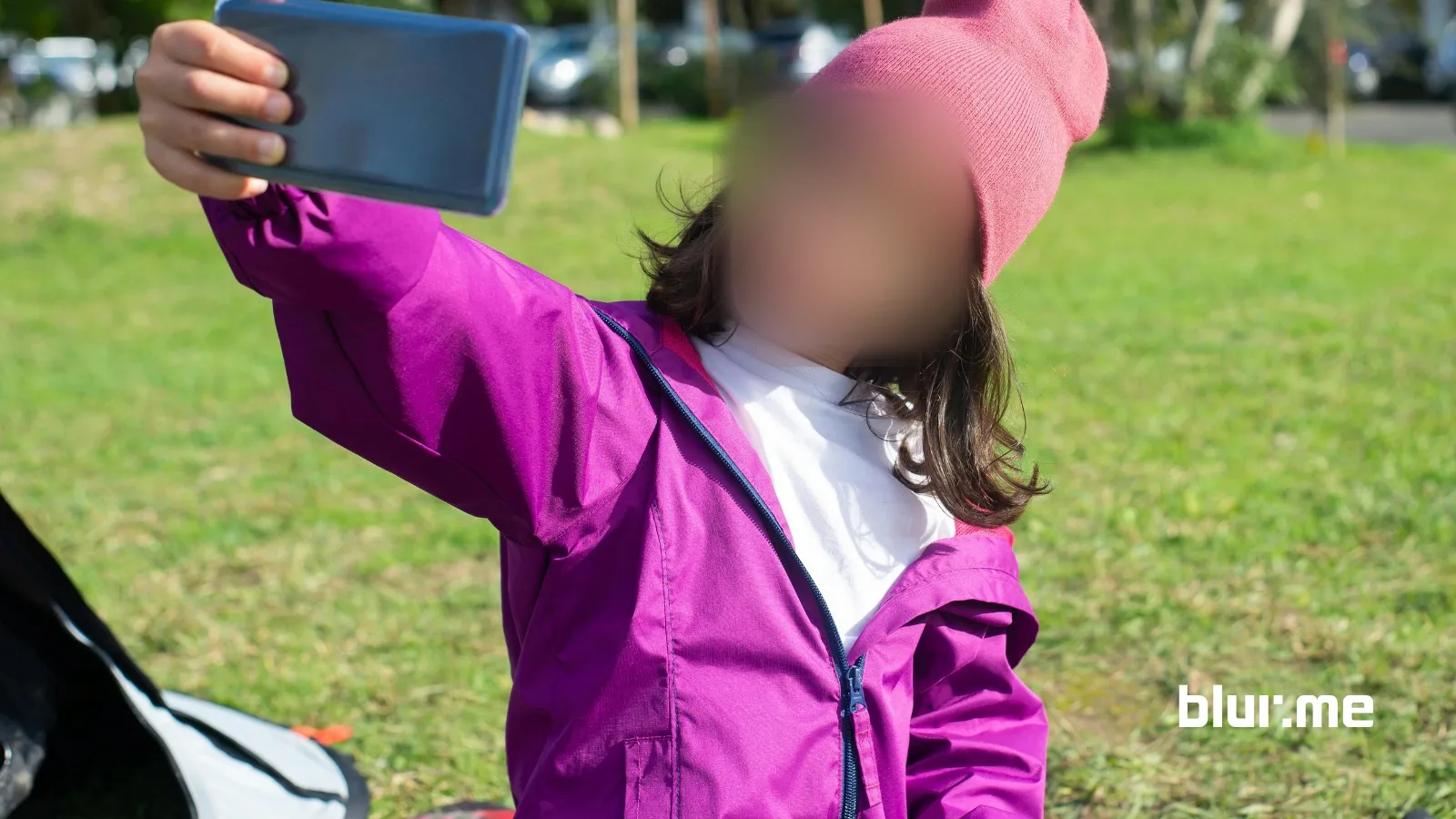
- Increase blur strength for minors or sensitive images
- Use pixelation for public or legal publishing
- Always review before downloading
These small adjustments turn a basic blur video editor into a professional privacy tool.
Frequently Asked Questions
What is the easiest way to blur faces in photos online?
The easiest way is using BlurMe’s AI Face Blur, which automatically detects and blurs faces. Learn more here:
How To Blur Faces In Photos Online for Free
Can I blur a face in a photo without blurring the whole image?
Yes. With Blur Face in Photo, you can blur only specific faces while keeping everything else sharp.
Can I blur faces on my phone without installing an app?
Yes. Blur Image Online lets you blur faces directly from your iPhone or Android browser.
Is there a free face blur app?
Yes. BlurMe’s Face Blur is browser-based and free to try, making it one of the most accessible face blurring apps available.
What if I want to pixelate instead of blur?
Use Pixelate Photo to apply mosaic-style privacy masking instead of smooth blur.
Start Blurring Faces with BlurMe
If you need to blur face in photos, hide identities, or protect privacy without complicated software, BlurMe AI blur tool is the fastest and easiest solution.
Upload your photo, let the AI find every face, choose who stays visible, and download your blurred image — all in under a minute.
👉 Try BlurMe’s AI Face Blur now and blur faces online for free.