Face redaction is no longer just a compliance task for newsrooms or law enforcement. Today, creators, businesses, educators, and everyday users rely on face redaction software to protect privacy, anonymize people in videos, and safely share content online.
Whether you want to automatically redact faces in video, blur background people, or apply a mosaic censor to moving faces, this guide shows how to do it online using BlurMe’s AI Redaction Tool.
What Is Face Redaction?
Face redaction is the process of hiding or obscuring a person’s face in a video to prevent identification. This is typically done using:
- Blur effects
- Pixelation (mosaic)
- Face censor overlays
Unlike basic editing, video redaction must track faces frame-by-frame, even when the subject moves, turns, or briefly leaves the frame.
How to Redact Faces in Video Automatically with BlurMe
BlurMe is a browser-based face blur tool designed for speed, accuracy, and privacy-first editing.
Step 1: Upload Your Video
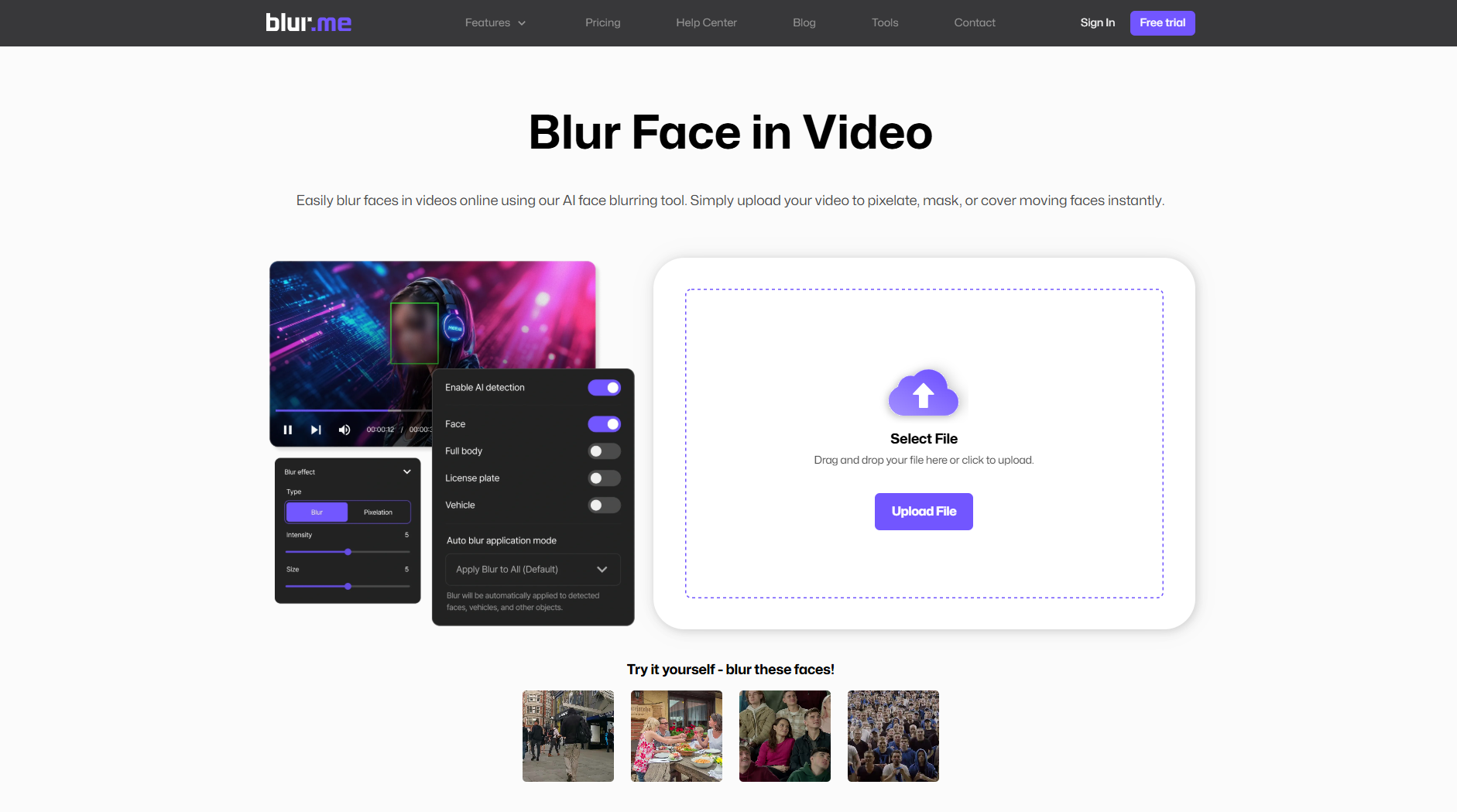
Go to the BlurMe Video Redaction or Blur Face in Video tool and upload your video file directly in your browser. No downloads required.
Step 2: Enable Automatic Face Detection
BlurMe instantly scans the video and detects all visible faces, including background faces.
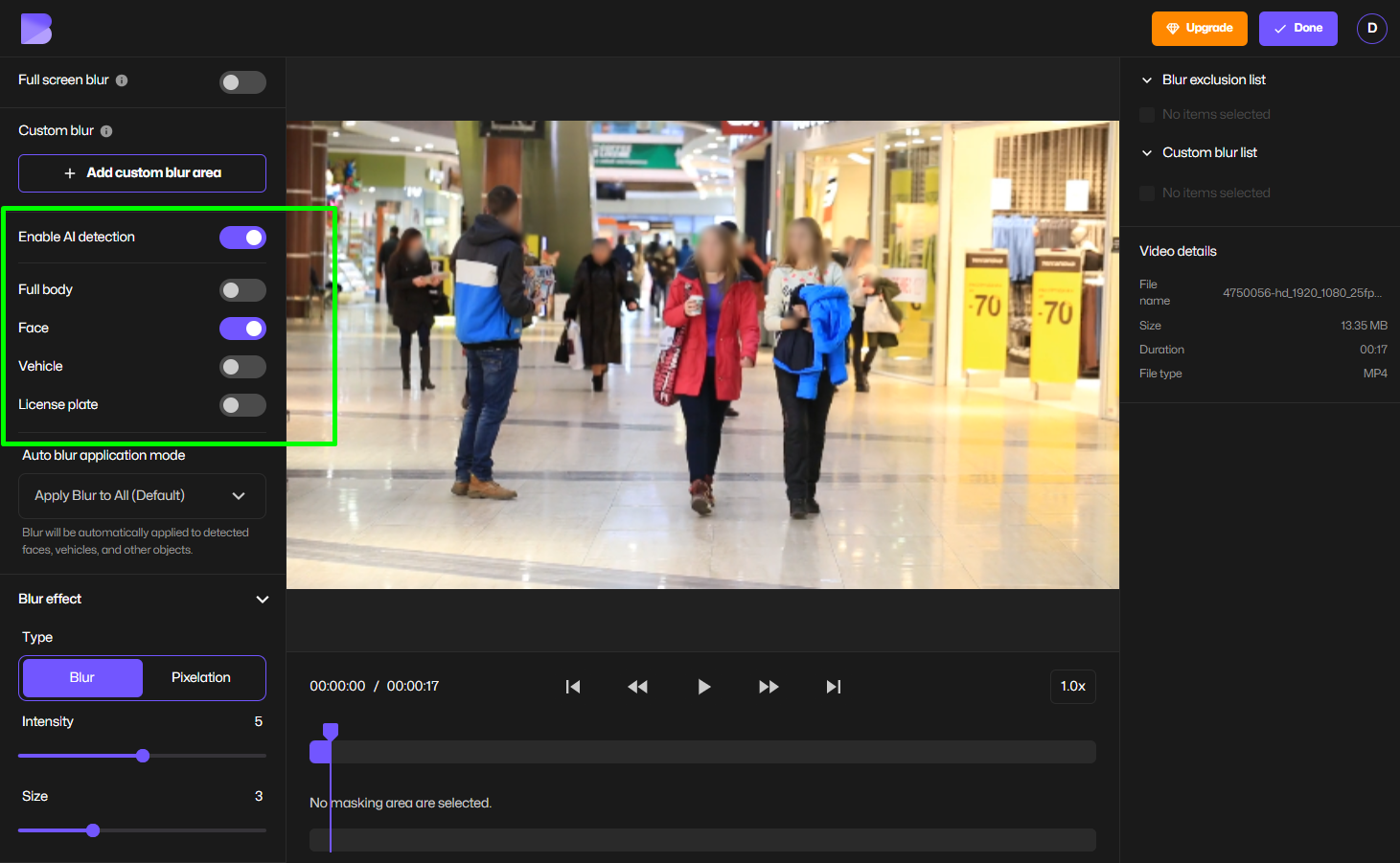
This is where auto-blur and automatic face blur outperform traditional editors.
Step 3: Choose Who Gets Redacted
You can:
- Blur all detected faces
- Selectively redact specific people
- Keep one face visible while censoring others
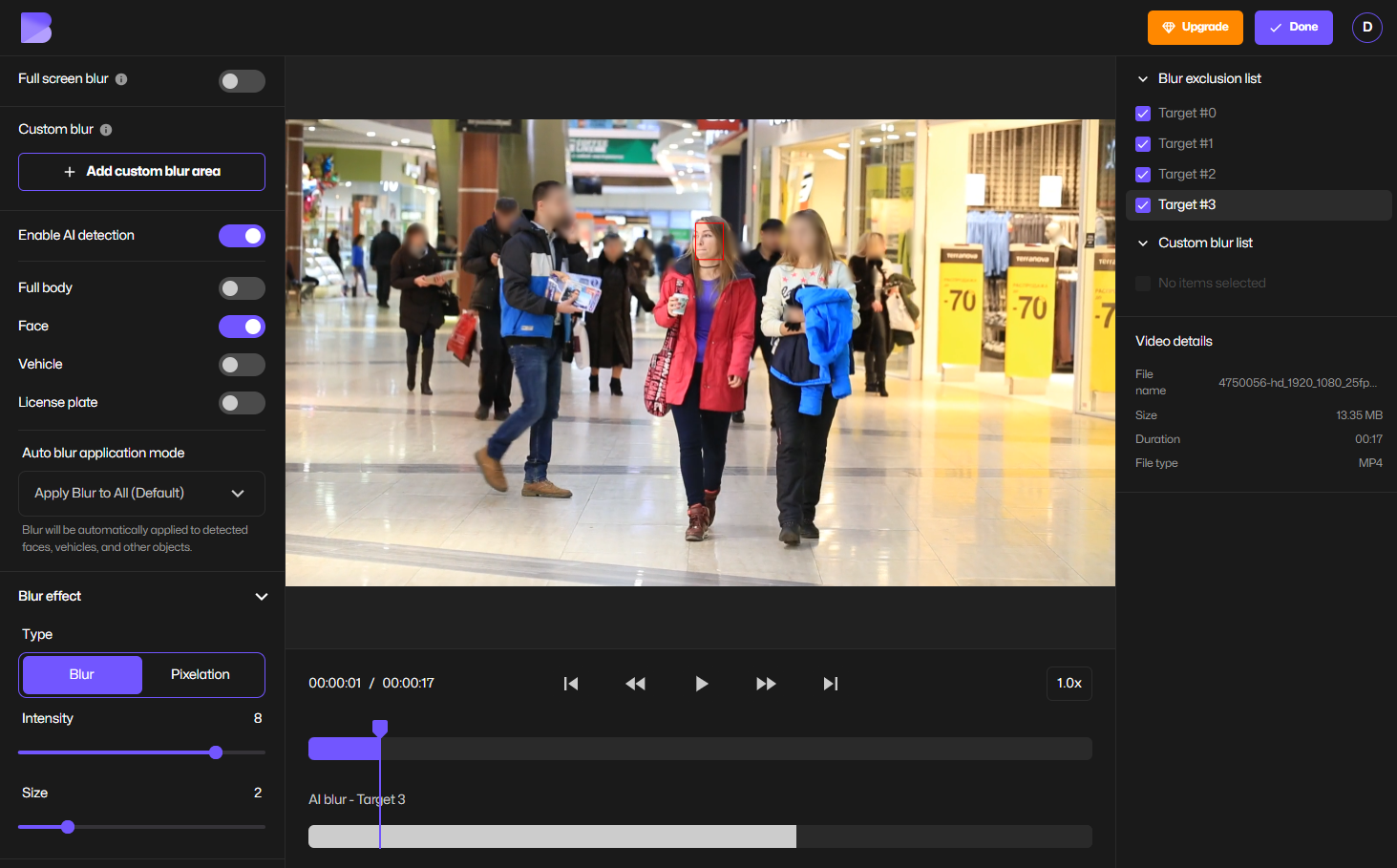
Perfect for creators who want to stay visible while anonymizing everyone else.
Step 4: Adjust Face Blur Effect
Choose how you want to redact faces by adjusting blur or pixelation effect, size and intensity.
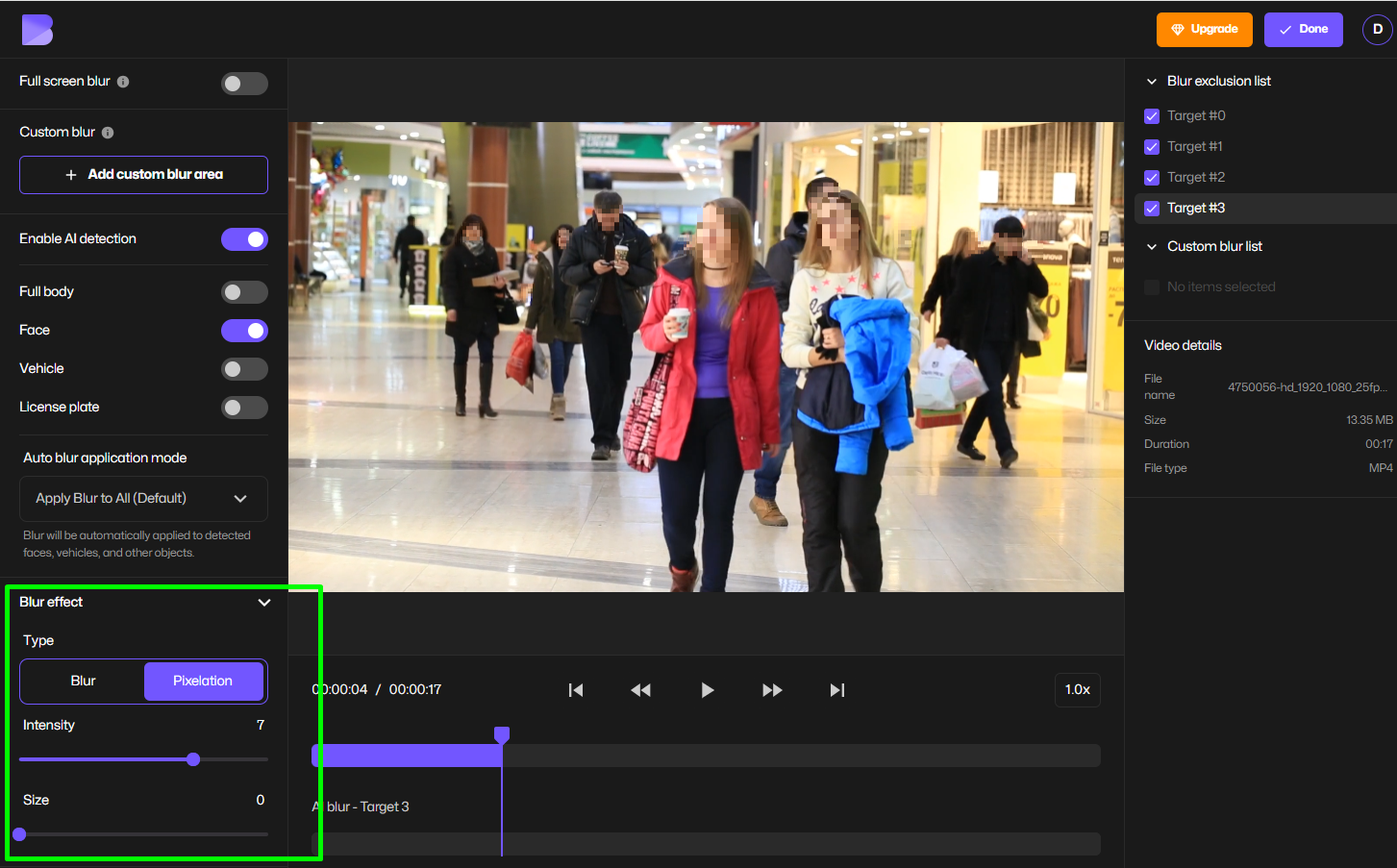
Each option works as a face blur filter that follows movement automatically.
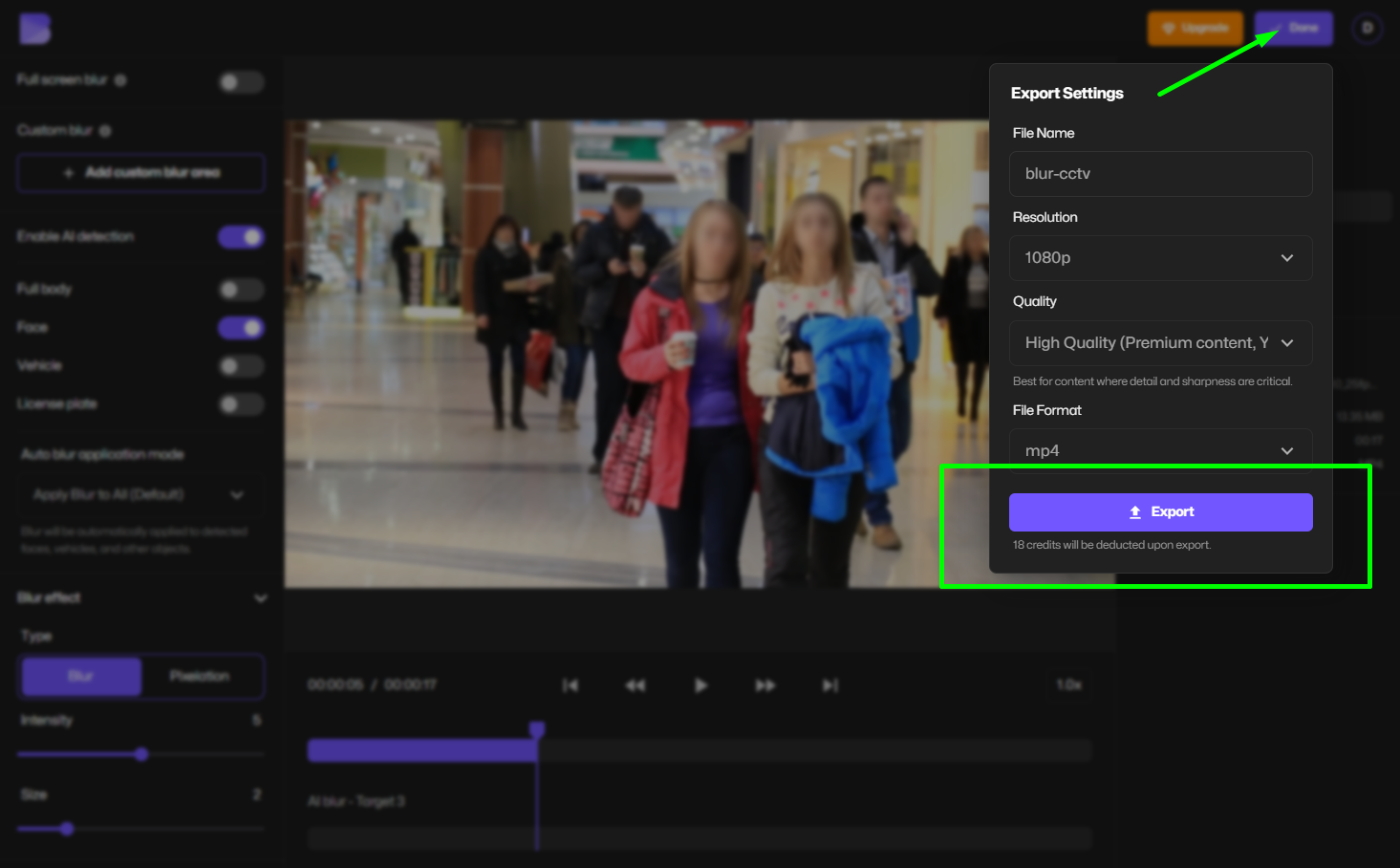
Step 5: Export Your Redacted Video
Download your fully redacted video, private, and ready to share.
How BlurMe Handles Moving Faces and Background Faces
One of the hardest problems in video redaction is tracking motion.
BlurMe’s AI:
- Detects faces entering and exiting frames
- Follows head turns and partial occlusion
- Redacts faces in the background automatically
- Maintains consistent blur across the entire video
This makes it ideal for:
- Street footage
- Events and conferences
- Classrooms
- Interviews filmed in public spaces
Traditional vs AI Face Redaction Software
Manual Face Blurring (Old Method)
- Frame-by-frame masking
- Time-consuming
- Easy to miss moving faces
- Requires editing experience
AI Face Redaction (Modern Method)
- Automatic face detection
- Tracks faces across frames
- Works on moving subjects
- No timeline editing needed
AI tools like BlurMe use face recognition models to apply a face blur effect, pixelate, or mosaic faces automatically even in crowded or dynamic scenes.
Blur vs Pixelate vs Mosaic: Which Face Redaction Is Best?
Blur Face
Best for general privacy and clean visuals.
Pixelate Face (Face Pixelizer)
Stronger anonymization, often used in journalism and legal content.
Mosaic Censor
Highly visible, intentional redaction, useful for sensitive footage.
BlurMe lets you switch between these styles without re-editing.
Use Cases for Face Redaction Software
- Content creators & influencers (faceless videos)
- Journalists & news agencies
- Educators and schools
- Healthcare & government sectors
- Security & surveillance footage
- Social media uploads
Whether you need live surveillance video anonymization or post-production redaction, AI-powered tools reduce both risk and editing time.
Tips for Better Face Redaction Results
- Use higher-resolution video when possible
- Avoid extreme motion blur during recording
- Choose pixelation for maximum anonymization
- Review auto-detected faces before exporting
- Use selective blur to keep key subjects visible
Frequently Asked Questions About Face Redaction
What is the best face redaction software online?
Tools like BlurMe are considered among the Best Redaction Software because they offer automatic face detection, background redaction, and browser-based editing. Try it now at Blur Face in Video.
How do I blur a face in a video automatically?
Use an blur videos online tool like BlurMe. Upload your video, enable AI detection, and export, no manual tracking required.
Related guide: how to blur face in video
Can I redact faces in the background automatically?
Yes. BlurMe detects and redacts faces in the background in video automatically, even when people move through the scene.
See: Blur Video Background Tool
Is pixelating a face better than blurring?
Pixelation provides stronger anonymization. BlurMe includes both Pixelate Video tool and blur video options depending on your needs.
Is face redaction free online?
BlurMe offers a blur face in video online free option with no software installation required.
Can I redact videos for legal or compliance use?
Yes. BlurMe’s AI Redaction Tool is suitable for privacy-focused video redaction workflows.
Learn more: How to Redact Videos
Why BlurMe Is a Trusted Face Redaction Tool
- 100% online, browser-based
- AI-powered automatic face blur
- Selective redaction control
- Blur, pixelate, or mosaic censor options
- No editing skills required
BlurMe is built for real-world redaction needs, not just visual effects.
Start Redacting Faces in Videos with BlurMe
If you need fast, accurate, and privacy-first face redaction, BlurMe makes it effortless.
Upload your video, let AI do the work, and export a fully redacted result in minutes.
👉 Try BlurMe Face Redaction Now