7 Video Redaction Services for CCTV and Body-Worn Cameras
Maya Chen — Tech Writer & Privacy Advocate
Video redaction services are essential for law enforcement, government agencies, security teams, and businesses managing sensitive video content. With the rise of body-worn cameras (BWC), public CCTV, FOIA requests, and GDPR regulations, organizations must ensure videos are properly anonymized before sharing or releasing.
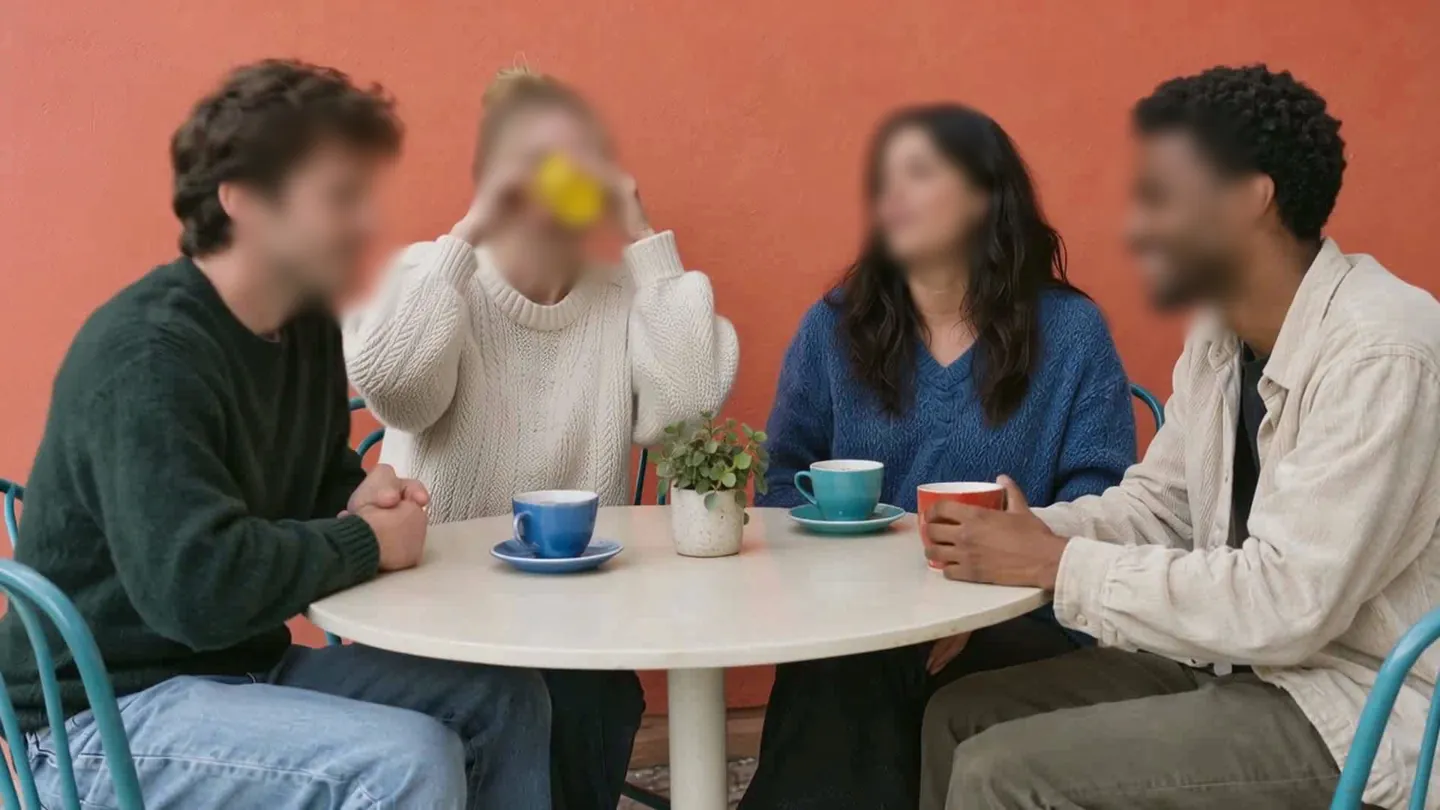
Blur faces or plates in a video, right in your browser.
Modern video redaction involves more than just blurring faces. Redaction software for FOIA requests, AI redaction tools, and automated video redaction software now allow teams to blur faces, redact license plates, sensitive documents, or any identifiable data quickly and accurately.
What is Video Redaction?
Video redaction is the process of removing, obscuring, or anonymizing sensitive content from videos.
Key benefits of video redaction:
- Compliance: FOIA, GDPR, and NDA requirements
- Privacy protection: Safeguard citizens and employees
- Legal readiness: Protect against liability
- Efficiency: Automated tools save hours of manual editing
7 video redaction services for CCTV and body-worn cameras
Below are the most practical video redaction services for CCTV and body-worn camera footage, from browser-based AI tools to enterprise platforms built for public records workflows.
1. BlurMe – AI Video Redaction for CCTV, Bodycam and Surveillance Footage
Best for: Police, city halls, local governments, hospitals, security teams and enterprises that release or share CCTV footage.
Overview: BlurMe is an AI-powered, browser-based redaction service developed by Zarasoft. It detects and blurs faces, license plates and other sensitive details in photos and videos. Nothing to install, and it runs on mobile devices too. BlurMe is used daily in 88 countries and has 110,000+ monthly active users.
Key features for CCTV and BWC:
- ✅ Auto Blur: AI detects faces, people, cars, license plates and text, then tracks them across every frame. No keyframing.
- ✅ Multiple moving people: BlurMe Video handles crowded scenes where several subjects move at once.
- ✅ Manual Blur + Auto Track: Draw a rectangle, ellipse or polygon over a screen, document or sign the AI missed. Auto Track follows it across frames.
- ✅ Detection review: Check every AI detection before export and exclude the ones you want to keep, such as an officer or a consenting witness.
- ✅ Per-target effects: Choose Blur, Mosaic or Color separately for each target.
- ✅ Time range blur: Redact only the segment where a bystander appears.
- ✅ Irreversible output: Original pixel data is permanently destroyed in the exported file.
Enterprise options:
- BlurMe Enterprise handles CCTV de-identification and reduces operator workload by up to 95%.
- Full Blur Mode blurs the entire frame, as used by police, government offices and public agencies (Enterprise-only).
- Live Video Anonymization blurs faces in real-time feeds, in cloud or on-premise environments.
- BlurMe Enterprise Edge runs on closed networks with dedicated hardware, as in hospital deployments such as the National Medical Center of Korea.
- Enterprise meets GDPR and global privacy regulation requirements. BlurMe also fits GDPR and CCPA compliance workflows.
Security: Uploaded files are encrypted, only you can access them, and they are permanently deleted when you request deletion.
How to Redact CCTV or Bodycam Footage with BlurMe
Step 1: Upload the clip
Open BlurMe Studio in your browser and upload your footage. MP4 and other common formats work, up to 5GB per video.
Step 2: Run Auto Blur
The AI detects and tracks faces and license plates. A 5-minute video processes in about 30 seconds.
Step 3: Cover what the AI missed
Use Manual Blur + Auto Track for monitors, paperwork or signage. See the track moving objects guide for details, or the time range guide to redact a single segment.
Step 4: Review and export
Go through the detection list, unblur anything that must stay visible, and export in the same format you uploaded.
2. CaseGuard – Enterprise Automated Video Redaction Software
Best for: Government agencies, FOIA teams, legal departments.
- Automated face, license plate and document redaction
- Audit logs for FOIA work
- Batch processing, cloud or on-premise
Pros: High automation, large-volume processing
Cons: Higher cost, learning curve for beginners
3. Veritone Redact – AI-Powered Bodycam Redaction
Best for: Police departments focused on BWC footage.
- Face, object and plate redaction with AI tracking
- Cloud collaboration across agencies
Pros: Fast, AI-assisted
Cons: Subscription required, cloud-only
4. Axon Redaction – Integrated BWC Solution
Best for: Departments already using Axon bodycams.
- Built into the Axon Evidence platform
- Redacts faces, plates and audio
Pros: Seamless with existing Axon hardware
Cons: Limited to the Axon ecosystem
5. OpenEvidence – Public Records Redaction Platform
Best for: Agencies with heavy public records request volume.
- Video and document redaction with request tracking
Pros: Centralized management
Cons: Overkill for small organizations
6. RedactX Cloud – Simple Redaction App
Best for: Small teams needing quick results.
- Drag-and-drop interface with blur, pixelate and mosaic
Pros: Easy, low-cost
Cons: Not built for enterprise scale
7. SecureRedact Enterprise – On-Premise Redaction
Best for: Organizations needing full control of their environment.
- Encrypted storage, audit logs, role-based access
Pros: Strong security controls
Cons: High cost, complex setup
Video redaction review practices
- Prioritize AI-assisted workflows – reduces errors, saves time
- Maintain an audit trail – record what was redacted and why
- Use motion tracking – ensures moving objects/people are fully anonymized
- Validate exports – double-check videos before release
- Follow GDPR and FOIA standards – redaction must be compliant
- Plan redaction workflows – batch process long recordings for efficiency
Tips for Redacting CCTV & BWC Footage
- Always back up originals before redaction
- Use cloud-based AI redaction for faster processing
- Check for audio redaction needs – some tools allow muting sensitive conversations
- Adjust blur/pixelation strength depending on release requirements
- Regularly train staff with redaction training programs
Related Redaction Tools for CCTV and BWC Footage
CCTV and body-worn camera footage often requires more than a single blur effect. BlurMe provides additional AI-powered tools that work well alongside standard redaction workflows. The AI Redaction Software automatically detects faces, plates, and screens across long surveillance clips, while Blur Video gives you quick manual control for obscuring specific areas. When you need identity-focused anonymization, Blur Face in Video handles multi-face detection typical in public-space CCTV. For cases where a mosaic censor is required, Pixelate Video offers a stronger anonymization style, and Blur Video Background helps soften entire environments without affecting key subjects.
FAQ – Video Redaction Services
1. What is video redaction and why is it important?
Video redaction is the process of obscuring or anonymizing sensitive content in videos, such as faces, license plates, or private documents. It’s essential for CCTV footage, bodycam videos, and public surveillance to ensure privacy compliance with GDPR and FOIA regulations.
2. How do I blur CCTV surveillance footage quickly?
Blurring CCTV footage requires either AI-powered redaction software or manual masking tools. Modern solutions like BlurMe Enterprise allow you to automatically track and blur moving faces, license plates, and sensitive objects. For step-by-step instructions, check our guide on Blur CCTV Surveillance Footage.
3. How can I blur a face in a video online?
Online tools make face blurring simple. Using AI tools like BlurMe, you can automatically detect faces, track them across frames, and apply dynamic blur or pixelation. Learn more in our tutorial on how to blur a face in video.
4. What AI tools are available for face anonymization?
AI-powered solutions use machine learning to detect and anonymize faces, objects, and sensitive areas in videos automatically. BlurMe, along with other enterprise redaction platforms, provides automated face tracking, privacy masking, and compliance-ready redaction. Explore more at AI tools for face anonymization.
5. Which redaction software is best for FOIA and GDPR requests?
Choosing the right software depends on volume, compliance needs, and workflow. Platforms like CaseGuard Studio, OpenEvidence, and BlurMe Enterprise offer FOIA and GDPR-compliant video redaction with audit trails, automated masking, and high-volume processing. For a full comparison, see Redaction Software for FOIA.
6. How do I pixelate a video effectively?
Pixelation is useful for anonymizing faces or sensitive objects without fully blurring the image. Many AI redaction platforms, including BlurMe, allow you to choose pixelation or mosaic masks. Learn how in our guide on pixelate video.
7. Can I add a blur effect to videos after recording?
Yes, post-production blurring is possible with online or desktop tools. Platforms like BlurMe let you blur faces, objects, or backgrounds after recording for secure sharing or compliance. See our tutorial on Add Video Blur Effect for a step-by-step process.
8. What is CCTV redaction software, and how is it used?
CCTV redaction software is designed to anonymize public surveillance footage and protect privacy while maintaining compliance with GDPR or FOIA. BlurMe Enterprise and similar platforms track multiple moving objects and faces, applying blur or pixelation automatically. For more details, see CCTV Redaction Software.
9. How do I ensure GDPR-compliant video redaction?
GDPR-compliant redaction requires anonymizing faces, license plates, and other identifiable information before sharing videos publicly. Using automated tools with audit trails, such as BlurMe Enterprise, ensures consistency and compliance.
10. How do AI redaction tools speed up video processing?
AI redaction tools automatically detect sensitive areas, track moving subjects, and apply blur or pixelation, drastically reducing manual effort. For practical examples and tutorials, see Video Redaction Service and Video Redaction Software for Law Enforcement.
Conclusion: Secure, Fast, and Compliant Redaction Starts with the Right Tool
For FOIA requests, GDPR compliance, or general privacy protection, the right video redaction service is critical.
BlurMe provides the fastest, most user-friendly solution for face redaction, pixelation, and secure redaction—all online, without complicated software. Whether you’re a police department, a security team, or a business protecting customer data, BlurMe makes fast redaction easy and reliable.
Start Redacting Videos with BlurMe Today

Blur faces or plates in a video, right in your browser.
Nothing to install. Start right away.