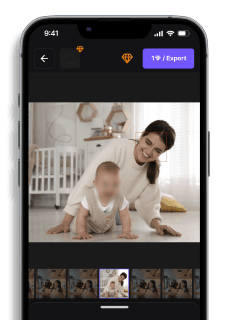
Blur Moving Objects in Video Online for Free – AI Video Blur
Maya Chen — Tech Writer & Privacy Advocate Part of: Blur Video Complete Guide: Tools, Methods & Best Practices (2026)Read the complete guide →
Want to blur moving objects in a video without spending hours editing or downloading software? Whether you’re trying to censor faces, license plates, or sensitive backgrounds, BlurMe makes it incredibly easy to blur moving objects in video online for free using AI.
In this guide, you’ll learn exactly how to blur moving objects in a video using our AI-powered tool with motion tracking and auto-blurring.
Why Blur Moving Objects in a Video?
There are tons of reasons you might need to blur moving objects in your video:
- Censor blur for faces, documents, or screens
- Blur license plates in dashcam footage
- Protect identities in public interviews
- Create faceless content for YouTube or OnlyFans
How to Blur Moving Objects in Video Online for Free
Moving objects fall into two groups: things the AI recognizes on its own (faces, people, cars, license plates, text) and things it doesn't (a logo, a sign, a phone screen). BlurMe handles both in the browser, with no keyframing.
Step 1: Upload Your Video
Open BlurMe Studio and upload your clip. MP4 and other common formats work, up to 5GB. Nothing to install, and it runs on mobile too.
Step 2: Let Auto Blur Detect Faces, Plates and Text
Auto Blur detects and tracks faces, people, cars, license plates and text across every frame, including multiple people moving at once. Click any detected target to keep it visible (Unblur).
Step 3: Draw Over Anything the AI Missed
For a logo, sign, screen or document, use Manual Blur + Auto Track. Draw a rectangle, ellipse or polygon, and Auto Track follows that area as it moves. It's available on every plan, including Free. Detailed steps: How to track moving objects.
Step 4: Fine-Tune Effects and Timing
Choose Blur, Mosaic or Color separately for each target. Use time range blur if the object only needs hiding for part of the clip (guide). Real-time preview lets you check the tracking while the video plays.
Step 5: Review and Export
Review every detection before export and exclude the ones you want to keep. The final output is blurred irreversibly, so the original pixels can't be recovered.
ℹ️ Free exports carry a watermark and free video exports are limited to 10 seconds. For more editing options, see our blur video editor guide.
Want to Blur a Face or Object on iPhone?
No app required. BlurMe is a 100% browser-based solution, making it one of the best options for those asking how to blur faces in a video on iPhone or Android:
- Open BlurMe Studio in Safari or Chrome in your mobile browser
- Upload the video from your mobile device
- Use the AI Blur tool
- Download directly to your phone
Faces or plates to blur in your video?
Upload and the AI blurs them automatically in seconds.
Blur Moving Objects in Faceless Content Creation
If you make content without showing your face, the hard part isn't the first frame. It's every frame after it, when you turn your head, walk across the room or a guest steps into shot. A static box drifts off target. Magic Blur fixes that by following the actual shape of what you want hidden.
How Magic Blur Works on Moving Subjects
Click a person or object and the AI selects its exact outline (segmentation), then blurs that shape instead of a rough rectangle. In videos, Magic Blur can follow that selection over a time range you choose, so the blur stays locked to you as you move. Video tracking with Magic Blur is available on Pro and above. On the Free plan you can preview it before deciding. Detailed steps: Magic Blur video guide.
Faceless OnlyFans and Subscription Content
- ✅ Select your own face or body outline so the blur moves with you through the clip
- ✅ Blur a tattoo, logo or anything else identifying with Manual Blur + Auto Track
- ✅ Keep guest models anonymous by selecting each person separately
For the full workflow, see how to make money on OnlyFans without showing your face.
Faceless YouTube, Shorts and TikTok
- ✅ Hide bystanders in street footage with Auto Blur, then unblur yourself or anyone who agreed to appear
- ✅ Use Magic Blur when one specific person needs a clean, outline-accurate blur
- ✅ Blur the background instead, and keep the subject sharp, if your room or location gives you away
For background-only edits, see blur video background.
Best Practices for Blurring Videos for You
BlurMe’s AI motion tracking and censor blur tools are perfect for:
- Journalists protecting identities
- Teachers censoring student faces
- Business content creators hiding confidential screens
- Legal and surveillance professionals blurring license plates or locations
- Everyday users wanting privacy in family videos
Explore more in our Blur Video Guide or use our Censor Video tool for advanced options.
Frequently Asked Questions about Blurring Moving Objects in Video
Q: Can I blur moving text or logos?
A: Yes! Use the Custom Blur tool.
Q: Is BlurMe free to use?
A: BlurMe is free for short videos. Longer videos and higher resolution exports are available with an upgrade.
Q: Can I blur just part of a video, not the whole thing?
A: Absolutely. You can blur part of a video based on time and area.
Q: Is there an app to blur faces in videos automatically?
A: BlurMe works directly in your browser, no app download needed, and yes, it can blur multiple faces at once using AI. BlurMe blur face tool offers a fast, AI-powered way to automatically detect and blur faces quickly.
Final Thoughts: The Easiest Way to Blur Motion in Videos
If you're looking for the fastest, easiest, and most accurate way to blur moving objects in video online for free, BlurMe is the tool to try. Auto blur faces and objects or blur multiple moving objects at once using motion tracking video editing software.
Ready to start? Sign up to try BlurMe’s blur moving object in video tool now.
Blur exactly what you pick
Select any person or object in a photo or video and Magic Blur follows its outline.
Upload free