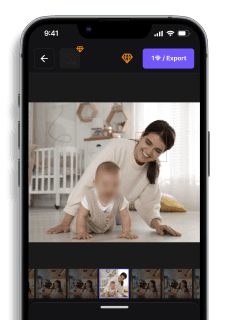
How to Blur Faces in a Video - Easy Face Blur App
Maya Chen — Tech Writer & Privacy Advocate Part of: Blur Video Complete Guide: Tools, Methods & Best Practices (2026)Read the complete guide →
Video is now a part of everyday communication, from social media posts to professional recordings and security footage. As more videos are shared online, knowing how to blur face in video content has become an important step in protecting privacy. Whether you’re hiding someone’s identity, following privacy regulations, or cleaning up a shot before publishing, using a reliable face blur method helps keep your content safe and appropriate to share.
If you’re searching for a simple way to blur face in video clips without complicated editing software, this guide will walk you through the process. You’ll learn the most effective ways to apply face blur on iPhone, desktop, or any device using easy, modern tools.
Why You Need to Blur Faces in Videos
Blurring faces isn’t just about aesthetics—it’s an important privacy measure. Here’s why people commonly blur out faces in videos:
- Privacy Protection – Keep identities confidential in personal videos or public recordings.
- Legal & Compliance Needs – Meet GDPR, FERPA, and other data privacy regulations.
- Ethical Journalism – Anonymize sources, whistleblowers, and individuals in sensitive stories.
- Social Media Safety – Protect minors and individuals from unwanted exposure.
- Professional Video Editing – Censor faces seamlessly for corporate or public-facing content.
If you're regularly handling videos that involve other people, a face blurring app is an indispensable tool in your digital toolkit.
How to Blur a Face in a Video Effortlessly
1. Use an AI-Powered Face Blurring Tool
Instead of struggling with complex video editing software, AI-driven face blurring makes it easy to automatically detect and blur faces in a video, even if they’re moving.
With BlurMe's blur face in video, you can simply upload your video, let AI recognize the faces, and apply a seamless face blur effect instantly. Here’s a step-by-step guide how to blur a video:
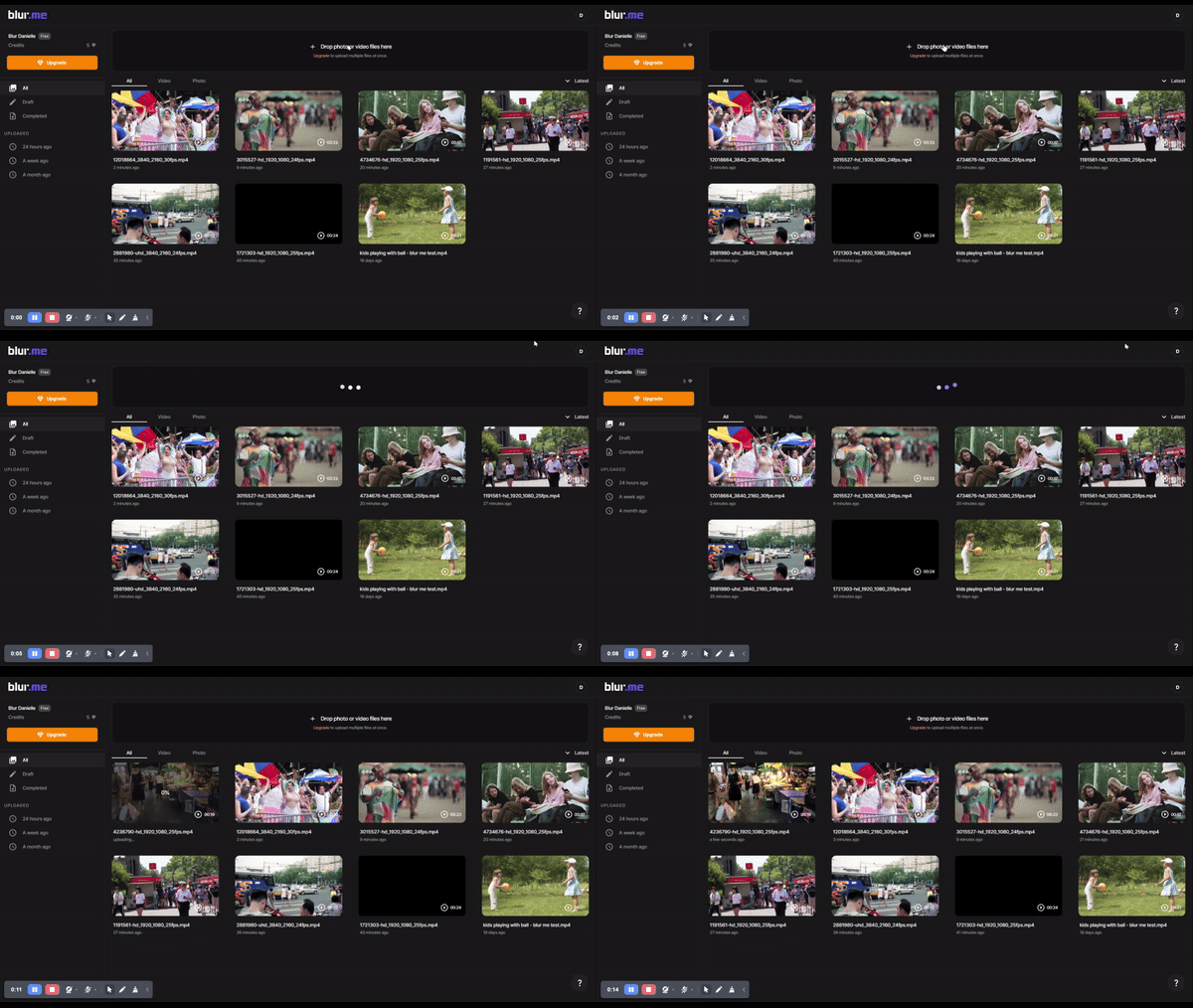
Step 1: Upload Your Video
Upload your video file to Blur Face in Video. BlurMe supports all popular video formats like MP4, AVI, and MOV.
Step 2: Select the Blur Tool
Navigate to the Blur Tool section in the Studio. BlurMe offers a variety of blurring, including:
- Face Blur: Automatically detects and blurs faces.
- Body Blur: Manually select areas on the body to blur.
- Car Blur: Select cars and vehicles to blur.
- License Plate Blur: Smoothly blur license plate numbers. Learn more about why you should blur license plates on BlurMe.
Step 3: Adjust the Blur Intensity
Use the slider to control the intensity and size of the blur effect you want. It is completely customizable.
Step 4: Use Custom Blur for Additional Blurring Effect
BlurMe also allows you to custom blur parts of your video. Select Custom Blur and then manually select the area you would like to blur. Adjust the intensity and size according to your needs.
Step 5: Preview Your Work
Before finalizing, constantly preview and watch your video live in the BlurMe Studio to see how your video looks with the applied blur.
Step 6: Export and Share
Once satisfied, export your video in high resolution. BlurMe optimizes videos to maximize the quality of your export and can be easily shared across all social media platforms.
2. How to Blur Faces in a Video on iPhone
Editing on mobile? Blurring faces in a video on iPhone can be tricky using built-in tools. While some apps require you to manually mask faces, AI-powered apps like BlurMe allow you to blur faces on iPhone in seconds.
3. How to Blur Multiple Faces in a Video
If you’re working with footage that contains multiple people, manually tracking and blurring each face is exhausting. Instead, you need a tool that automatically detects all faces and applies blurs instantly.
With BlurMe’s smart tracking AI, you don’t have to do any of the work. Simply upload your video, and the tool will identify all visible faces and apply a smooth blur effect across the entire clip.
For scenes with multiple people or movement, using an automatic face blur tool makes it much easier to consistently blur face in video footage without manual frame-by-frame editing.
More Than Just Faces: How to Blur a Video Effectively
While face blurring is the most common need, sometimes you need to blur license plates, sensitive documents, or background details in your footage. The ability to selectively blur different parts of a video is just as important.
If you’re looking for a seamless way to apply blurs across various parts of a video, our How to Add Blur Effect to Videos guide walks you through additional blurring techniques that go beyond just faces.
Need to edit your photos too? AI-powered tools can help you blur a picture or even clean up unwanted objects from an image using advanced processing techniques. Tools like Cleanup Pictures can enhance your visuals with just a few clicks.
Faces or plates to blur in your video?
Upload and the AI blurs them automatically in seconds.
Blur Your Videos with BlurMe!
Whether you’re looking to blur a face in a video for privacy, legal reasons, or creative editing, AI-powered tools make it fast, effortless, and precise. Instead of spending hours manually censoring videos, let technology handle it for you.
Ready to get started? Sign up to BlurMe today and experience the easiest way to blur someone’s face in a video with AI-powered accuracy.
Faces or plates to blur in your video?
Drop a video or photo in your browser and the AI auto-blurs faces, license plates, and personal info in seconds.
Upload free