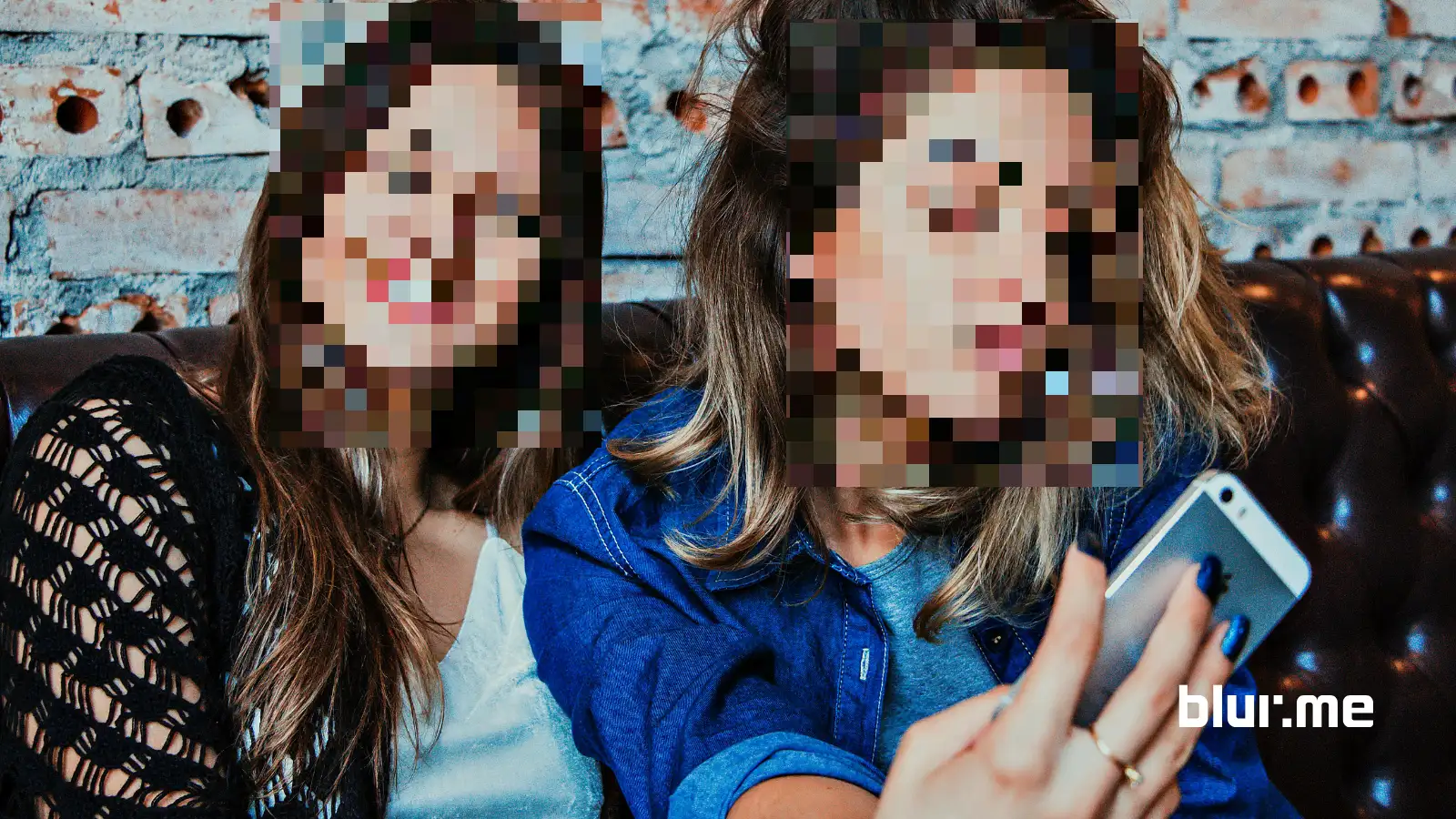
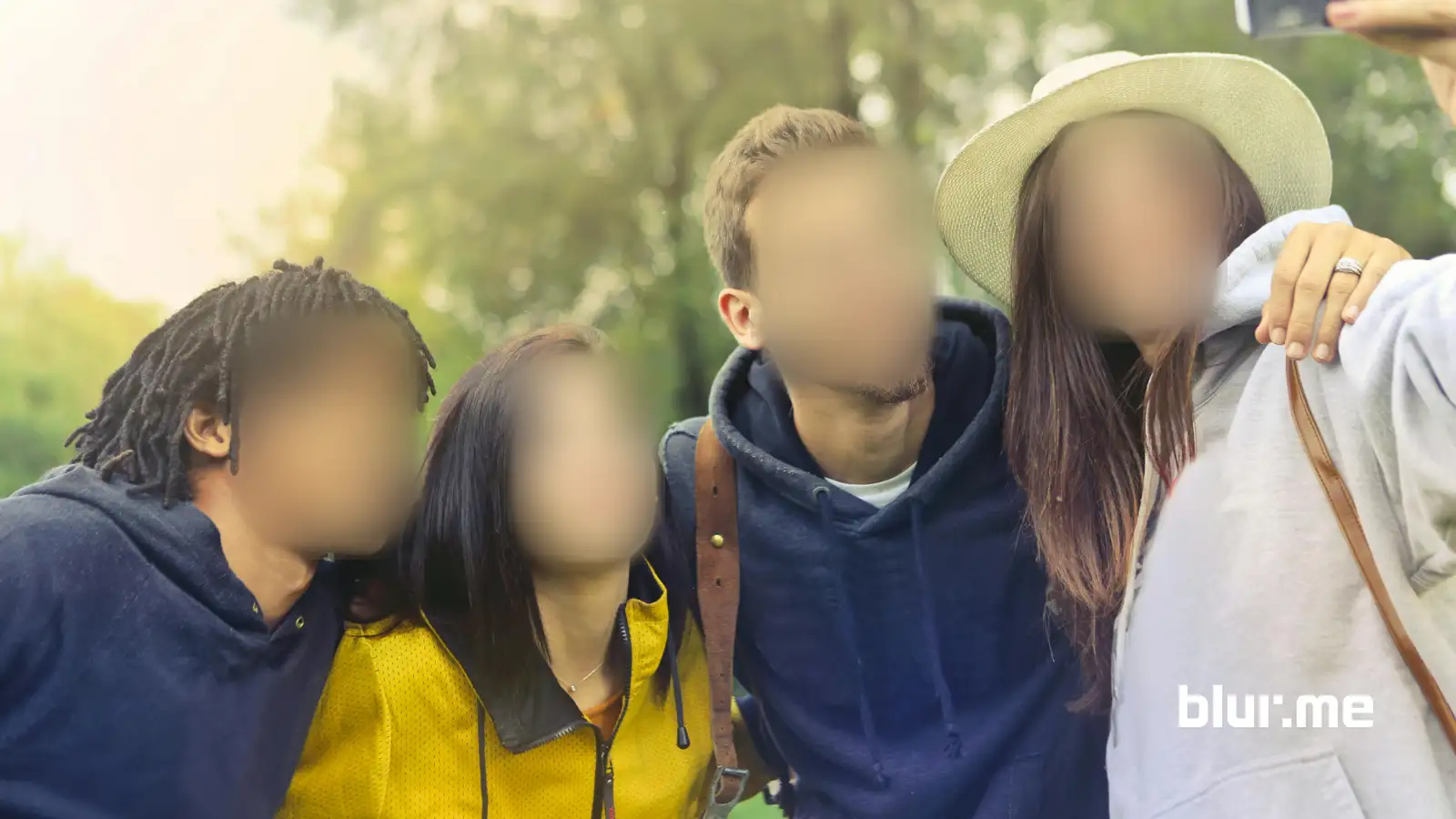
How to blur a picture is one of the most searched photo-editing questions today, and for good reason. Blurring images is now essential for creators, businesses, journalists, educators, and everyday users.
This guide shows exactly how to blur a picture online for free, using BlurMe, a browser-based AI image blur tool designed for precision, speed, and privacy. You’ll learn how to blur an image, blur part of a picture, blur a face in a photo, and apply pixel blur effects.
How to Blur a Picture Online Using BlurMe (Step-by-Step)
BlurMe is a dedicated image blur tool, not a generic photo editor. Everything happens directly in your browser.
Step 1: Open the Blur Image Tool
Go to the Blur Image Tool on BlurMe.
No downloads, no plugins, no account required to start.
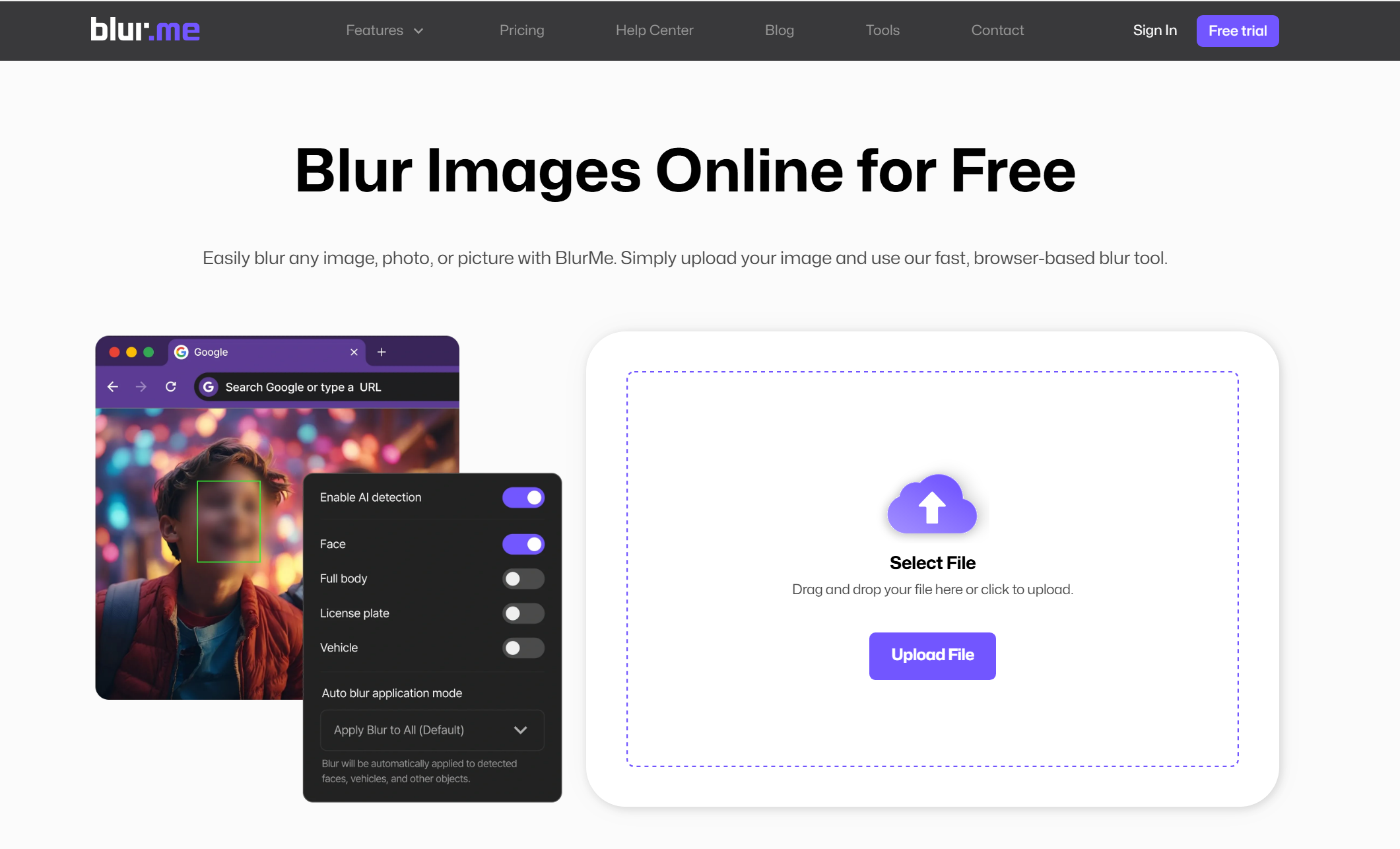
Step 2: Upload Your Photo
Upload any image format (JPG, PNG, WEBP).
Your image loads securely in the editor.
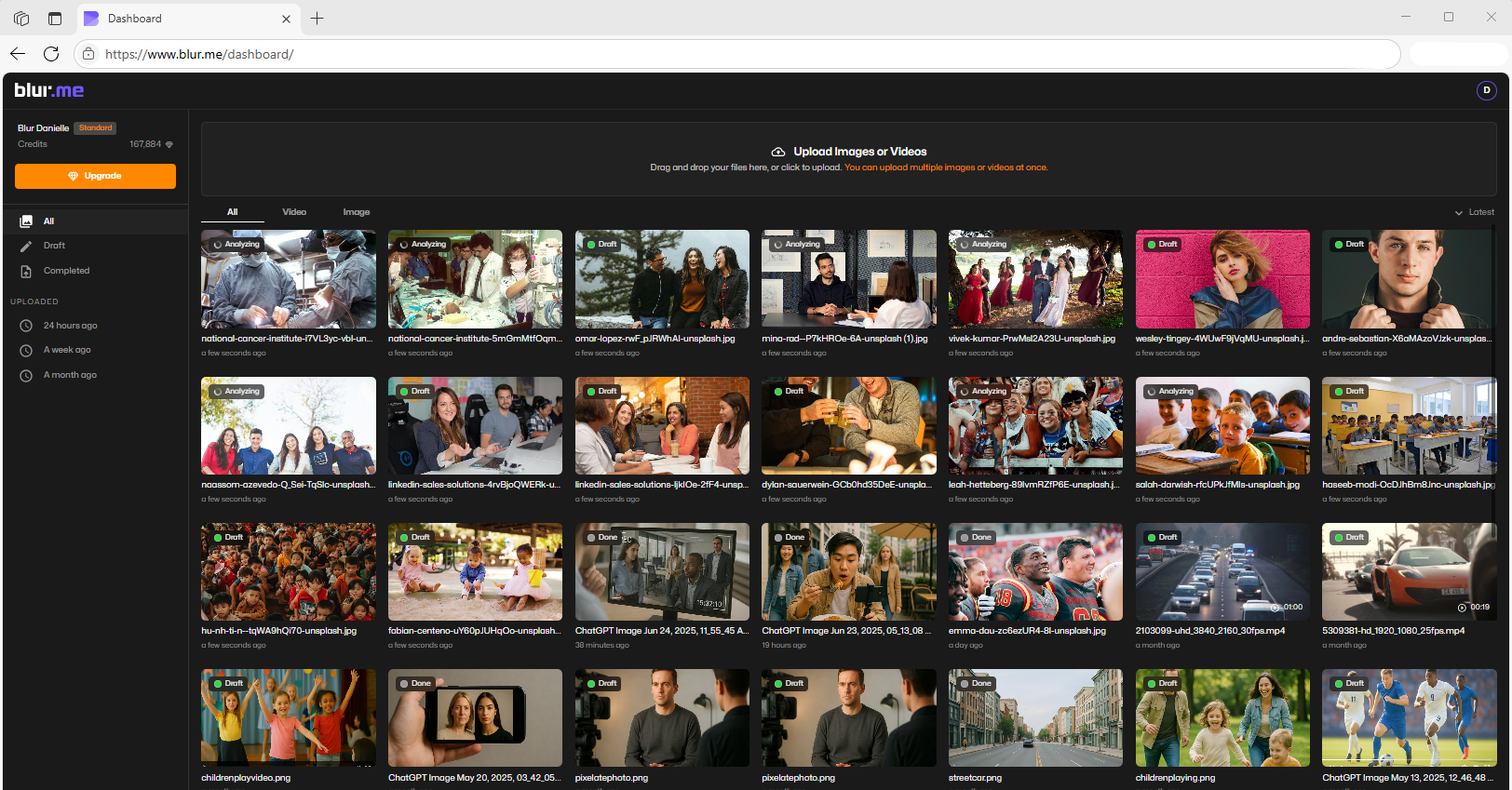
Step 3: Choose Your Blur Method
You can:
- Blur the entire picture
- Blur part of an image
- Blur a face in a photo using AI
- Apply a pixel blur effect to a license plate or car
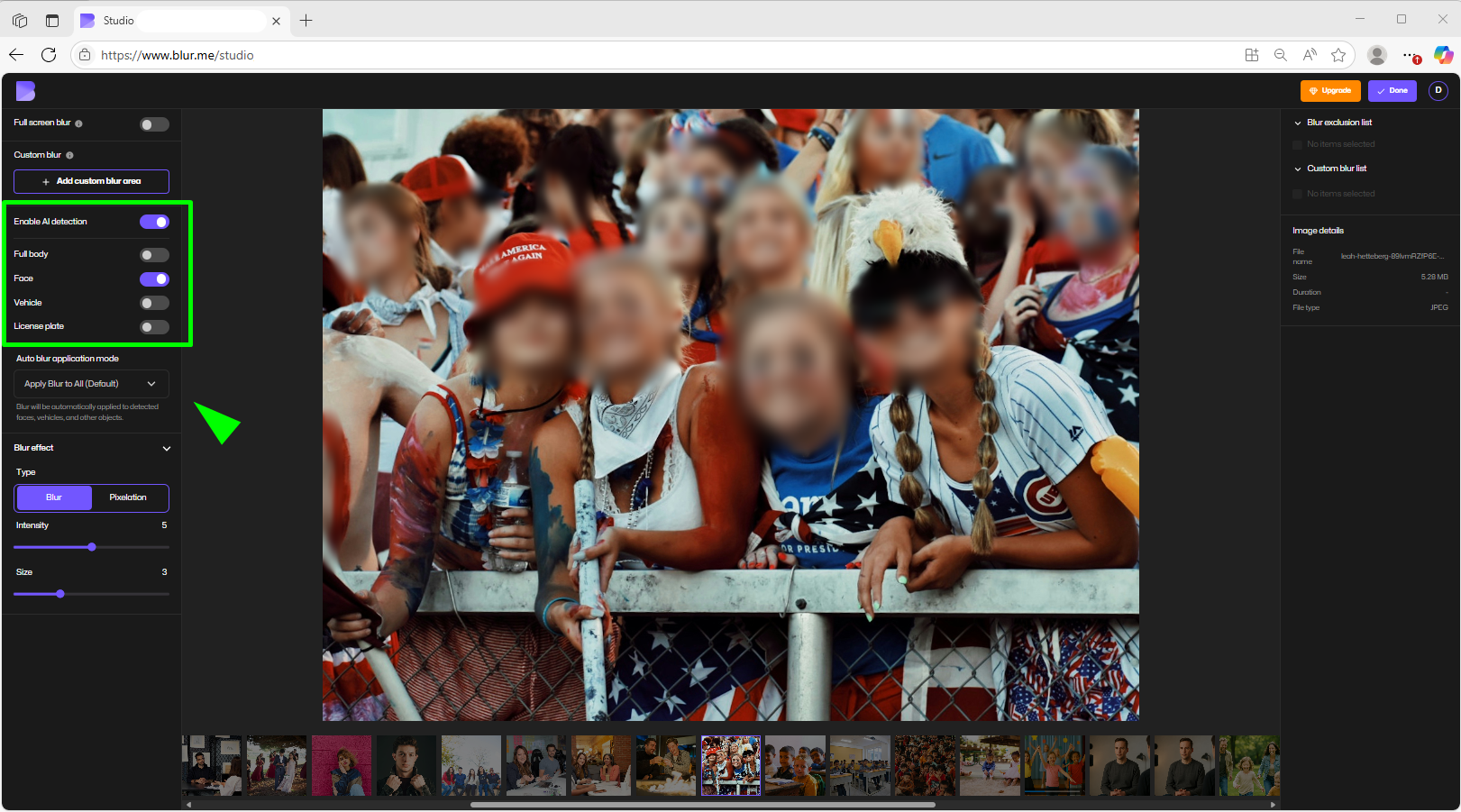
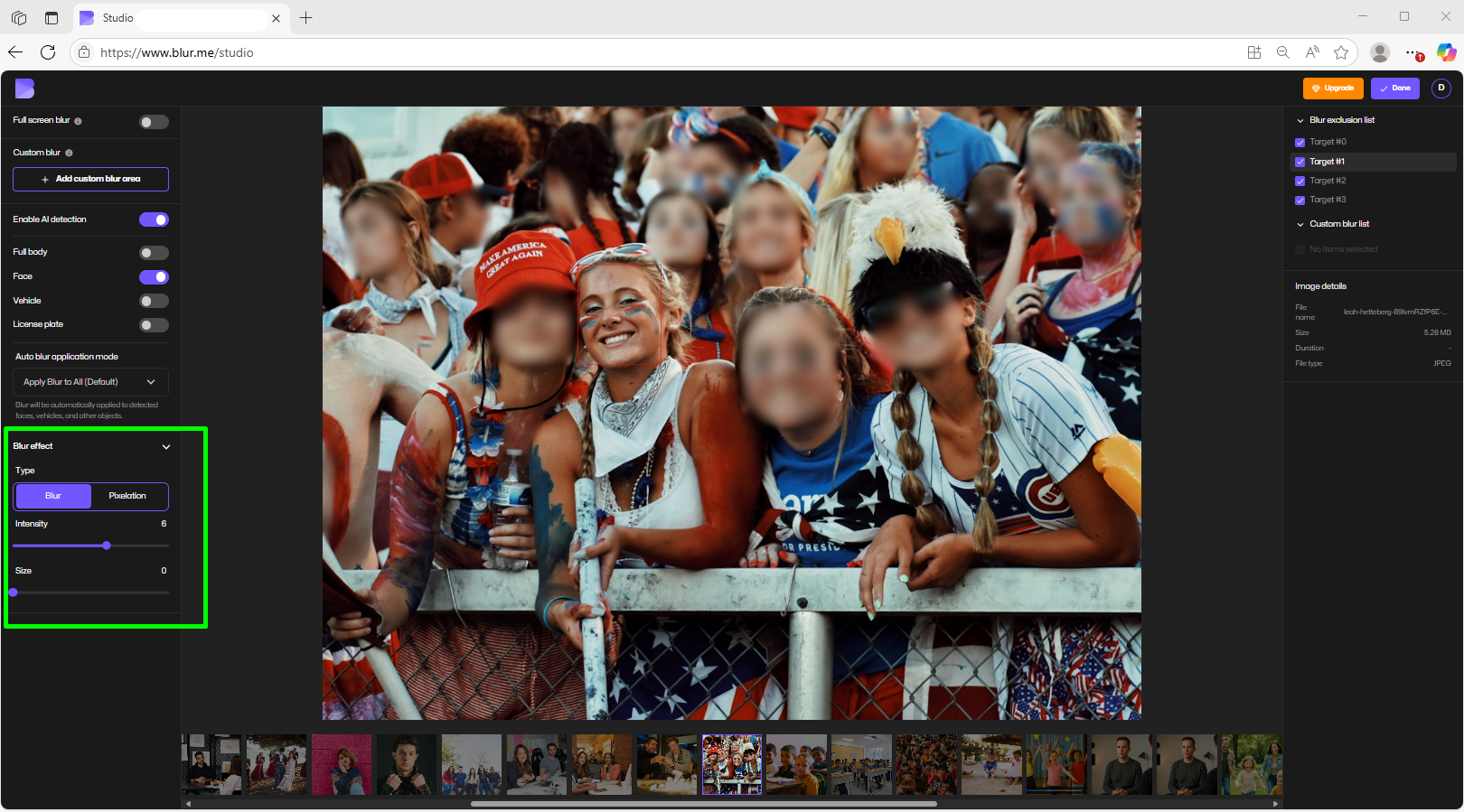
Step 4: Adjust the Blur Effect
Control:
- Blur strength
- Pixel size (for mosaic blur)
- Blur shape and coverage
Step 5: Export Your Blurred Image
Download your image instantly in high quality.
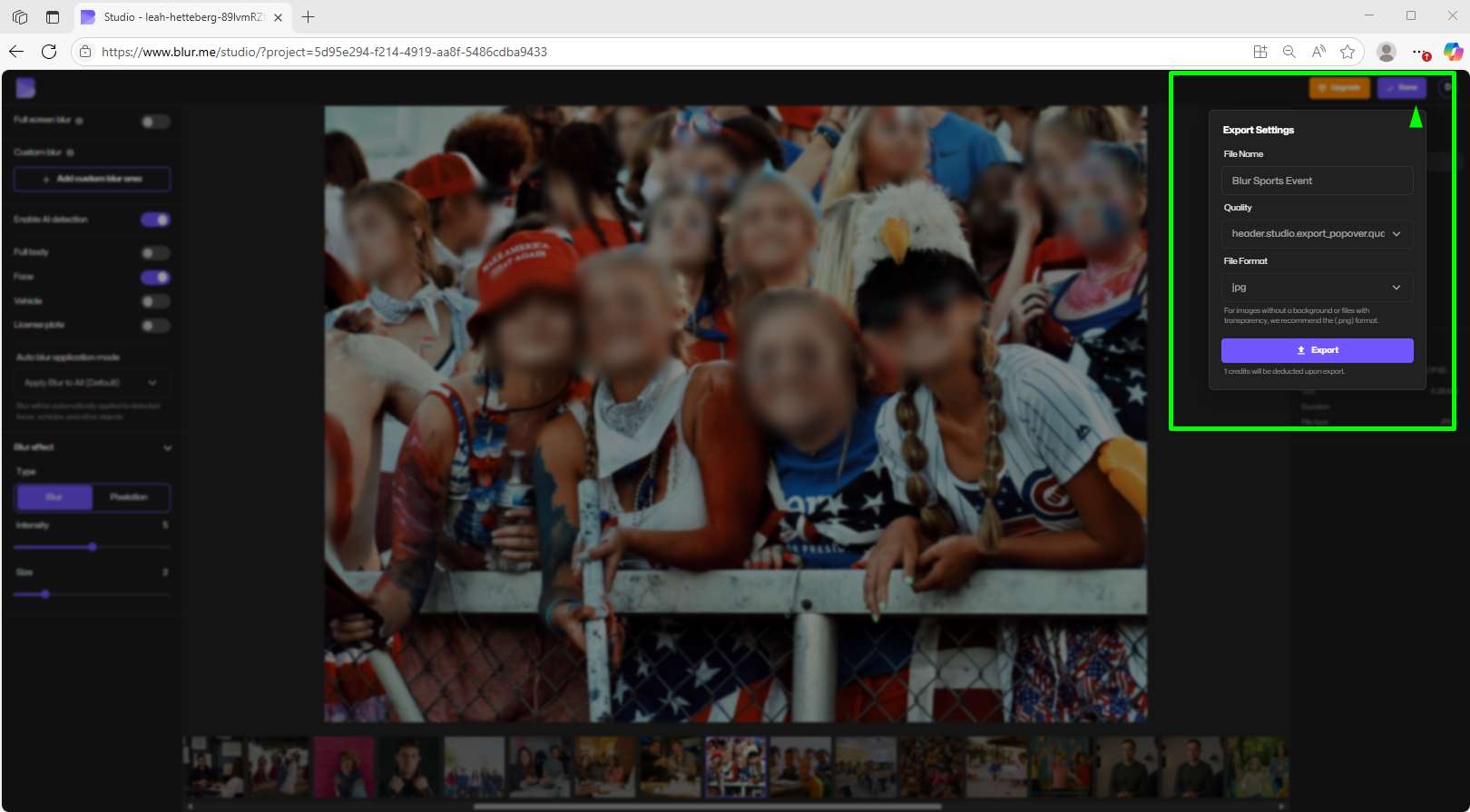
This is the easiest way to blur images online without losing clarity where it matters.
How to Blur an Entire Picture
Blurring a full image is ideal for:
- Creating a soft background
- Making an image intentionally blurry
- Designing overlays or thumbnails
How to blur an image completely:
- Upload your photo
- Select Full Screen Blur
- Adjust intensity
- Export
This creates a clean, consistent blur effect without distortion.
How to Blur Part of a Picture (Selective Blur)
When you only want to blur a specific area—like text, a license plate, or a screen—selective blur is essential.
How to blur part of an image:
- Upload your photo
- Choose Custom Blur
- Brush over the area you want blurred
- Adjust blur strength
- Export
This method is perfect when you need to blur part of a picture while keeping the rest sharp.
How to Blur a Face in a Photo Automatically
Face blurring is one of the most common privacy needs.
BlurMe uses AI face detection to instantly identify faces in images.
How to blur a face in a picture:
- Upload your photo
- Enable AI Detection and Face Mode
- Select which faces to blur
- Choose soft blur or pixelation
- Export
This is ideal for:
- Social media content
- Journalism and reporting
- Educational materials
- Public-facing documents
Why People Blur Images (Beyond Just Aesthetics)
Blurring a photo isn’t only about style. It’s often about control and responsibility.
People use blur effects to:
- Protect personal identities in photos
- Hide sensitive or private information
- Comply with GDPR guidelines
- Remove distractions from backgrounds
- Create intentional focus in visual storytelling
- Apply redaction (see: redaction meaning)
An effective online blur tool should handle all of these use cases accurately—and that’s where BlurMe stands out.
Pixel Blur Effect vs Soft Blur: Which Should You Use?
Pixel Blur Effect
Best for:
- Redaction
- Privacy protection
- GDPR compliance
Learn more from our how to pixelate an image guide.
Soft Blur Filter
Best for:
- Aesthetic edits
- Background softening
- Focus control
BlurMe lets you switch between both depending on your goal.
How to Make an Image Blurry Without Ruining Quality
A common problem with photo blur tools is quality loss.
BlurMe avoids this by:
- Applying non-destructive blur layers
- Preserving original resolution
- Exporting clean, sharp images outside blurred areas
The result is a professional blurry photo effect without compression artifacts.
Tips for Better Image Blurring Results
- Use pixel blur for privacy, not soft blur
- Blur backgrounds instead of cropping whenever possible
- Avoid over-blurring faces—clarity still matters
- Use selective blur for sensitive details, not entire images
For background-specific edits, see Blur Image Background.
Frequently Asked Questions (FAQ)
How can I blur an image online for free?
You can blur images online for free using BlurMe’s online blur tool. Upload your photo, choose your blur method, and export instantly. See how to blur image online.
What’s the best way to blur a face in a photo?
The most accurate way is using AI face detection. BlurMe’s Blur Face in Photo Tool automatically detects and blurs faces with precision.
How do I pixelate an image instead of blurring it?
Use a pixel blur effect for stronger redaction. BlurMe includes a dedicated Pixelate Image Tool.
Is image blurring required for GDPR compliance?
In many public or shared images, yes. Blurring faces and identifying details helps meet GDPR guidelines, especially for media and public content.
Can I blur only part of a picture?
Yes. BlurMe allows you to selectively blur specific areas without affecting the entire image.
Blur Your Pictures in Seconds with BlurMe
If you’re looking for the fastest, most accurate way to blur a picture online, BlurMe is built for exactly that.
✔ Free to use
✔ 100% browser-based
✔ AI face detection
✔ Pixel and soft blur options
✔ No watermark
👉 Start blurring your images now with BlurMe’s face blur and images tool