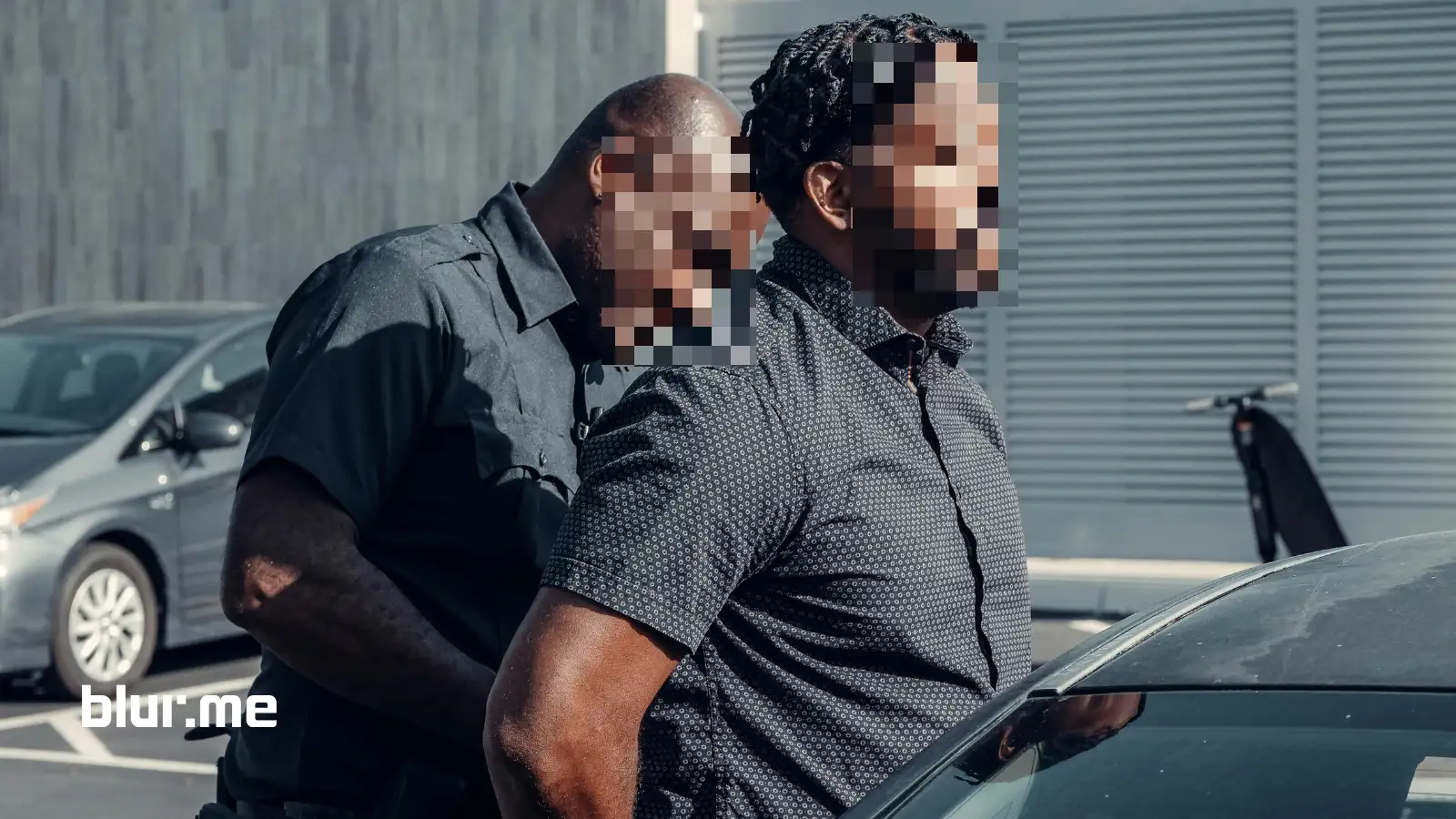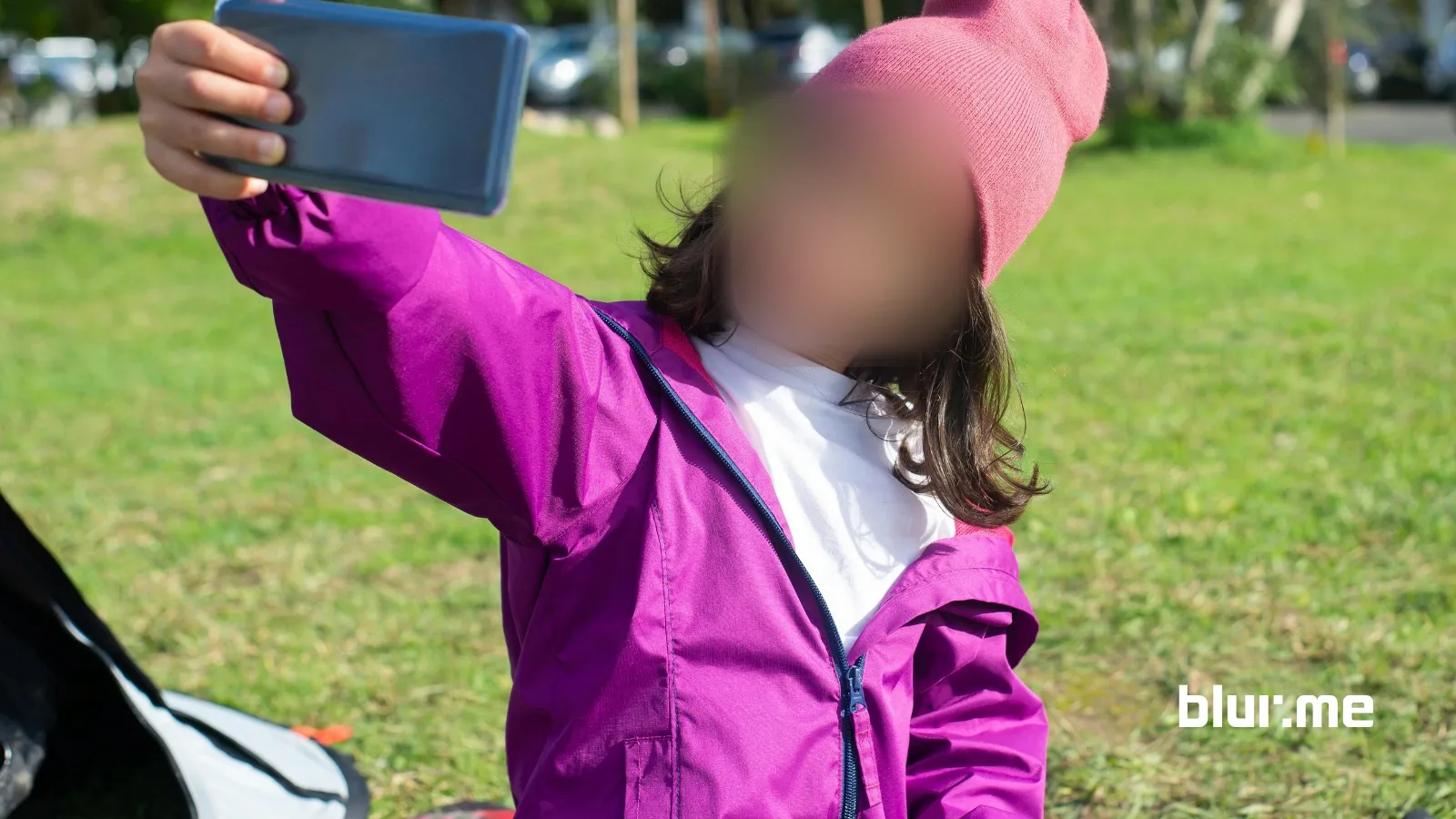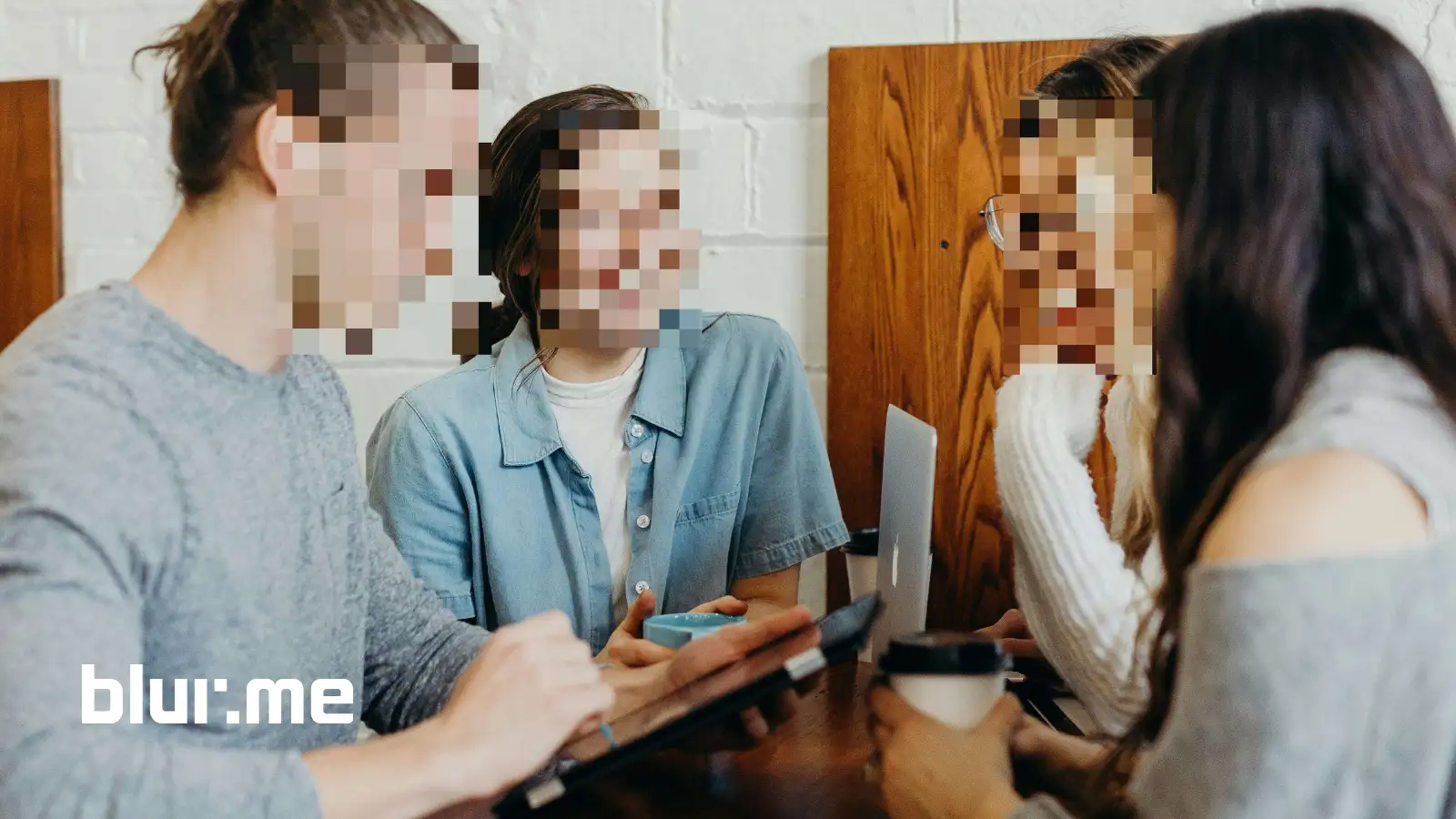
Mosaic blur is one of the fastest, most reliable ways to censor, anonymize, or stylize images online. Whether you want to pixelate faces, hide sensitive details, or apply a pixel mosaic effect for creative reasons, this guide shows you exactly how to do it online using BlurMe Image Blur, a browser-based AI mosaic blur tool.
What Is a Mosaic Blur Effect?
A mosaic blur effect (also called pixel mosaic or pixelation) works by breaking part of an image into visible square blocks. Instead of soft blur, mosaic blur makes details unreadable by enlarging pixels, perfect for censorship and privacy protection.
This is why mosaic blur is widely used in journalism, social media moderation, legal evidence, and content creation.
How to Create a Mosaic Blur Effect Online Using BlurMe
BlurMe works entirely in your browser—no downloads, no watermark traps, no design skills needed.
Step-by-Step: How to Add Mosaic Blur to a Photo
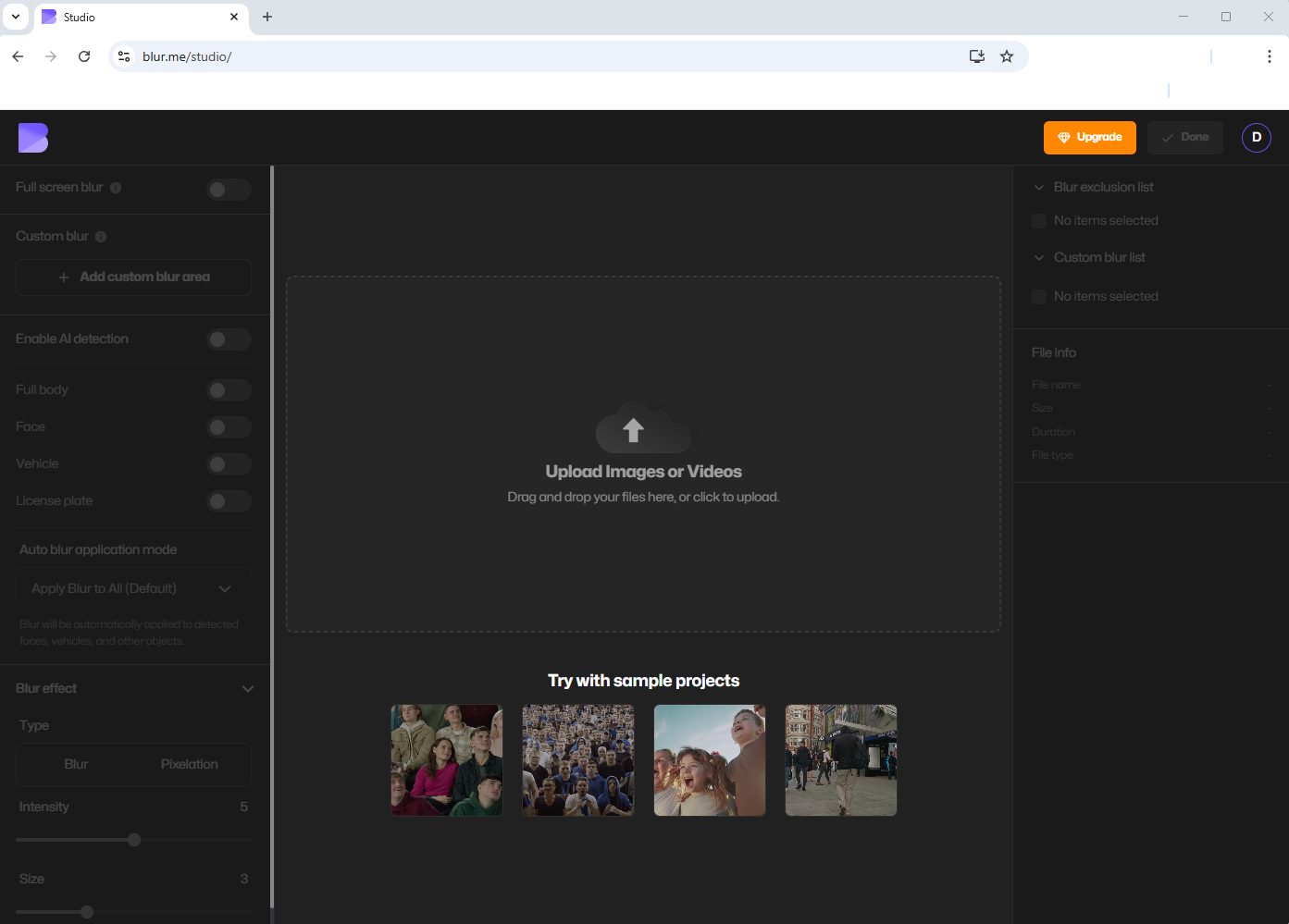
- Go to BlurMe's Online Blur Tool
Open BlurMe Blur Image or Pixelate Image tool in your browser.
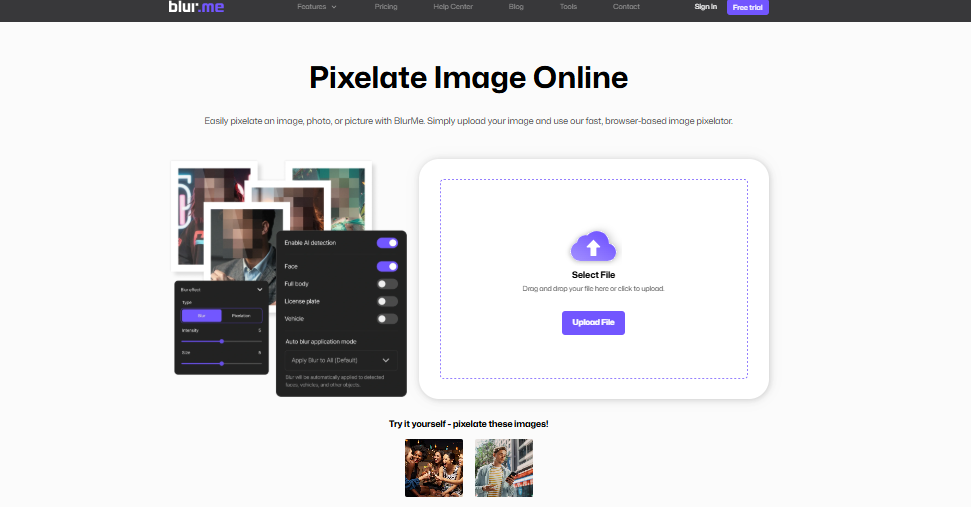
- Upload Your Image
Drag and drop your photo or upload it from your device.
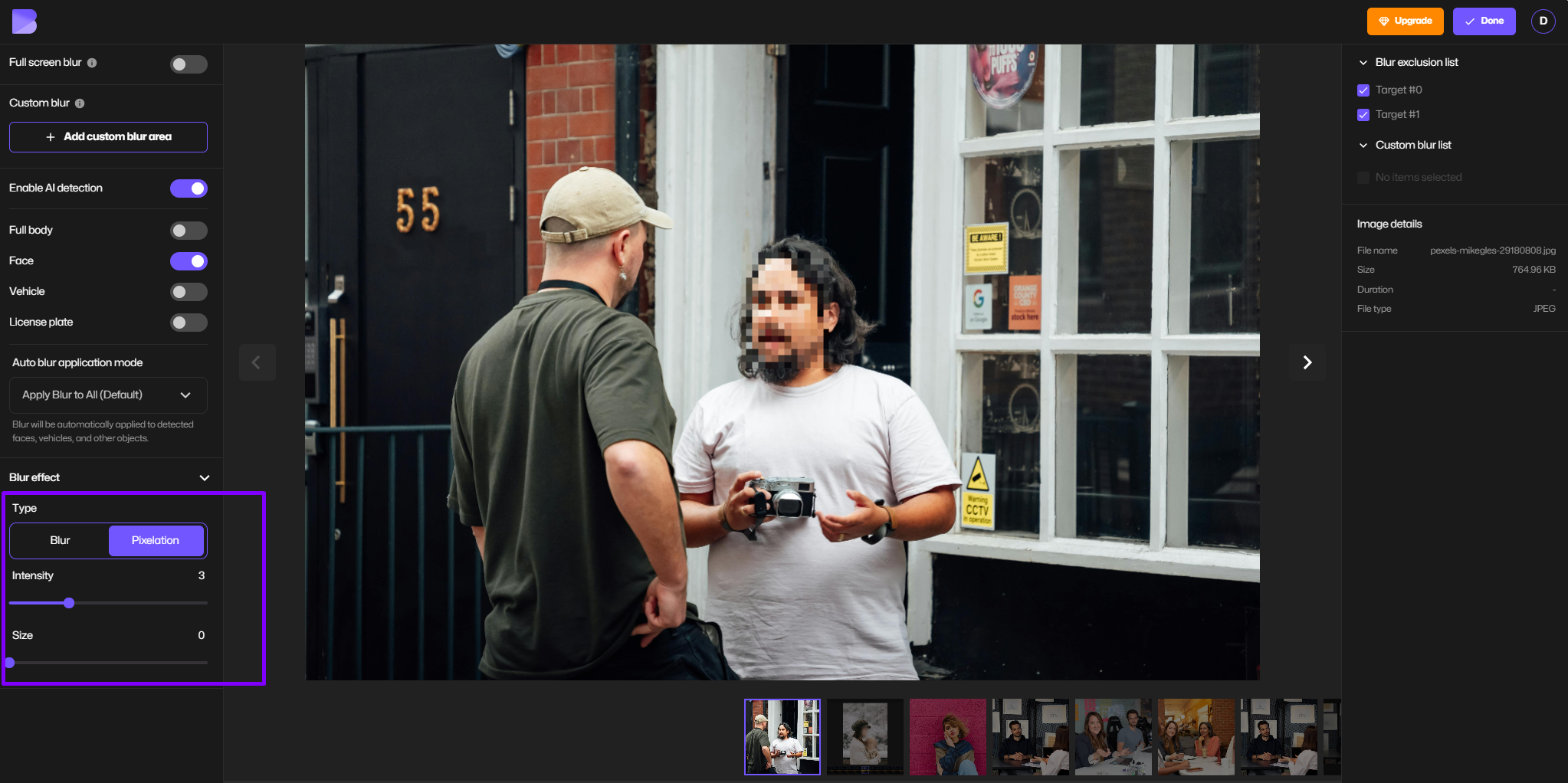
- Choose Mosaic Blur (Pixelation) Mode
Select the pixelation option to apply a pixel mosaic effect instead of soft blur.
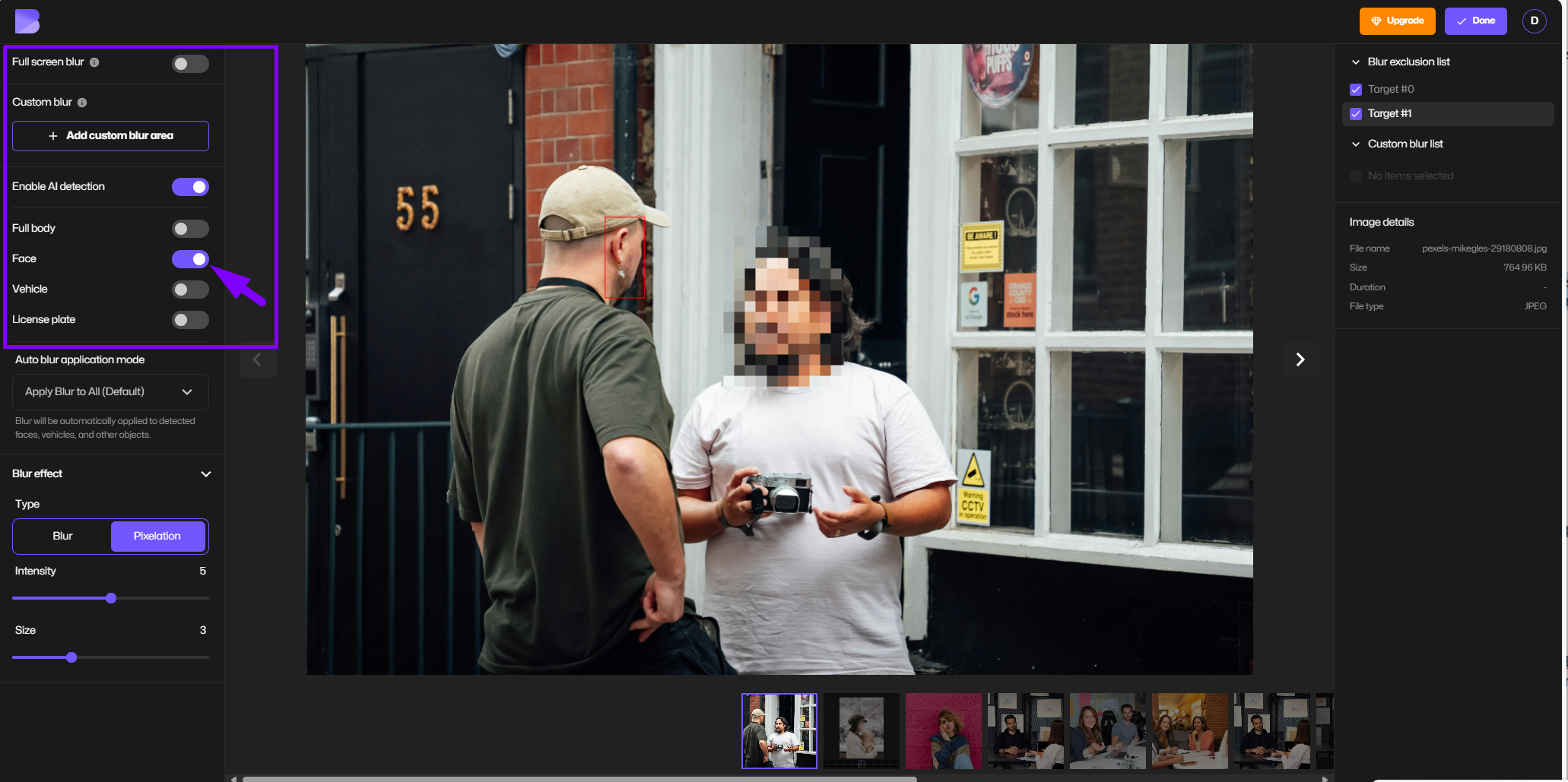
- Select the Area to Pixelate
Use AI detection to automatically blur faces. Or manually brush over areas you want to censor
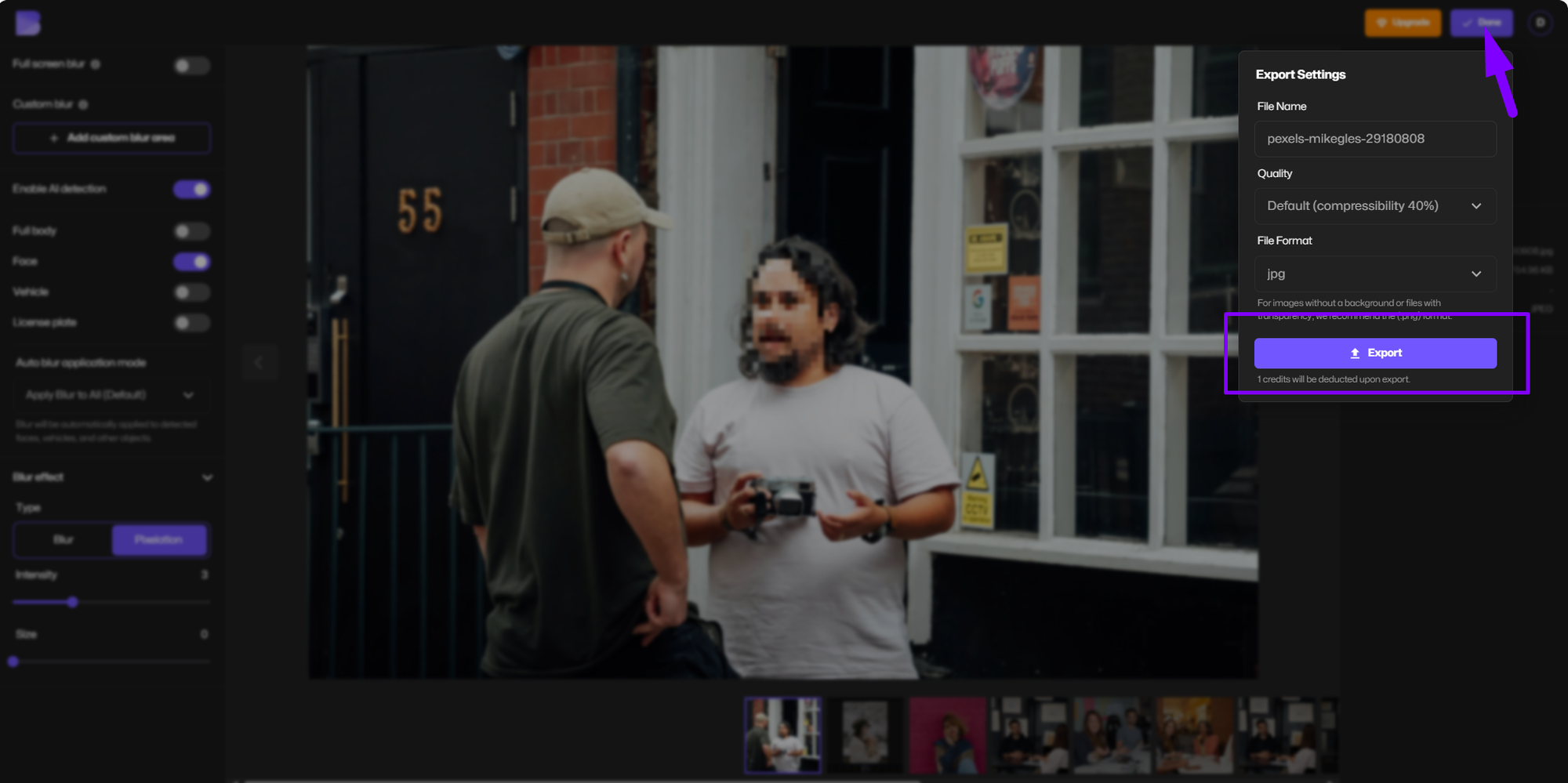
- Export Your Image
Download your pixelated image instantly in high quality.
This entire process takes only 5 steps.
When to Use Mosaic Blur vs Standard Blur
Use mosaic blur when:
- You need strong censorship (faces, IDs, license plates)
- You want a clear “censored” look
- The image may be shared publicly
Use a regular blur effect when:
- You want subtle background separation
- The goal is aesthetic depth, not privacy
BlurMe supports both, but this guide focuses specifically on mosaic blur and pixelation.
Using AI Mosaic Blur for Faces and People
BlurMe’s AI automatically detects faces and people in images, making it one of the fastest mosaic censor tools available online.
With AI mosaic blur, you can:
- Pixelate multiple faces at once
- Exclude specific faces from blur
- Apply consistent pixel mosaic sizing across the image
This is especially useful for:
- Group photos
- Street photography
- Event images
- User-generated content moderation
Mosaic Blur for Privacy, Safety, and Content Creation
Common Use Cases
- Censor faces in photos
- Hide personal information
- Pixelate license plates
- Protect minors’ identities
- Create stylized mosaic effects for social media
Because BlurMe is browser-based, it works across devices without requiring a mosaic app download.
Mosaic Generator vs Mosaic App: Why Online Tools Win
Traditional mosaic apps often:
- Require installation
- Limit exports
- Add watermarks
- Store files locally or insecurely
BlurMe’s online mosaic generator avoids all of that:
- Works instantly in-browser
- No software installation
- AI-powered detection
- Manual control for precision edits
Tips for Better Mosaic Blur Results
- Use larger pixel sizes for legal or privacy-critical images
- Zoom in before brushing for cleaner edges
- Combine AI face detection with manual refinement
- Preview before exporting to ensure full censorship
FAQ: Mosaic Blur & Pixelation
What’s the difference between mosaic blur and pixelation?
They’re often used interchangeably. Pixelation is the technical method; mosaic blur is the visual effect it creates.
Learn more: how to pixelate an image
Can I blur just one face in a group photo?
Yes. BlurMe face blur tool lets you selectively apply mosaic blur to specific faces.
Is mosaic blur reversible?
No. Once exported, mosaic blur permanently obscures image details, making it ideal for censorship. See our article How to censor image easily online for additional reasons why.
Can I blur non-face objects?
Absolutely. BlurMe supports manual selection for text, logos, blur backgrounds, and objects.
Can I create other blur styles?
Yes. BlurMe supports standard blur, soft blur, and artistic effects.
Why BlurMe Is the Best Tool for Mosaic Blur Online
BlurMe combines:
- AI detection
- Manual precision
- High-quality exports
- No app downloads
- Fast, secure processing
It’s designed for real-world use cases not just visual effects.
Create Your Mosaic Blur Online with BlurMe
If you need a fast, reliable way to apply a mosaic blur effect, pixelate photos, or censor sensitive content, BlurMe gives you full control—directly in your browser.
👉 Try BlurMe’s AI Mosaic Blur Tool now and pixelate your image in seconds.