Reduce image size in KB easily and keep your photos looking sharp. Large image files can slow down websites, take up unnecessary storage, and make uploads painfully slow. Learning how to decrease image size in KB without losing quality is an essential digital skill.
Let's take a look at how to reduce image size in KB using great methods, including BlurMe’s online image editor to compress images efficiently while keeping them clear and professional-looking.
Why Reduce Image Size in KB?
Reducing the KB (kilobytes) of a image isn't just about saving space. Here are a few reasons why it's important:
- Faster Loading Times: Smaller images load faster, which improves website performance and user experience.
- Easier Sharing: Many platforms have file size limits for uploads. Reducing KB ensures smooth sharing.
- Save Storage: Free up valuable space on your device or cloud storage by reducing photo sizes.
How to Reduce KB Image Size - 5 Easy Ways
Reducing the KB of an image can be done through various methods, from online tools to software applications. Here are the best ways to do it:
1. Use Online Tools to Decrease Photo KB
Online tools are the easiest way to reduce size without installing software. BlurMe's Image Compression Tool allows you to decrease KB with just a few clicks.
Steps to reduce image in kb using BlurMe:
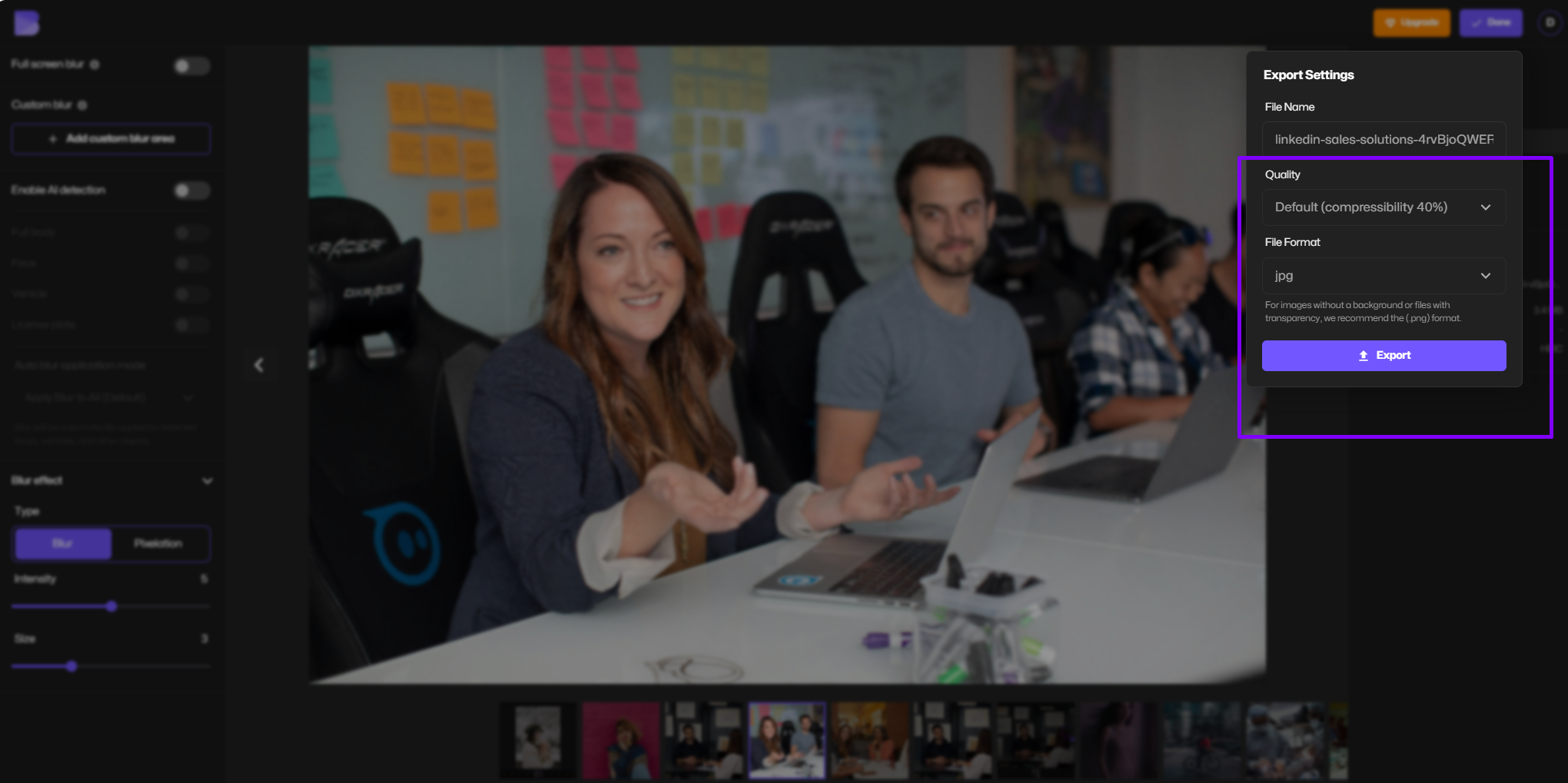
- Upload Your Image:
Go to BlurMe Online Photo Editor and upload the image file you want to compress. - Adjust Compression Level:
BlurMe offers three quality settings:- High (0% compressibility): Maximum quality, larger size.
- Default: Balanced compression and quality.
- Low (80% compressibility): High compression, ideal for getting your image under 20KB.
- Preview the Result:
BlurMe instantly shows a preview of your compressed image. - Download Your File:
Click Download to get your compressed image.
2. Adjust Image Resolution
Reducing the resolution lowers the number of pixels, which decreases the file size.
How to reduce image in KB by adjusting resolution:
- Open your image in an editing tool.
- Resize the image dimensions (e.g., from 4000x3000 to 1920x1080).
- Save the image and check the new image KB size.
3. Convert to a Different File Format
Some file formats, like JPEG, are more compressed than others like PNG. Converting your image can significantly reduce its size.
Example: Convert PNG to JPEG to reduce photo KB without noticeable quality loss. Learn more about this and more in guide.
4. Use Lossless Compression Techniques
Lossless compression reduces the photo KB while maintaining image quality. BlurMe offers lossless compression to help you use all the ways to ensure your images stay crisp.
5. Crop Unnecessary Parts of the Image
Cropping removes parts of the image you don't need, which can reduce the file size.
How to crop and reduce photo KB:
- Open the image in your preferred photo editor.
- Select the area you want to keep.
- Crop the image and save the new version.
Best Tools for Photo KB Resize
Here are some of the best tools to help reduce image size in KB:
- BlurMe: An all-in-one AI face blur solution for that also offers great compression tools.
- TinyPNG: Great for compressing PNG and JPEG files.
- ImageOptim: Ideal for Mac users looking to compress images.
- Photoshop: Advanced editing options to resize and optimize images.
The Balance Between Quality and Performance
Anyone who’s managed a website or uploads regularly knows that image size isn’t just a technical detail, it affects everything from page speed to user experience. Web designers, photographers, and marketers all face the same challenge: shrinking file size without making images look dull or compressed. That’s where real experience comes in. The trick isn’t just compression; it’s knowing when to resize, when to convert formats, and how to test visual quality after export.
Professionals often use tools that show a live preview or AI-assisted compression to keep fine details intact while cutting excess data. The goal is always balance; fast load times and sharp visuals.
Tips to Reduce Image KB Without Losing Quality
- Use lossless compression techniques.
- Avoid over-compressing, which can cause image distortion.
- Test different formats (JPEG, PNG, WebP) to see which gives the best balance of size and quality.
- Use the complete guide to blurring and pixelating images if you want to hide sensitive details while reducing image size.
Common Questions About Photo KB Resize
- How do I reduce the size of a photo in KB without losing quality?
Use lossless compression tools like BlurMe to decrease the photo KB while maintaining quality. - What is the best format to reduce photo KB?
JPEG typically offers smaller file sizes compared to PNG or BMP. - Can I resize photo KB on my phone?
Yes! Use mobile apps or tools like BlurMe to blur and resize images on iPhone.
Conclusion
Reducing image size and photo size in KB is essential for faster loading times, easier sharing, and better storage management. With the right tools and techniques, you can decrease KB without sacrificing quality. Try BlurMe’s AI Flouter tools today to make your images secure, web-ready and optimized!
For more on image optimization and privacy, check out our HD Photo Converter Tools and How to Pixelate Image. Try BlurMe now.