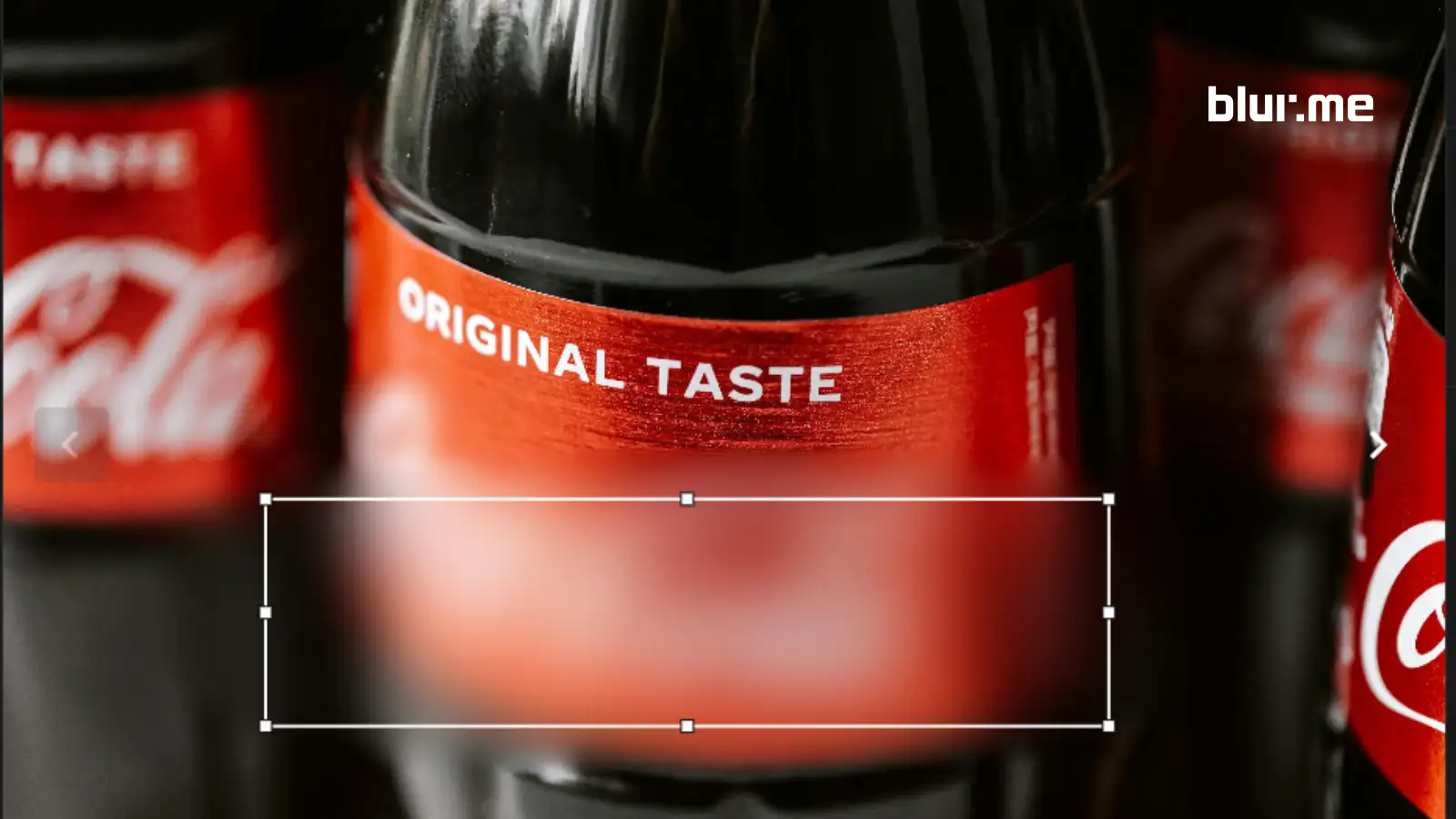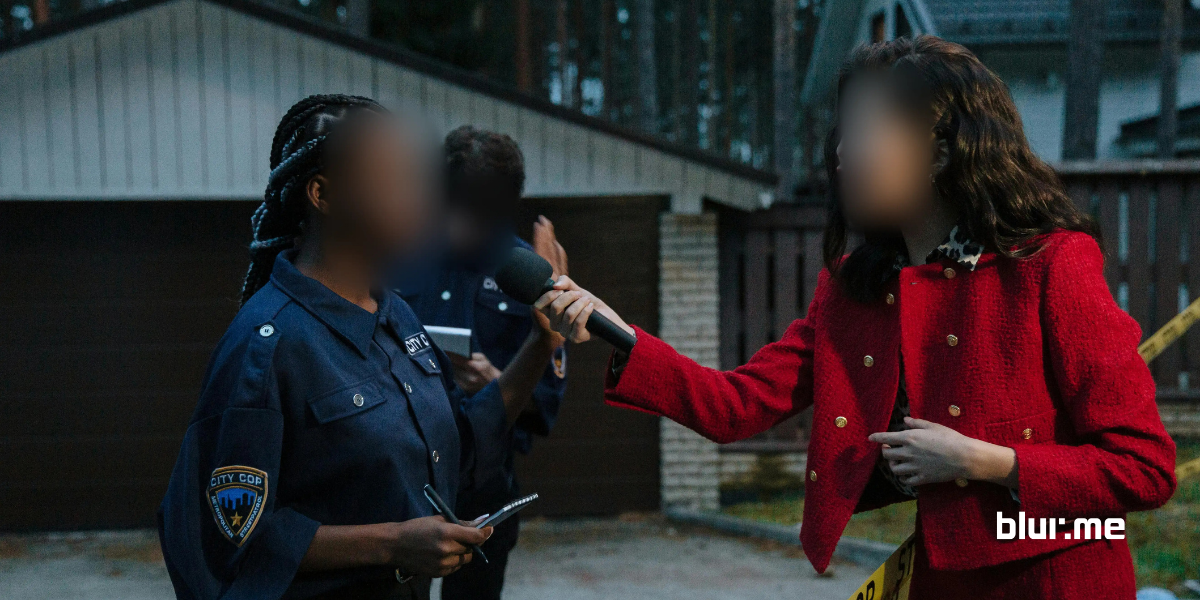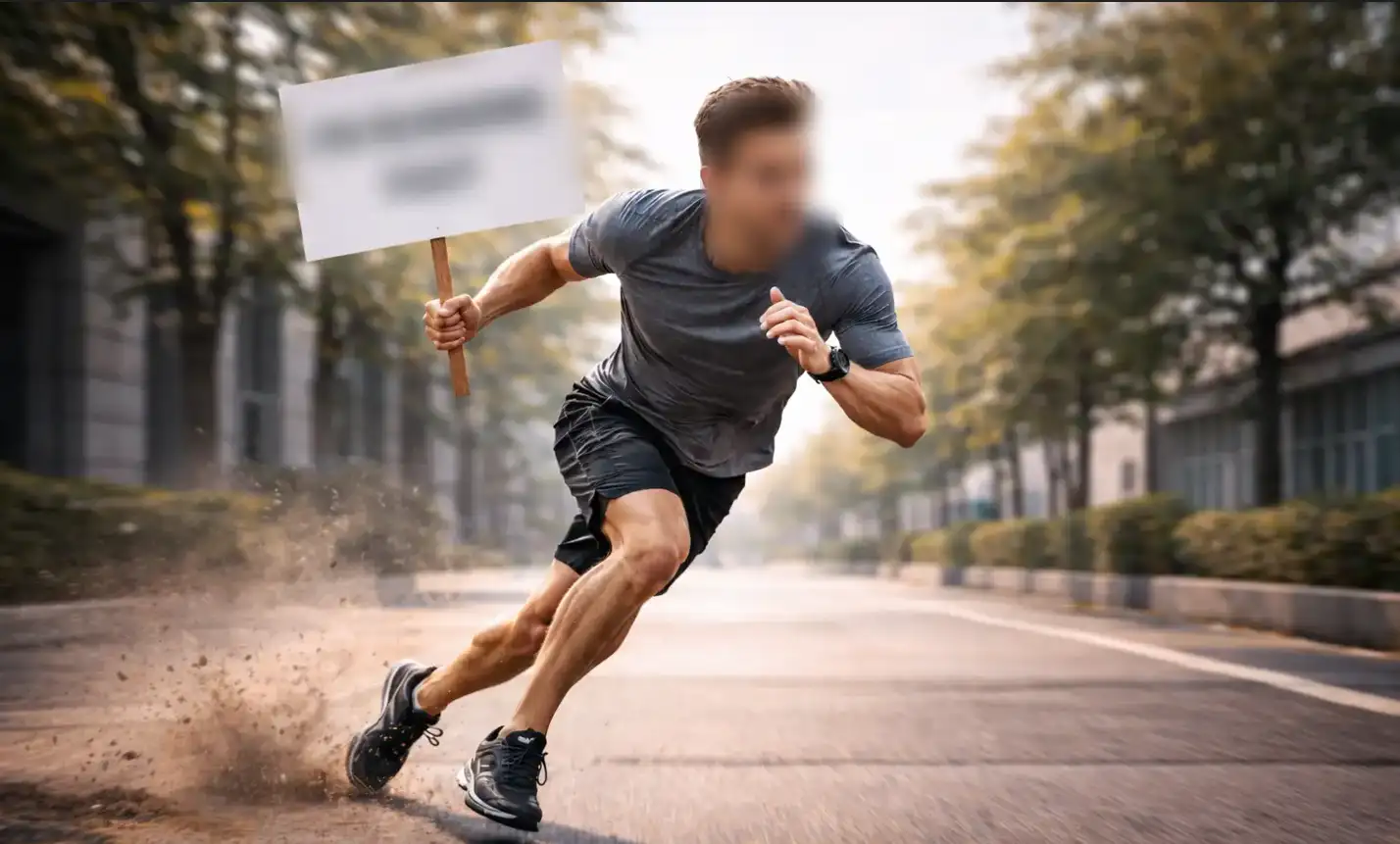
Blurring moving objects in video is a common challenge when editing footage that contains sensitive or distracting elements. A logo on a shirt, a phone screen, a tattoo, or confidential text might move across the frame while the video plays. If the blur stays fixed in one position, the object quickly moves out of the blur area.
Modern editing tools make it possible to blur moving objects in video using motion tracking or keyframes so the blur follows the object frame by frame. In this guide, you’ll learn how to blur moving objects using BlurMe Custom Blur tool, along with simple methods to track and blur logos, text, and other moving objects in your videos.
How to Blur Moving Objects
One of the simplest ways to blur moving objects is with BlurMe’s Custom Blur tool, which allows you to track movement with keyframes directly in your browser.
Unlike traditional editing software, BlurMe works entirely online, so you don’t need to install or configure complex video editors.
You can start with the Blur video tool to upload and begin editing immediately.
Step 1: Upload Your Video
Open BlurMe Studio and upload your video file.
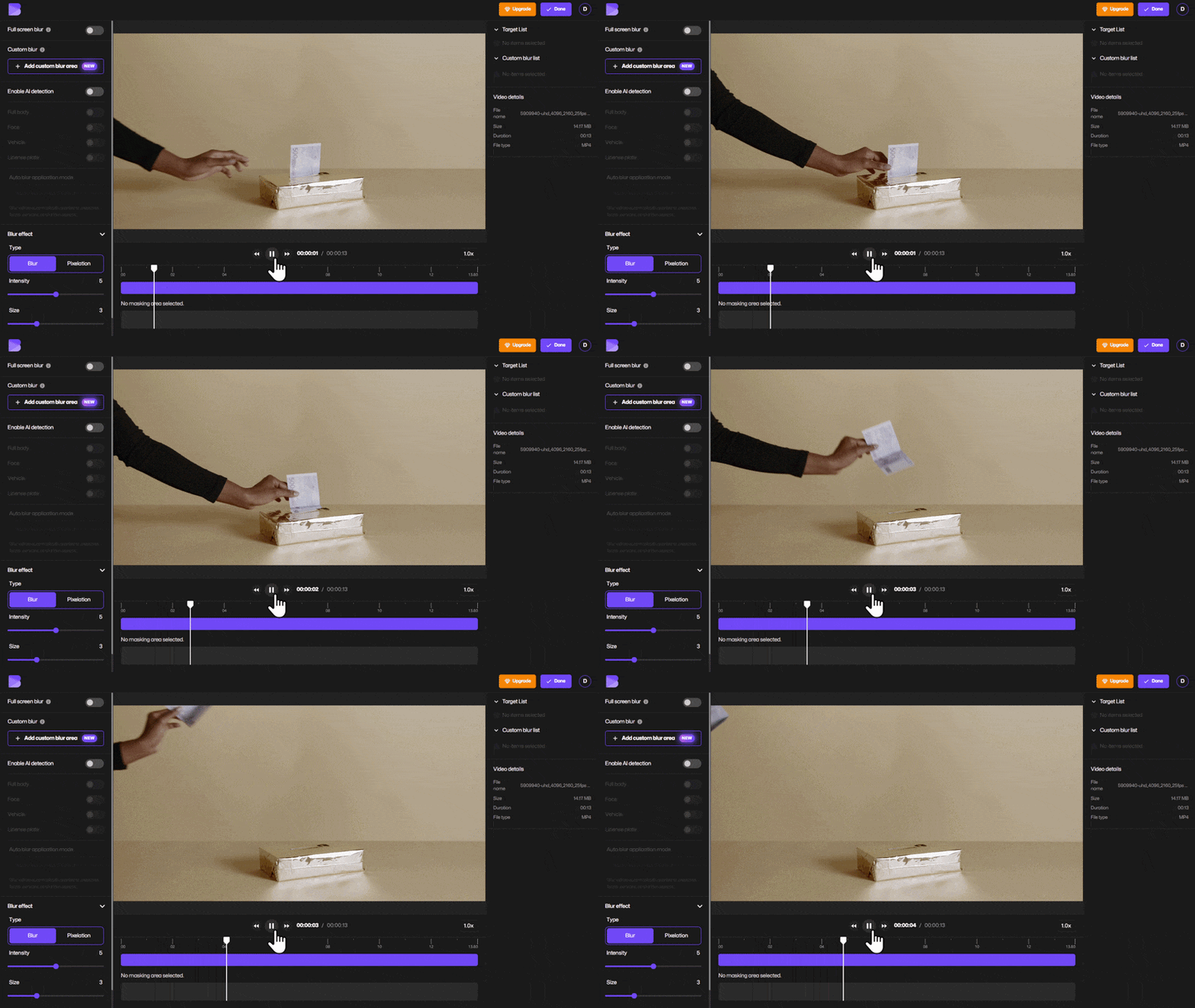
Because BlurMe runs in your browser, it works across devices without installing software.
Step 2: Select Custom Blur
Choose Custom Blur from the editing tools. A blur selection box will appear on your video preview.
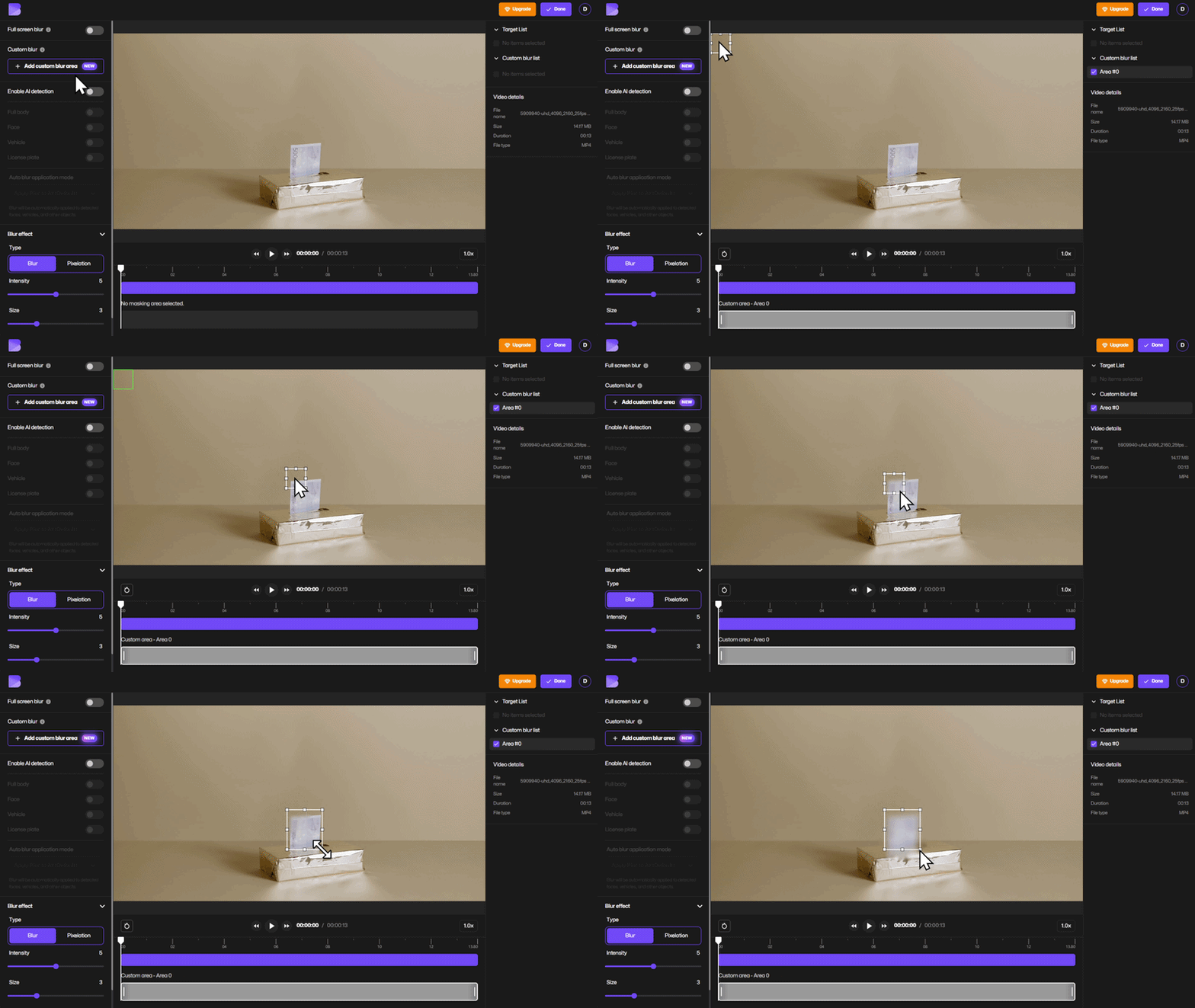
You can drag the box to the area you want to hide.
Step 3: Enable Keyframe Mode
To blur moving objects, turn on Keyframe Mode in the playback timeline.
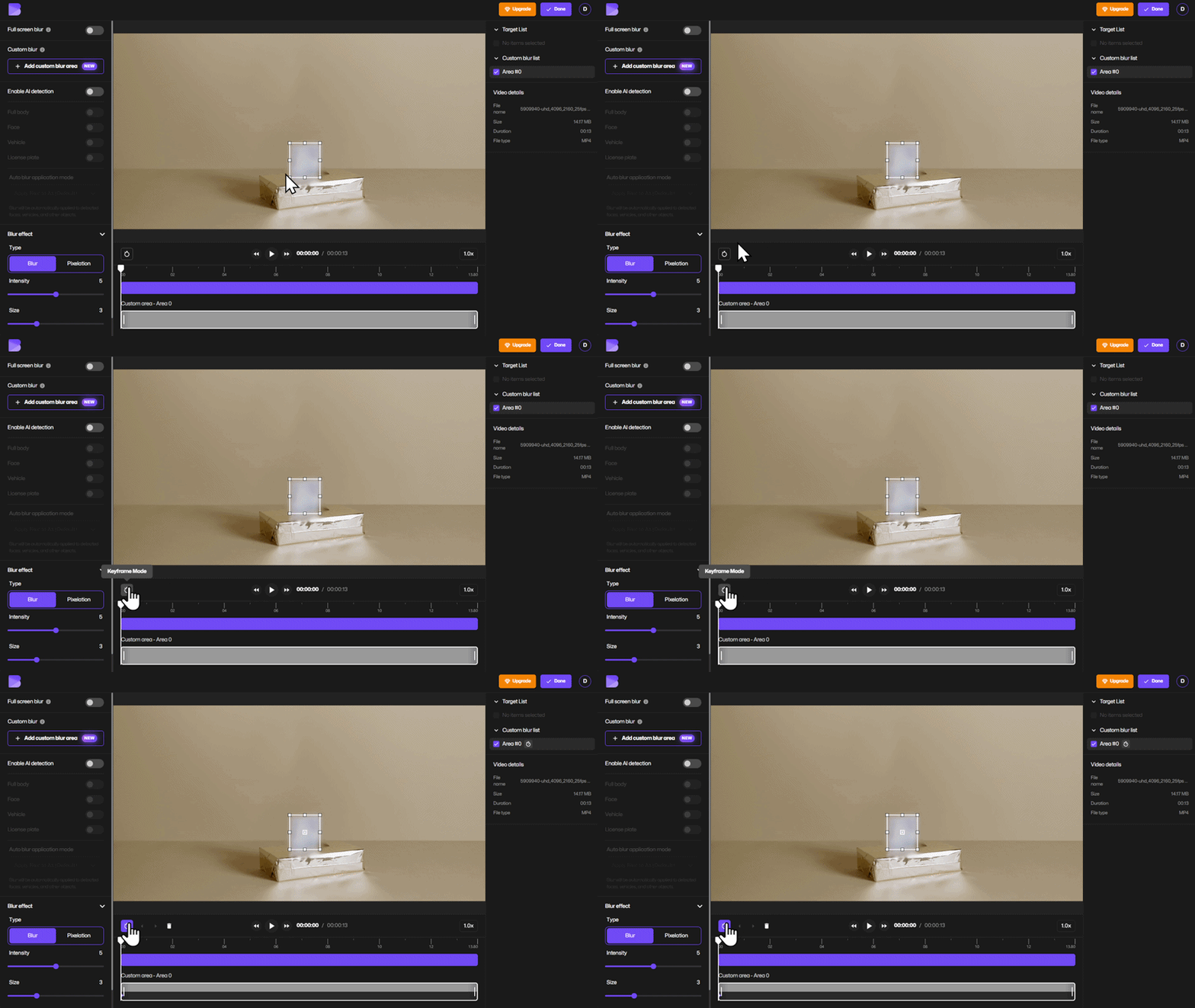
Keyframes allow you to adjust the blur position at specific moments in the video. BlurMe automatically fills the motion between frames so the blur follows the object smoothly.
Step 4: Adjust the Blur Size and Intensity
Resize the blur box to cover the object fully.
You can also adjust:
- blur intensity
- blur size
- blur position
This helps ensure the blur covers the object even when movement changes.
Step 5: Track the Object Frame by Frame
Move along the timeline and watch how the object moves.
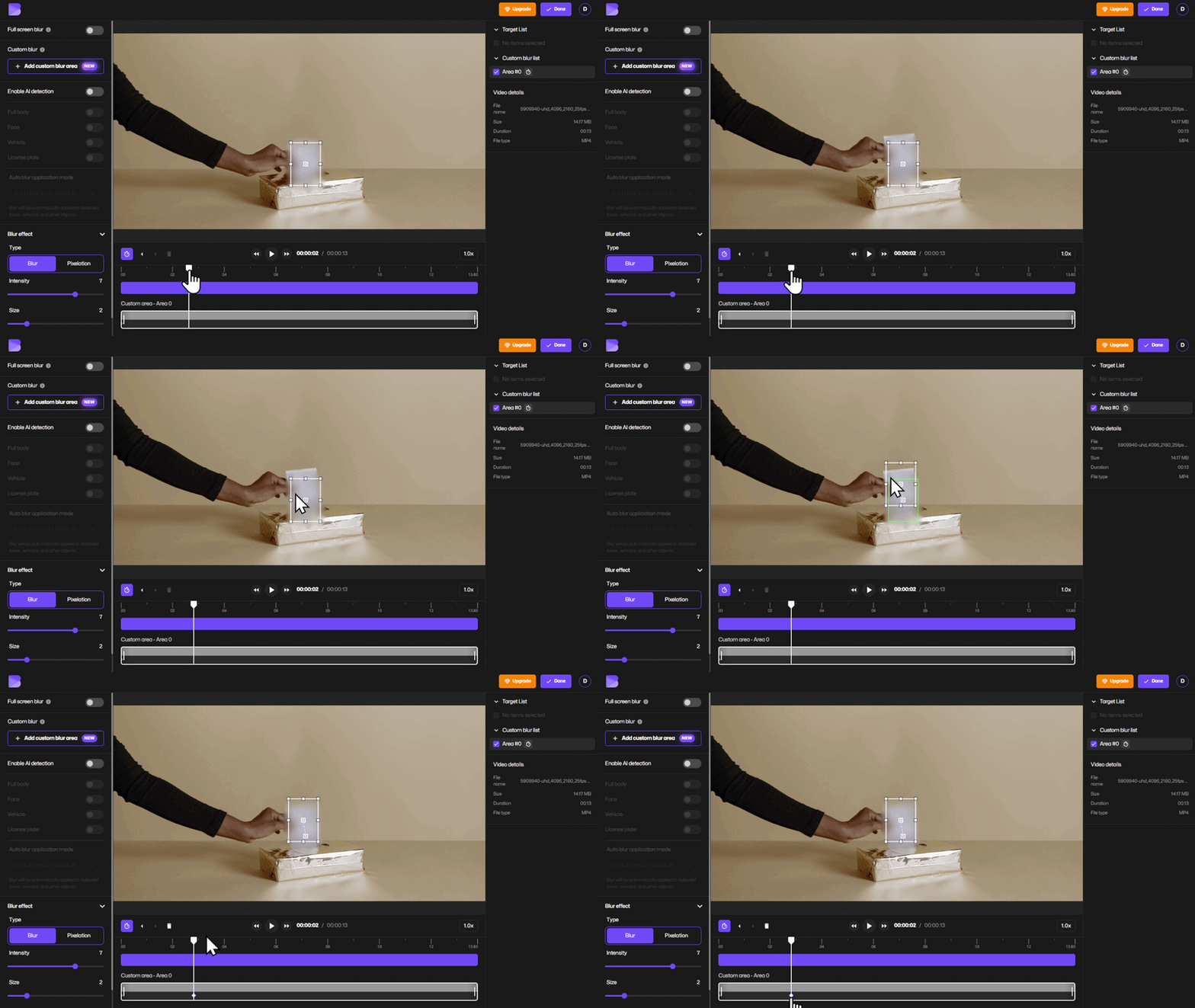
When the blur box no longer covers it, drag the blur box to its new position.
This action creates a keyframe marker, which tells the editor where the blur position changes.
Continue doing this until the blur follows the object throughout the video.
Step 6: Preview the Motion Blur
Press Play to preview the blur tracking.
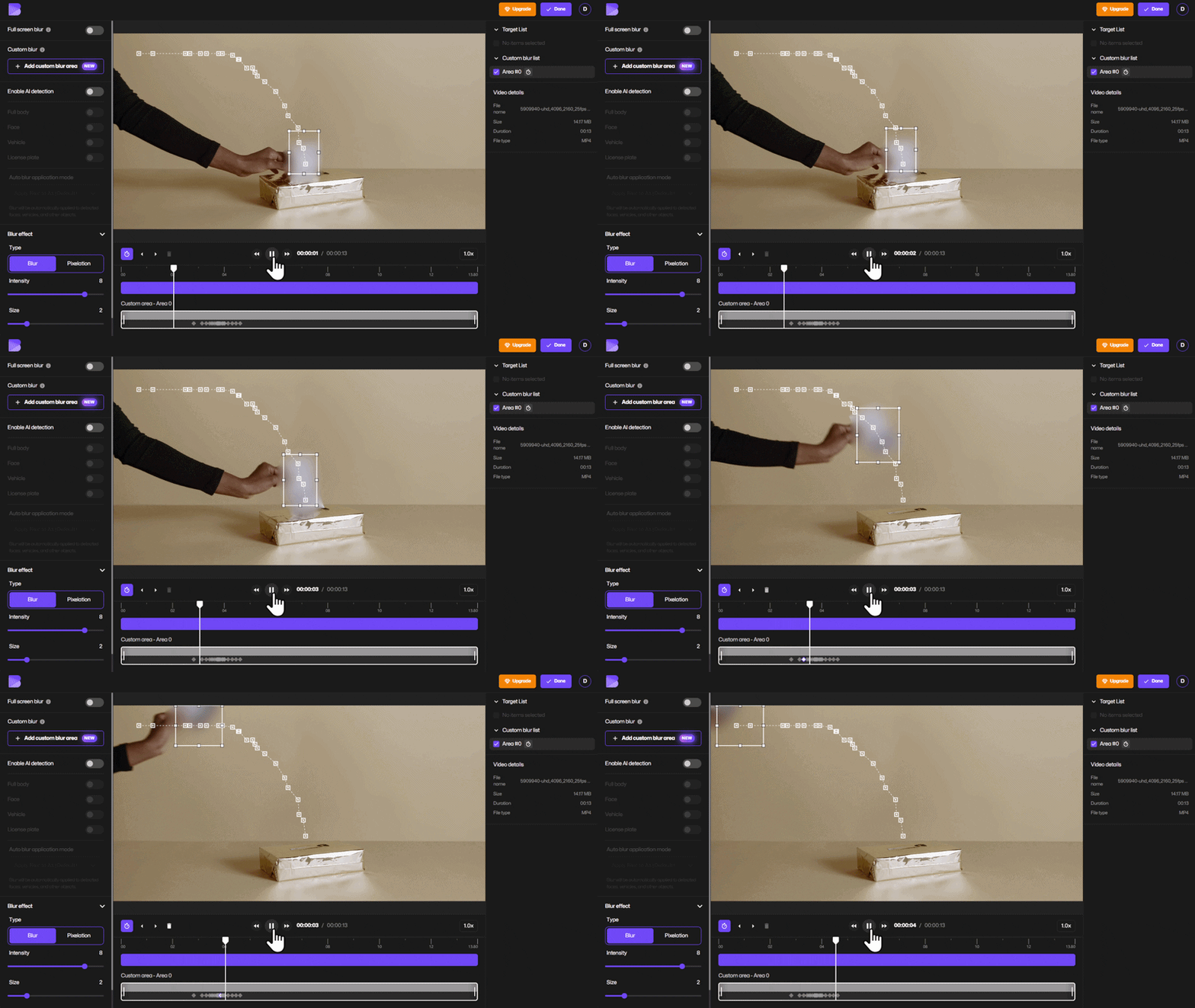
If something looks off, simply move to that point in the timeline and reposition the blur box again.
- To preview the video without the keyframe markers visible, simply click anywhere on the video screen to hide them.
- If you want to see the markers again or re-enter Keyframe Mode, look in the side panel under the Custom Blur list and click the blur area that shows the keyframe icon.
Step 7: Delete or Adjust Keyframes
Each adjustment adds a keyframe marker in the timeline.
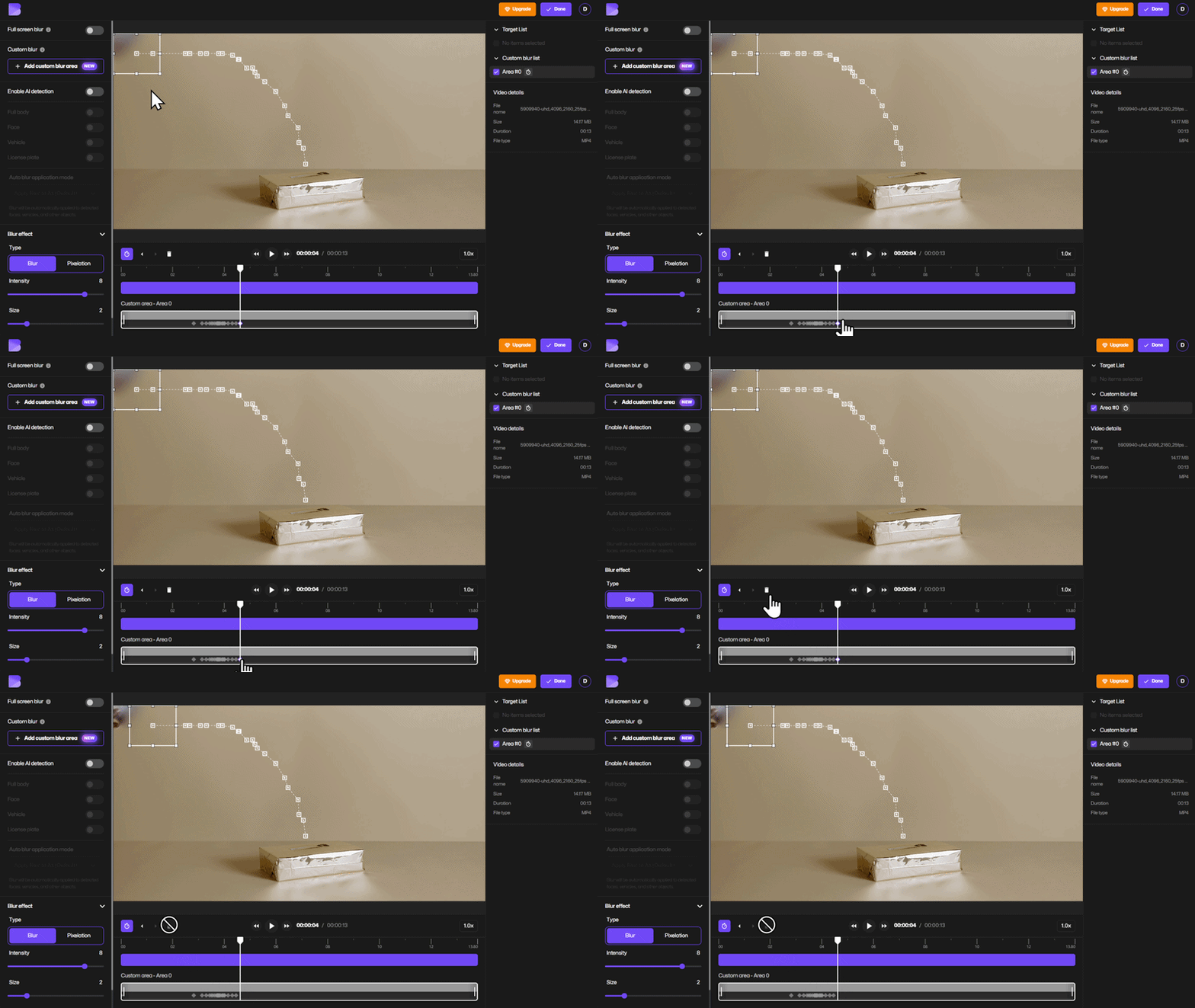
If a keyframe was placed incorrectly:
- Click the keyframe marker
- Select Delete
This removes that position change so you can adjust it again.
Step 8: Export Your Video
Once editing is complete:
- Click Done
- Select Export
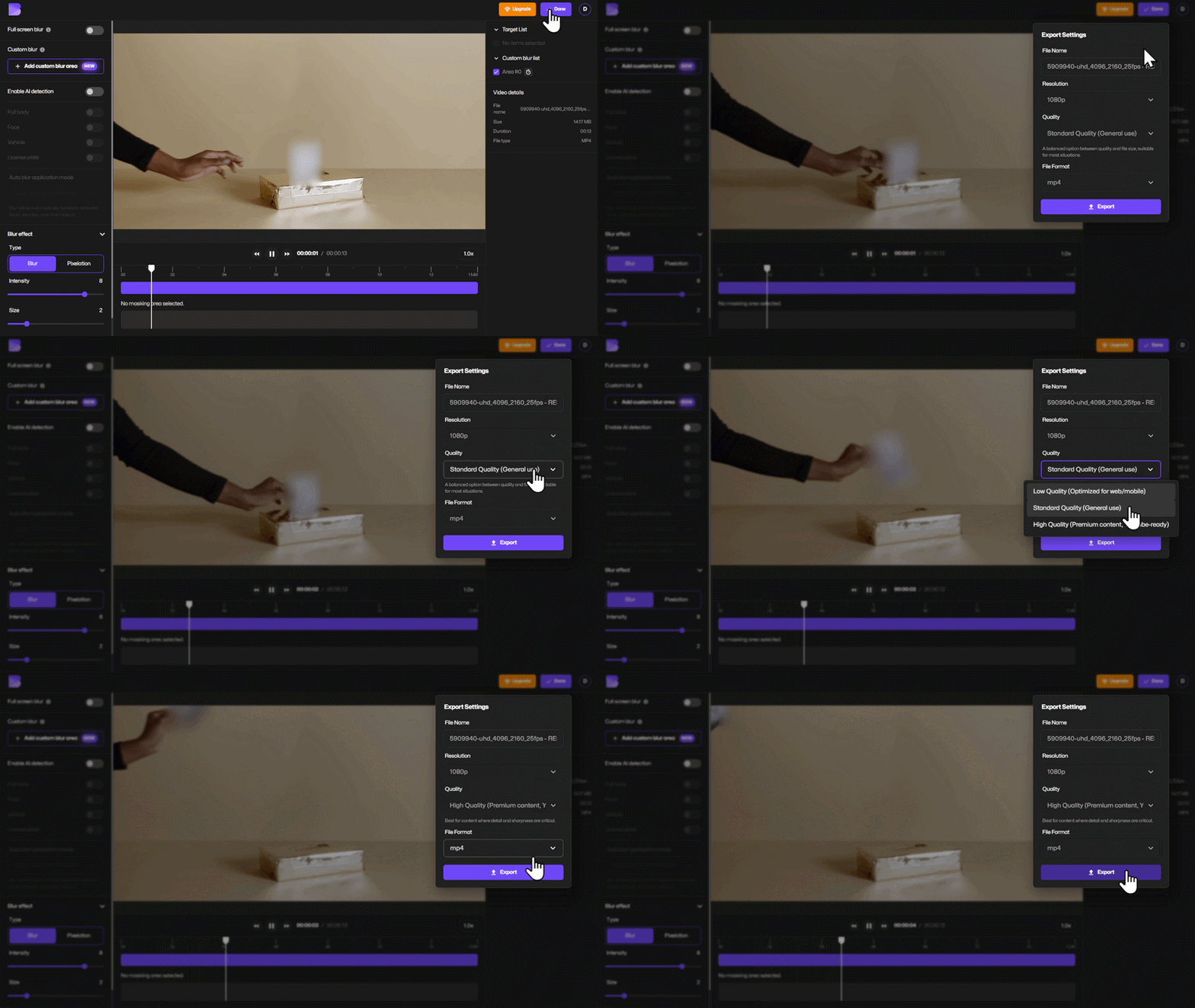
During export you can also:
- convert video formats
- compress file size
When processing finishes, you can download the video or share it with a link.
Expert Online Video Blurring
Accurate motion tracking is crucial when protecting identities or sensitive information in video.
“Manual frame-by-frame redaction used to take hours. With keyframe tracking and AI assistance, editors can securely redact moving objects in minutes without compromising accuracy.”
— Park Jaemin, Chief Strategy Officer at BlurMe
Why You Might Need to Blur Moving Objects in Video
Blurring a moving object isn’t just about aesthetics. It often protects identity, confidentiality, or copyrighted content.
For organizations handling sensitive recordings, this process is often part of video redaction, where identifiable information is hidden before sharing footage.
If your goal is privacy protection, using a dedicated AI-powered video editing tool can dramatically reduce editing time.
Examples of Moving Objects You May Need to Blur
The ability to blur moving objects is useful in many real-world situations.
Blur Moving Logos
A brand logo on clothing might move as someone walks across the frame.
Blur Phone or Laptop Screens
Confidential emails or private messages may appear during recordings.
Blur Tattoos
Distinct tattoos can identify individuals even if faces are hidden.
Blur Background Signs
Street signs or billboards may contain unwanted branding or location information.
Blur Sensitive Documents
Paperwork visible during filming may need redaction.
For situations involving multiple people or public footage, BlurMe face blur technology can automatically detect faces before you manually adjust moving objects.
Video Editing Software to Blur Moving Objects
Several video editing tools offer ways to blur moving objects, although the process varies in complexity.
How to Blur Moving Object in CapCut
CapCut includes motion tracking for masking areas.
Basic steps:
- Import your video
- Add a blur effect
- Create a mask over the object
- Use keyframes to track movement
However, this requires manual adjustments and exporting the project locally.
How to Blur Moving Object in DaVinci Resolve
DaVinci Resolve uses a built-in tracker system.
Steps include:
- Create a power window mask
- Apply blur effect
- Use the tracker to follow motion
This method works well but can be complex for beginners.
How to Blur Moving Object in Adobe Premiere Pro
Premiere Pro offers tracking through the mask path feature.
Steps:
- Apply a blur effect
- Create a mask around the object
- Use mask tracking to follow motion
Professional editors often use this workflow for documentaries or broadcast editing.
How to Blur a Moving Object in Canva
Canva includes a basic blur effect for images and videos, but it doesn’t provide advanced motion tracking for objects that move throughout a clip. This means the blur typically stays fixed in one position, so moving elements can easily leave the blurred area.
For more accurate results, blur tools like BlurMe allow you to manually track objects using keyframes so the blur follows the movement. This makes it easier to blur logos, text, tattoos, or other moving elements without manually adjusting every frame.
How to Blur a Moving Object in a Video on iPhone
If you’re editing directly on an iPhone, some mobile editing apps offer blur effects and basic keyframe controls. However, mobile editors can make it difficult to accurately blur moving objects frame by frame, especially on small screens.
A simpler option is to upload your video to BlurMe, which works entirely online in your browser. Using BlurMe Custom Blur, you can place a blur box on the object, enable keyframe mode, and track the movement across the timeline to blur moving objects precisely, even if they shift across the frame.
Tips for Blurring Moving Objects Accurately
To achieve the best results:
Add keyframes only when necessary
Too many keyframes can make adjustments harder.
Keep blur slightly larger than the object
This prevents the object from slipping outside the blur.
Preview the entire clip
Small motion changes can appear later in the timeline.
Combine AI detection with manual blur
AI can detect faces automatically, while manual blur handles everything else.
FAQ
What is the easiest way to blur moving objects in video?
Using an online tool like BlurMe is often the easiest method. It allows you to upload a video, apply blur masks, and track objects using keyframes without installing software. You can start with the Blur video editor.
Can I blur the background of a video instead of a specific object?
Yes. If you want to hide the environment instead of a moving object, you can use a blur video background tool to soften the entire background.
What is video redaction?
Video redaction is the process of hiding sensitive information in video footage. This can include faces, text, license plates, or other identifying details. Organizations often use an ai video redaction service to automate this process.
Is pixelation better than blur for redaction?
Both methods work, but pixelation is often used in broadcast editing. If you prefer that style, you can pixelate videos instead of applying blur.
Can AI automatically detect objects to blur?
AI tools can detect faces and some objects automatically. BlurMe’s face blur automatically identifies faces and its license plate blur automatically detects license plates, and its car blur automatically detects cars while allowing manual blur tracking for other moving objects.
Blur Moving Objects in Your Videos Today With BlurMe
Blurring moving objects used to require complex editing software and hours of manual work. Today, modern tools make it possible to track and hide objects in minutes.
Ready to protect privacy or clean up your footage?
Use BlurMe’s Blur Studio to blur moving objects, redact sensitive content, and export professional results directly from your browser.
Start now and blur video online in minutes with BlurMe.