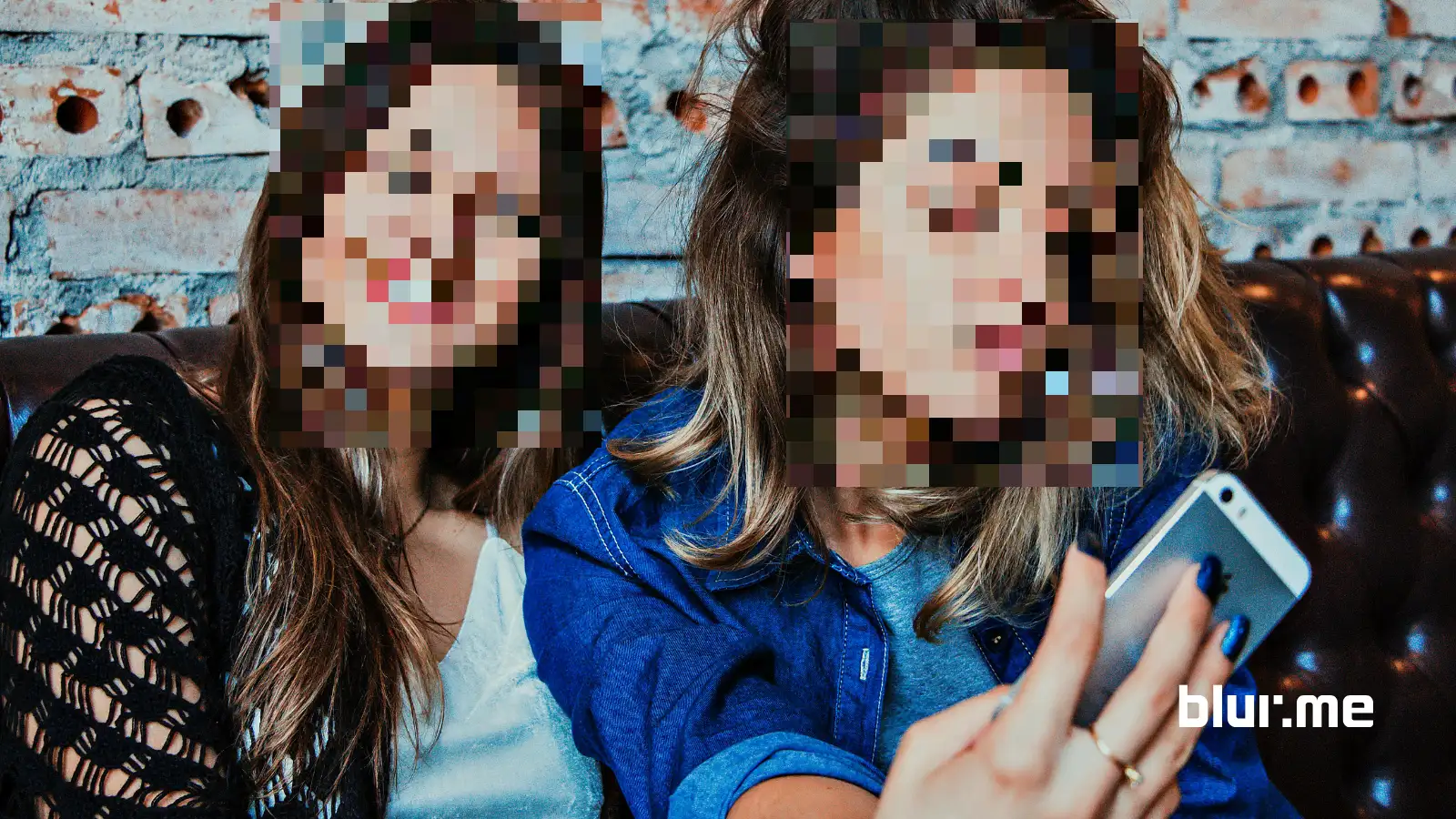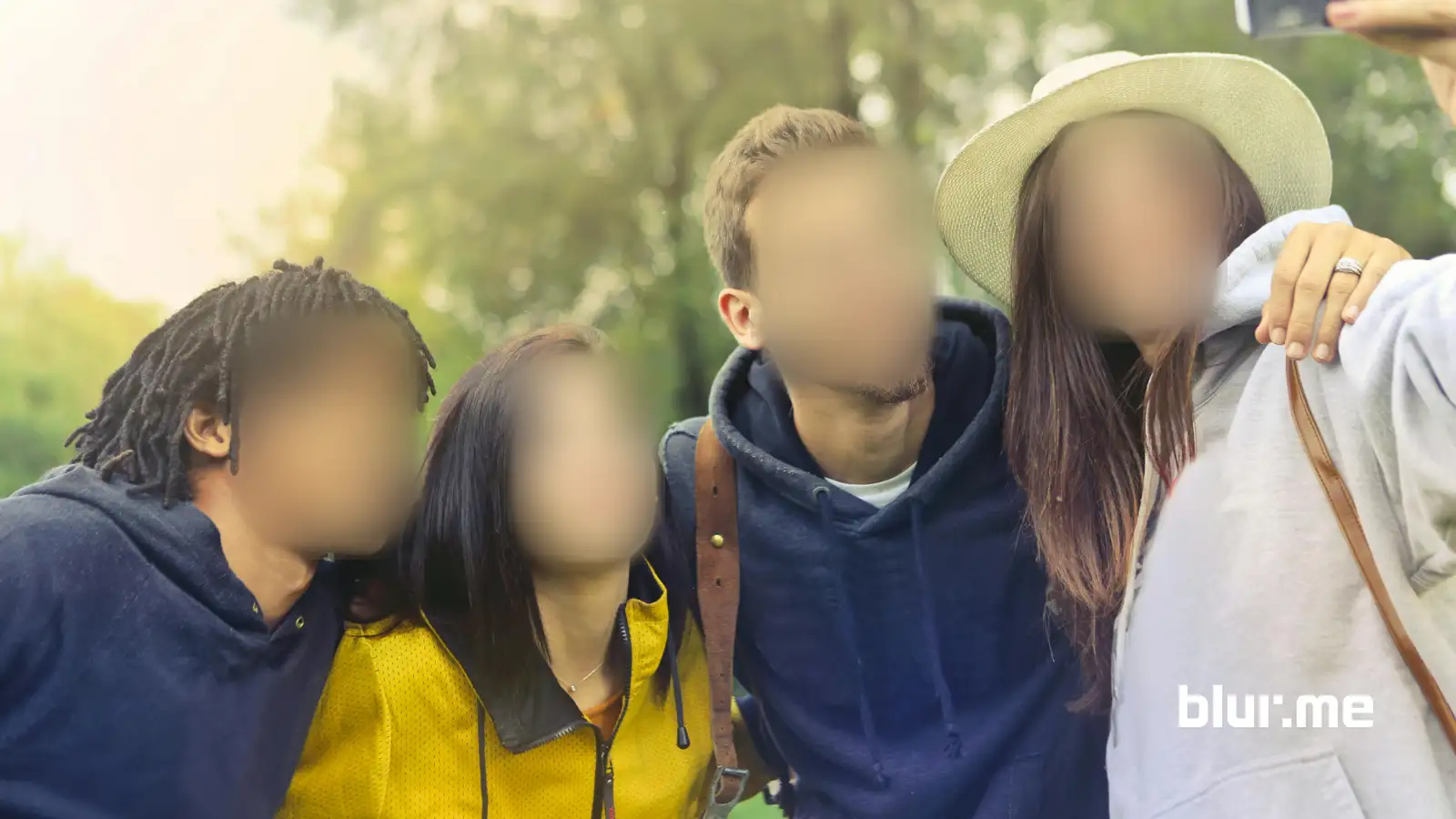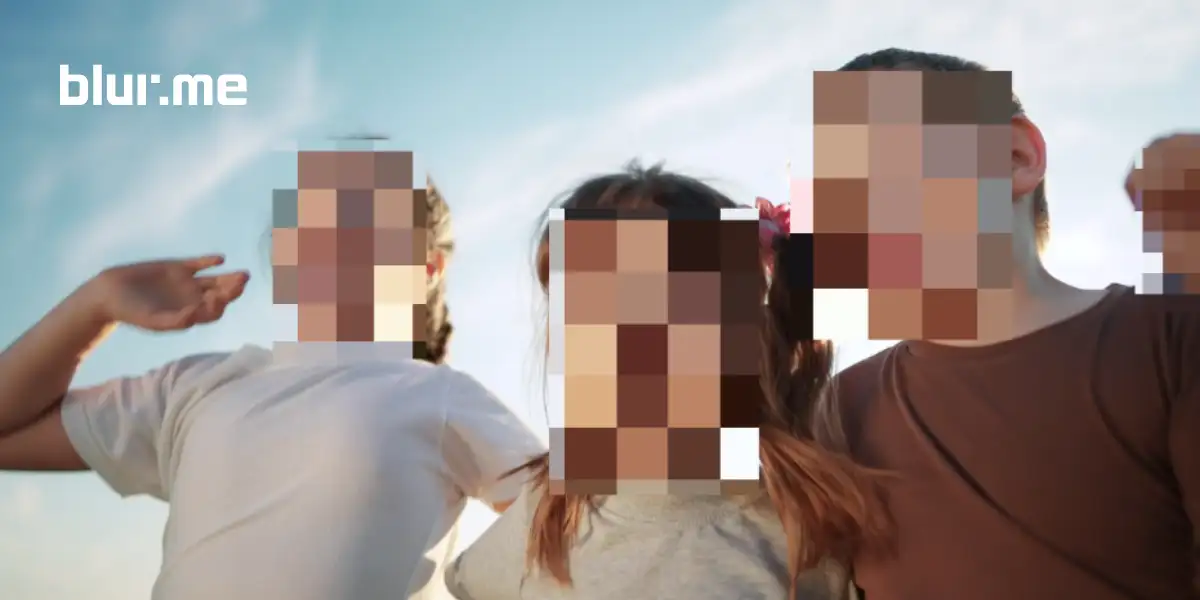
Mosaic blur is one of the simplest, safest ways to hide faces, private info, or sensitive areas in your content. Here's how to apply the mosaic blur effect in seconds using an online mosaic generator and blur tool like BlurMe face blur.
How to Add Mosaic Blur to Image
The quickest way to apply pixel mosaic is using BlurMe, which works in any browser and doesn’t require downloading any mosaic app.
Step-by-Step: Apply Mosaic Blur to an Image
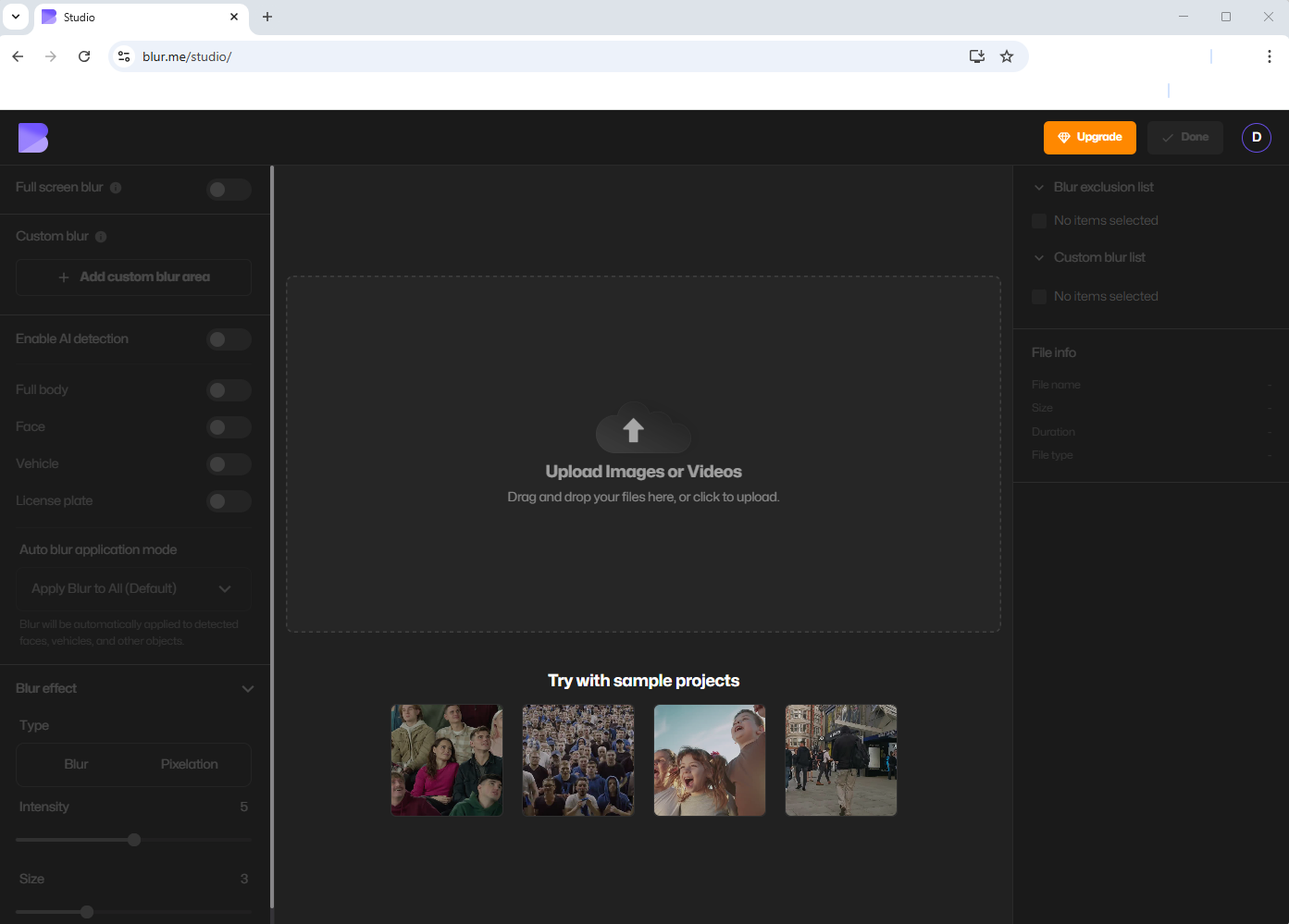
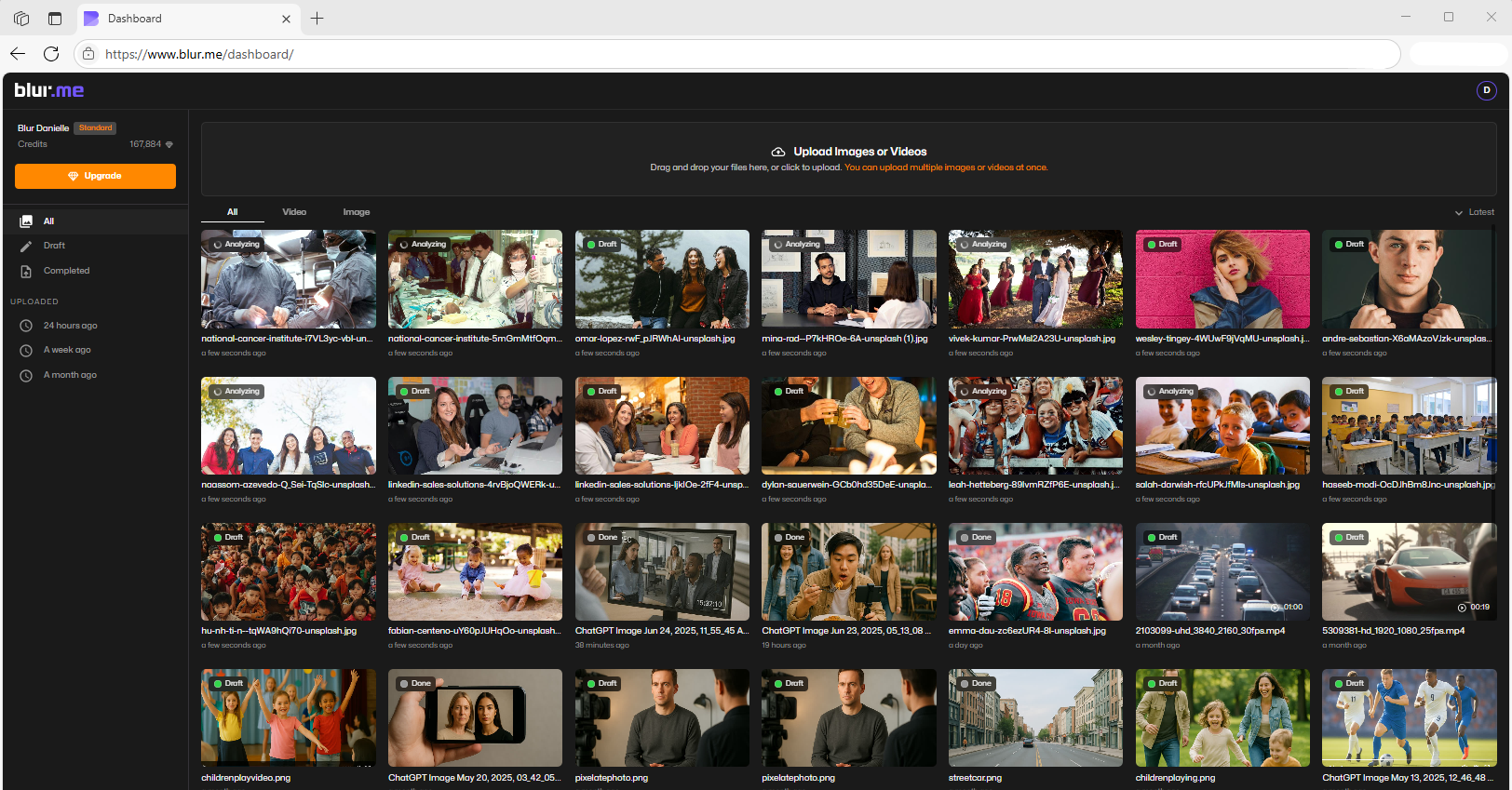
- Go to BlurMe Studio
Open BlurMe online blur image editor in your browser.
- Upload your photo
Drag and drop any image.
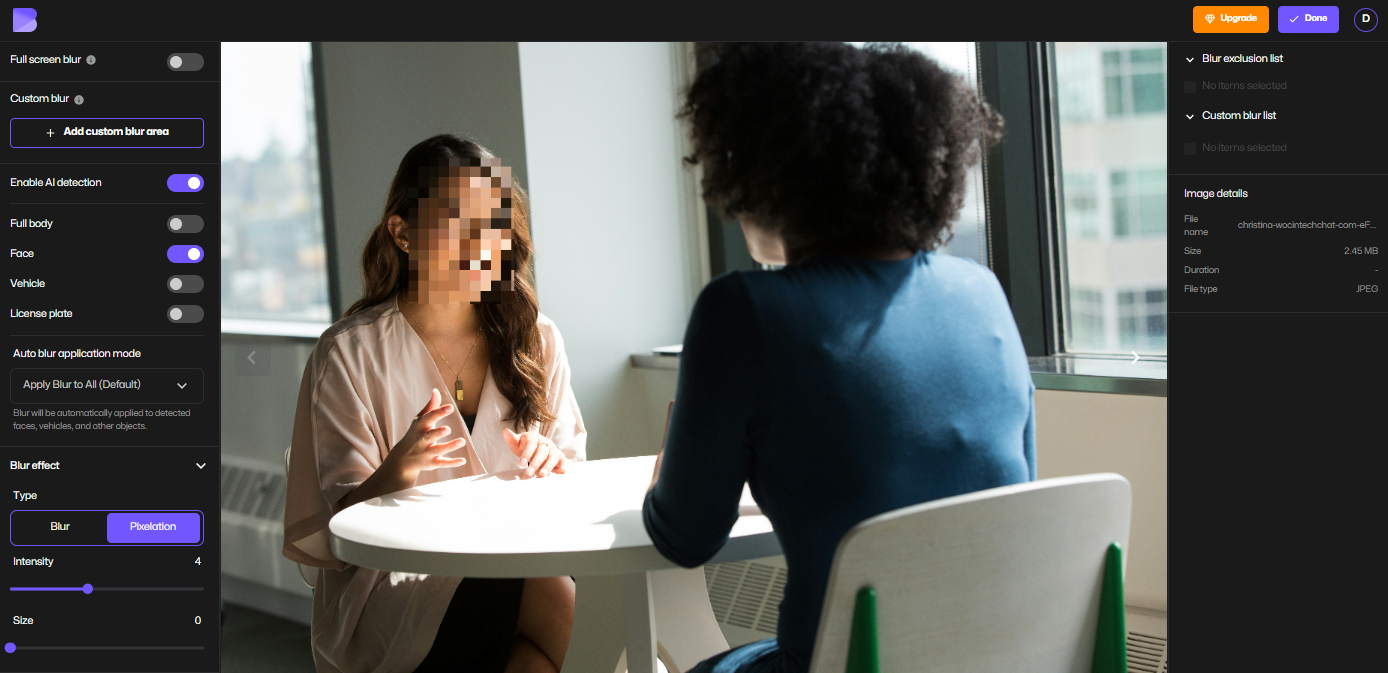
- Choose Pixelation
- Use AI Blur if you want the system to mosaic blur automatically.
- Use Custom Blur to draw a box or paint over the exact area.
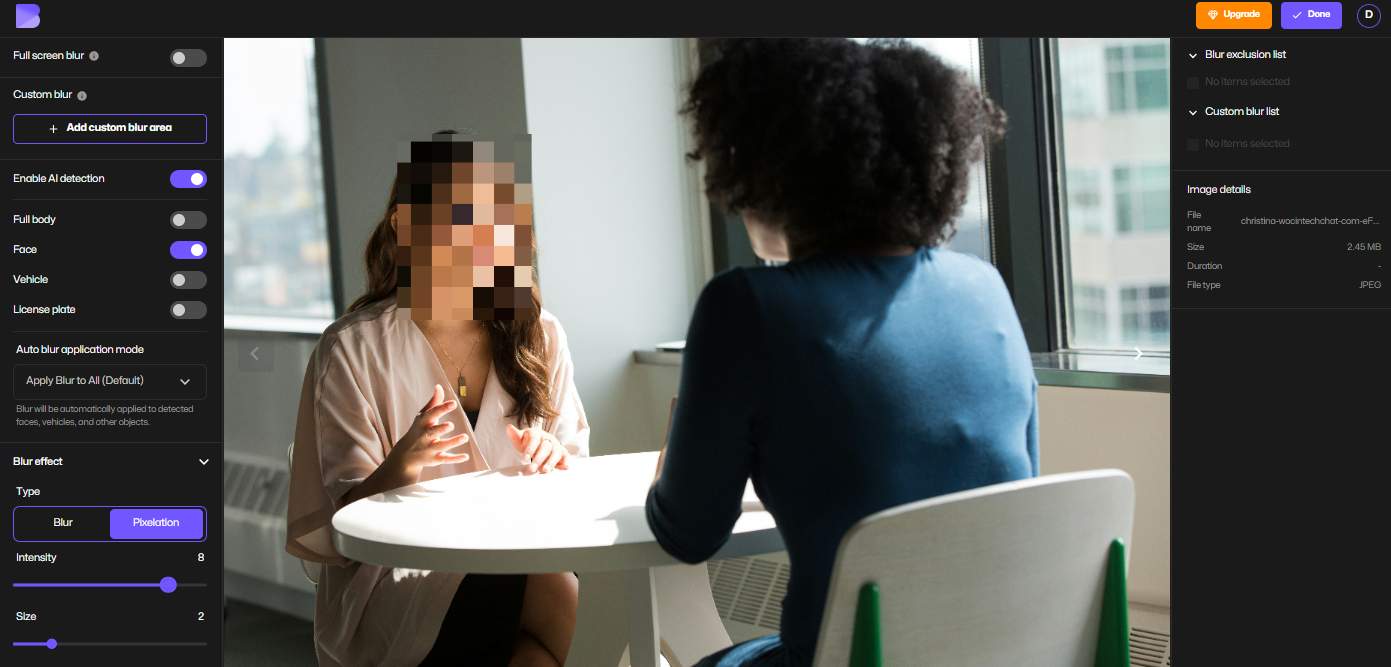
- Adjust the pixel size
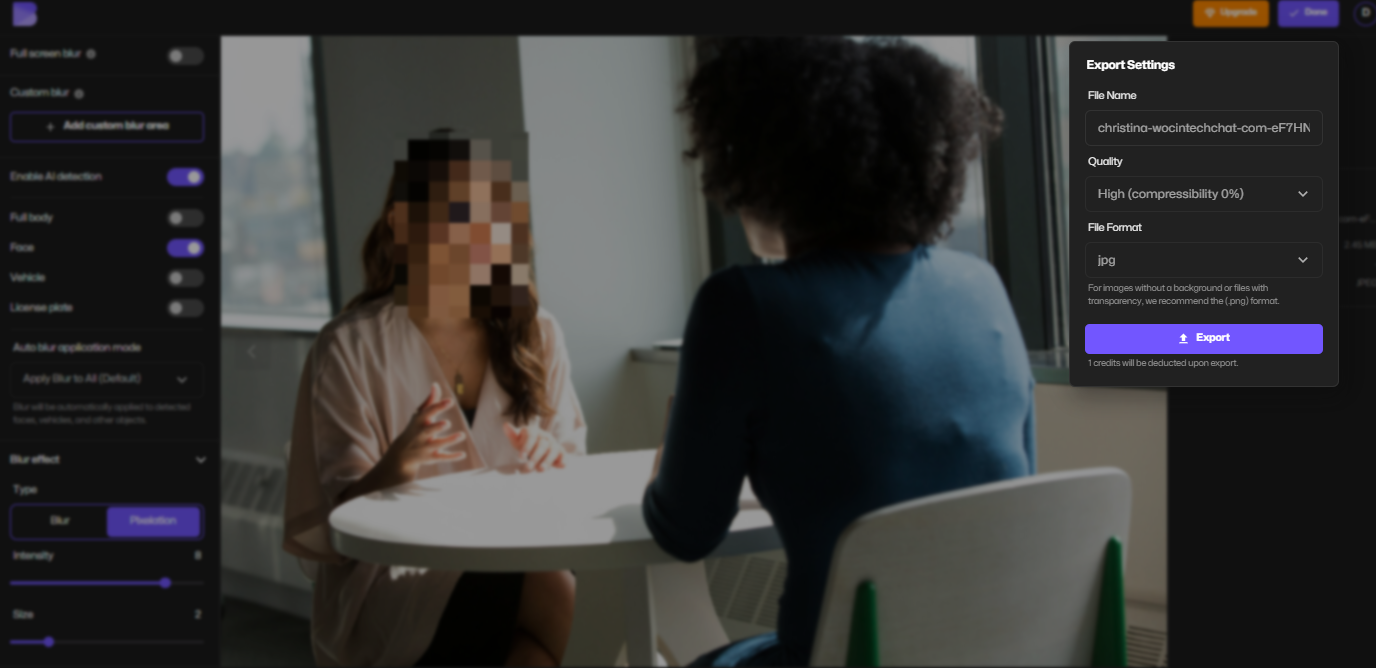
- Download your mosaic image
Export in high resolution instantly.
Step-by-Step: Apply Mosaic Blur to Video
- Upload your video to BlurMe
- Pick AI Blur for automatic detection
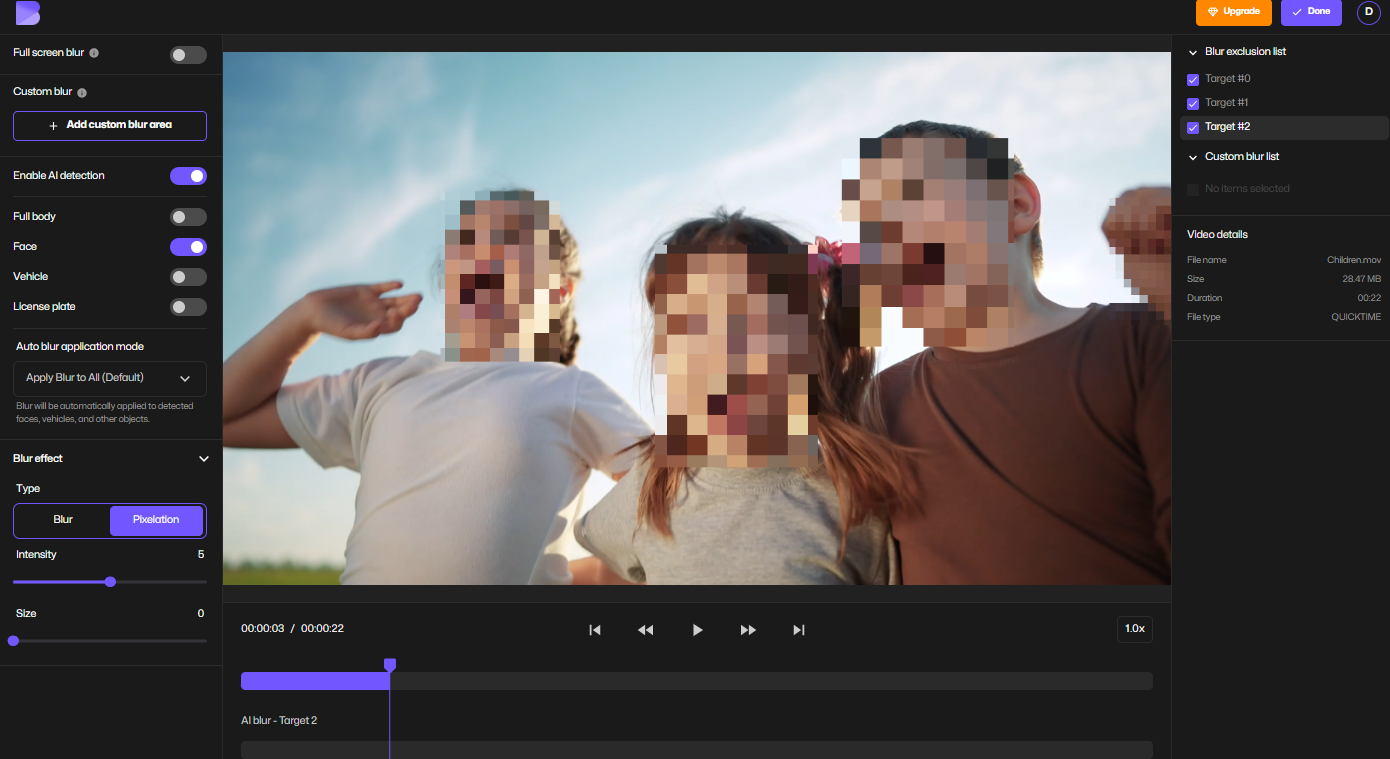
- Select the pixel size
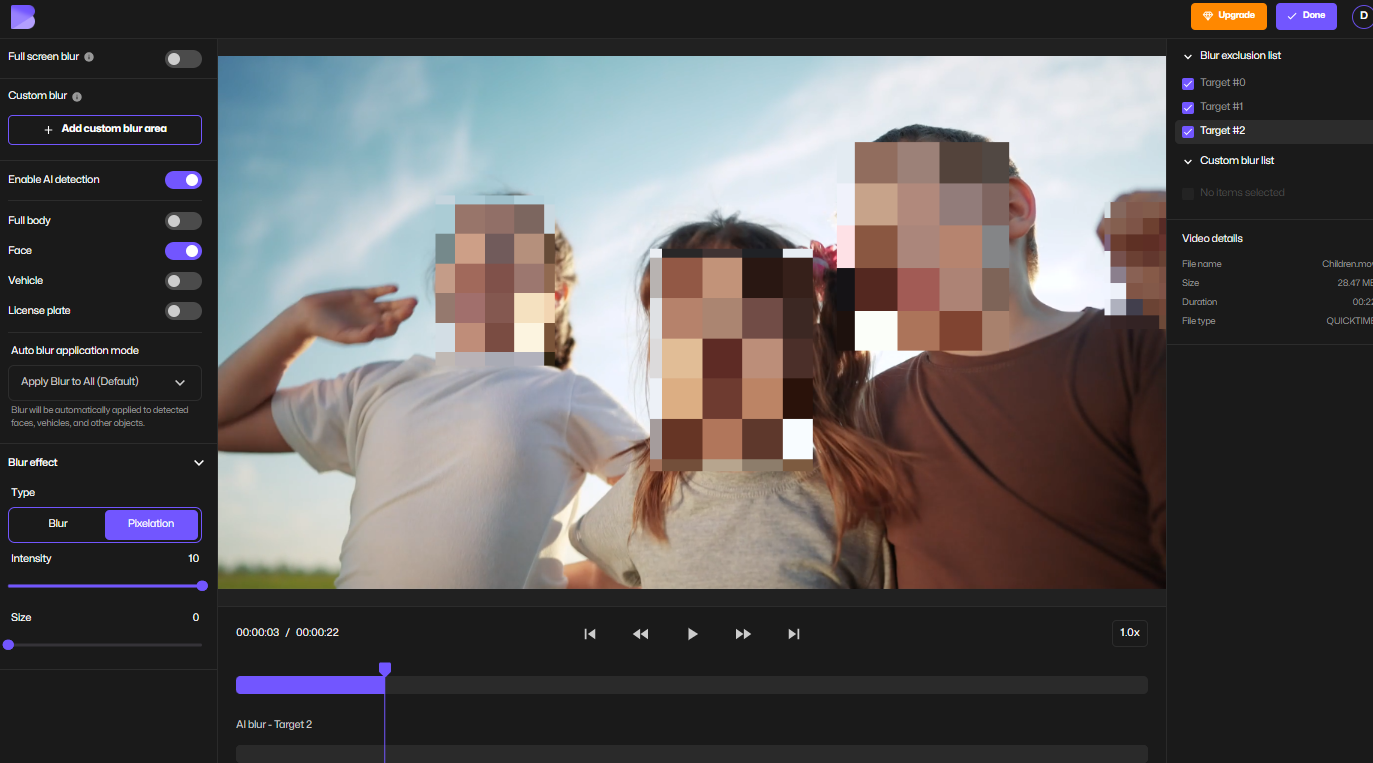
- Preview in real time. Export the video with pixel mosaic censoring applied
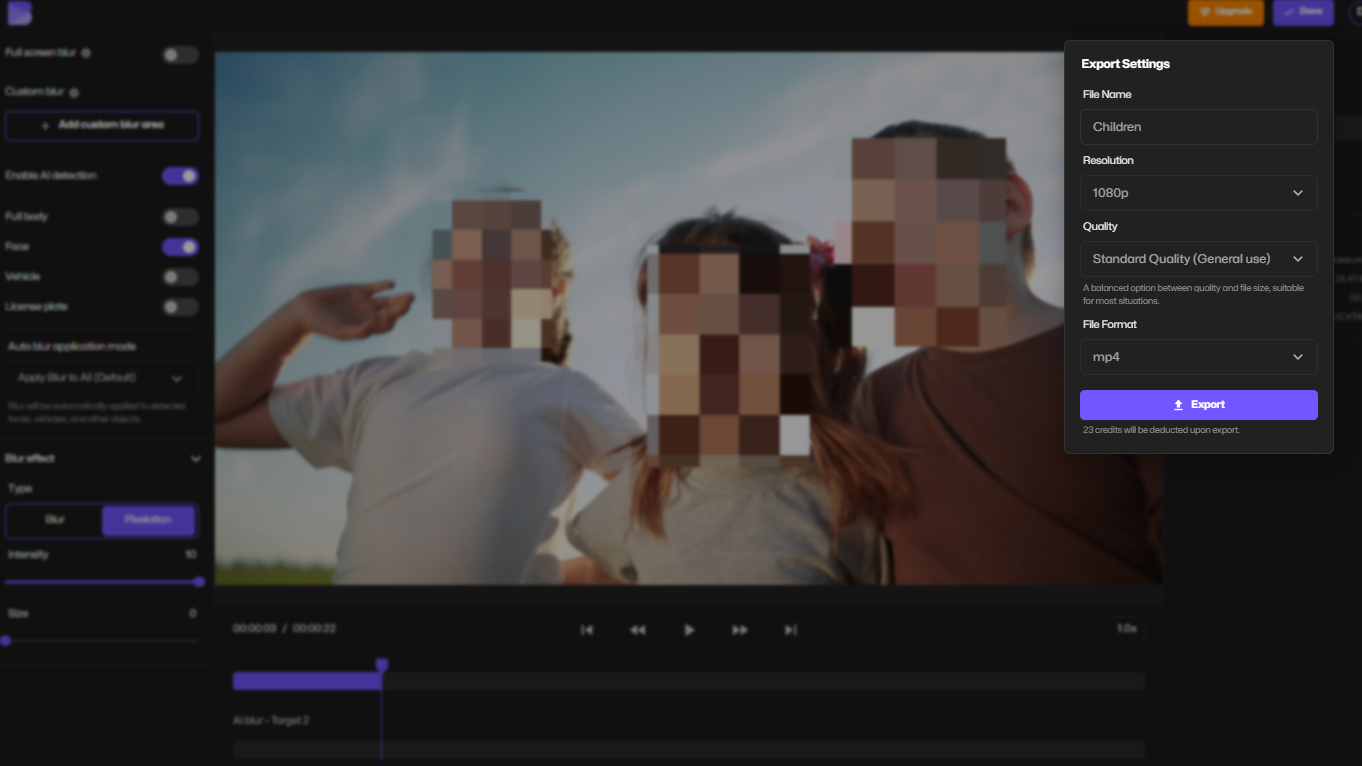
This is the fastest method for creators who regularly upload clips with faces, names, screens, or private areas that need censoring.
How to Do Mosaic Blur Manually (Precision Mode)
Sometimes you don’t want to pixelate a whole face—you want a small area:
- usernames
- license plates
- documents
- screens
- background objects
- logos
In BlurMe:
- Choose Custom Blur
- Select Pixelation as your mosaic blur effect
- Draw a box over the exact area
- Increase or decrease pixel strength
- Save
This mode acts like a professional mosaic censor tool.
How to Use Mosaic Blur Creatively
Beyond censoring, many people use the mosaic blur effect for aesthetic edits:
- pixel portrait art
- blocky retro gaming looks
- stylized profile photos
- mosaic backgrounds
- abstract pixel grids
In BlurMe, simply select Full-Screen Blur to convert the entire photo into a pixel mosaic aesthetic.
Mosaic Blur Tips for Cleaner Results
These tips help avoid amateur-looking censorship:
1. Use larger blocks for faces
Small mosaic blocks can still reveal identity. Use bigger squares.
2. Don’t over-pixelate text
Start with medium pixel size so the area isn’t a solid square.
3. Follow motion paths for video
AI face tracking saves hours of manual work.
4. Use mosaic blur instead of Gaussian blur
Soft blur can still be partially reversed; pixel mosaic is safer.
5. Always preview at mobile resolution
Pixelation can look different on small screens.
Best Tools for Doing Mosaic Blur
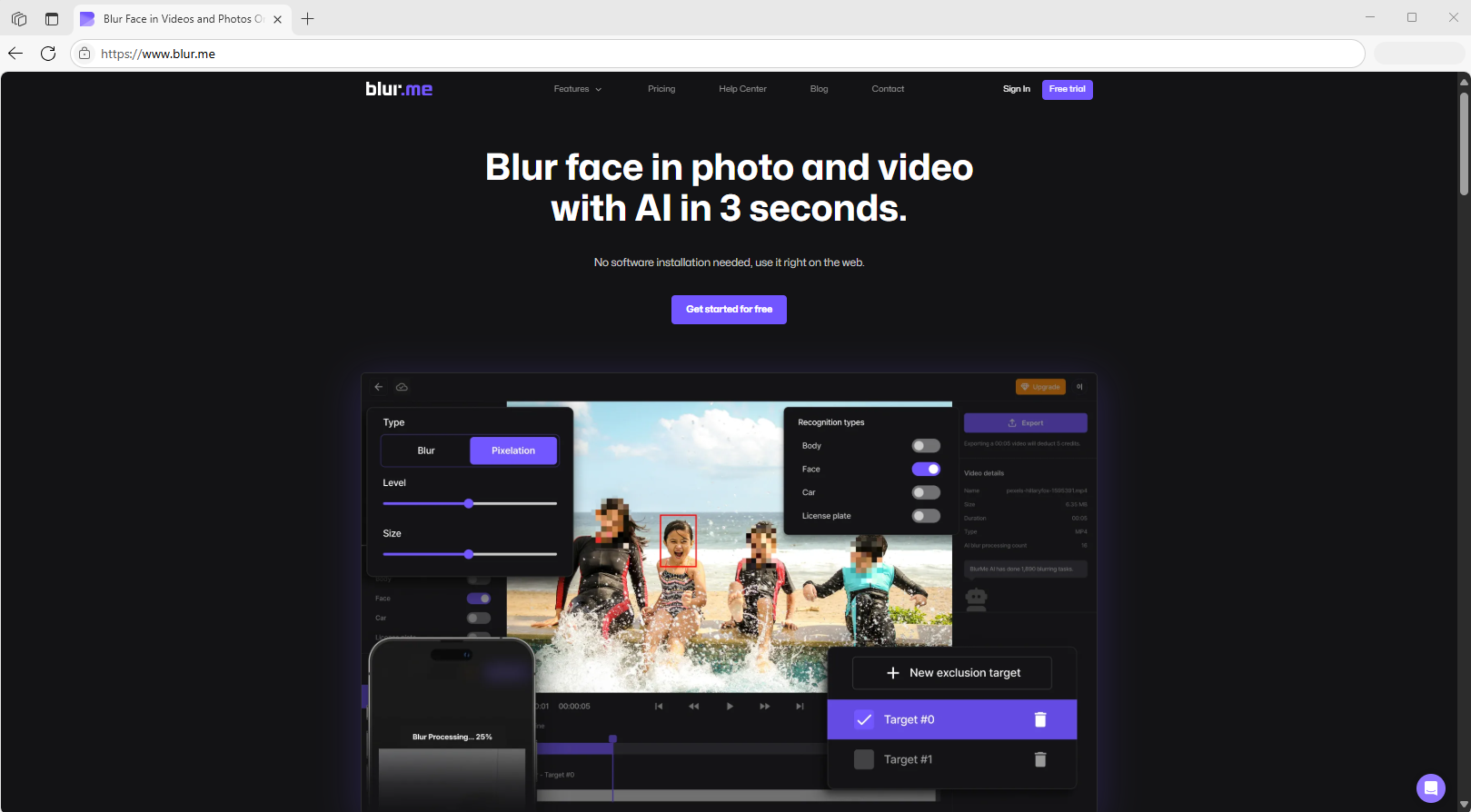
1. BlurMe (Best Overall — Online, Fast, No App Needed)
- AI auto-detection
- No download
- Image + video mosaic blur
- Free to try
- Strong pixel censor options
- High-resolution export
Works instantly on phone, tablet, or desktop.
2. Mosaic App (App Store & Play Store Options)
Useful if you prefer mobile apps, but slower than online editors.
3. Desktop Editors (Photoshop, Premiere, etc.)
Powerful but complex and time-consuming.
BlurMe remains the easiest mosaic tool for most creators.
Common Use Cases for Mosaic Blur
People usually search for how to do mosaic blur because they need to hide something quickly. Common scenarios:
- Blur a stranger’s face in a vlog
- Pixelate a license plate
- Hide a child’s face for privacy
- Censor a username on Discord/Twitter
- Blur text, documents, IDs, or screens
- Censor background nudity for compliance
- Pixelate brand logos
Everything above can be done in less than a minute with AI.
FAQ
1. What if my image looks bad after mosaic blur?
If your picture becomes too blurry, check our Blurry Picture Effect guide to improve image quality.
2. How do I hide a face more safely?
Use BlurMe’s AI tools explained in Blur faces online and How to Hide Faces.
3. Can I blur videos too?
Yes. See the detailed blur video online tutorial.
4. How do I blur only one person or one area?
Use the pixelate image online and blur image online tools.
5. How do I pixelate an image completely?
Try our how to pixelate an image, pixelate photo, or censor image easily online resources.
Do Mosaic Blur Online Right Now
If you need to apply mosaic blur to faces, text, or any sensitive area—fast, accurate, and without downloading software—the easiest solution is in your browser.
Open BlurMe Studio now to:
- Pixelate any part of an image
- Auto-mosaic blur faces in seconds
- Censor videos with AI tracking
- Export in HD effortlessly
Try BlurMe now and create your mosaic blur instantly.