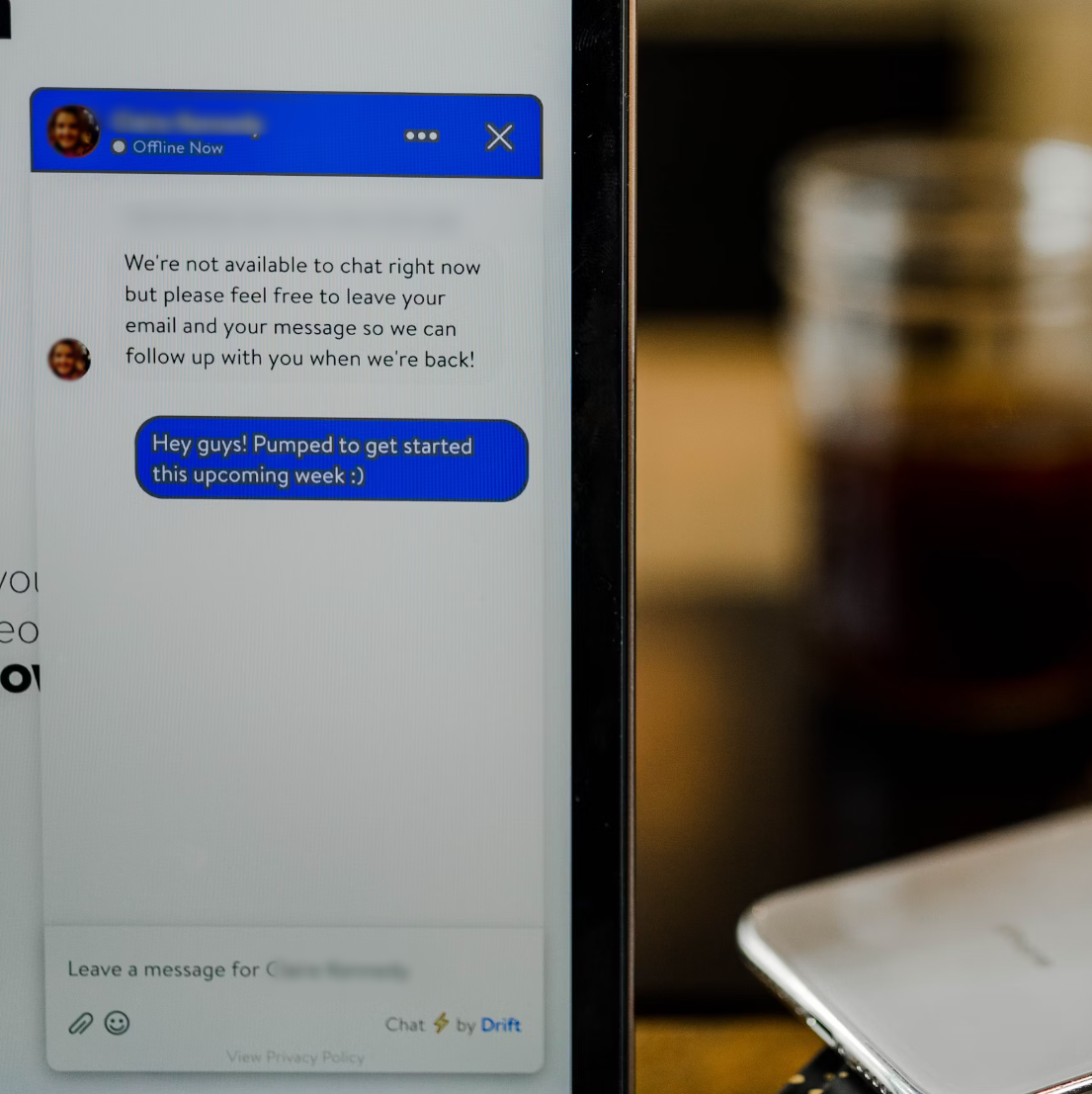
Screenshots and images have become the heroes of digital communication, capturing everything from inside jokes to important project updates. But sometimes, they reveal a little too much — like passwords, private emails, or client data. Instead of deleting or cropping your screenshot, you can simply blur the sensitive text and keep the rest of your image intact.
In this guide, you’ll learn how to blur text in a screenshot or image online quickly and with professional results.
Why Should You Blur Text in Screenshots and Images?
Sensitive information often appears in screenshots or shared images, for example receipts, emails, addresses, or customer data. Blurring this text ensures the following:
- Privacy Protection: Preventing unauthorized access to private details that you do not want public.
- Legal Compliance: Meeting global data privacy protection standards like GDPR or HIPAA and being legally compliant.
- Professionalism: Maintaining a polished and responsible brand image, no messy shots here.
You can learn more about pixelating images for privacy on social media on our blog.
Examples of Blurring Text Use Cases
- Blurred Email Conversations for Work: Say you’re sharing an email thread in a team presentation but don’t want everyone to see client contact details or unrelated messages. By blurring out those portions, you can focus attention on the relevant content while safeguarding privacy.
- Protecting Payment Information: If you’re sending a screenshot of an online purchase receipt to your team or posting it on social media, blur out sensitive details like your credit card number or billing address.
- Creating Tutorials or Guides: Developers and educators often use screenshots for instructional materials. Blurring test usernames, passwords, or sensitive data ensures the tutorial stays professional and secure.
- Personal Privacy in Social Posts: Sharing a funny group chat screenshot? Blur out participants' names or private information to keep things lighthearted without compromising anyone’s privacy.
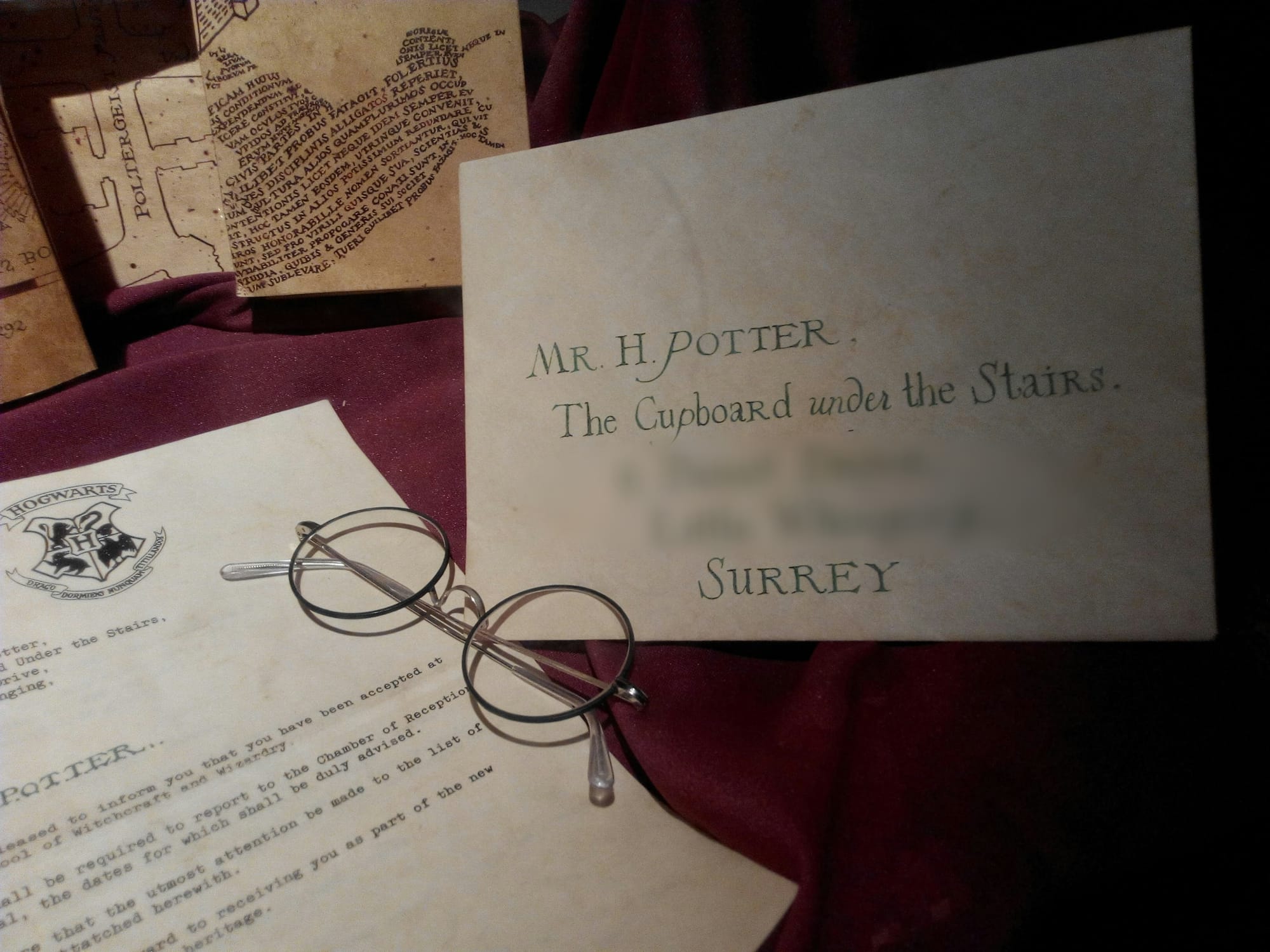
By identifying your specific use case, you can better determine how and where to apply text blurring for maximum impact and security.
Tools to Blur Text in Screenshots and Images
Online editing tools have made text blurring easily accessible to everyone and anyone. There are a plethora of online tools for every use case you can think of, but don’t get overwhelmed. If you don’t have time to research individually what tool is best for you, follow these recommendations. Here are the top methods you can use:
1. BlurMe (Recommended)
BlurMe’s easy-to-use online platform offers an easy way to blur text in your screenshots and images. With AI-powered detection and blurring technology, you can use BlurMe to easily blur faces, license plates and of course texts. BlurMe has the following capabilities that are optimized for text blurring:
- Target areas and blur text regions.
- Customize blur intensity and placement.
- Apply blurring seamlessly without affecting image quality.
- Supports multiple image file formats like PNG, JPEG and more.
How to Use BlurMe:
- Upload your screenshot or image to the BlurMe Studio workspace after logging in.
- Select the “Custom Blur” feature.
- Highlight the text areas you want to obscure.
- Adjust the blur settings to your preference.
- Export the edited image in high resolution.
For a more elaborate tutorial on blurring, you can visit The Complete Guide on How to Blur and Pixelate Image as well as How to Blur a Picture on the BlurMe blog.
2. Other Online Tools
Several alternative tools can also help you remove or blur text in screenshots and images:
- insMind: Offers a free, user-friendly AI-powered tool for quickly and cleanly removing text from photographs. The Remove Text from Image tool is designed for common editing chores such as removing watermarks, labels, or text overlays from product photos, graphics, or personal images.
- Canva: Offers simple blurring options with a drag-and-drop editor.
- Fotor: Simplifies the process with user-friendly controls.
While these platforms are effective, BlurMe stands out for its AI capabilities and precision designed to automate the anonymization process and save you time and effort.
For more information on the best redaction software for your needs, check our list of the Best AI Redaction Software.
Best Practices for Text Blurring
The aim is not only to use the best tools for text blurring, but to also ensure optimal results by following great standards and practices. Follow these best practices and tips to ensure your text blur is perfect:
- Identify Sensitive Areas: Pinpoint all text segments that you need to be blurred. Be sure to double-check for overlooked details.
- Maintain Image Quality: Use high-quality editing tools like BlurMe Face Blur to avoid noise and quality loss.
- Customize Blur Levels: Adjust blur intensity to ensure the text is completely unreadable but still doesn’t distract from the image’s overall look.
- Test Across Platforms: Preview your edited image on different devices and platforms to confirm the text is fully obscured.

Why Blurring Text Builds Digital Trust
Blurring text is more than a quick fix; it’s an essential step in protecting privacy and maintaining professionalism online. Many creators, educators, and businesses share screenshots every day without realizing how easily small text details can expose personal or confidential information.
At BlurMe, our team focuses on practical visual privacy tools that anyone can use. The AI-powered editor detects text areas automatically, allowing users to blur sensitive information in seconds while preserving clarity in the rest of the image. This combination of simplicity and precision helps you maintain control over your content and reinforces your credibility whenever you share visuals online.
Benefits of Using BlurMe for Text Blurring
- Time-Saving: AI automation speeds up the process, allowing you to blur multiple files and multiple frames at once.
- Accuracy: Ensures no sensitive detail is left visible.
- User-Friendly: No technical expertise required, BlurMe Studio's dashboard has an easy-to-use interface.
Blurring text in your screenshots and images is a simple yet vital step to protect sensitive information and uphold your professional integrity. Tools like BlurMe make it easier than ever to obscure confidential details while maintaining high-quality visuals.
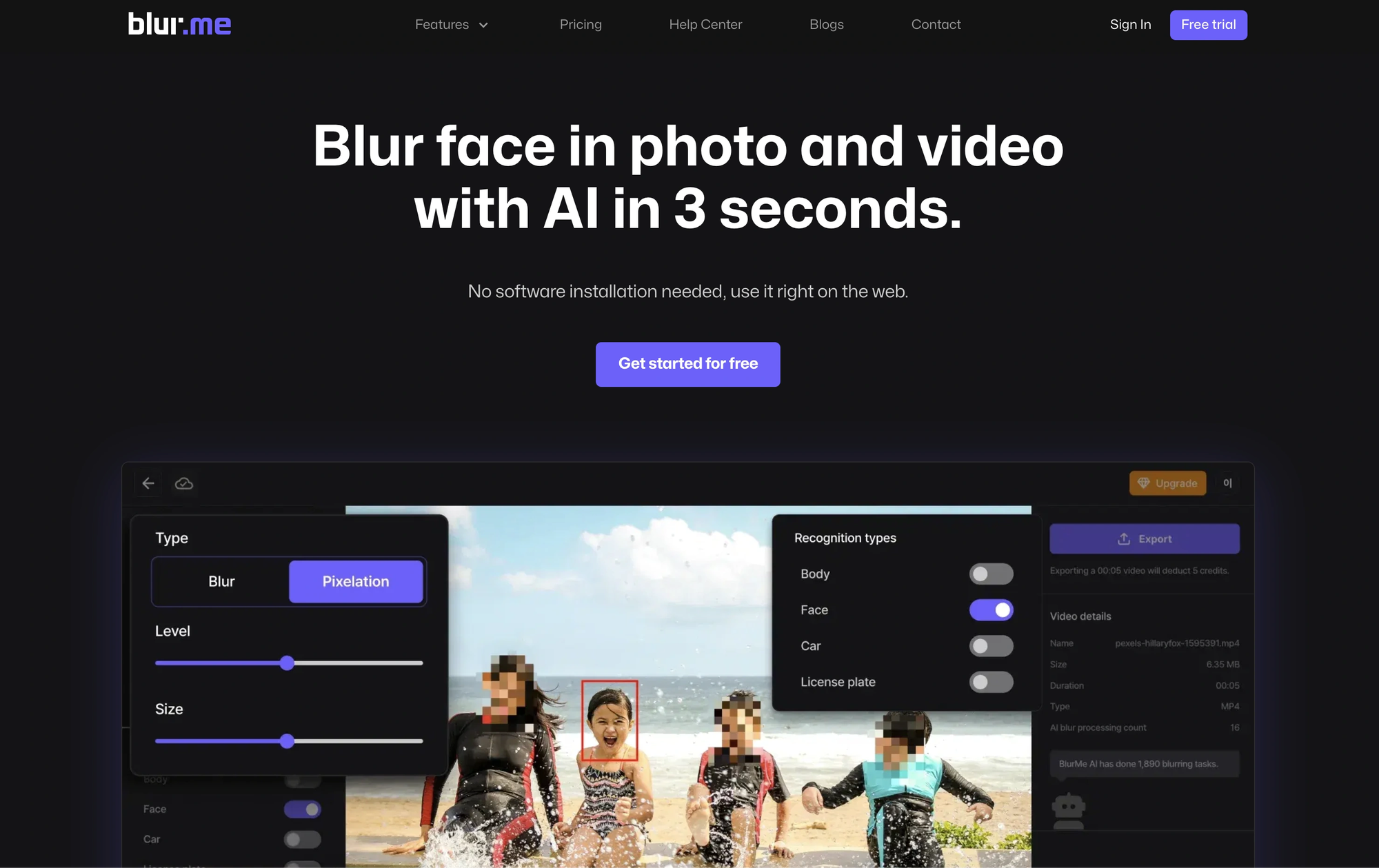
Ready to blur text effortlessly? Try BlurMe now and experience the future of secure image editing!