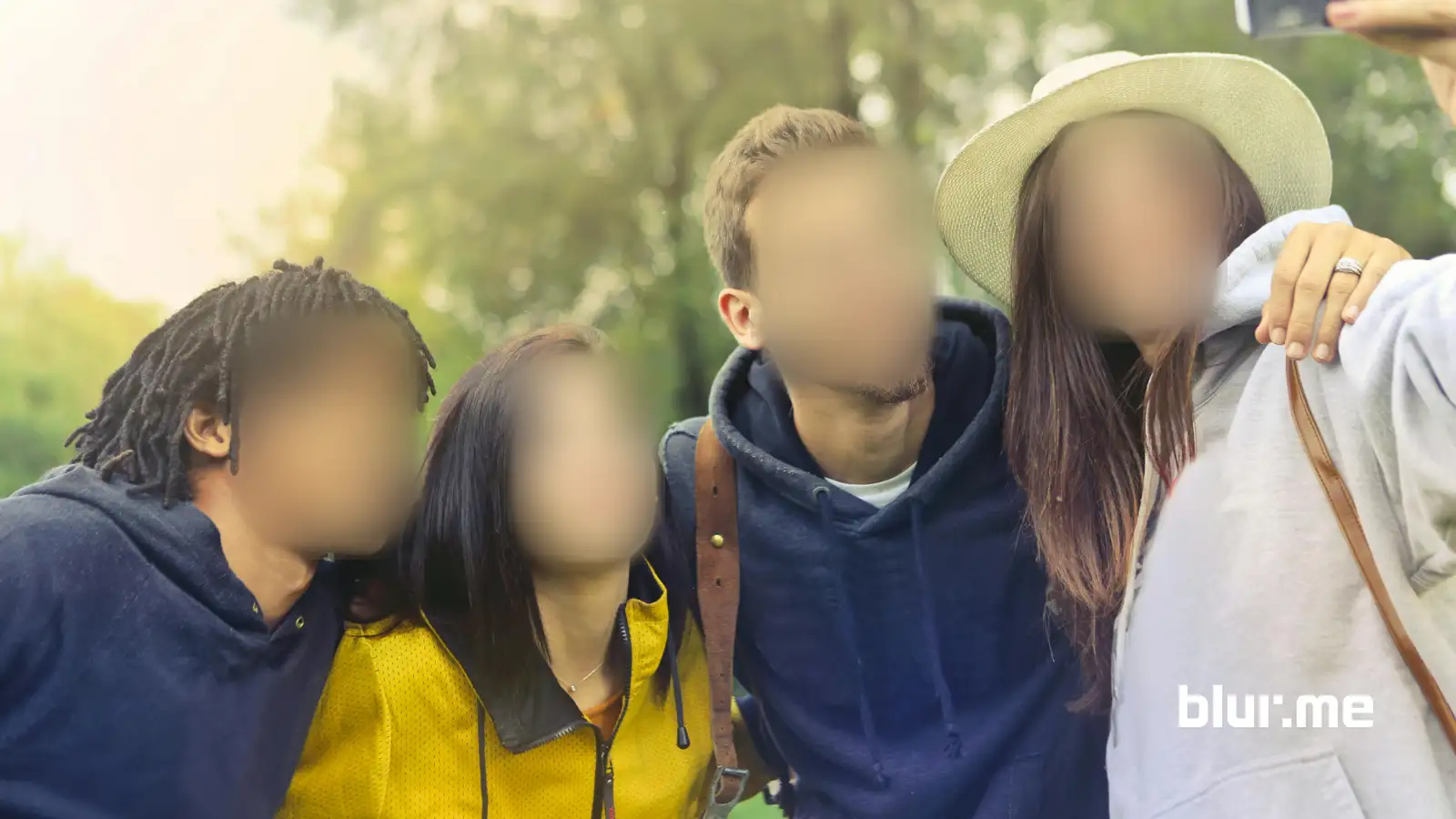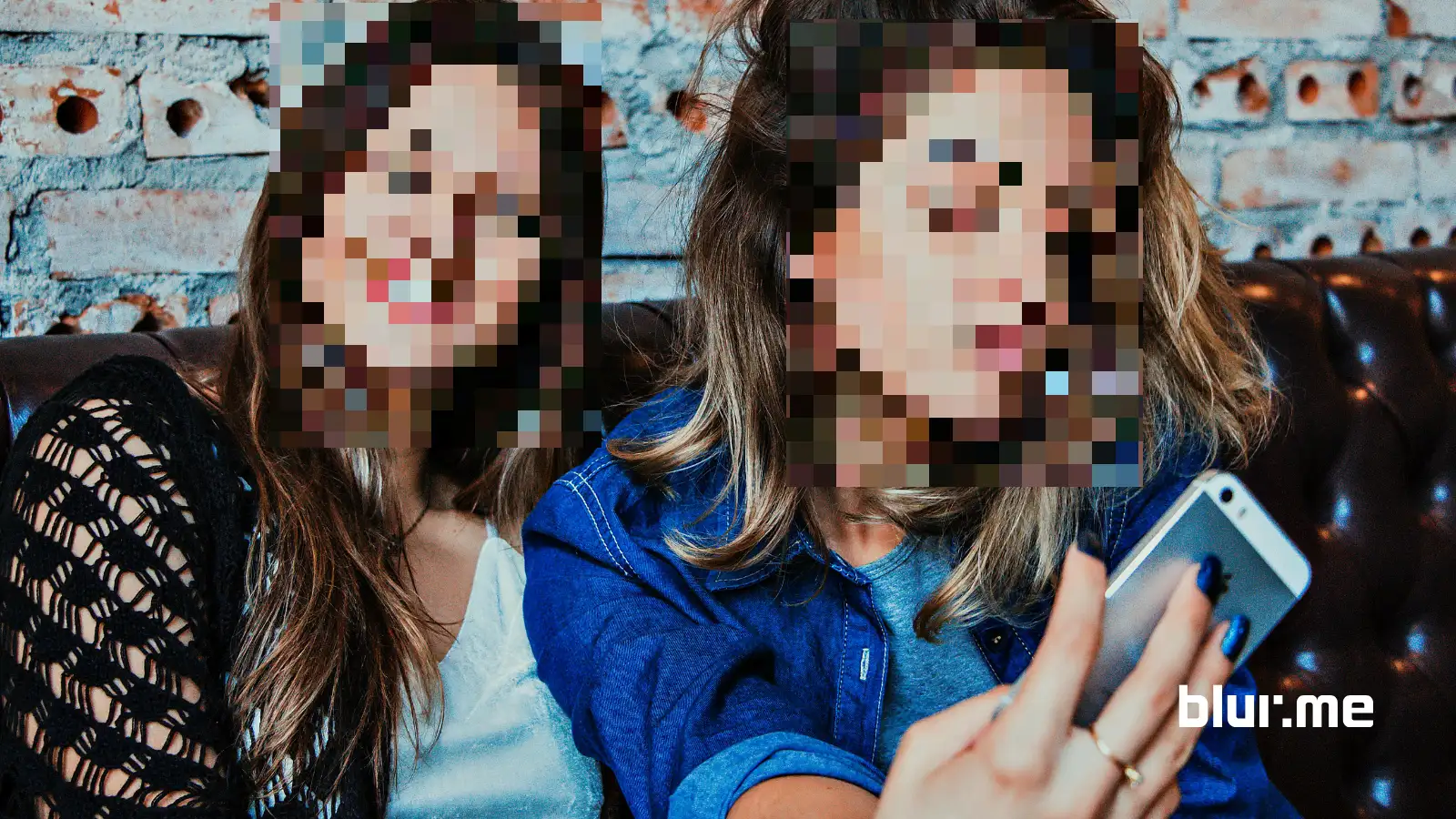
Pixelate images to instantly create censored photos, protect privacy, and hide anything you don’t want visible from faces and logos to license plates and backgrounds. Pixelation (also called mosaic censoring or pixelated blur) is the fastest way to obfuscate an image without permanently destroying it.
In this in-depth guide, you’ll learn how to censor images using BlurMe’s AI-powered Pixelate Image.
How to Pixelate Images Online With BlurMe (Step-by-Step)
BlurMe is a 100% online censor tool that uses AI to detect faces and objects, then applies precise pixelated blur automatically.
Step 1 – Upload Your Image
Go to BlurMe Pixelate Image in your browser and upload your photo. JPG, PNG, and screenshots are all supported.
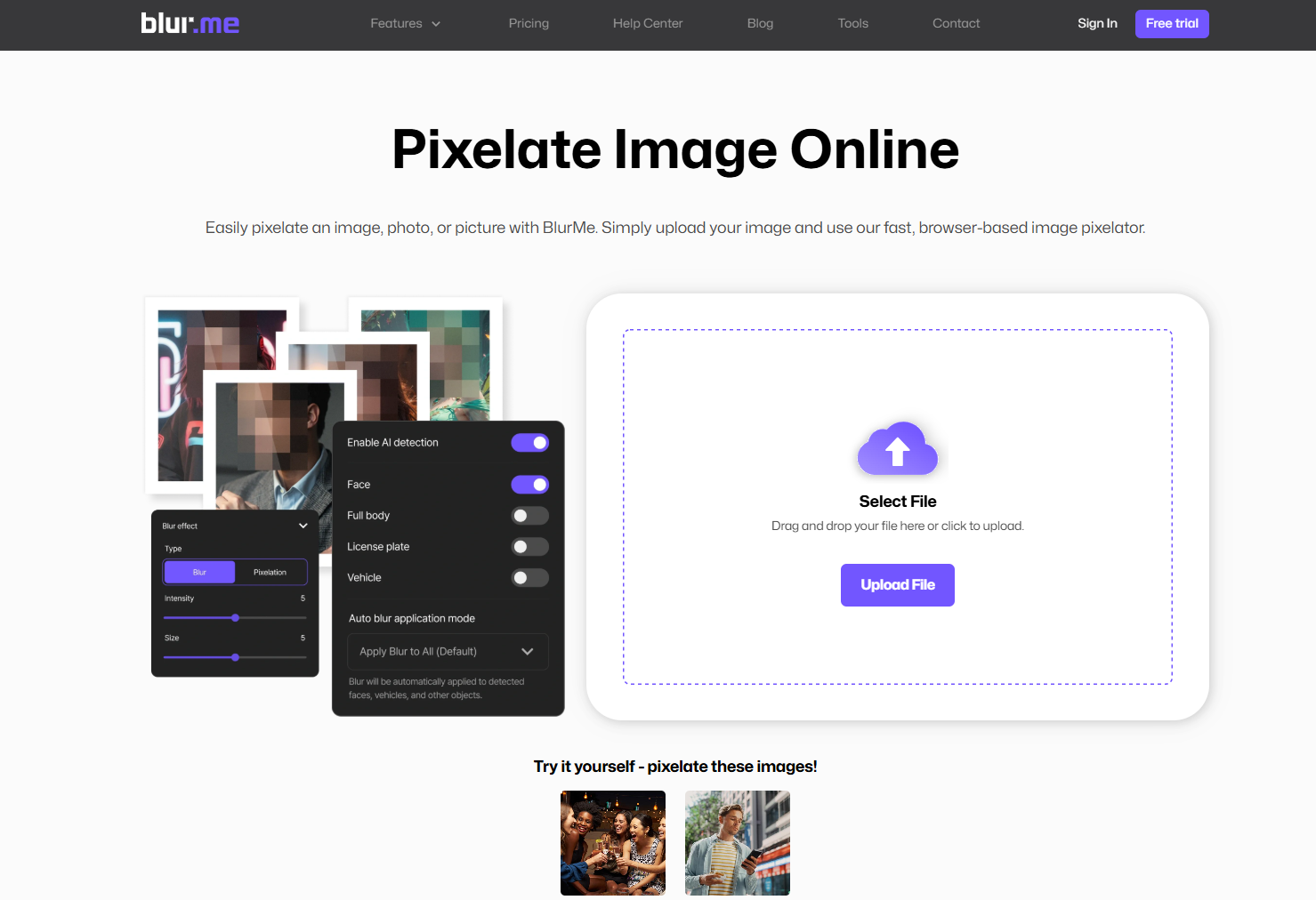
Step 2 – Choose “Pixelation”
Select the Pixelation option in the settings panel and
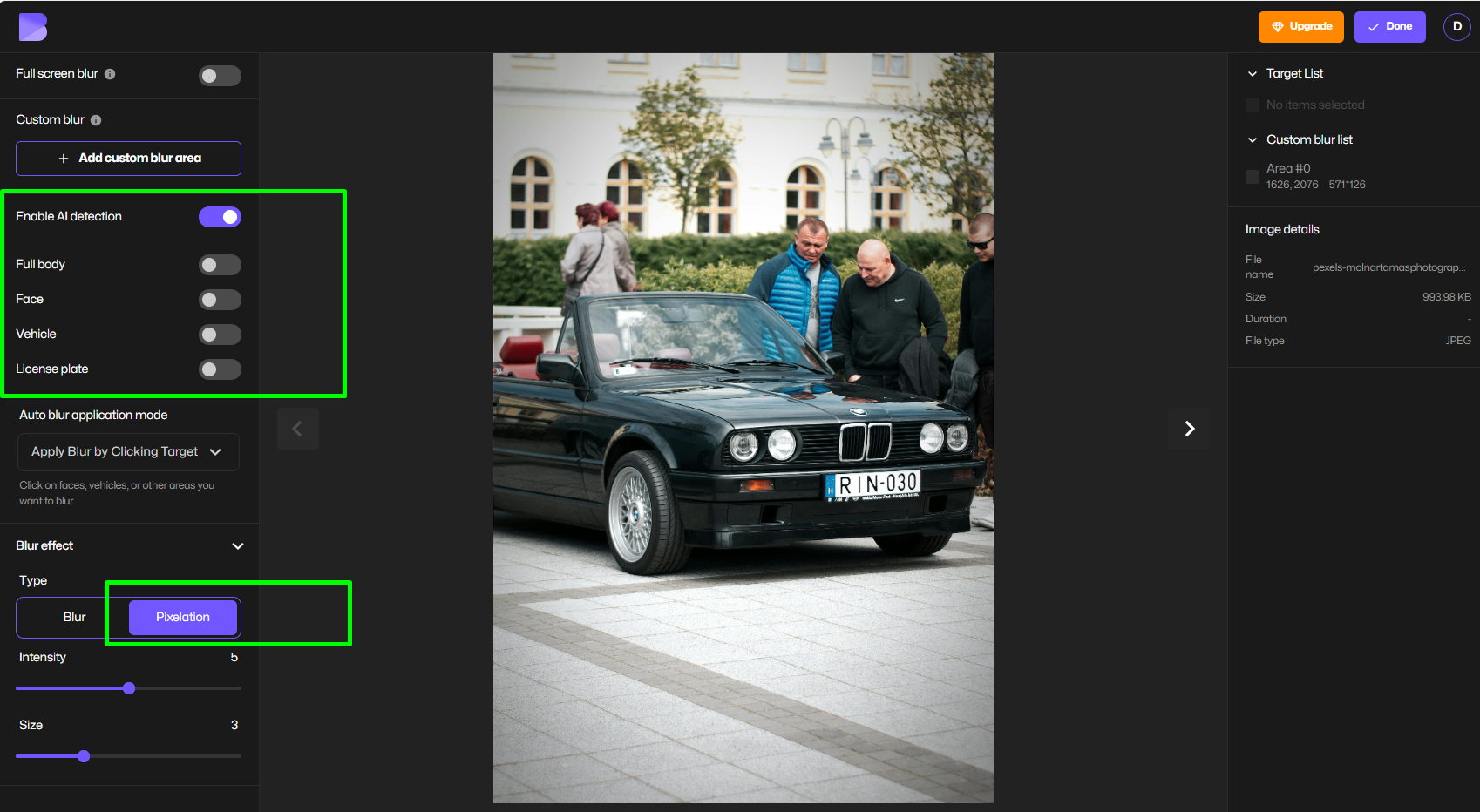
BlurMe’s AI will automatically detect:
- Faces
- Bodies
- Objects like license plates and cars
Step 3 – Select What to Censor
Click on any detected mode or area you want to hide. For this example we will choose to hide faces. By clicking face blur mode, all faces are now censored.
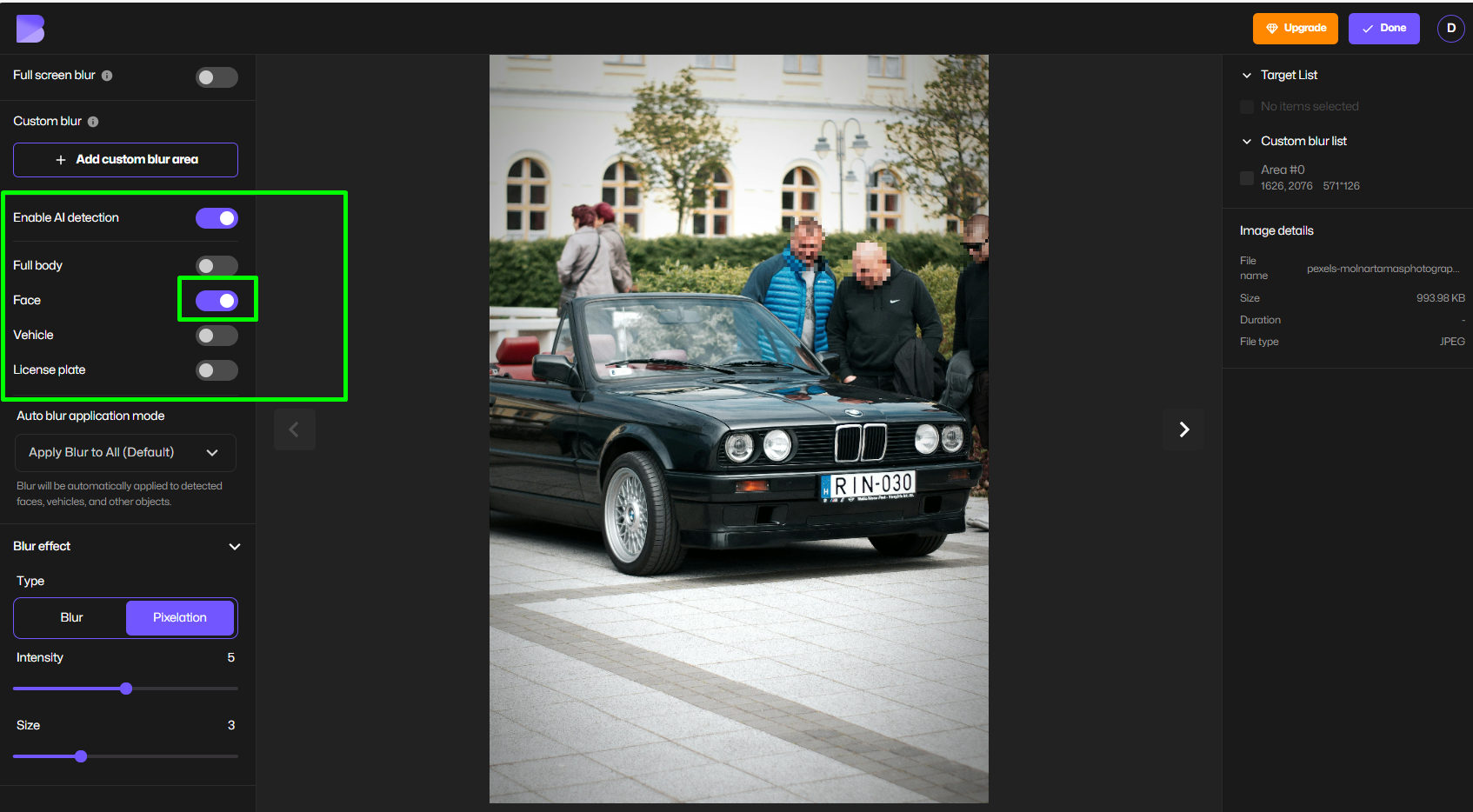
You can also use custom blur to draw a censor block for custom areas. as well.
Step 4 – Adjust Pixelation Strength
Use the slider to control the pixelation and censor effect:
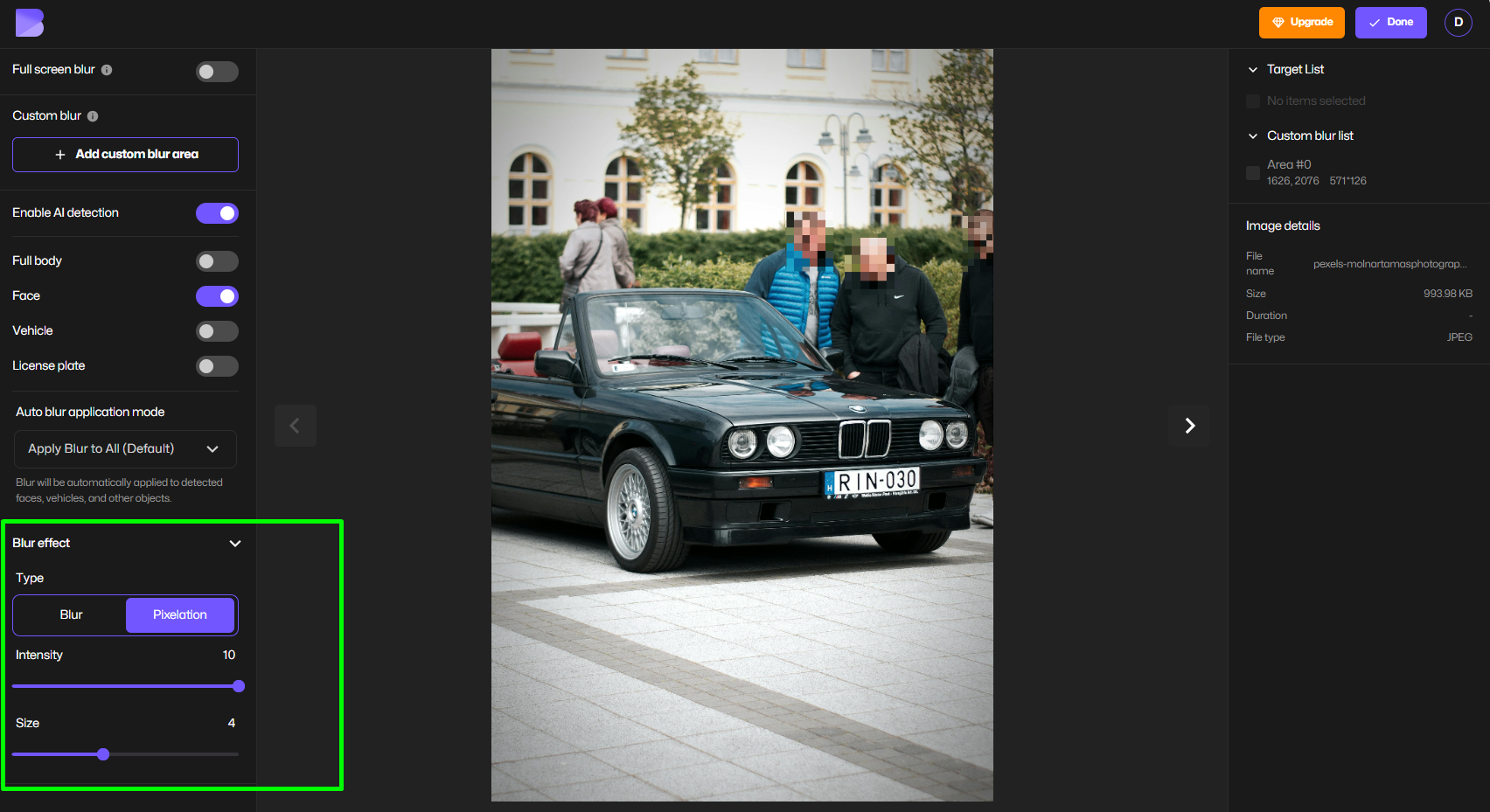
This lets you create anything from light mosaic to fully censored images.
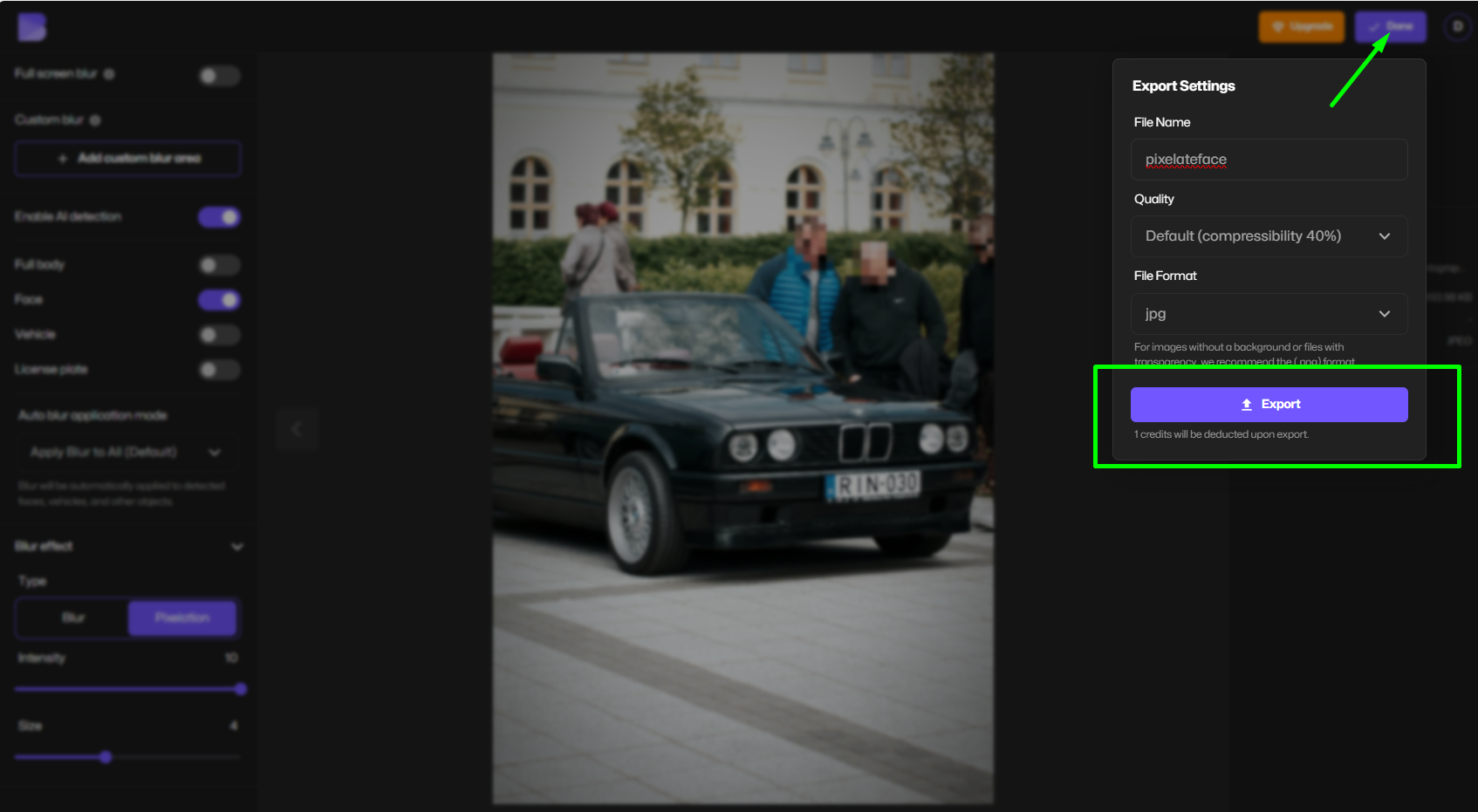
Step 5 – Download Your Censored Photo
Export your final censored picture in high quality—ready for social media, news, or client delivery.
Pixelate Faces Automatically With AI
Manually censoring faces is slow. BlurMe’s AI face mode acts as a face pixelizer so it does it instantly.
It detects:
- Front-facing faces
- Profile faces
- Multiple people in one photo
Then applies consistent pixelation to every face, making it perfect for:
- School photos
- Street photography
- Event coverage
- User-generated content
You can un-censor anyone with one click.
How to Censor Logos, Screens & Backgrounds
Not everything is a face. Sometimes you need to hide:
- A censored logo
- A phone screen
- A computer monitor
- A sensitive background
With BlurMe’s custom blur tool, you can:
- Select over any area
- Apply pixelated blur
- Stack multiple censor zones
- Adjust each area independently
This makes BlurMe a full censor generator, not just a face tool.
Pixelation for Creators, Journalists & Businesses
For Content Creators
Hide:
- Background people
- Brand logos
- Personal info
Use pixelate images to keep videos and thumbnails platform-safe.
For Journalists
Protect:
- Witness identities
- Victims
- Locations
Mosaic censoring is a legal and ethical standard.
For Businesses
Blur:
- Screens
- Customer data
- Whiteboards
- Documents
Stay compliant with privacy laws.
BlurMe vs Other Censor Tools (Pinetools & More)
Tools like pinetools offer basic pixelation—but they lack:
- AI face detection
- Multi-object censoring
- Professional export quality
- Privacy-first processing
BlurMe gives you:
- AI pixelate faces
- Manual censor blocks
- Real mosaic blur
- Secure browser-based editing
No uploads saved. No data reuse.
Pro Tips for Better Censored Images
- Use larger pixel blocks for faces and IDs
- Use smaller mosaic for logos and screens
- Always preview at 100% zoom
- Combine blur + pixelation for extra safety
- Never rely on low-strength blur for privacy
If it’s sensitive, pixelate it.
FAQ – Pixelate, Censor & Blur Images Online
What is the best tool to pixelate faces?
BlurMe’s AI face tool is featured in our guide to the Top Face Blur Apps for accurate, automatic pixelation.
How do I make a censored image online?
Follow our step-by-step tutorial in how to make a censored image online using BlurMe’s browser-based censor generator.
What is mosaic blur and how is it different?
Learn the difference between blur and pixelation in how to do mosaic blur online.
How can I censor an image for privacy?
This full guide on how to censor images explains when to use blur, pixelation, and obfuscation.
Can I pixelate only part of a photo?
Yes—use the how to pixelate image workflow to apply pixel blur to just one area.
Is there a full guide for pixelating photos?
Yes, read our pixelate images guide for advanced tips and use cases.
Can I blur or pixelate just a face?
Use BlurMe’s Blur Face in Photo tool to automatically pixelate or blur detected faces.
Is there a dedicated pixelation tool?
Yes, the Pixelate Image Tool lets you create clean mosaic censoring.
Where can I learn more about pixelating pictures on iPhone?
Our pixelate pictures on iPhone guide covers creative and professional uses.
Start Pixelating Images the Smart Way
If you need to censor images, pixelate faces, hide logos, or create professional censored photos, BlurMe's excellent blur face tool gives you everything in one fast, secure, browser-based tool.
👉 Try BlurMe Studio now and pixelate images online for free.