How to Pixelate Part of an iPhone Photo in Safari
Maya Chen — Tech Writer & Privacy Advocate
A Safari pixelation workflow lets you cover part of an iPhone photo while keeping the rest of the image clear. Start with one picture, make the selection large enough for the complete detail and inspect the downloaded result before sharing it.
Blur faces or text in a photo, right in your browser.
Prepare one image
Choose the photo you actually want to deliver and keep the source separately. Decide whether you are covering a face, text or another detail. For text, identify every occurrence; a name may appear in both a header and a message body.
Open the pixelate image tool in Safari. If you are still deciding between a browser, an app and a solid cover, compare iPhone pixelation methods first.
Pixelate a region in Safari
Step 1: Choose the photo
Use the upload control and select the photo from the source offered by your iPhone. Wait for the editor preview, then confirm the image and orientation. Check that you are editing the full intended picture rather than a similar screenshot or earlier version.
Step 2: Select the complete area
Use a detected face region if it fits the task, or draw a manual region. Zoom in for placement and leave a margin around the detail. Move selection handles carefully so a fingertip does not hide the boundary you are trying to judge.
For several faces, review each region separately. Keep people who should remain visible outside the effect and inspect small background faces in a second pass.
Step 3: Set the pixelated effect
Choose pixelation or mosaic and adjust the apparent block size. Look at the whole image after zooming back out. The right setting depends on the size of the target and the image; there is no universal number that fits every iPhone photo.
Step 4: Check the edges
Inspect letters, facial features or parts of the detail just outside the region. If something is exposed, enlarge or reposition the selection. Increasing the effect strength cannot cover pixels outside its boundary.
Check that nearby information you wanted to keep remains readable. A more carefully shaped region is often better than obscuring the whole image.
Step 5: Download and inspect the copy
Export the edited image and locate the saved result using the browser’s download or sharing controls. Open that file separately and confirm the pixelation, image orientation and intended dimensions. Share the checked copy rather than the original from your photo library.
Resolve a confusing download
If two files look similar, compare their filenames and open each at a useful size. Do not choose only from a tiny thumbnail. If the export needs a correction, save the replacement clearly and check it again before sending it.
For a series of images, use the multiple-photo review workflow to track which outputs have been inspected. For soft face blur instead of blocks, see the iPhone photo face-blur guide.
FAQ
Can I pixelate only one part of the picture?
Yes. Define a selected region and inspect the rest of the image to ensure it remains unaffected. Repeat for additional separate details if needed.
Why does the pixelation look weak after saving?
Open the output at its normal viewing size and compare the target with the block size. Adjust the effect and re-export if the result is too subtle for your purpose.
Where should I look for the edited file?
Check Safari’s download controls or the destination used by the save/share action. Open the actual saved file to confirm it is the edited version.

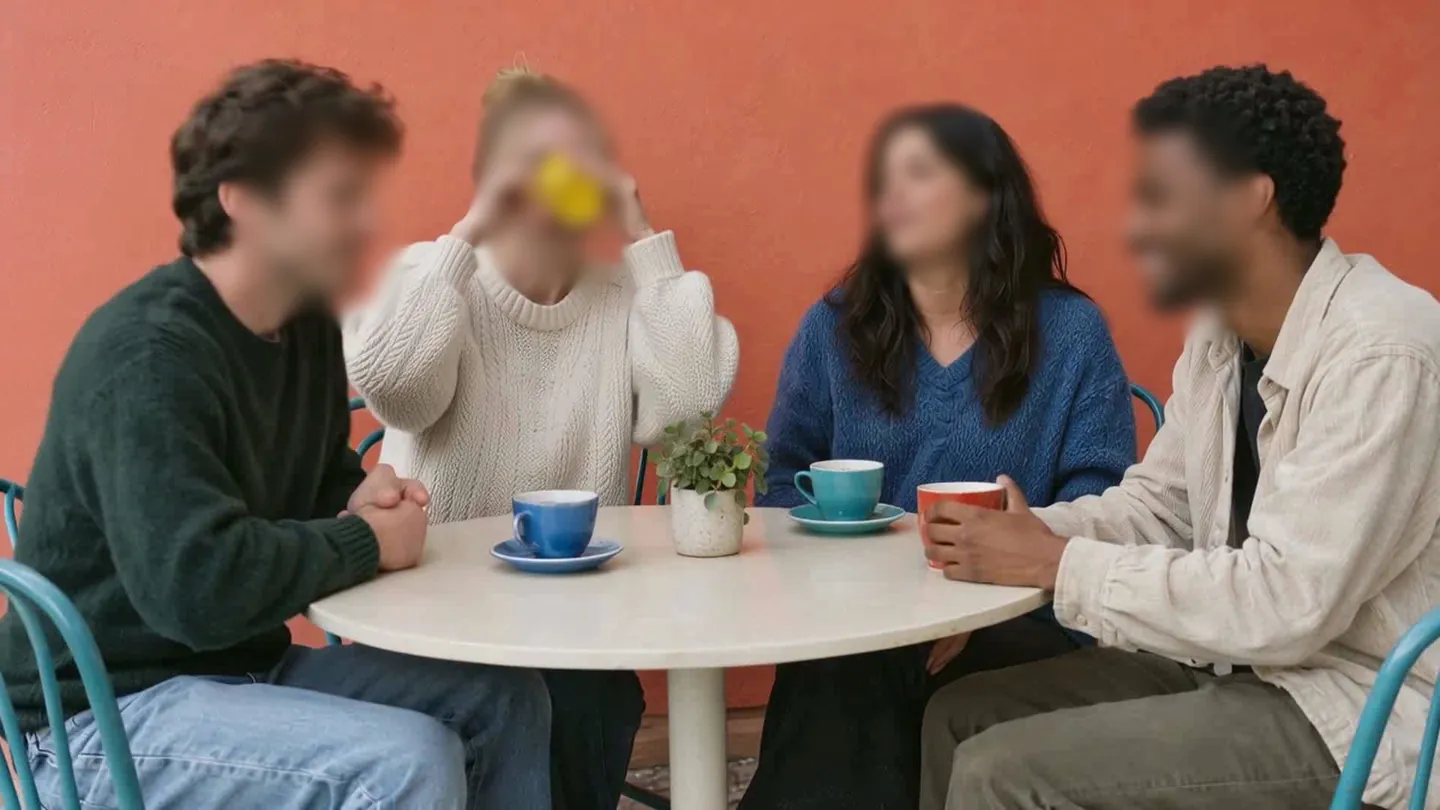
Blur faces or text in a photo, right in your browser.
Nothing to install. Start right away.