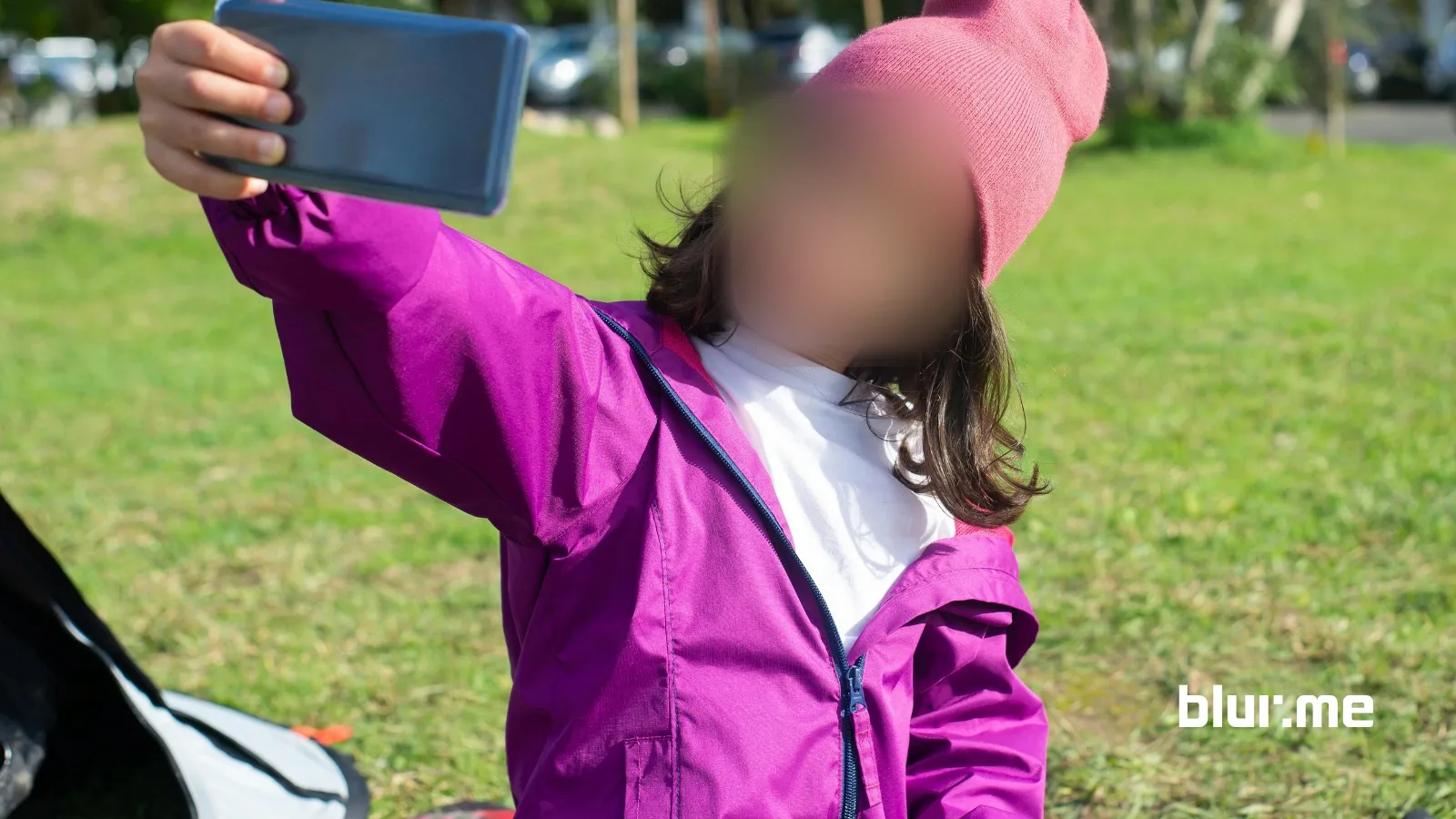
Pixelating a video is one of the easiest ways to hide faces, logos, or sensitive details without blurring the entire frame. The best part? You don’t need any paid or complicated software to do it. With the right online tools, you can pixelate parts of a video directly in your browser. In this guide, we’ll walk you through how to pixelate a video online for free in just a few simple steps.
How to Pixelate a Video
Pixelating a video is easier than ever thanks to BlurMe Pixelate Video tool. Follow this simple guide to pixelate your video using BlurMe’s free online video editor:
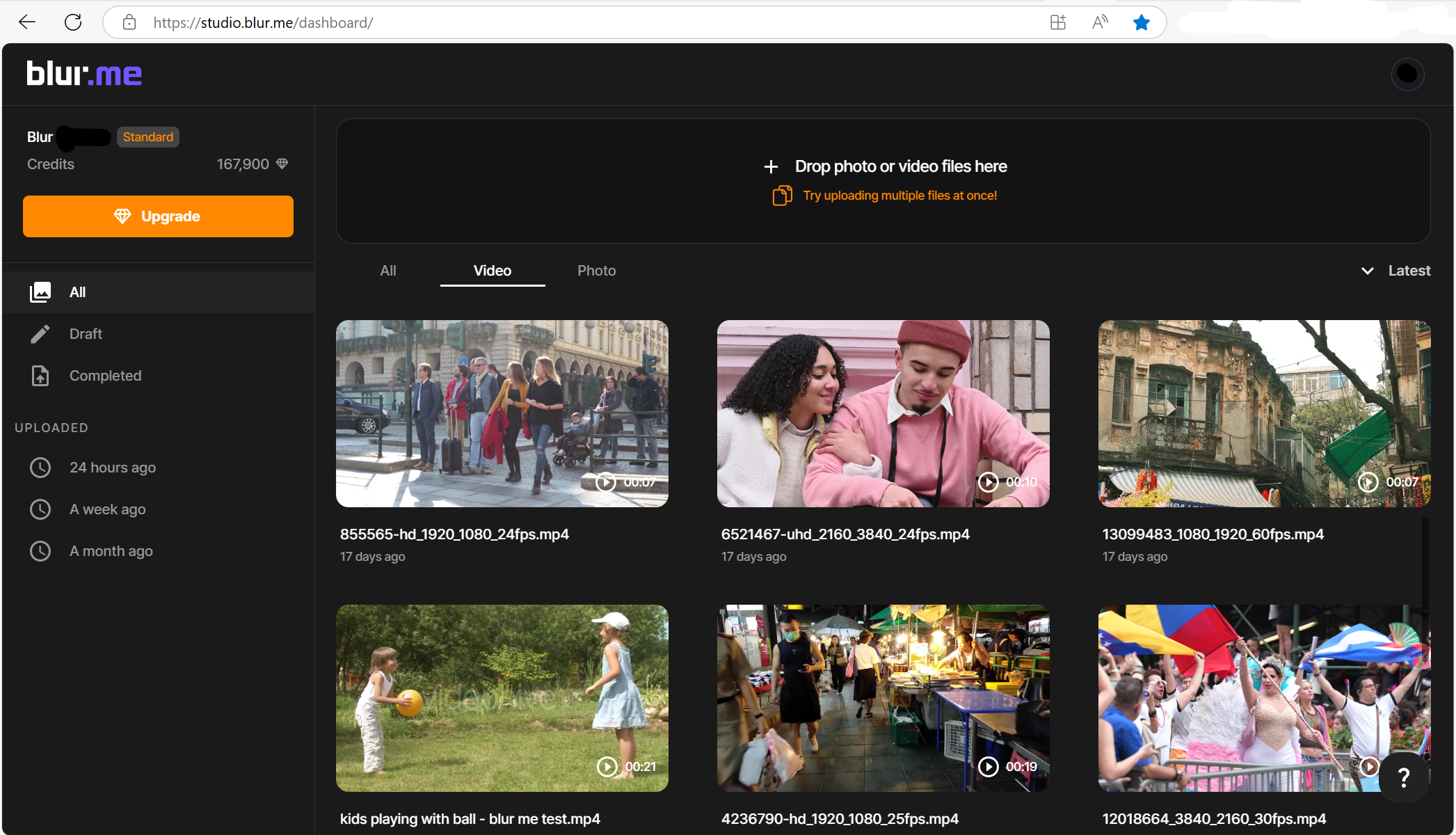
Step 1: Upload Your Video
In your browser, go to BlurMe's online editor. Upload your video file from your computer or device.
Step 2: Select the Area to Pixelate
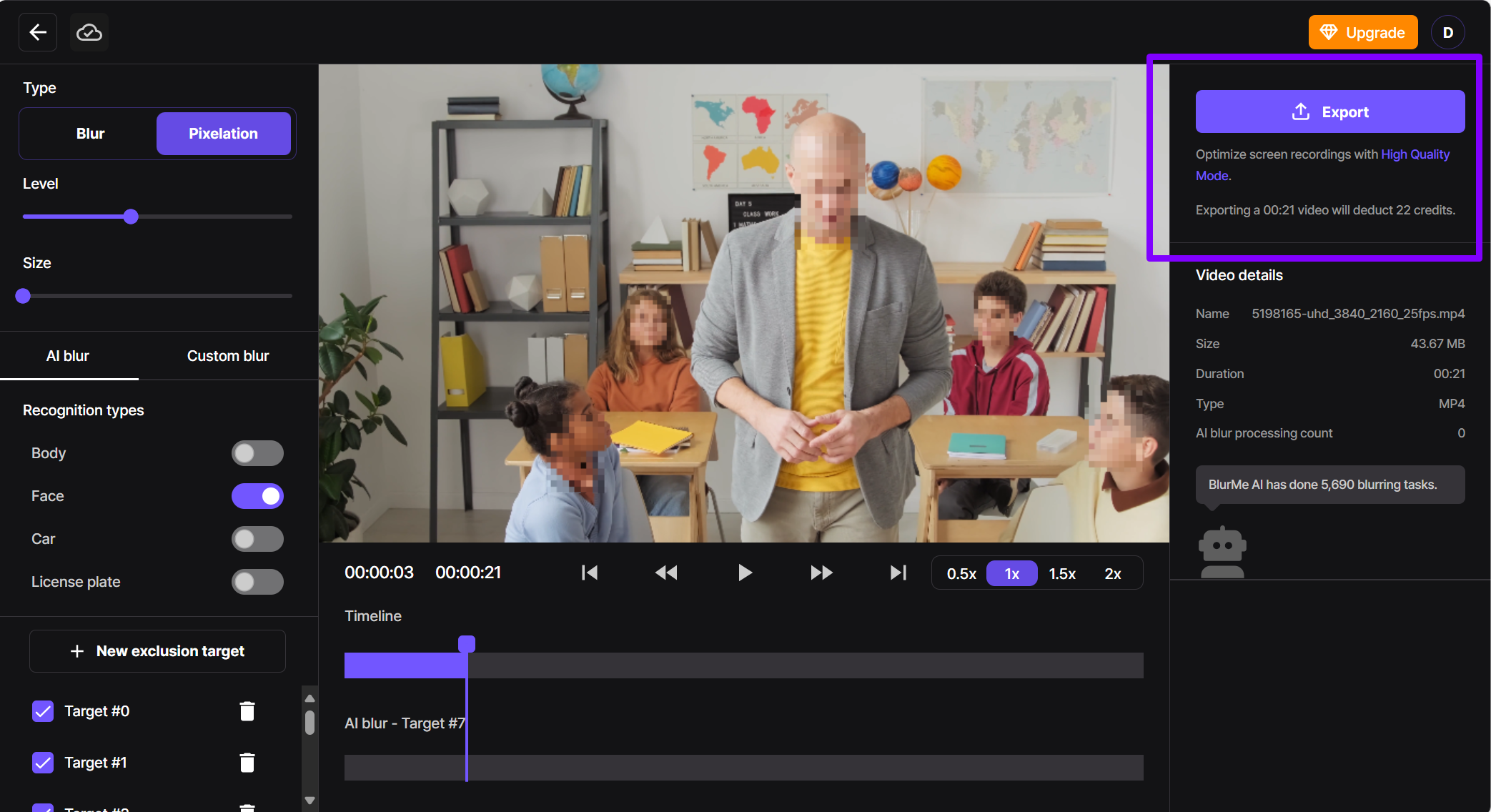
Once your video is uploaded, choose the "Pixelation" effect from the editing options.
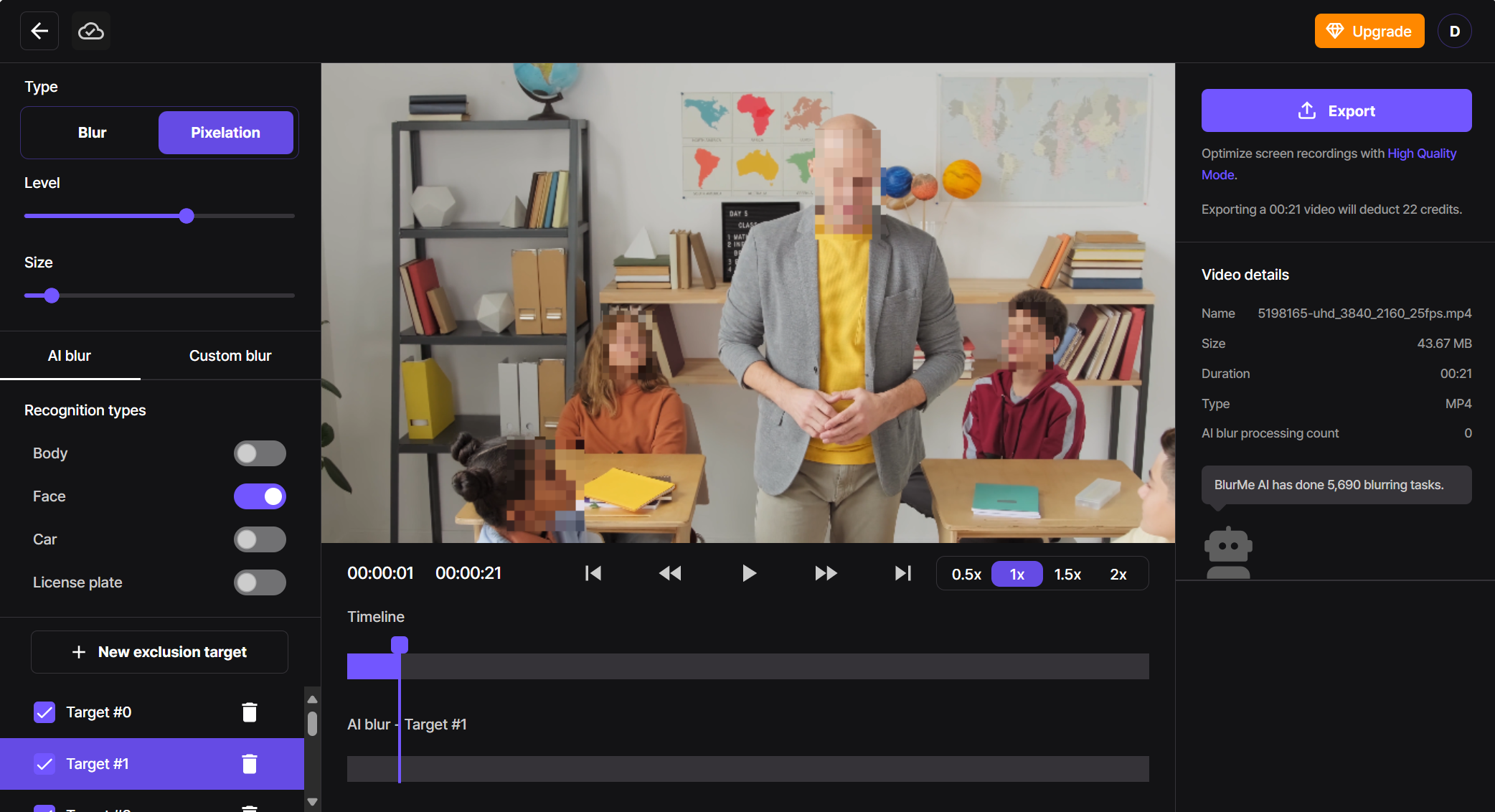
Select the area you want to pixelate:
- Pixelate Face – Automatically detect and pixelate faces in your video to protect identities.
- Pixelate Body – Blur full-body outlines to keep individuals anonymous in wide shots.
- Pixelate License Plate – Censor vehicle license plates to stay compliant with privacy regulations.
- Pixelate Cars – Obscure entire vehicles for footage used in public or traffic settings.
- Custom Pixelation – Manually select and pixelate any object, area, or moving part in your video.
Step 3: Adjust the Pixelation Size and Intensity
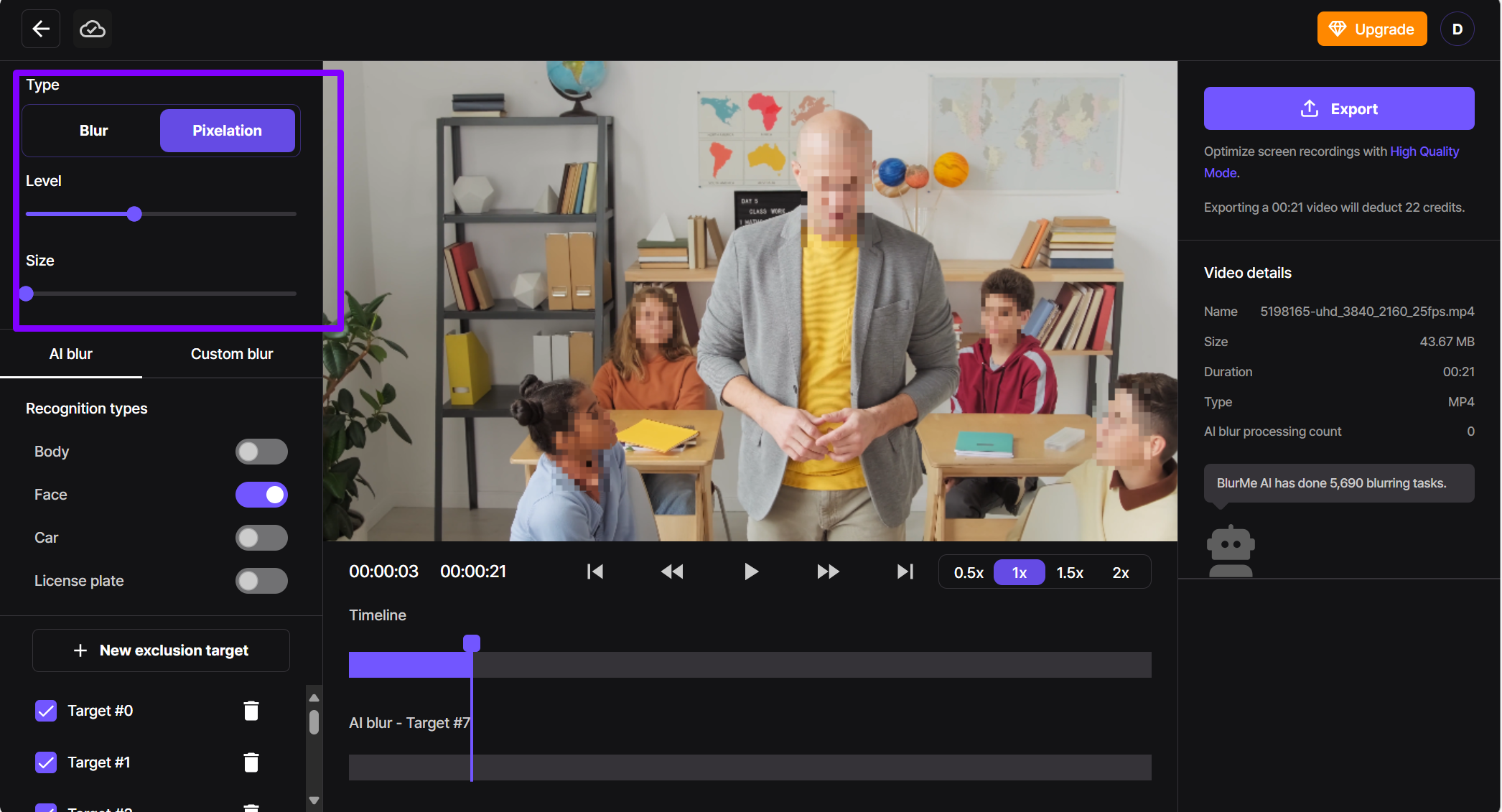
Once you've selected the area to pixelate, use the built-in sliders to fine-tune the effect:
- Resize the pixelation box to cover exactly what you want to censor.
- Adjust the pixelation level intensity to control how pixelated the area appears, choose a stronger blocky effect for full censorship.
Step 4: Export Your Pixelated Video
Once you're happy with the edits, download your pixelated video.
Why Pixelate Videos?
Pixelating a video is a common technique used to obscure sensitive information, blur faces, or apply a censoring effect to specific parts of a video. Whether you're a content creator looking to protect someone's identity, a journalist maintaining anonymity, or just editing a fun video, using a video pixelator is an easy and effective solution.
Alternative Methods to Pixelate
If pixelation isn’t the effect you’re looking for, you can also use a blur video editor to soften parts of your video instead of pixelating them. This is useful when you want a less noticeable censoring effect.
- Blur video online in 4 easy steps
- Blur faces in video (ideal for protecting identities)
- How to Pixelate a Video
- How to Pixelate Images using BlurMe's Image Pixelator
The 3 Best Tools to Pixelate Video Online
Looking for more tools? Here are some top-rated pixelate video online editors that let you add pixelation without installing software:
1. BlurMe (Best for Pixelating Faces)
- Free & online
- Supports multiple pixelation areas
- Automatic face blurring feature
Try it now or get more information on how to pixelate something on our Blur or Pixelate Video tool page.
2. Kapwing
- Simple drag-and-drop interface
- Supports text and other effects
3. Veed.io
- Good for quick blurring
- AI-powered face tracking
Why Pixelation Still Matters in 2025
While many editors use blur effects for privacy, pixelation remains one of the most trusted techniques for ensuring that details stay completely unreadable, especially in journalism, social media content, and law enforcement use cases. Unlike soft blurs, pixelation permanently breaks down image detail into visible blocks, making it impossible to reverse.
At BlurMe, our AI tools are designed with this precision in mind. We continuously train our models on real-world privacy use cases, from creators who need to anonymize faces to businesses protecting sensitive data in footage. This ensures every pixelation is both irreversible and visually consistent, meeting modern digital compliance and ethical content standards.
Best Practices & Tips for Pixelating Videos
- Use High-Resolution Footage
Blurring or pixelating a low-quality video can make it look overly distorted. Start with the highest resolution possible. - Adjust Pixelation Strength
A lower pixelation intensity makes elements slightly blurred, while a higher intensity completely hides details. - Pixelate Videos on Mobile
Many pixelate video online tools like BlurMe work on both desktop and mobile, so you can edit videos on the go without downloading apps. Read more about blurring and pixelating videos on mobile on our blog.
Frequently Asked Questions (FAQs)
- What’s the difference between pixelation and blurring a video
Pixelation creates a blocky, mosaic effect that completely hides details.
Blurring softens an area to make it less clear but still somewhat visible. - Can I pixelate a moving object in a video?
Yes! Some blur video editors offer motion tracking, allowing you to pixelate moving faces or objects automatically. - Will pixelation reduce video quality?
Pixelation only affects the selected area. The rest of your video remains high quality. - Can I pixelate a video on my phone?
Yes! Many online editors work on mobile browsers, so you can pixelate a video on iPhone or Android without installing an app.
Final Thoughts: Easily Pixelate Your Videos with BlurMe
Pixelating a video is a quick and effective way to censor sensitive content, protect identities, or add a cool stylistic effect. Thanks to free online tools, you can now pixelate videos easily online without complicated software.
Need a fast, easy way to pixelate your videos? Try BlurMe’s free pixelate video tool today!