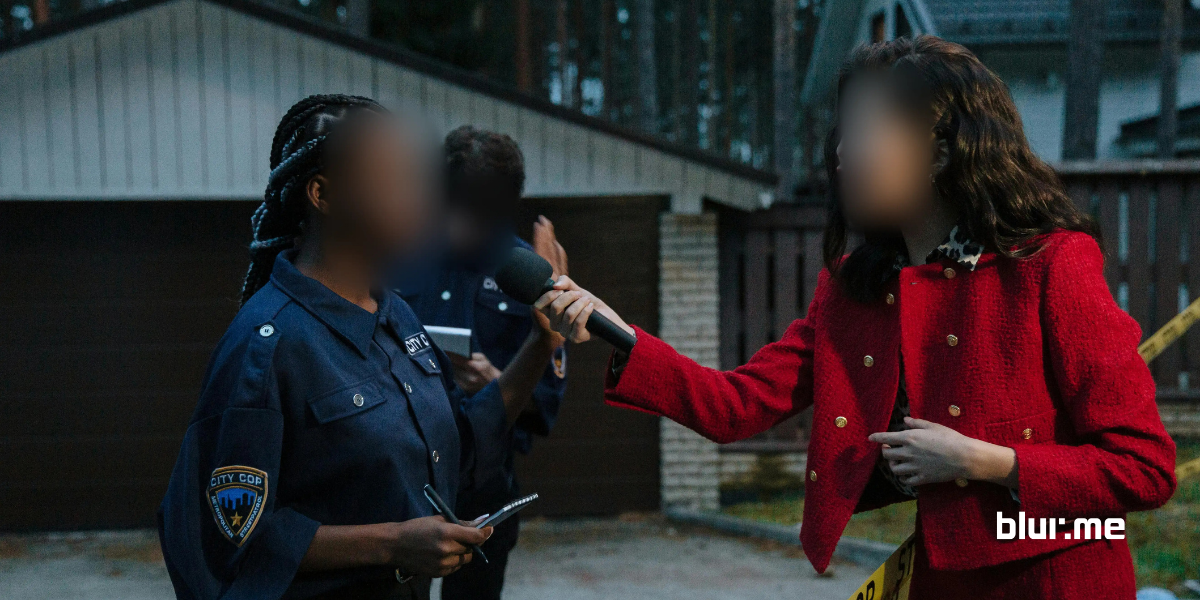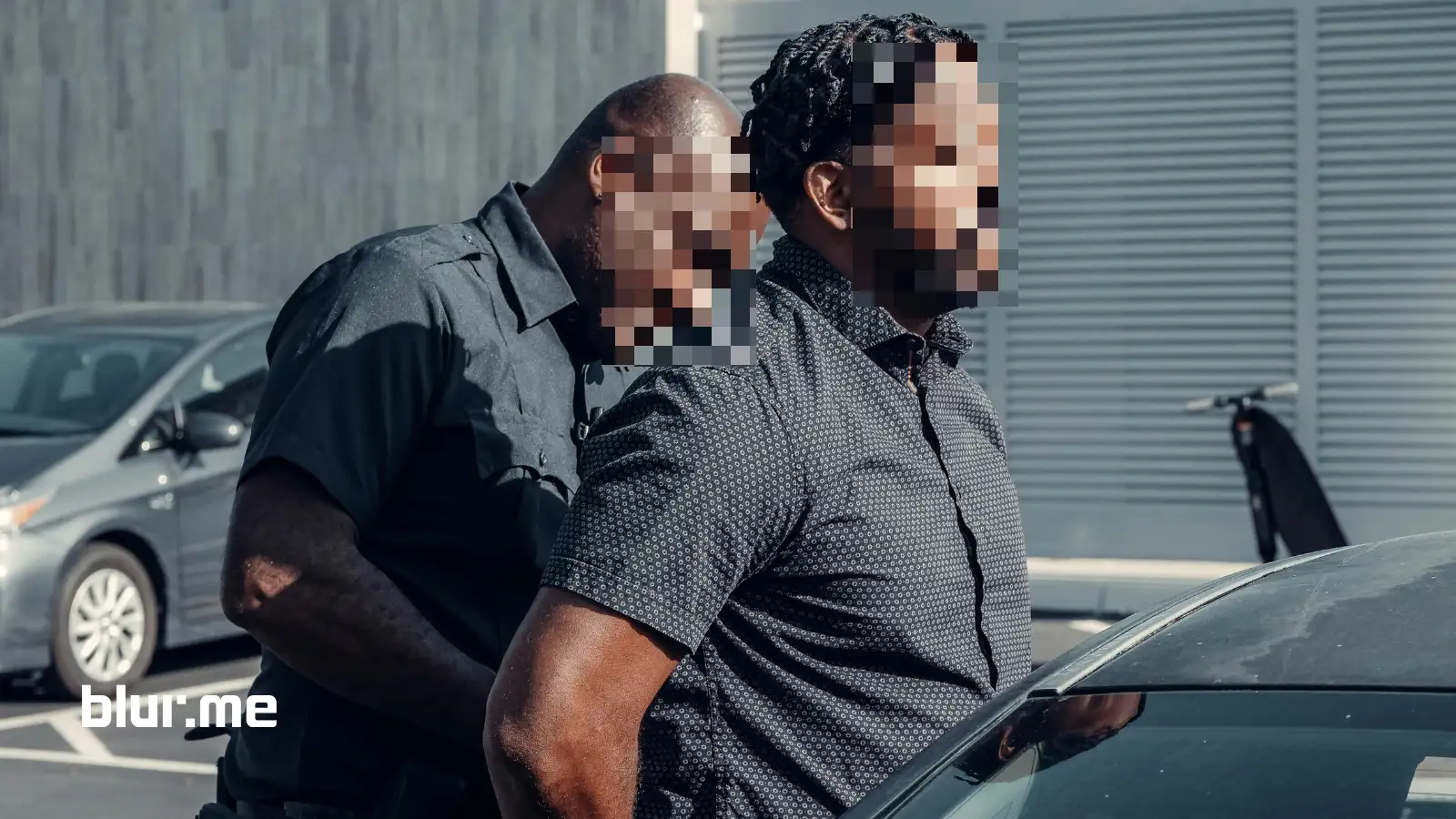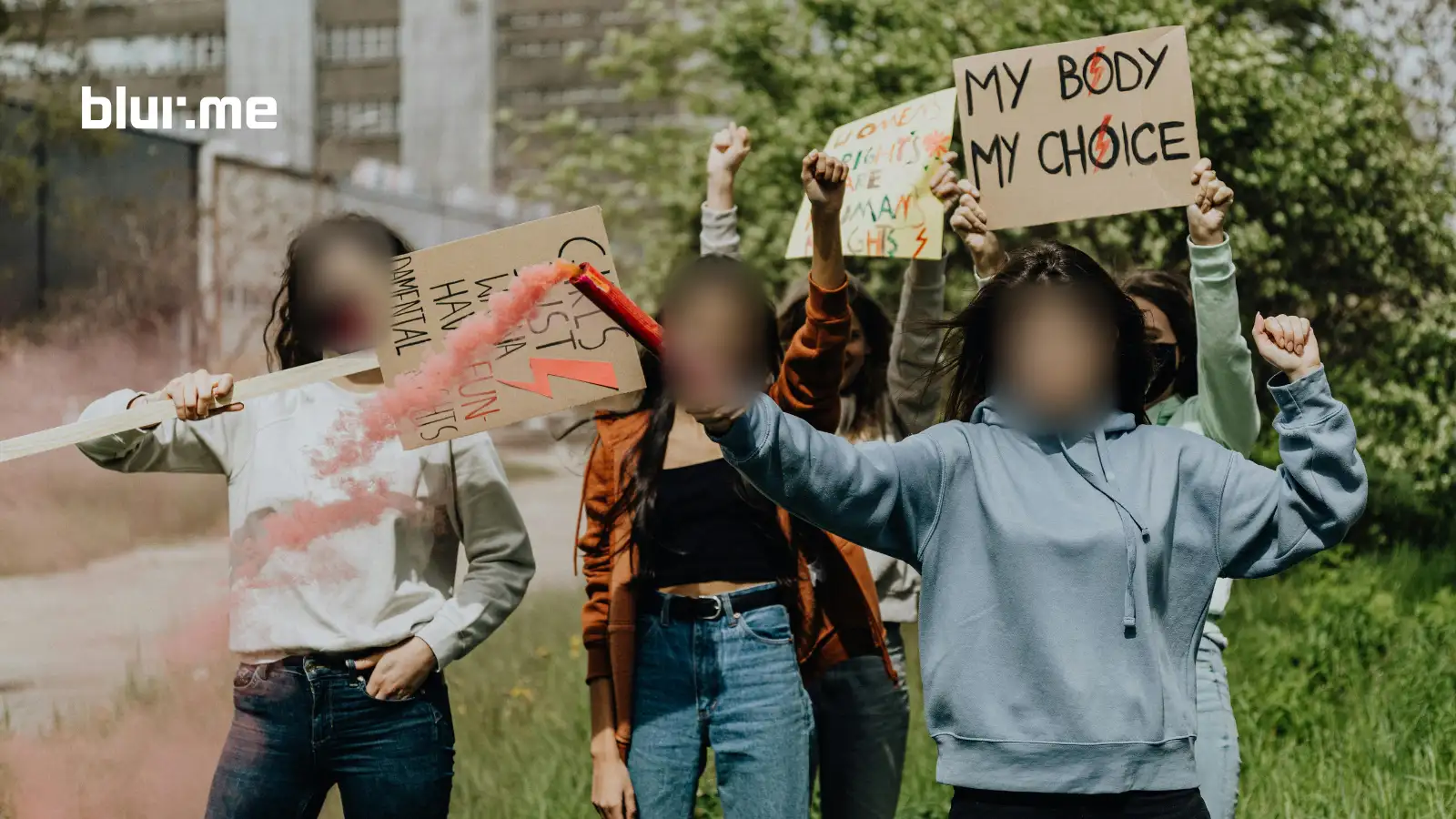
Video blurring effects that once required advanced software can now be done right in your browser. If you want to blur video content to hide faces, soften backgrounds, or obscure movement, online tools make the process fast and accessible without professional editing skills. From privacy protection to creative styling, the ability to blur video footage has become useful for social media creators, businesses, educators, and everyday users alike.
In this guide, you’ll learn how to blur video clips online step by step, including how to add face blur, background blur, and motion blur using simple browser-based tools.
What Is BlurMe’s Online Video Blur Tool?
BlurMe is a 100% browser-based blur video editor that uses AI to detect faces, people, and objects in motion. You can:
- Blur faces automatically
- Blur video backgrounds
- Blur parts of a video online (cars, license plates)
This makes BlurMe ideal for creators, journalists, educators, and businesses who need fast, accurate video anonymization.
How to Blur a Video Online with BlurMe (Step-by-Step)
This is the fastest way to blur a video online using AI.
Step 1: Open BlurMe’s Blur Video Tool
Go to the Blur Video.
BlurMe works entirely online. no apps, no downloads.
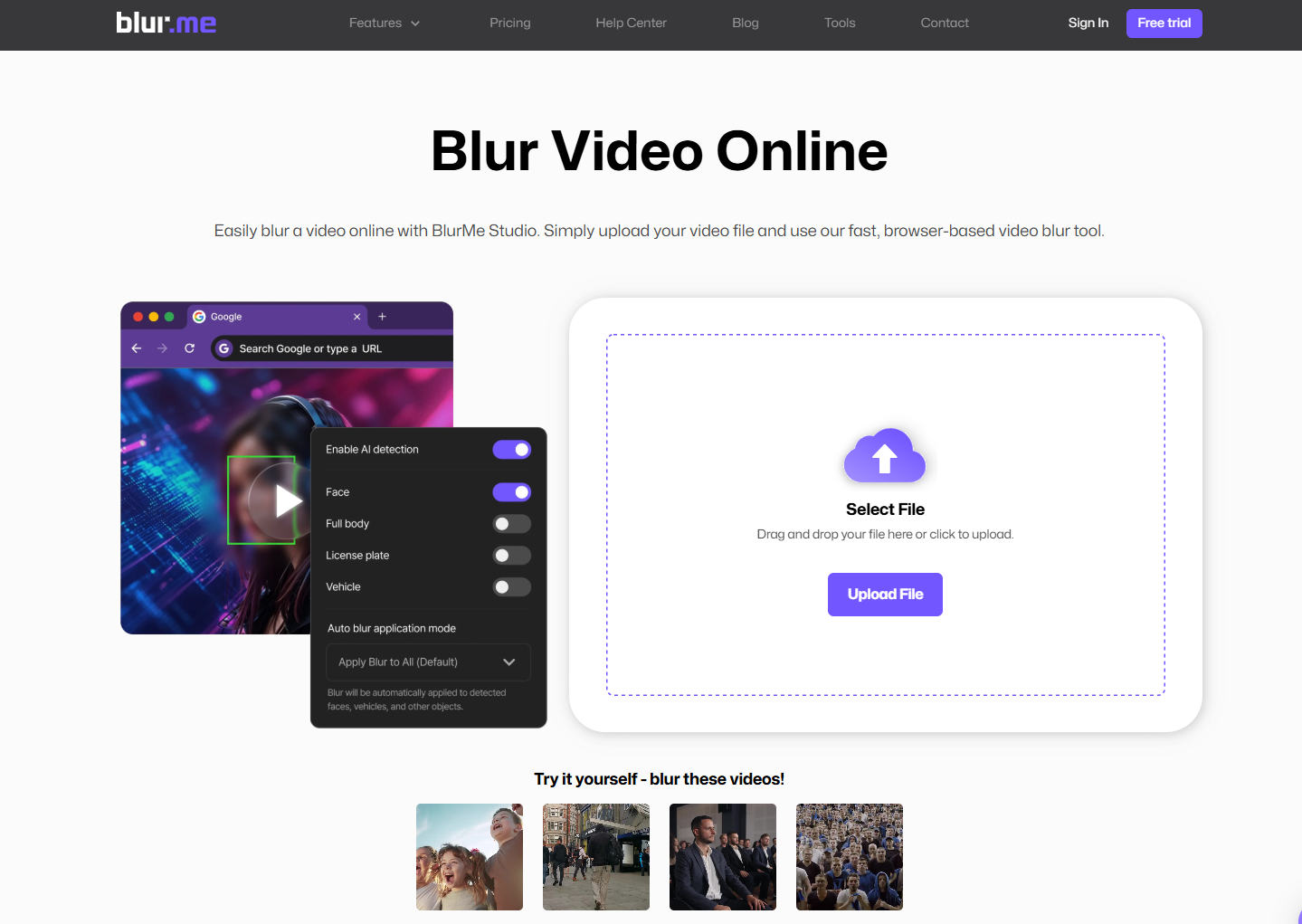
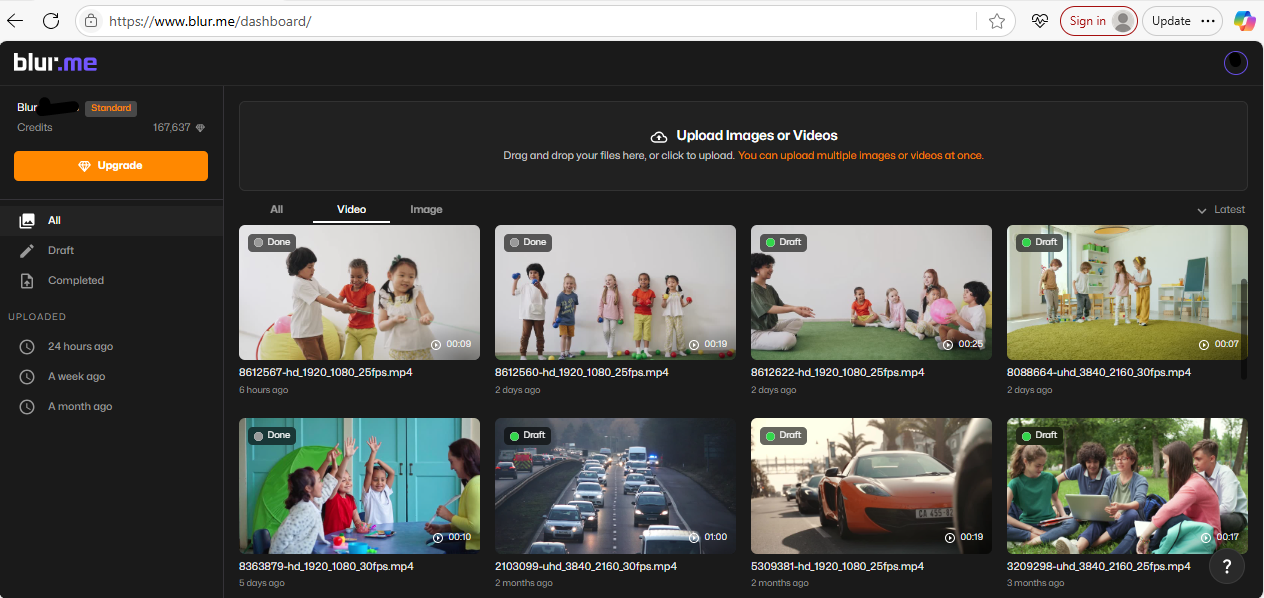
Step 2: Upload Your Video
Click Upload Video and select your file.
BlurMe supports common formats like MP4, MOV, and AVI.
Step 3: Choose What You Want to Blur
BlurMe automatically scans your video and detects people and objects like cars and license plates.
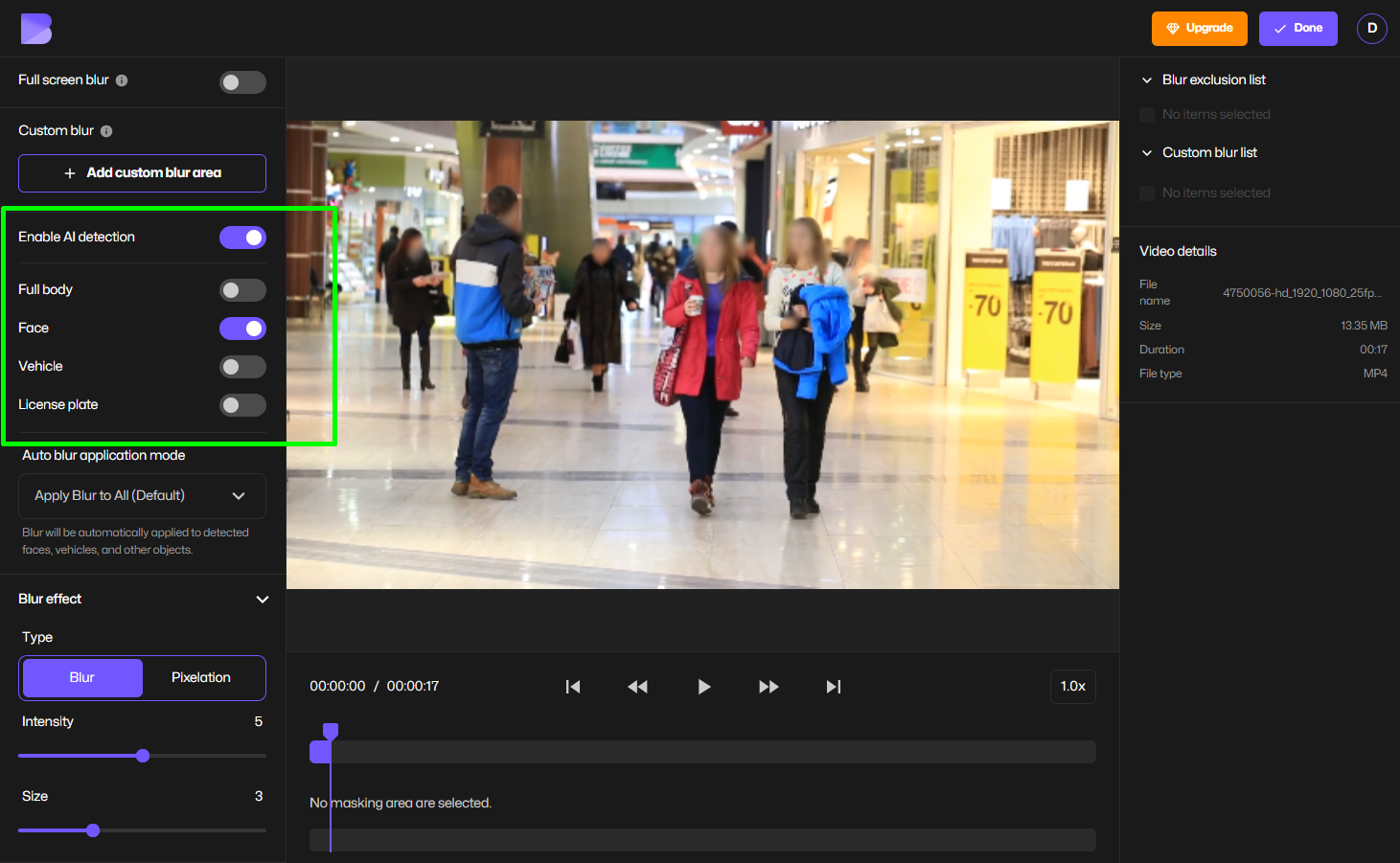
You can choose:
- Blur Face in Video – auto-detects faces
- Blur Video Background – isolates subject and blurs background
- Manual selection – draw over any area to blur something in a video
Step 4: Enable Face Tracking Blur
Turn on AI tracking so the blur follows movement across frames.
This uses BlurMe’s face tracking blur tool for smooth, consistent results.
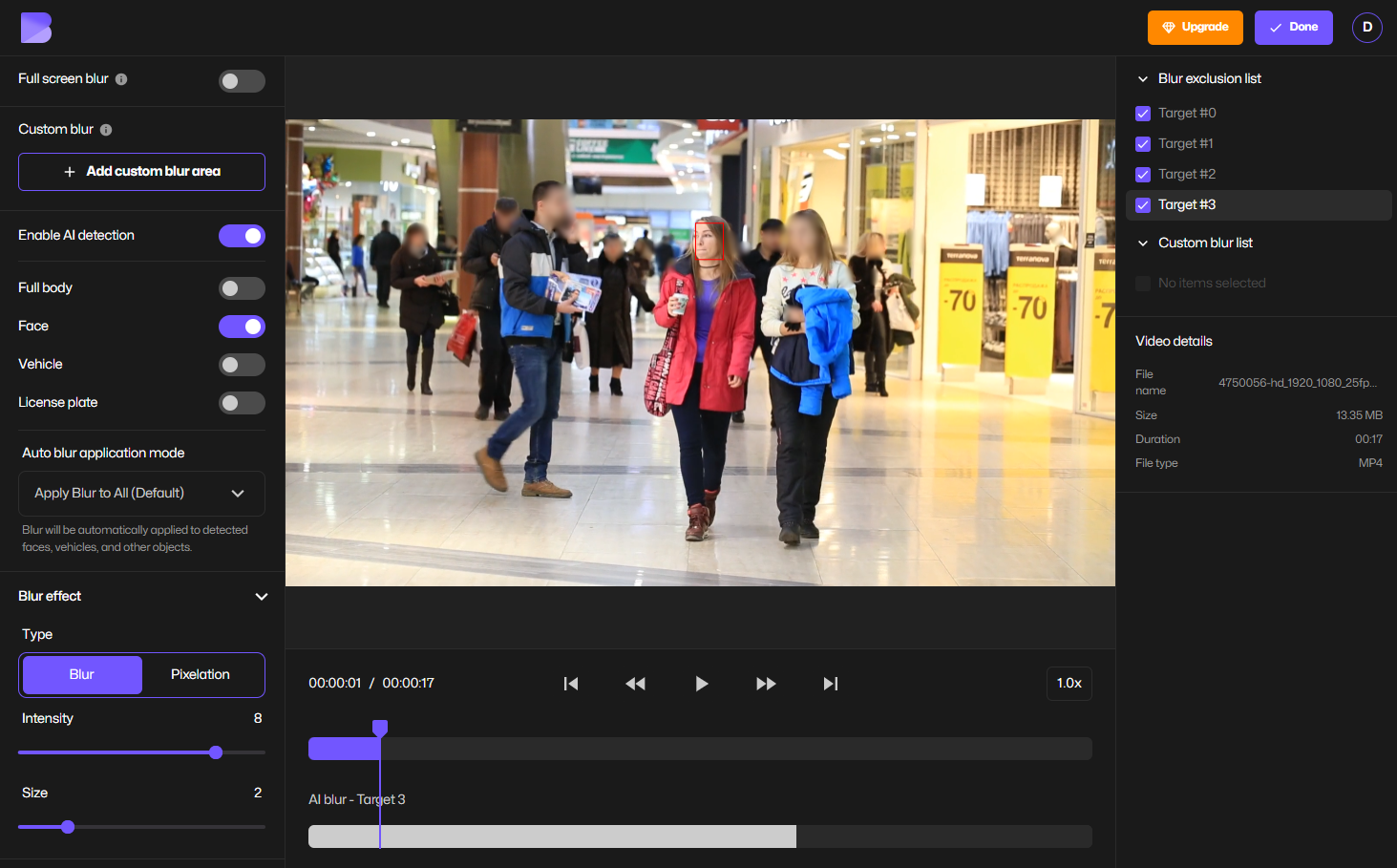
Step 5: Adjust the Blur Effect
Customize your video blur effect.
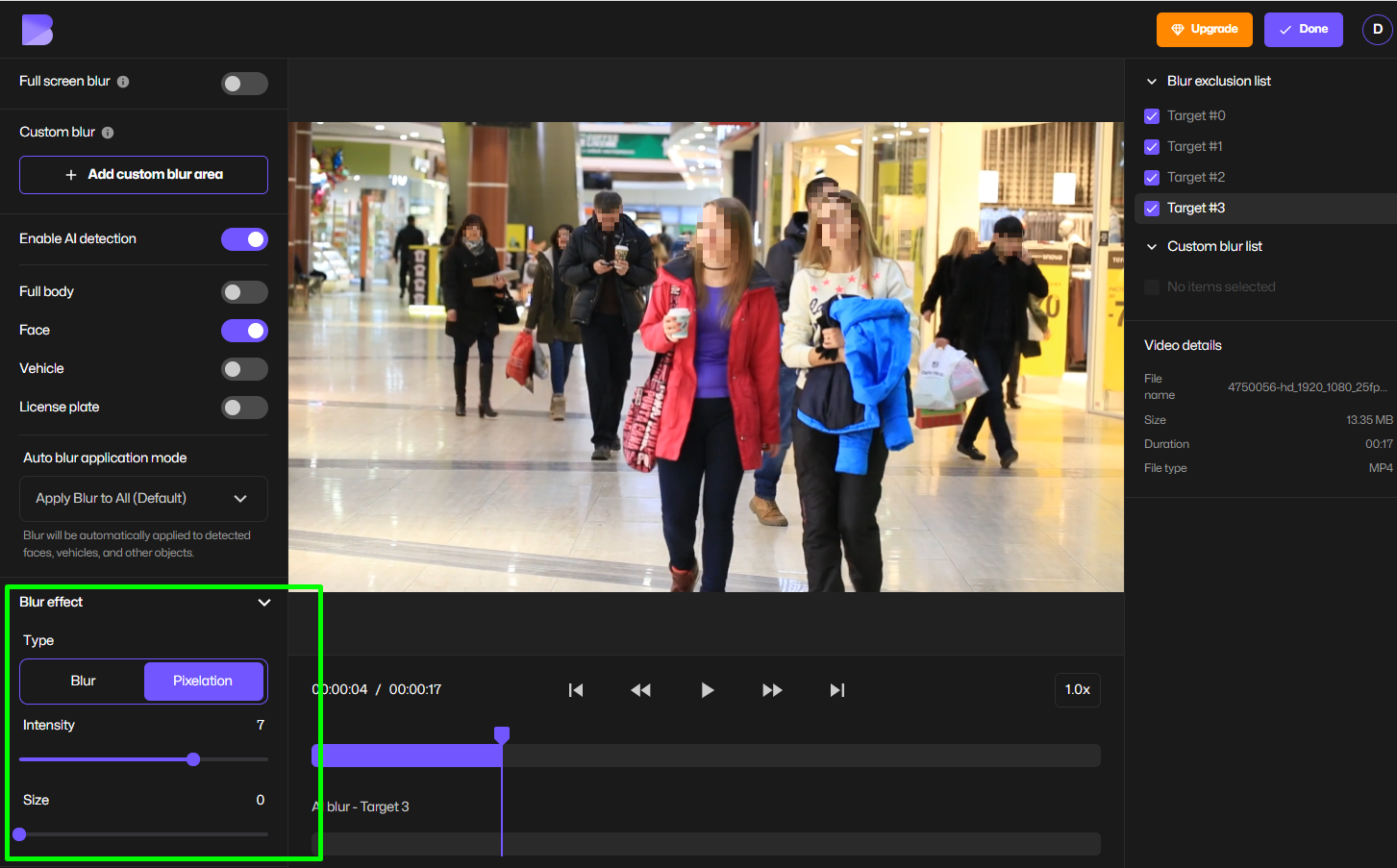
This controls how natural the blur overlay looks.
Step 6: Preview and Export
Click Preview to check accuracy.
Then export your blurred video in HD.
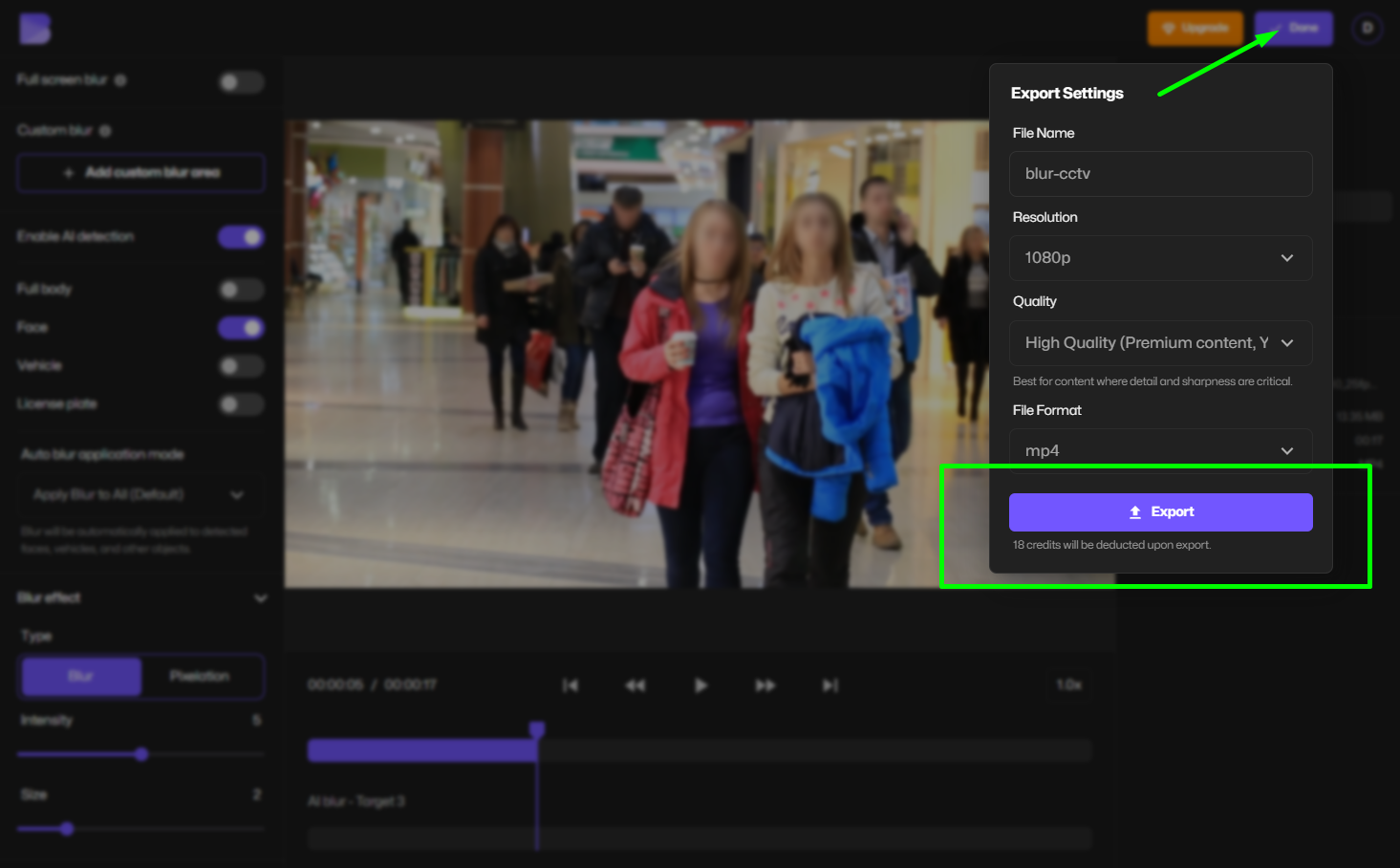
That’s it, you’ve successfully used a professional-grade video blur tool in minutes.
How to Blur Someone’s Face in a Video
To blur someone’s face in a video:
- Upload your video
- Select Face Blur
- Choose the face(s) to blur
- Enable auto-tracking
- Export
This is the fastest method to censor video footage for privacy compliance, interviews, and social media.
For more advanced workflows, see our How to blur face in video tool guide (internal link).
How to Blur a Video Background Online for Free
To create a clean, professional look:
- Upload your video
- Select Full-Screen Blur
- Click the person or object you want visible. AI separates the subject from the background
- Adjust blur intensity
- Export
This is perfect for:
- YouTube talking-head videos
- Online courses
- Corporate presentations
It replaces complex green-screen setups with one click.
How to Blur Parts of a Video Online
Sometimes you don’t want to blur the entire frame—only a specific area.
Use custom selection to:
- Blur license plates
- Blur computer screens
- Blur brand logos
- Blur bystanders
Simply draw over the object.
Add Motion Blur Effect for Cinematic Videos
BlurMe also supports motion blur effects to enhance:
- Action scenes
- Sports footage
- Fast-moving transitions
Motion blur creates a sense of speed and realism that basic editors struggle to replicate.
Blur vs Pixelate: When to Use Each
Blur and pixelation both anonymize video—but they serve different goals.
| Use Case | Best Tool |
|---|---|
| Natural privacy protection | Blur Video tool |
| Strong censorship | Pixelate Video tool |
| License plates & faces | Pixelate Video |
| Background aesthetics | Blur Video Background |
You can switch between blur and pixelation tool anytime.
Why People Blur Videos (and Why AI Makes It Easy)
- Protect privacy in YouTube and TikTok videos
- Censor faces in interviews or street footage
- Hide license plates, screens, and documents
- Create background blur for professional-looking videos
- Add motion blur for cinematic effects
Traditional editors require keyframes and frame-by-frame masking. An AI video blur tool like BlurMe automates this by detecting faces and objects across frames in seconds.
Who Uses Online Video Blurring?
BlurMe is widely used for:
- Journalism – source protection
- Education – student privacy
- YouTube & TikTok – background and face blur
- Corporate training – screen anonymization
- Security teams – live video anonymization
For professional environments, see our guide on live video anonymization.
Pro Tips for Clean, Professional Video Blur
- Use face mode for tracking moving subjects
- Increase feathering for natural edges
- Preview before export to catch missed faces
- Combine blur + pixelation for legal compliance
- Export in the same resolution as original
FAQ: Blurring & Censoring Videos Online
What is the best software for video redaction?
See our expert comparison of the best video redaction software.
Can I pixelate instead of blur in videos?
Yes. Use our pixelate videos guide for stronger anonymization.
What is the fastest way to blur videos online?
Use BlurMe’s Blur video online tool for one-click AI blurring.
Can I blur faces automatically across a video?
Yes. The face tracking blur tool follows faces frame-by-frame.
Is background blur better than green screen?
In many cases, yes. Our Blur Video Background tool is faster and more flexible.
Start Blurring Videos Online in Seconds
If you need to blur a video online quickly and accurately, BlurMe gives you professional-grade AI tools in your browser.
Try BlurMe’s face blur now and protect privacy, enhance visuals, and publish confidently.
Start blurring your videos online with BlurMe today.