A censored image can turn an ordinary photo into something shareable while keeping private or sensitive details hidden. Knowing how to censor images properly is essential for privacy, professionalism, or creative projects.
Instead of manually drawing black bars or guessing how much blur to apply, you can now rely on AI-powered tools like BlurMe face blur to handle it in seconds. In this guide, you’ll learn step-by-step how to create a censored picture or pixelated blur, use different censor blur effects, and make your photos safe to post online.
How to Make a Censored Image Online (Step-by-Step)
BlurMe is an AI-driven online censor tool that automatically detects faces and objects, then lets you blur, pixelate, or block specific areas instantly. No signup is required to try it.
Step 1 — Upload Your Image
- Go to BlurMe Studio (browser-based; no installation).
- Click Upload Image and choose the photo you want to censor.
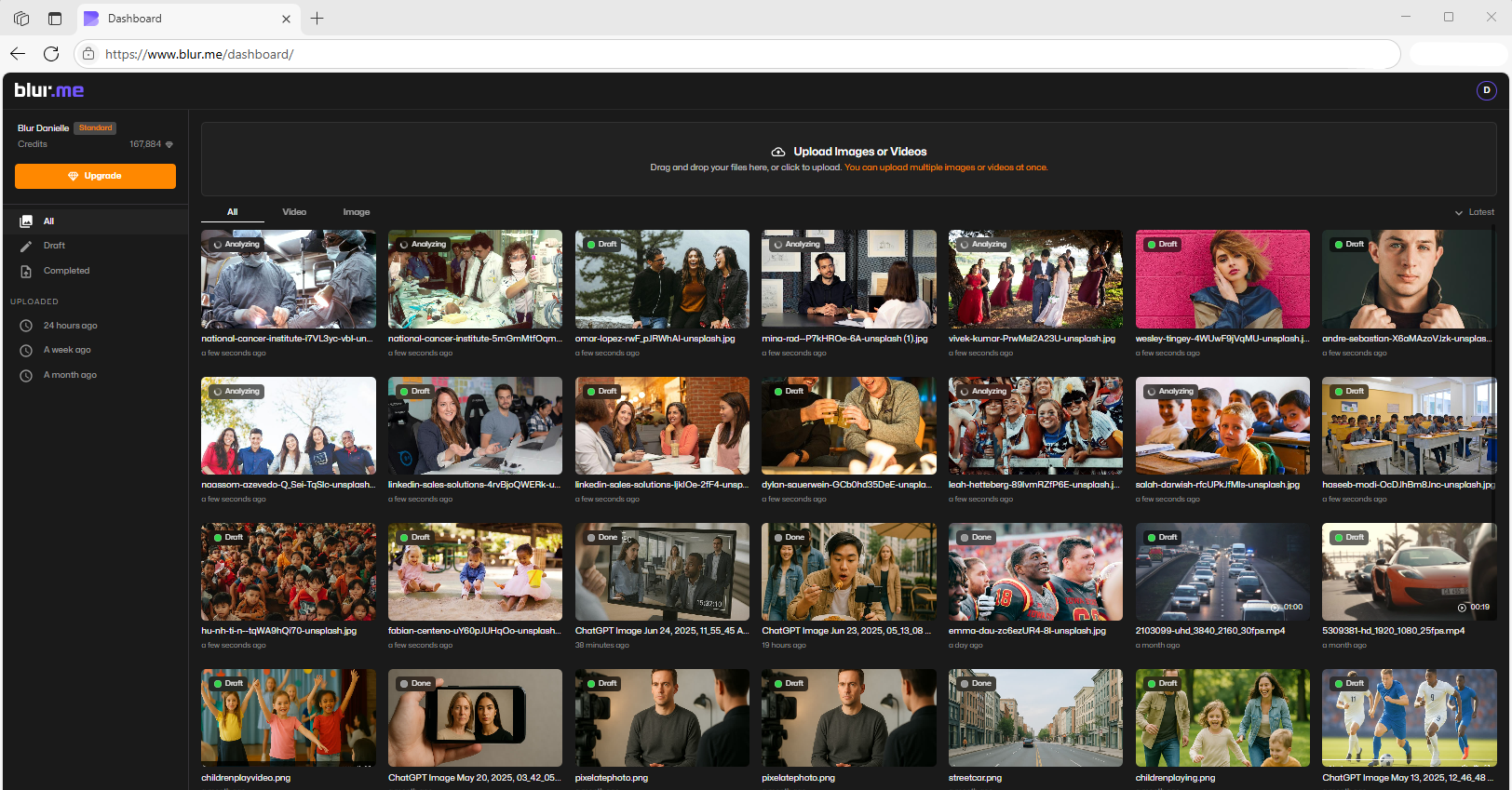
BlurMe supports JPG, PNG, WebP, and high-resolution images.
Step 2 — Choose the Type of Censor Effect
BlurMe offers multiple censored image styles:
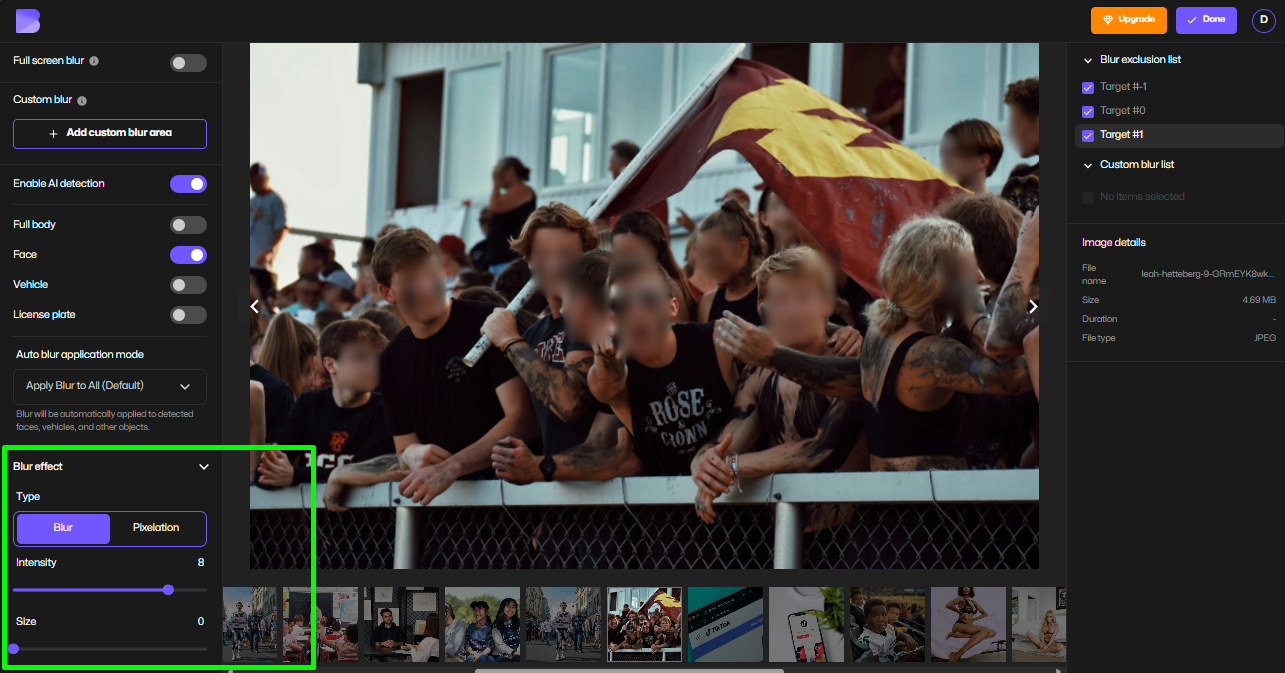
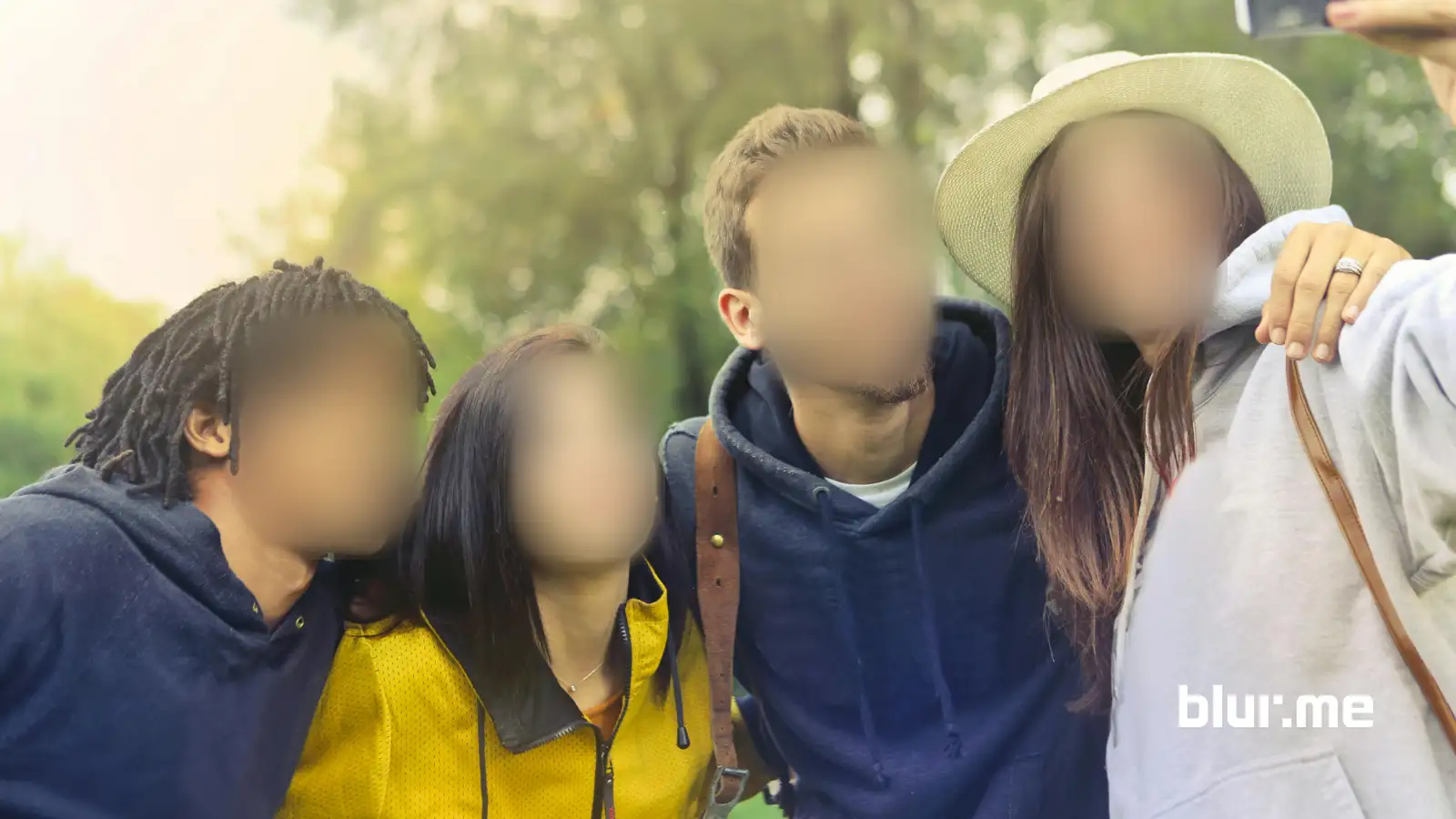
1. Blur Censor
Great for hiding backgrounds, private spaces, or partial details.
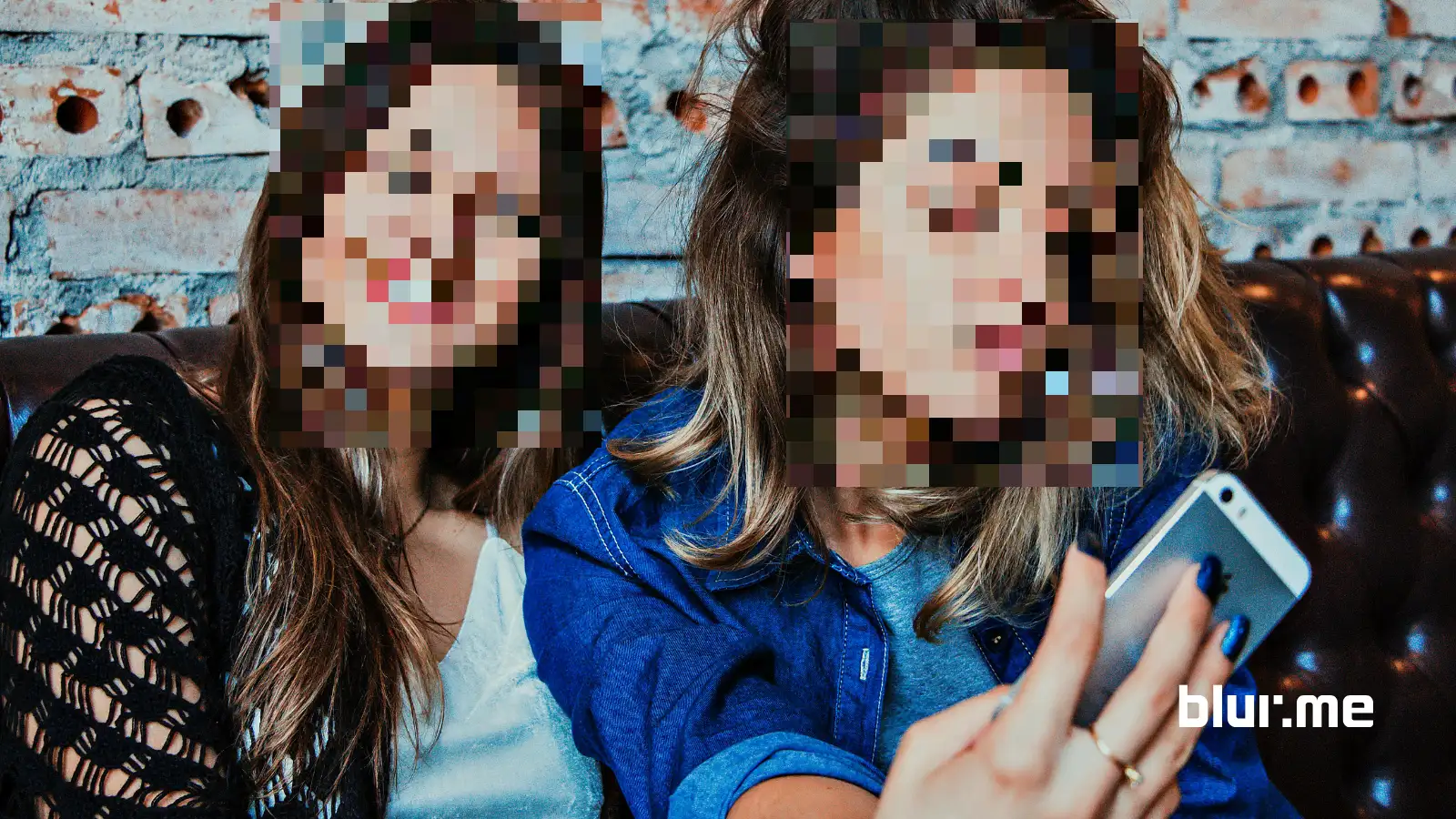
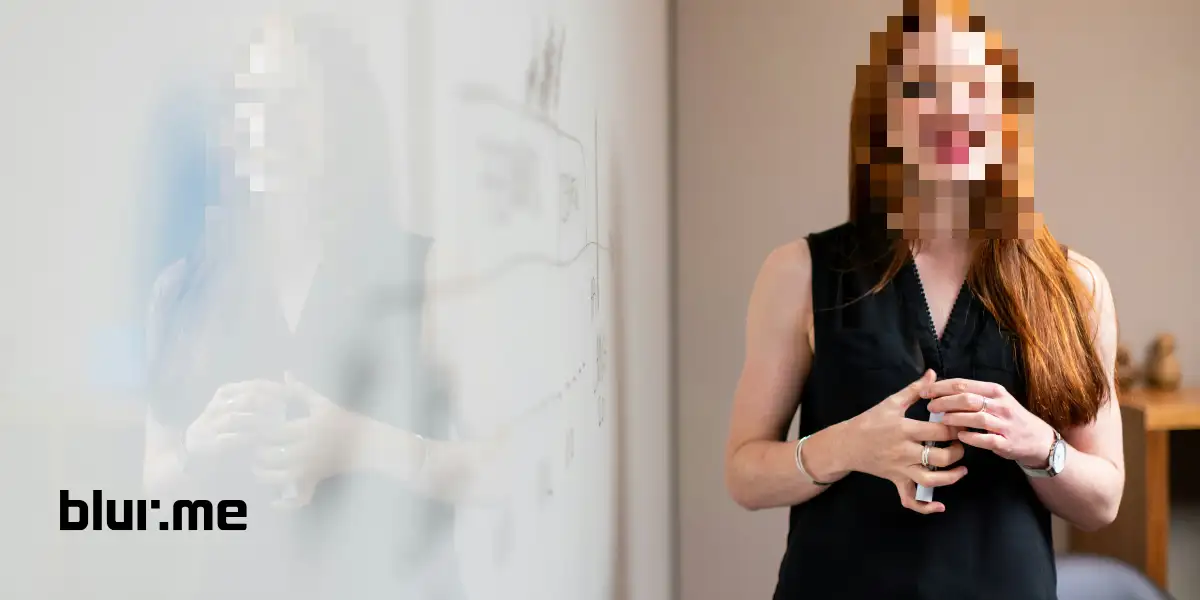
2. Pixelate Censor / Pixel Blur
Best for face pixelizer use cases, identity protection, or classic censor block style.
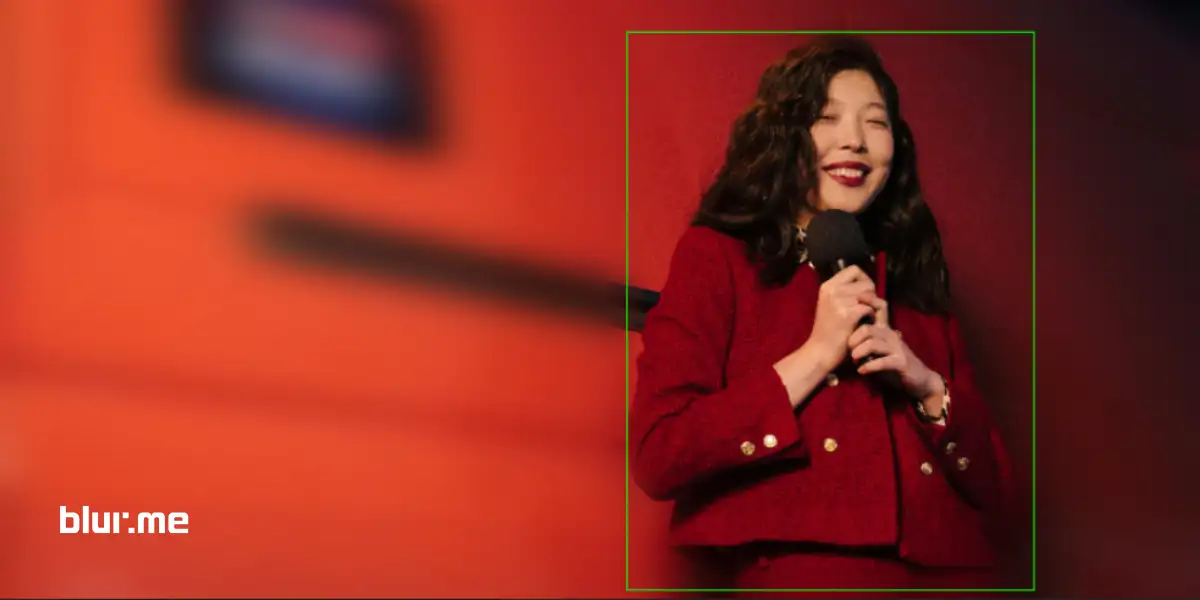
Step 3 — Let the AI Auto-Detect Faces or Areas

BlurMe’s AI automatically finds:
- Faces
- Background areas
- People
- Objects like cars and license plates
This dramatically speeds up your workflow compared to manual censor tools like PineTools or old-school editors.
You can:
- Select all detected areas
- Unselect specific faces
- Add custom areas using the Custom Blur
Step 4 — Adjust the Intensity
Use the slider to adjust the strength of your censor.
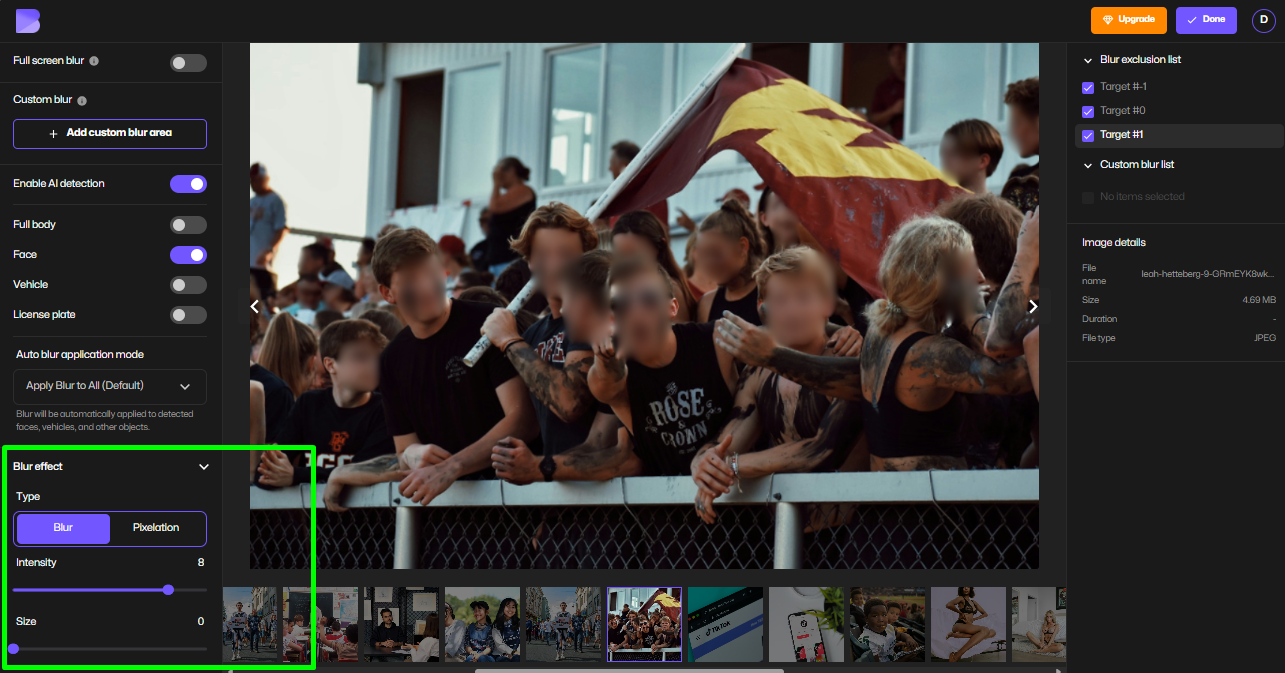
This allows subtle obfuscation or strong full-coverage censorship depending on your needs.
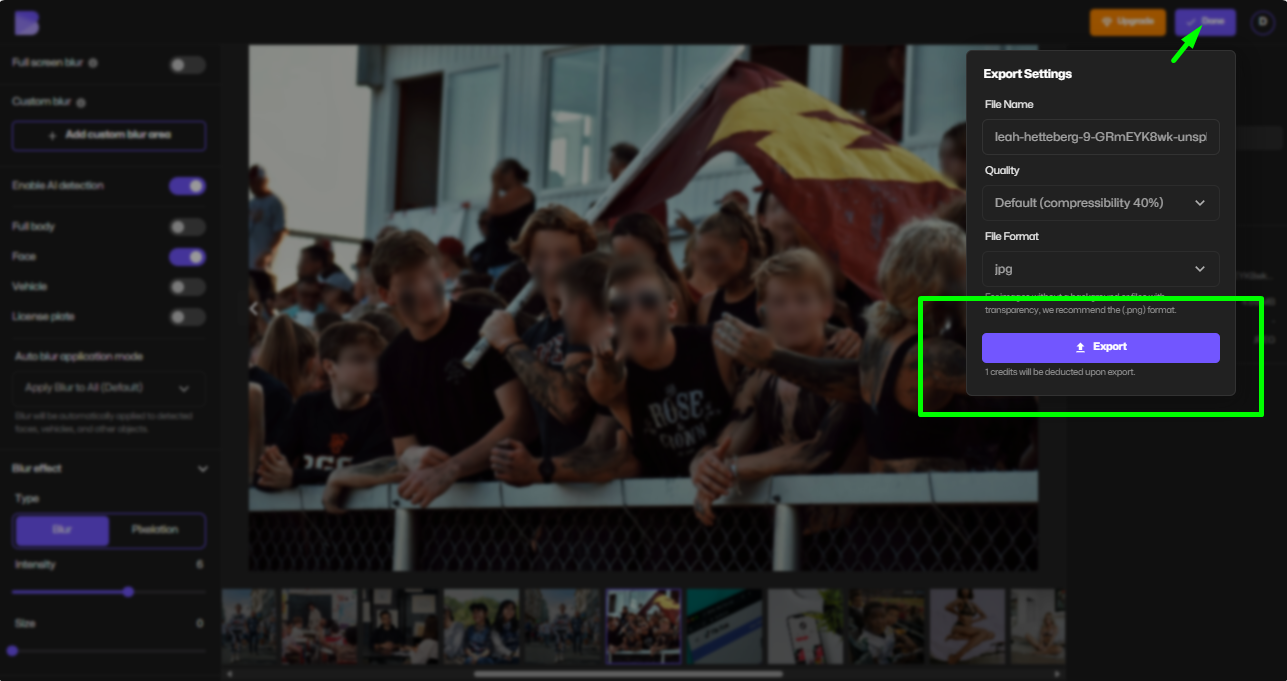
Step 5 — Download Your Censored Photo
Once you're satisfied, click Done and Export to get your censored image.
Best Uses for Censored Images
You can apply mosaic censorship to protect privacy or remove sensitive elements in images such as:
Hide Faces
Perfect for:
- Street photography
- Witness protection
- Group photos
- Children’s faces
Cover Sensitive Information
Blur:
- ID cards
- Addresses
- cover license plates
- Private documents
Censor Logos in Commercial Content
If you’re posting a video or photo that includes branding you cannot legally display, use censored logos with pixel blur or black bars.
Censor Background Areas
Creators often censor:
- Messy rooms
- People in the background
- Unwanted objects
Tips for Creating High-Quality Censored Images
1. Use Stronger Blur for Text
Text is easier to reverse-engineer than faces; use higher blur strength.
2. Use Pixelation for Faces
Pixelation removes identifying details more reliably than soft blur.
3. Use the Custom Brush for Accurate Edges
Especially useful for:
- Tattoos
- Screens
- Documents
- Objects with irregular shapes
4. Avoid Overlapping Censors
Multiple layers of different blur types can look messy. Learn how to keep the mosaic blur effect clean.
5. Test Different Mosaic Sizes
Too small mosaic = not secure.
Too large mosaic = image looks low-quality.
Aim for mid-range.
How Does BlurMe Compare to Other Censor Tools?
BlurMe vs Other Tools
| Feature | BlurMe | Others |
|---|---|---|
| AI auto detection | Yes | No |
| Multiple effects (pixel, blur, block) | Yes | Yes |
| 1-click face selection | Yes | No |
| High-resolution export | Yes | Mixed |
| Online & free | Yes | Yes |
BlurMe is faster, more precise, and designed specifically for creators needing automated censorship tools.
Frequently Asked Questions
1. How do I blur a face in a photo?
Use BlurMe’s blur face in photo tool. It auto-detects faces and lets you blur or pixelate each one individually.
2. How do I pixelate an image?
BlurMe offers a dedicated pixelation tool that lets you pixelate any photo region easily. See our how to pixelate an image post for more.
3. What’s the best tool to blur image details online?
BlurMe provides multiple blur styles and custom selection tool so you can blur image details.
4. Can I pixelate an entire photo?
Yes. BlurMe lets you pixelate photos easily online by simply selecting the pixelation effect.
5. What’s the safest way to hide sensitive information in pictures?
Use strong blur or high-intensity pixel blocks for documents, screens, and text.
6. Can I use BlurMe to censor multiple faces at once?
Yes. BlurMe automatically detects every face and applies pixelation or blur simultaneously. All in all, BlurMe is the best redaction software out there.
Conclusion: Create the Perfect Censored Image with BlurMe
When you need a censored photo, a pixelated blur, a censored logo block, or simple blur censor effects, BlurMe gives you everything you need, instantly and online.
If you want the fastest way to create censored images with AI, this is it.
👉 Try BlurMe now and censor your first image in just a few seconds.