Nursing Home Photo Consent: Rules and How to Blur
Maya Chen — Tech Writer & Privacy Advocate
The activity calendar is due, the family newsletter goes out tonight, and the best photo from the birthday party shows six residents around the cake. Two of them have no signed photo release in their admission packet. One has advanced dementia and her responsible party never returned the media consent form. And last month a daughter called the administrator, upset that her father appeared on the facility Facebook page.
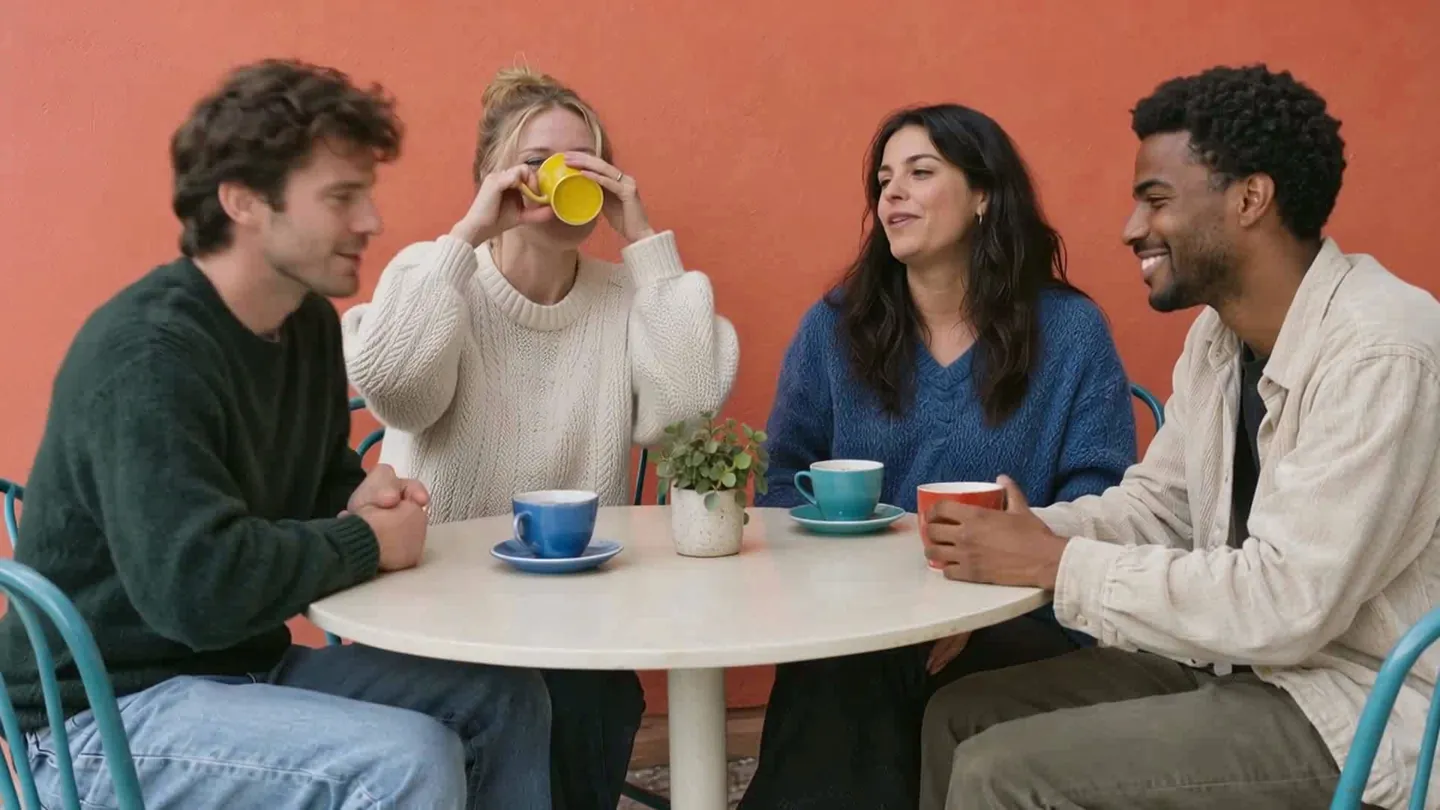
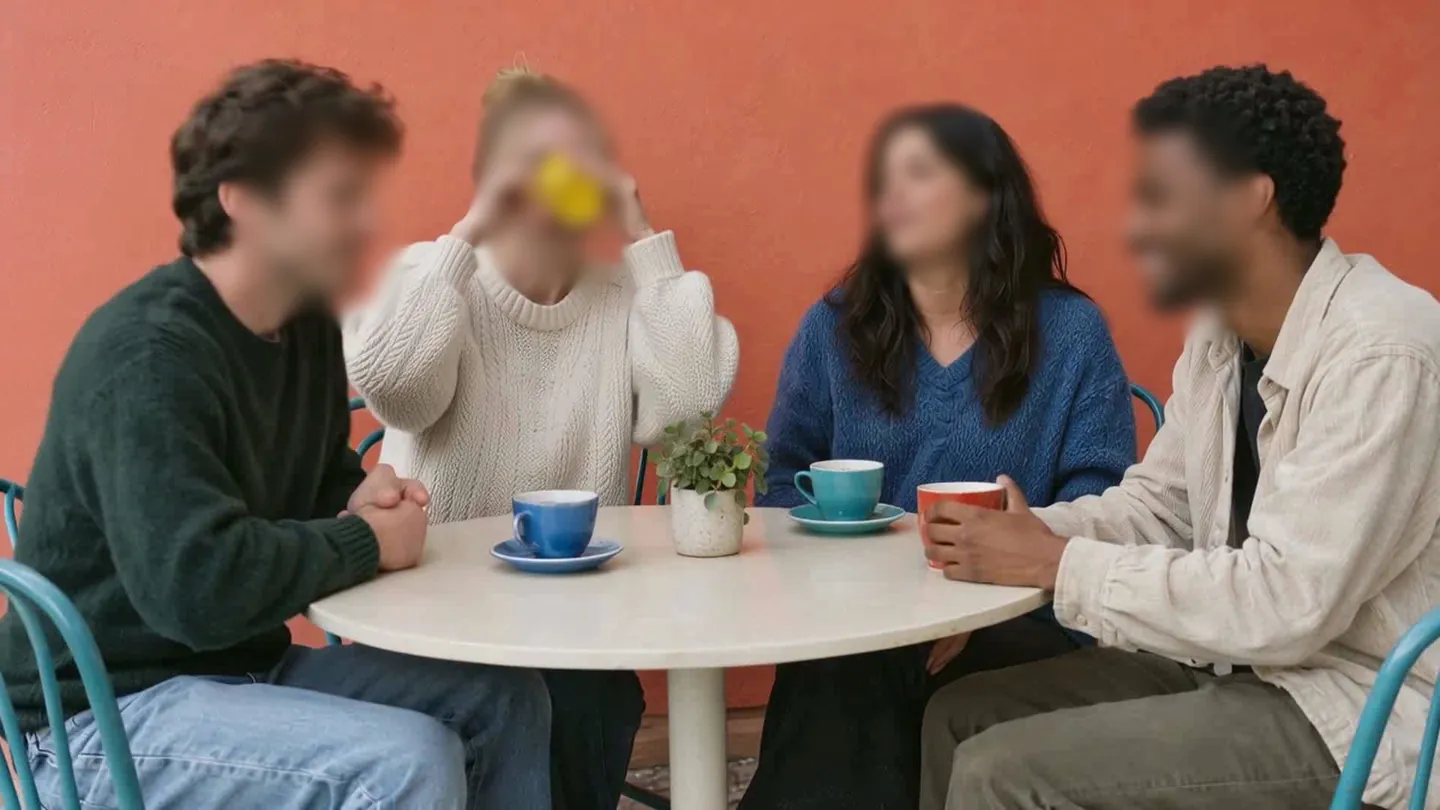
Blur faces or text in a photo, right in your browser.
You can't just skip the photos. Families want to see their loved ones engaged. But posting the wrong face can turn into a survey citation, a HIPAA complaint, or a family who stops trusting you.
This guide covers what CMS and HIPAA actually say about resident photos, who can sign for a resident who can't, and a practical way to blur the people without consent before anything is shared. It is not legal advice.
What the Rules Say About Resident Photos
CMS: written consent comes first
The CMS State Operations Manual, Appendix PP (F583), tells surveyors that any photo or recording of a resident, or of the resident's private space, taken without written consent from the resident or their representative is a privacy violation. That includes ordinary photos of a resident eating in the dining room or joining an activity in a common area. A harmless bingo shot is not exempt.
The federal resident rights rule in the Code of Federal Regulations gives each resident a right to personal privacy, and that privacy explicitly covers visits and meetings of family and resident groups. So family council meetings and visiting hours are not photo opportunities without consent.
⚠️ Consent is not a blank check. Under Appendix PP (F600), a photo or recording that demeans or humiliates a resident is assessed as abuse even if the resident consented, and whatever the resident's cognitive status. Undressed, toileting, distressed or mocking images never get posted.
HIPAA: photos are identifiers
CMS lists nursing homes among the health care providers that are HIPAA covered entities when they submit HIPAA transactions, such as claims, electronically. That covers most skilled nursing facilities. HIPAA's Safe Harbor de-identification method lists full-face photos and comparable images among the identifiers, alongside names. And HHS OCR says patients whose protected health information appears in any materials must give authorization before those materials are posted online, printed in public brochures or otherwise publicly disseminated.
Blurring is not a workaround. For media access, OCR says masking patients afterwards by blurring, pixelation or voice alteration does not replace prior authorization. Never call a blurred photo "HIPAA compliant." A caption with a first name, a room number on the door, or a memory-care unit sign can still identify someone.
Who signs for a resident who can't
Under the HIPAA Privacy Rule, someone with legal authority under state law to make health care decisions for an adult must be treated as that adult's personal representative. In practice that's usually a health care POA or guardian. Read the actual document: not every POA covers health decisions, and a responsible party listed for billing may have no authority at all. HIPAA also lets an individual revoke an authorization at any time in writing, except where the facility already acted on it.
ℹ️ Assisted living and adult day centers often aren't under the same federal nursing home rules. They follow state licensing rules and their own contracts, which vary. For edge cases, ask your privacy or compliance officer or your state provider association. For more detail, see our HIPAA patient photo compliance guide.
Ways to Handle Photos Without Consent
The best fix is not taking the problem photo. When that fails, pick the method that fits the volume and how well the person needs to be hidden.
| Method | Effort | Can the person still be recognized? | Many photos? | Cost |
|---|---|---|---|---|
| Retake or reframe | Low if done at the event | No, they're out of frame | Fine, but needs planning | Free |
| Crop | Low | Sometimes (hands, wheelchair, clothing) | Slow one by one | Free |
| Stickers or emoji | Low | Often, by build, hair or outfit | Slow | Free (phone apps) |
| Manual blur in a photo editor | High | Depends on blur strength | Tedious | Free to subscription |
| AI blur tool (e.g. blur.me) | Low | Faces hidden; check body and context | Built for batches | Free preview; paid plans for clean or batch export |
💡 Stickers feel friendly for newsletters, but they hide less than you think. A resident's family will recognize the cardigan.
Cropping works when the non-consenting resident is on the edge. In a tight group around a table, blurring is usually the only way to keep the shot. Whatever you use, review the result as if you were that resident's daughter: could you tell it's her mom?
For a deeper comparison, see how to blur faces to protect privacy.
Blur Only the Residents Without Consent
Before you open any tool, print or pull up your current consent list: who has a signed photo release, who signed for whom, and any revocations. Blurring is for residents who ended up in a shot incidentally, not a way around getting consent.
Step 1: Pick the photos and check them against the consent list
Go through each photo and note every resident in it. Mark who has a valid release and who doesn't. Drop any image that could demean a resident, regardless of consent.
Step 2: Upload the photos
Open blur.me in your browser. It runs on a computer or phone, with no install. Upload your JPG or PNG files.

Step 3: Let the AI detect every face
Auto Blur finds the faces in each photo and blurs them, listing each one in the side panel. Start from everyone blurred; that's the safer default. You can also blur faces in a photo one image at a time.

Step 4: Click to unblur residents who consented
Click the face of each resident with a signed release to keep it visible. Leave everyone else blurred. Check the photo against your list again.
Step 5: Choose an effect per face
You can set Blur, Mosaic or Color separately for each face. A solid color hides most completely; a soft blur looks gentler in a newsletter.

Step 6: Export and write a safe caption
Set the file name, quality and format, then export. The final output is irreversibly blurred. In the caption, name only residents who consented, and only if the release covers names.

For detailed steps, see the Help Center page on blurring faces.
Checklist for Your Facility
Copy this into your photo policy or activity department binder:
- ✅ Photo release / media consent form in every admission packet, specifying uses (newsletter, Facebook, Instagram, website, printed calendar, family portal app)
- ✅ Signer verified: resident, or resident representative with documented authority (health care POA, guardian)
- ✅ Consent list kept current and shared with activity, social services and marketing staff
- ✅ Revocations logged the same day, with posts pulled promptly
- ✅ One named person reviews every photo before it's posted or printed
- ✅ No photos in resident rooms, bathrooms, or during care
- ✅ No names, room numbers or unit signs for non-consenting residents
- ✅ Event videos and staff faces covered by consent too
- ✅ Old posts audited and removed on a schedule
- ✅ Edge cases routed to the privacy or compliance officer
FAQ
Are you allowed to take pictures in a nursing home?
Staff should only photograph residents who have given written consent, or whose representative has. CMS surveyor guidance treats photos taken without that consent as a privacy violation, even ordinary dining room or activity shots. Visitors should follow the facility's photo policy and avoid photographing other residents.
What should a resident photo release form include?
A good form names the resident, the signer and their authority, and lists each use separately: newsletter, social media, website, printed materials and family apps. It should state whether names may appear and explain how to revoke consent in writing. Have your compliance officer or legal counsel review the wording.
What if a family revokes consent after a photo was posted?
Under HIPAA, an authorization can be revoked in writing at any time, except where the facility already acted on it. Practically, remove the photo from your pages and stop using it in new materials right away. Printed copies already distributed can't be recalled, so note the date in the resident's record.
Can a family member put a camera in a nursing home room?
Rules on in-room cameras vary by state, and some states have specific laws on them. Roommate privacy and consent usually matter too. Check your state rules and facility policy, and involve your administrator or compliance officer.
Is blur.me free to use for resident photos?
Uploading and previewing are free with no payment required. Free exports carry a watermark, so for clean newsletter or website images you'd need a paid plan; batch export is on Pro and above. See the pricing page for current details.
Final Thoughts
Get written consent first, frame shots to keep non-consenting residents out, and blur anyone who still slips into a group or background photo. Blurring protects incidental appearances; it doesn't replace authorization, and it doesn't make a photo HIPAA compliant. Keep captions clean, honor revocations, and bring tricky cases to your compliance officer. Families get their photos, and residents keep their dignity.
Related Guides
- HIPAA Patient Photo Compliance: A Complete Guide for 2026
- Pixelate Multiple Faces and Photos: A Review Workflow
- 7 Photo Anonymizer Tools: Face Blur and Metadata Removal
- How to Blur Faces in Photos and Videos to Protect Privacy
- Bokeh No Blur Asli 2026: Free Online Photo & Video Editor (AI-Powered)
Blur faces or text in a photo, right in your browser.
Nothing to install. Start right away.