Extract images from DOCX
Download pictures embedded in a Word document in their original formats.
Free · No sign-up · No file upload
Legacy, password-protected and macro-enabled documents are not supported.
How to use Extract images from DOCX
Choose one DOCX file. Encrypted, macro-enabled and legacy Office formats are excluded.
Open the DOCX and extract its images. Check the image previews, then download one picture or the ZIP.
Check the result in the work panel. Download the output when a file is produced.
Working with Extract images from DOCX
The tool reads image files stored inside the DOCX package. Each picture is downloaded separately, or all pictures can be bundled into one ZIP without re-encoding.
These are embedded assets, not screenshots of document pages. A cropped picture may include areas hidden in Word, and the same embedded asset is returned once.
Example result
Before
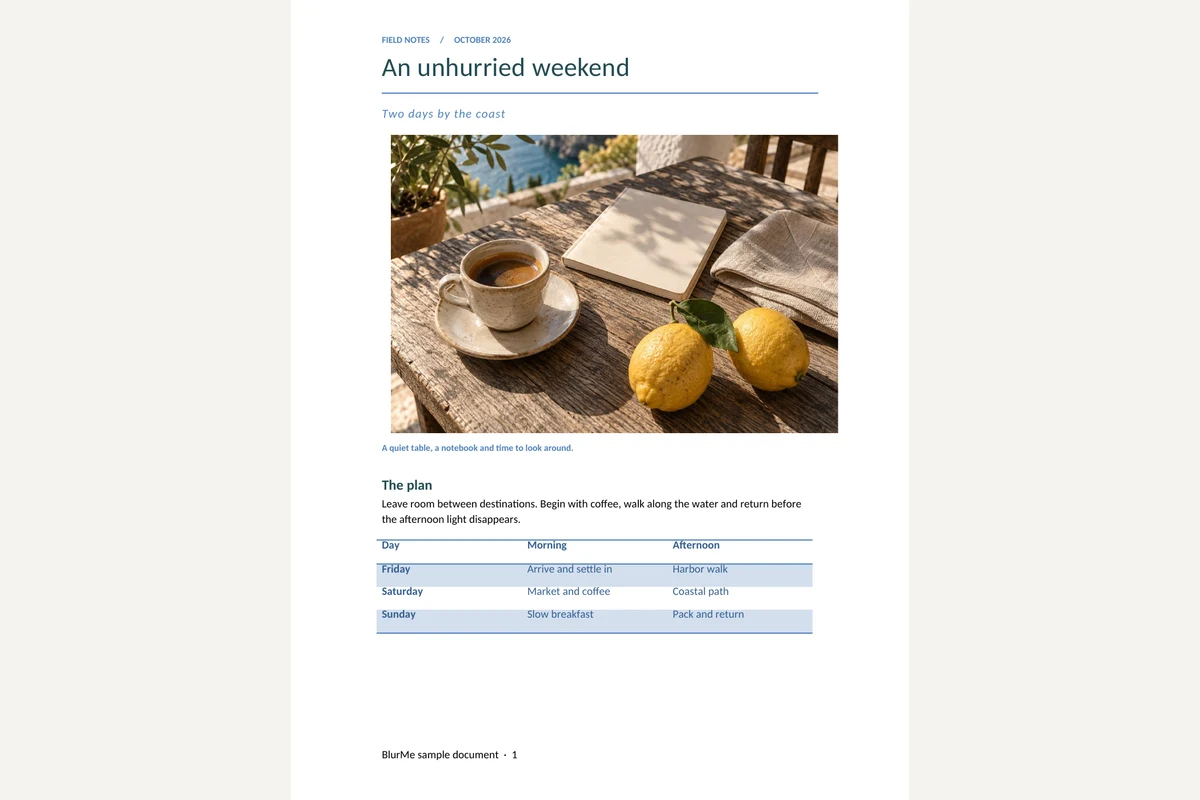
After

Frequently asked questions
- What does Extract images from DOCX preserve?
- The tool reads image files stored inside the DOCX package. Each picture is downloaded separately, or all pictures can be bundled into one ZIP without re-encoding.
- What should I check when using Extract images from DOCX?
- These are embedded assets, not screenshots of document pages. A cropped picture may include areas hidden in Word, and the same embedded asset is returned once.
- How can I use the result from Extract images from DOCX?
- Use the extracted originals in a new document or an image editor. Vector and metafile assets are downloads only and may require a compatible app.
- How to use Extract images from DOCX
- Open the DOCX and extract its images. Check the image previews, then download one picture or the ZIP.
- Are my files uploaded to a server?
- No. Files are processed in your browser on this device and are not sent to BlurMe servers.
Related tools
All toolsWord to PDF
Convert a DOCX into a PDF with searchable text and fixed pages.
DOCX viewer
Read Word paragraphs, tables and embedded images without opening Word.
Remove EXIF Data
Remove GPS location and camera metadata before sharing photos.
Resize image
Set image dimensions for a thumbnail, profile or submission.
Redact PDF
Edit in StudioFind and remove personal information in PDFs.
XLSX viewer
Choose a worksheet and inspect its saved cell values.