Understand File Processing and Retention and Delete Projects
Updated Sep 9, 2026
What you will check
Check whether your work is stored in an account and delete projects you no longer need. Deleting a project does not remove files already downloaded to a device.
Processing and storage
Editing previews run in the browser. Files used for cloud analysis and export are sent to servers and retained in account work history. Not every studio operation stays entirely on your device. The current privacy policy describes deletion of cloud files through the service’s delete function or account withdrawal.
Distinguish guests from accounts
The guest upload screen describes automatic deletion after 24 hours. Manage signed-in account projects on the dashboard. Keep important originals and required results yourself. Guest expiration and account project deletion use different retention rules.
1. Identify the project
Check its file name and preview on the dashboard. Download any result you need and confirm it opens normally first. Before deleting a folder, inspect its projects and move items you want to keep.
Select only the checkbox for the file you intend to delete, then check the selected-file count in the top bar. This example selects only support-delete-sample.png. Clear any other selected files before continuing.

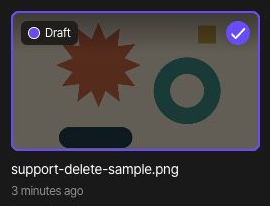
2. Delete the project
Choose Delete in the top bar to open the confirmation dialog. It warns that deleted files cannot be recovered. If you are unsure that you selected the correct file, choose Cancel to return to the list and check again.
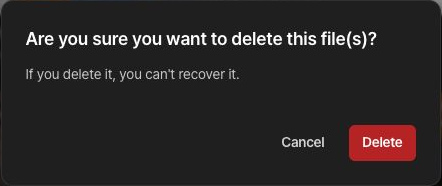
Choose Delete in the confirmation dialog only when you intend to permanently delete the selected file. After doing so, check that the file disappears from the dashboard.
3. Manage remaining copies
Copies already downloaded or sent to other people remain after project deletion. Manage those device or shared copies separately. Payment and dispute records can be subject to separate retention rules in the privacy policy.
Read the detailed policy
See the privacy policy for the detailed scope of processing and retention. To remove the account and all its projects, follow the account-deletion guide.