Get Receipts and Invoices
Updated Sep 30, 2026
What you will complete
Find your payments under Invoices & payment in Settings and download an invoice PDF for the payment you need.
1. Open Invoices & payment
Click your profile icon at the top right and choose Settings. Under Billing on the left, click Invoices & payment to see your payment method and the Invoices list.
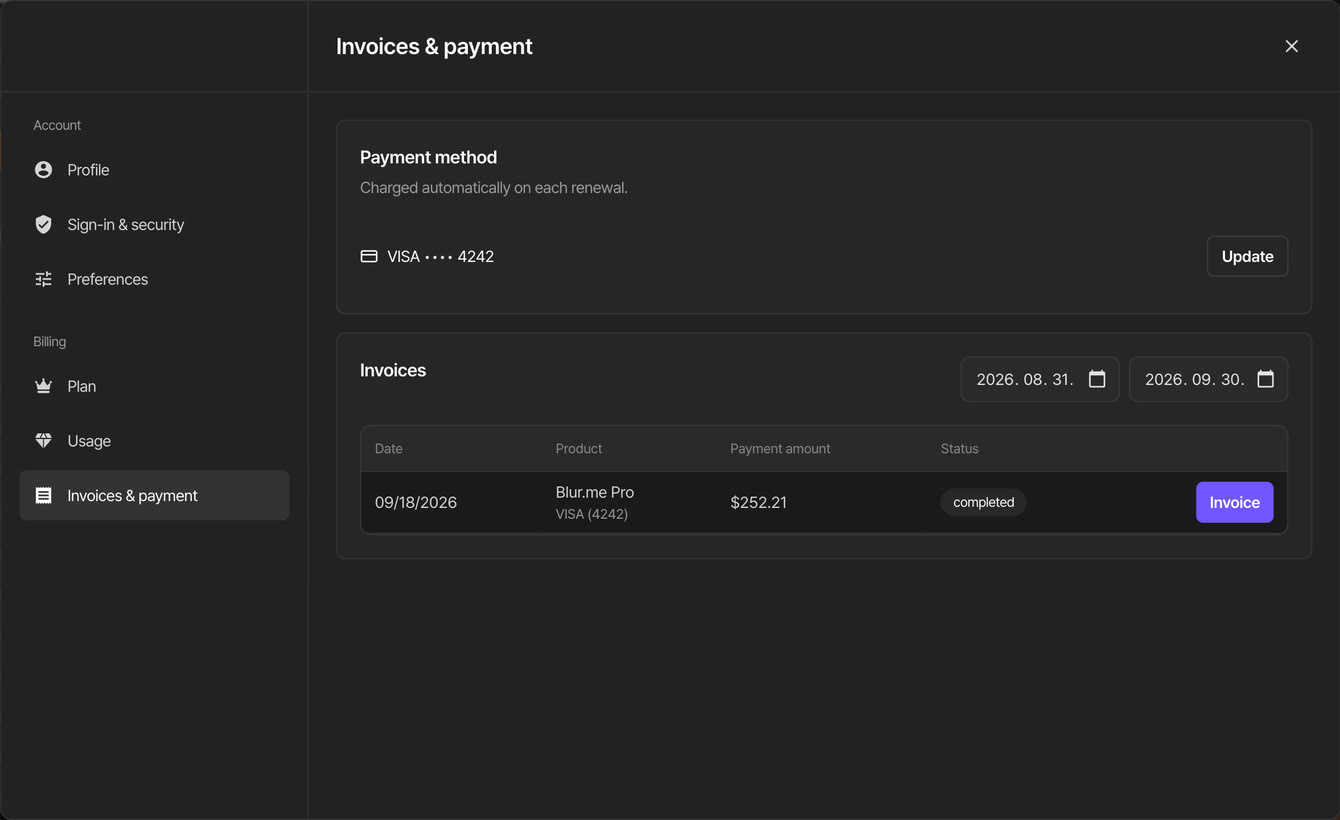
2. Widen the date range
The Invoices list first shows only payments from the last day of the previous month to today. To find an earlier payment, move the first of the two dates at the top right of the list (the start date) to a day before that payment.
Each row shows the Date, Product, Payment amount, and Status. Payments with a completed status are the ones actually charged.
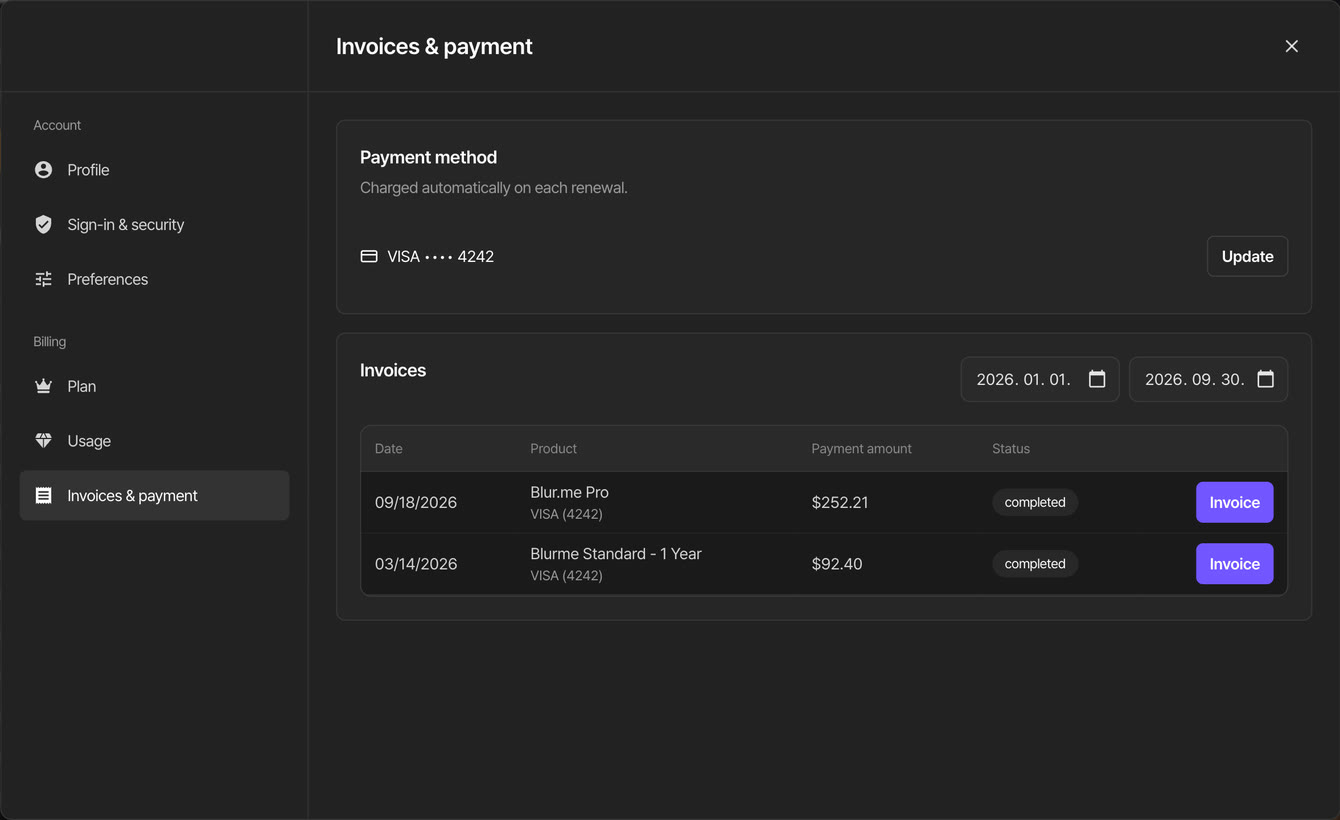
3. Download an invoice
Click Invoice on the row you need. The invoice downloads as a PDF file. Open it from your browser's downloads and check the payment date, amount, and product.
Invoices are issued by Paddle, the payment provider that processes BlurMe payments.
4. Check credit pack payments
Credit pack purchases are also listed under Credit pack purchases in Usage. That list has no invoice button. If a pack payment's invoice is not in the Invoices list, contact support with the payment date and amount.
If something goes wrong
- If No data to display appears, move the start date to a day before the payment.
- If We couldn't load your payment history appears, click Retry.
- If We couldn't generate the invoice appears, try again after a moment. If it keeps failing, contact support with your account email, the payment date, and the amount.
- You cannot change the company name, address, or tax ID on an invoice in Settings. If you need to, contact support with your account email and the payment date.
Emails for receipts, plan changes, and security alerts are always on under Email in Preferences and cannot be turned off.