Check Refund Eligibility and Request a Refund
Updated Sep 30, 2026
What you will complete
Check whether a payment is eligible for a refund and request it from support. Canceling a subscription and getting a refund are handled separately.
1. Check the refund conditions
You can request a full refund when both of these are true:
- It is within 14 days of your first subscription payment or your credit pack purchase.
- You have not used the credits from that payment.
Subscription renewal payments are not covered by these conditions. For a renewal payment, contact support.
2. Check the payment date and credit use
Click your profile icon at the top right and open Settings. In Invoices & payment, check the payment date and amount.
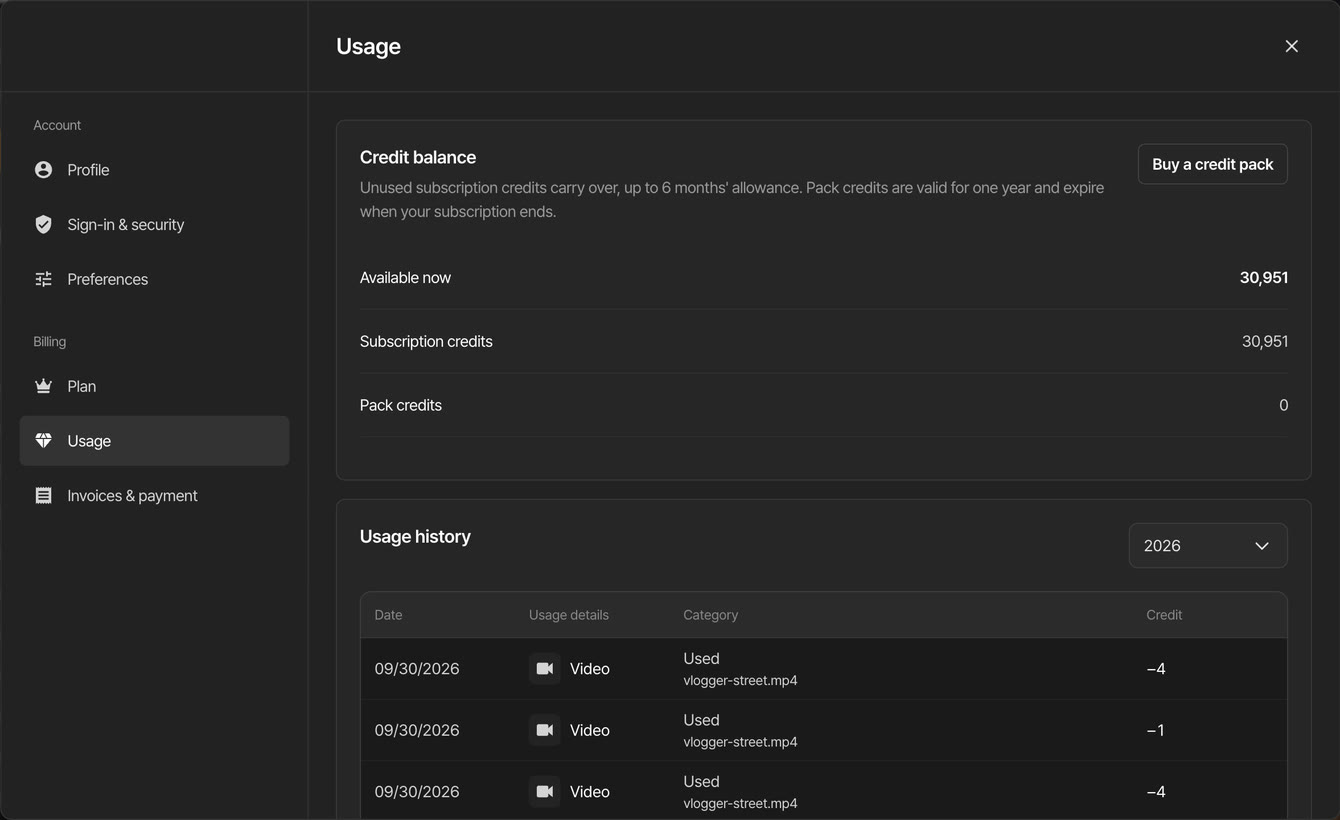
Then open Usage. In Usage history, check whether any credits were deducted after the payment date. If credits were deducted, the payment may not be eligible.
3. Request a refund from support
There is no refund button in the app. Send the following to support (support@blur.me):
- Your account email
- The payment date, amount, and product (plan or credit pack)
- The reason for the refund (optional)
Replying to a payment email from BlurMe also reaches support. Do not send your full card number or security code.
4. Understand canceling versus refunds
Canceling a subscription only stops the next renewal payment. It does not refund what you have already paid. If the cancellation confirmation says you can get a full refund, request the refund from support separately.
Once a refund is approved, it goes back to the payment method you used. Depending on your card issuer, it can take a few days to appear. A refunded credit pack shows as Refunded under Credit pack purchases in Usage.