• Pricing
Sign InGet started
Help Center/Getting started/Try BlurMe as a Guest and Get Started with an Account

Try BlurMe as a Guest and Get Started with an Account

Updated Sep 9, 2026

What you will complete

Understand guest use and account work, then start projects you want to keep while signed in.

1. Try a file before signing up

Open a product upload page while signed out and try editing one file. Follow any sign-in or upgrade notice for the operation you choose. Do not assume guest access includes every paid feature.
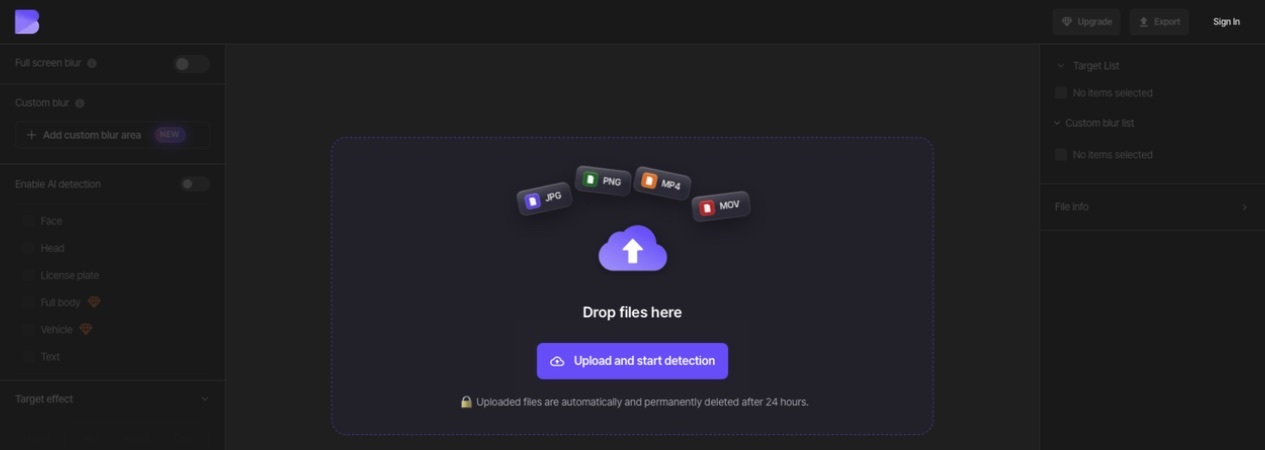
Unsigned Studio with an empty upload area, Sign In button at the top right, and a notice that uploaded files are automatically and permanently deleted after 24 hours
The initial Studio screen while signed out. The upload area includes the 24-hour automatic permanent-deletion notice; Sign In is at the top right.

2. Keep your trial files

Guest uploads are temporary. The guest interface says uploaded files are automatically deleted after 24 hours. Keep originals and downloaded results on your device. Creating an account does not mean an earlier guest project has automatically moved into it.

3. Start with an account

Sign up with email or Google, then use that same method to sign in. Upload the original from your dashboard and check that the project appears in the correct account. Reopen it to check that your edits are retained.

4. Check Free access

New accounts start on Free. The current Free plan uses no credits, adds a watermark to exports, and limits video exports to 10 seconds and 1080p. Check the pricing page and operation screen for the plan required by Magic Blur, background effects, batch uploads, and other features.

Continue your task

Organize projects in folders or follow a studio task guide. If you need a paid plan, compare features, upload limits, and credits together.

Check current plans and limits

Related guides

  • Upload Your First File and Start Editing
  • Choose a Plan and Credit Pack
  • Organize Projects in Folders and Resume Editing
  • Resolve Sign-in Problems

Was this article helpful?

Related articles

  • Upload Your First File and Start Editing
  • Check Supported Files and Upload Limits
  • Organize Projects in Folders and Resume Editing

Still need help?

Our support team is here for you. We typically reply within one business day.

Contact Support

Blur Faces in Photos & Videos · Redact PDFs

Products

Image Studio

Video Studio

PDF Studio

Popular tools

Blur Video

Blur Face in Video

Blur Image

Blur Face in Photo

Pixelate Video

Blur License Plates

AI Redaction Software

Redact PDF

Enterprise

Enterprise overview

Admin features

Deployment options

Resources

Blog

Free tools

Support

Pricing

Help center

Contact

Free tools

Compress Video Online

Convert Video Online

Image compressor

Image converter

Convert HEIC to JPG

Merge PDF

Convert PDF to JPG

Images to PDF

Jarasoft · support@blur.me

© 2026 Jarasoft Inc. All rights reserved.
Terms of Service
Privacy Policy