Resize image
Set image dimensions for a thumbnail, profile or submission.
Free · No sign-up · No file upload
How to resize an image
Choose JPG, PNG or WebP images.
Enter a width and leave the height at 0 to keep the proportions.
Download the resized images.
How Height 0 and the size buttons behave
A resized image is saved in its original format, so a JPG stays a JPG and a PNG or WebP with a transparent background keeps its transparency. With Height at 0, the height is calculated from each image's own aspect ratio, so a mix of portrait and landscape photos all reach the same width without changing shape.
The three size buttons fill in both Width and Height. 1080 × 1080 is square, 1280 × 720 is a 16:9 landscape frame and 1080 × 1920 is a 9:16 vertical frame. This tool never cuts anything off, so a photo with a different shape is stretched to fit. Trim it to the target shape in Crop image first, then select the button.
Example result
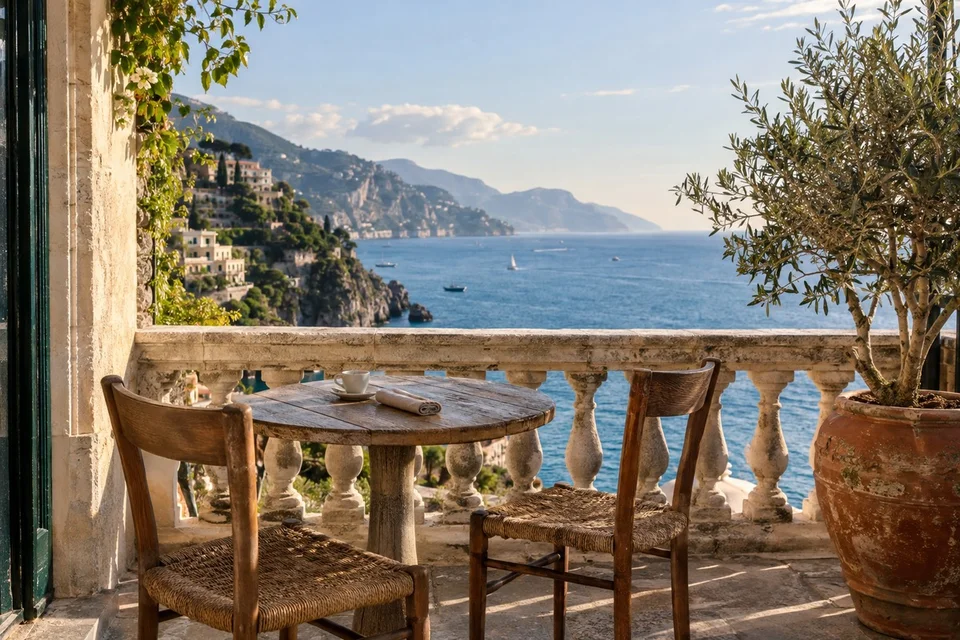
Before
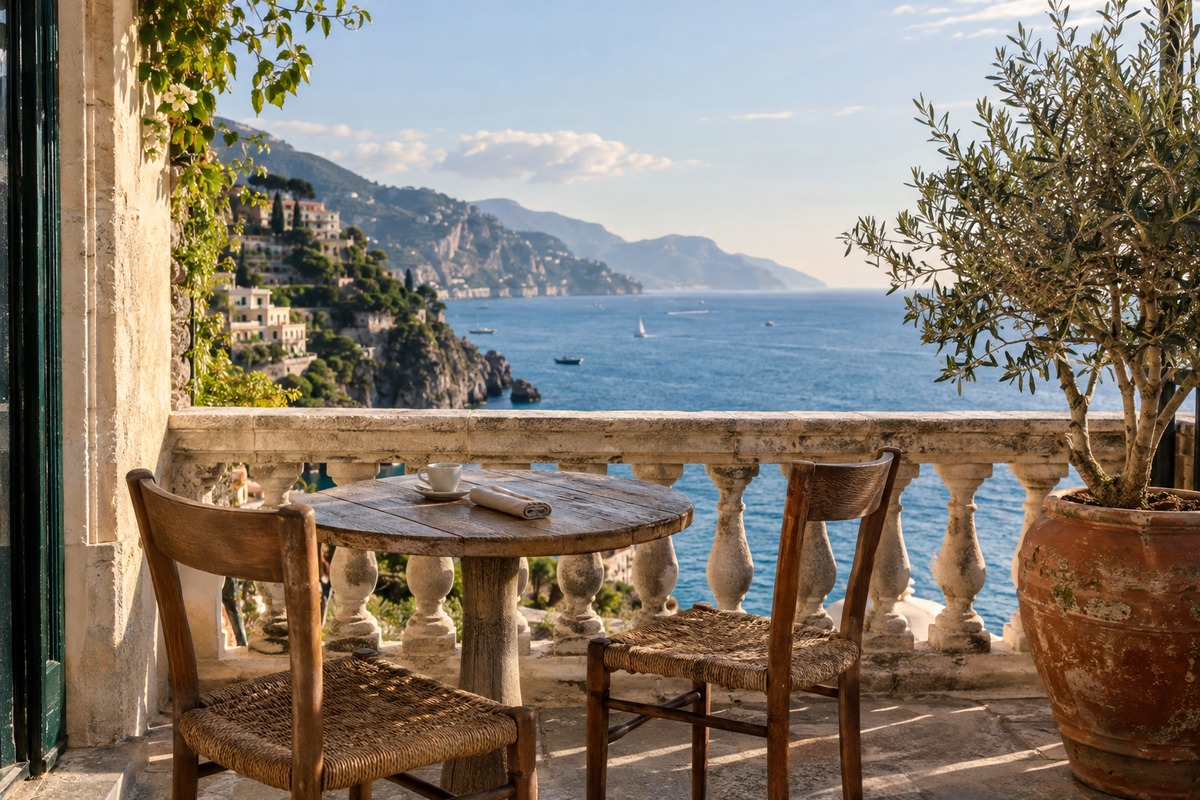
After
 JPG · 600×400
Frequently asked questions
- How do I resize without stretching the image?
- Enter only the width and leave the height at 0. The height then follows the original proportions.
- Can I set the height and let the width adjust?
- No. Width is always applied as entered, and only Height can be left at 0 for automatic sizing. To reach a target height, multiply it by the original width and divide by the original height, so a 4000 × 3000 photo at 600 px tall needs Width 800.
- Does resizing remove camera details and location data?
- Yes. The image is redrawn and saved as a new file, so EXIF data such as the camera model and GPS location is not copied. The photo's orientation is applied to the pixels first, so the result still displays upright.
- What is the largest size I can enter?
- Width and Height accept up to 16,384 px each, and the result must also stay within 40 megapixels. For example, 7,000 × 5,000 can be processed but 8,000 × 6,000 cannot.
- Are my files uploaded to a server?
- No. Files are processed in your browser on this device and are not sent to BlurMe servers.
Related tools
All toolsPixelate Image
Edit in StudioPixelate full or selected parts of an image.
Crop image
Keep a rectangular part of an image using percentage coordinates.
Rotate image
Correct a sideways or upside-down image in quarter turns.
Watermark image
Place a centered text watermark on an image.
Merge images
Join images vertically or horizontally into one PNG.
Remove EXIF Data
Remove GPS location and camera metadata before sharing photos.