Merge images
Join images vertically or horizontally into one PNG.
- Free
- No sign-up
- No file upload
Example result
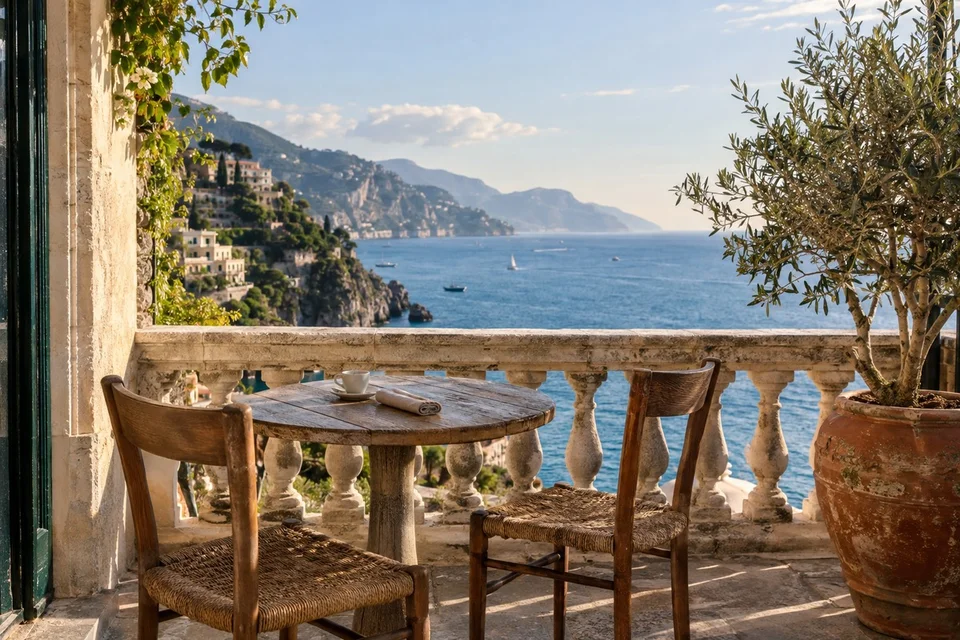
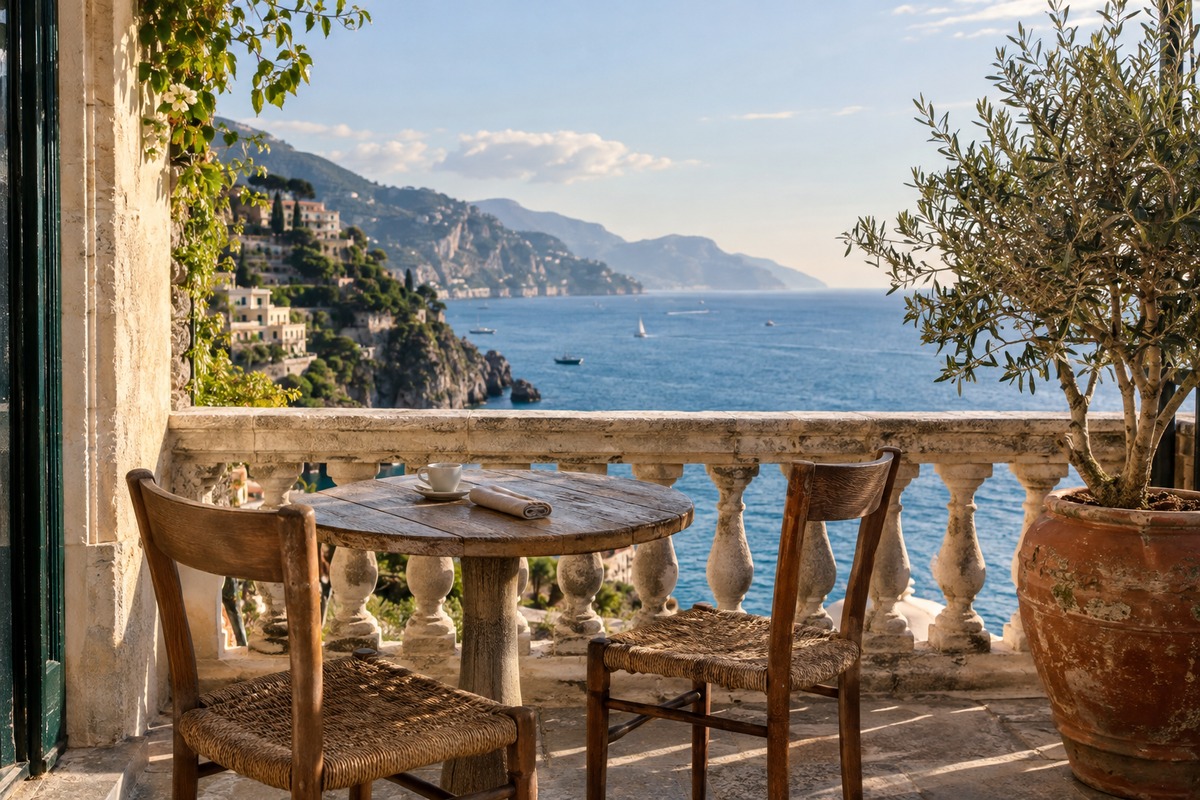


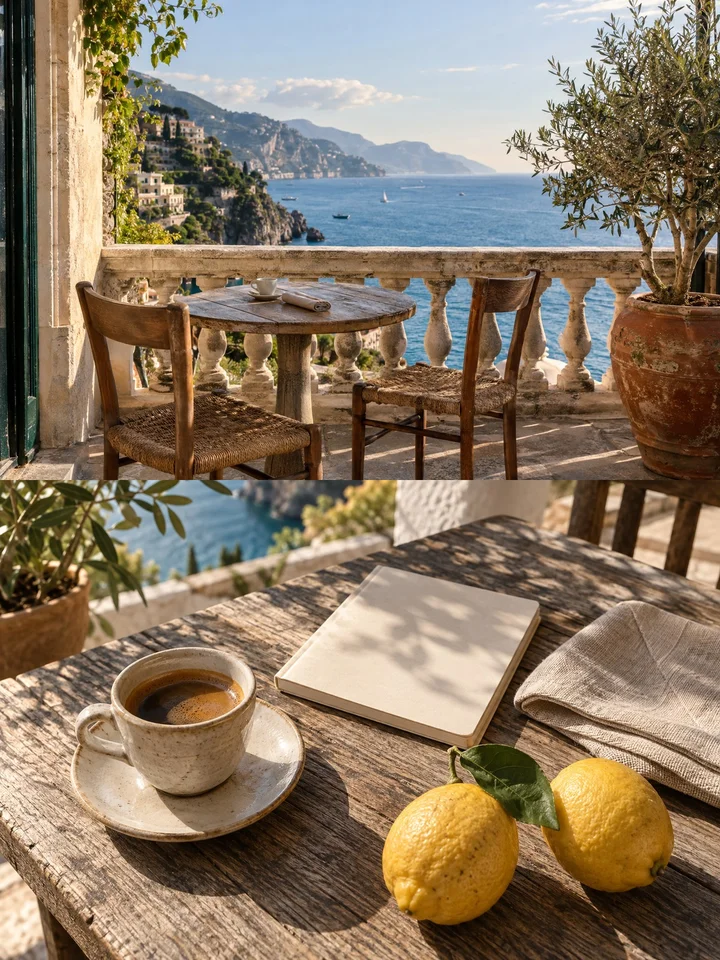
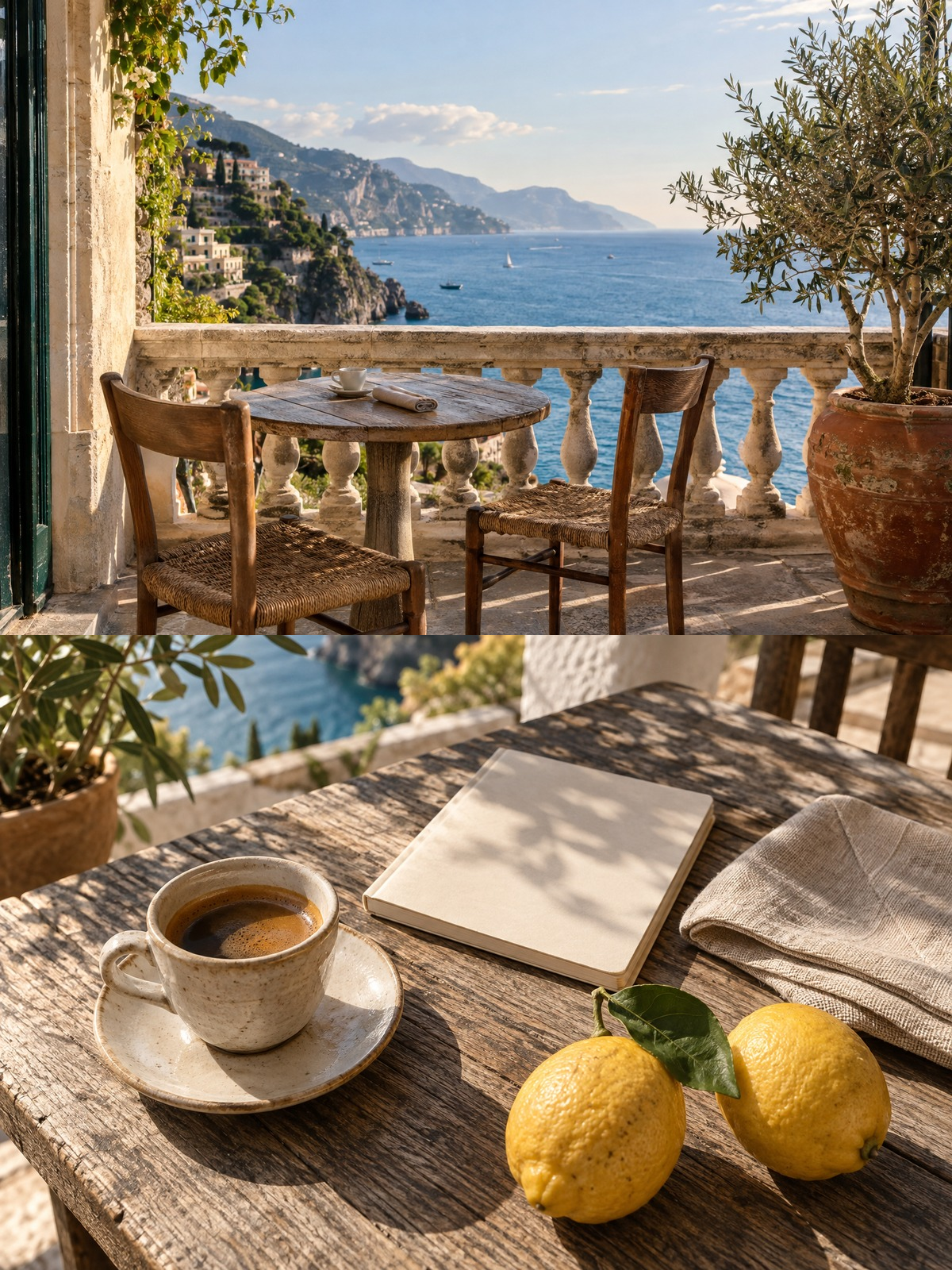
How to merge images into one
Choose the images to join.
Set the order with the arrows. The first image goes at the top or left.
Pick vertical or horizontal and a background color for empty space.
Download the merged PNG.
Planning an even image strip
Images are placed edge to edge with no gap and are never scaled. A vertical strip is as wide as its widest image, so narrower images leave a band of background on the right. A horizontal strip is as tall as its tallest image, leaving space below shorter ones. For straight edges, give every image the same width or height first in Resize image.
The result is always a PNG. Text in screenshots stays crisp, but a strip of photos usually ends up much larger than the JPG files you started with. Transparent areas in PNG or WebP inputs do not stay transparent, because the whole canvas is painted with the Background color before the images are drawn on top.
Frequently asked questions
Related tools
All toolsCrop image
Keep a rectangular part of an image using percentage coordinates.
Resize image
Set image dimensions for a thumbnail, profile or submission.
Compress PNG
Optimize a PNG without changing its pixels or transparency.
PNG → PDF
Put PNG images into a PDF for sharing or printing.
Censor Image
Edit in StudioCover faces and text in images with a black bar.
Remove EXIF Data
Remove GPS location and camera metadata before sharing photos.