Crop image
Keep a rectangular part of an image using percentage coordinates.
Free · No sign-up · No file upload
How to crop an image with percentages
Choose JPG, PNG or WebP images.
Enter X and Y as percentages for the top-left corner of the area to keep.
Enter the width and height of that area as percentages.
Check the preview and download.
Turning pixel measurements into crop percentages
Every value is a percentage of the original image, not a pixel count. To convert, divide the pixel position by the image width or height and multiply by 100. On a 1200 × 800 image, removing an 80 px banner from the top means Y 10 and Height 90. Positions and sizes are rounded down to whole pixels.
Percentages also keep batches consistent. A phone screenshot and a laptop screenshot are cut at the same relative position, for example the top tenth of each. Width and height percentages are independent, so the kept area only has the original shape when both values are equal. To bring a crop to an exact pixel size, run it through Resize image.
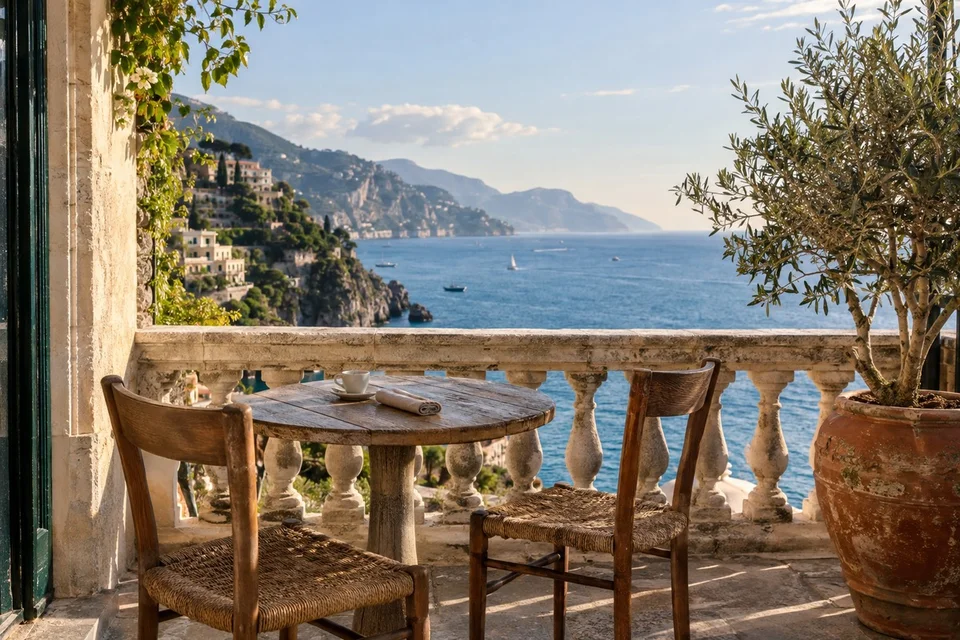
Example result
Before
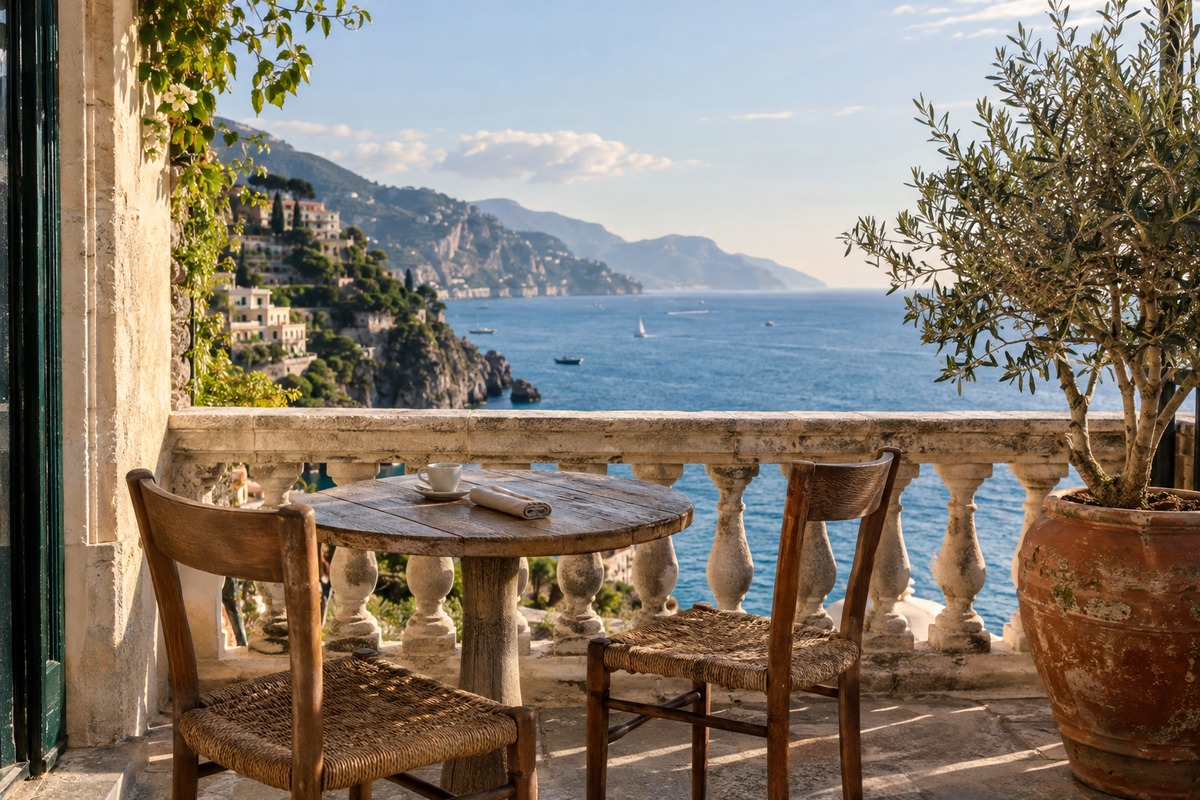
After
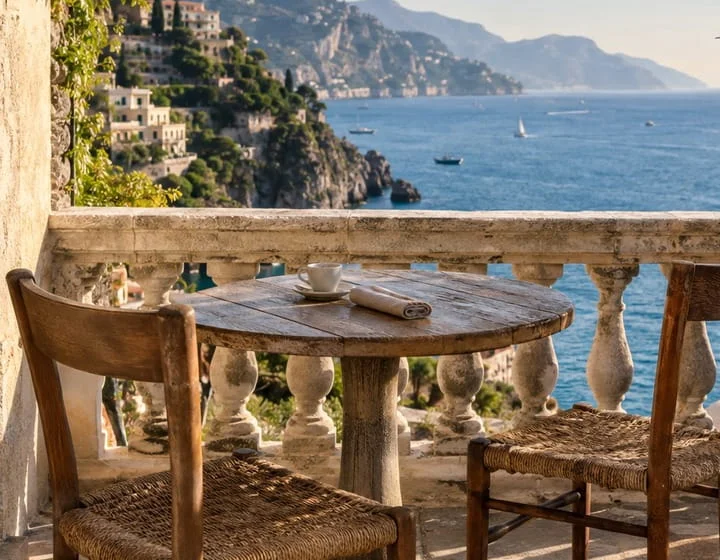 JPG · 720×560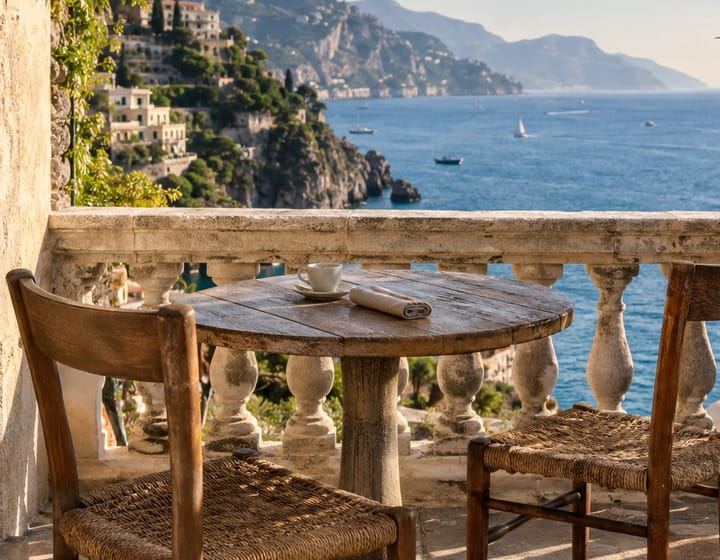
Frequently asked questions
- How do the crop percentages define the saved area?
- X and Y locate the top-left corner. Width and height are percentages of the original image. This tool uses numeric fields, not a draggable selection.
- How do I crop an image to a square?
- Work out the percentages from the shorter side. For a 4000 × 3000 photo, enter X 12.5, Y 0, Width 75 and Height 100 to keep a centered 3000 × 3000 square.
- Why did my width or height value drop when I changed X or Y?
- The kept area cannot extend past the right or bottom edge, so Width (%) is limited to 100 minus X and Height (%) to 100 minus Y. Lower X or Y first if you need a larger area.
- Does cropping change the resolution of the part I keep?
- No. The kept pixels are copied one to one, so 50% of a 4000 px wide image becomes exactly 2000 px wide. Only the compression changes, using the Quality value for JPG and WebP files.
- Are my files uploaded to a server?
- No. Files are processed in your browser on this device and are not sent to BlurMe servers.
Related tools
All toolsBlur License Plates
Edit in StudioAutomatically blur license plates in photos and videos.
Rotate image
Correct a sideways or upside-down image in quarter turns.
Watermark image
Place a centered text watermark on an image.
Merge images
Join images vertically or horizontally into one PNG.
Remove EXIF Data
Remove GPS location and camera metadata before sharing photos.
JPG → PNG
Save a JPG as PNG for an editor or upload form that requires PNG.