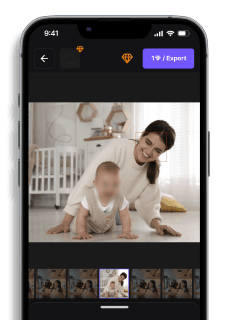
Best Way to Blur Out Student Faces in Video
Maya Chen — Tech Writer & Privacy Advocate Part of: Blur Video Complete Guide: Tools, Methods & Best Practices (2026)Read the complete guide →
Teachers, tutors, and education creators are increasingly sharing classroom moments on platforms like YouTube, TikTok, or school websites—but student privacy must come first. Whether you're documenting a project, sharing teaching tips, or filming educational walkthroughs, blurring student faces in video is not just a best practice—it’s often a legal requirement.
Below, we’ll show you exactly how to blur faces in a video, explore why it matters under laws like FERPA and COPPA, and introduce the fastest, easiest tool to blur or pixelate student faces online without downloading anything.
Why Is Student Privacy Important in Video Content?
Before we jump into the how, let’s look at the why. Student faces are considered personally identifiable information (PII) under various privacy laws. Uploading video content showing students—without parental consent—can lead to serious legal consequences.
Laws That Protect Student Privacy:
- FERPA (Family Educational Rights and Privacy Act): Protects student education records and identifiable information like faces in videos.
- COPPA (Children's Online Privacy Protection Act): Applies if your content includes children under 13 and is shared online.
- GDPR (General Data Protection Regulation): Relevant for viewers or students based in the EU.
Even if you think it’s harmless, something as simple as a smiling child in the background can be seen as an example of a violation of student privacy.
When Do You Need to Blur Faces in a Video?
Here are common cases where blurring or pixelating student faces is required:
- Classroom recordings shared on social media
- Tutorials or walkthroughs showing students at work
- School event recaps
- Teacher vlogs or content for professional development
Even unintentional background appearances should be blurred or pixelated to avoid FERPA violations or backlash from concerned parents.
Best Way to Blur Student Faces: Use an Online Blur Tool
The most efficient way to blur face in video is to use an online AI-powered tool like BlurMe AI Blur Face Tool.
Why BlurMe?
- 100% online – no download required
- Automatic AI face detection to blur multiple faces instantly
- Manually add blur to video areas if needed
- Supports MP4 and other common formats
- Free to start
How to Blur Faces in a Video (Step-by-Step)
Here’s how to blur out student faces in a video using BlurMe:
1. Go to BlurMe Studio online editor
It is completely online and free to use for basic features.
2. Upload Your Video
Choose the clip you want to edit. BlurMe supports all major formats, including MP4 and MOV.
3. Let the AI Detect Faces
BlurMe automatically scans and detects faces in the video. You’ll see them highlighted.
4. Select or Deselect Faces to Blur
Choose which faces to keep visible (for example, your own) and which to hide. You can blur all detected faces with one click.
5. Optional: Adjust Blur
Adjust the size and intensity of the blur.
6. Export the Video
Click “Export” and download the blurred version. Now it’s safe to share.
Need to pixelate instead of blur? BlurMe also lets you pixelate video for a blockier, censor-style effect. You can even pixelate images for thumbnails and educational content.
Faces or plates to blur in your video?
Upload and the AI blurs them automatically in seconds.
How to Blur Faces in a Video on iPhone (Alternative Method)
If you're recording and editing directly on an iPhone:
Option 1: iMovie (Manual Blur Workaround)
- Import your video into iMovie
- Add a blurred image as an overlay (picture-in-picture)
- Resize and move it over the face in each frame manually
🕑 Time-consuming and not scalable for multiple students.
Option 2: BlurMe on Mobile
Open BlurMe in Safari or Chrome on your iPhone. It's mobile-optimized and perfect for blurring faces in a video on iPhone without installing an app.
What Happens If You Don’t Blur Student Faces?
Sharing unblurred content could lead to:
- School disciplinary action
- Parental complaints
- Content takedown on platforms like YouTube
- Violations under FERPA, COPPA, or even GDPR
Even if a student is in the background or not speaking, failing to blur their face can be considered a breach of student privacy.
Best Practices for Blurring Faces in Education Content
To stay compliant and respectful:
- Always blur students unless you have written consent
- Use automated tools to save time
- Check the video for reflections or ID cards
- Be consistent across platforms and formats
- Apply mosaic blur to both videos and thumbnails
- Use redaction software such as CCTV redaction to hide student faces in school footage
Final Thoughts
When it comes to blurring faces in video, the best solution is one that saves you time and protects your students. With tools like BlurMe, you don’t need editing experience to stay compliant and respectful of privacy. Whether you're editing from your laptop or phone, face blur video tools are now more accessible than ever.
So the next time you upload a classroom video, make sure you blur out the faces—not just for safety, but to show you care.
Faces or plates to blur in your video?
Drop a video or photo in your browser and the AI auto-blurs faces, license plates, and personal info in seconds.
Upload free