Extract PDF pages
Copy selected PDF pages into a new document.
Free · No sign-up · No file upload
How to extract pages from a PDF
Choose a PDF.
Enter the pages to keep in the order you want, for example 5,1-3.
Download the extracted PDF.
When extracting pages is the right tool
Extracting is for pulling a short selection out of a long document, such as one chapter of a report or the two pages a colleague asked for. The result is a single PDF that holds only the pages you list, so email attachments stay small and the recipient does not get pages they do not need to see.
The new file is built only from the copied pages, so document-wide details such as bookmarks and the title stored in the file properties do not come along. Leaving Pages empty copies every page, which only gives you a re-saved duplicate. If it is quicker to name the few pages you do not want, use Remove PDF pages instead.
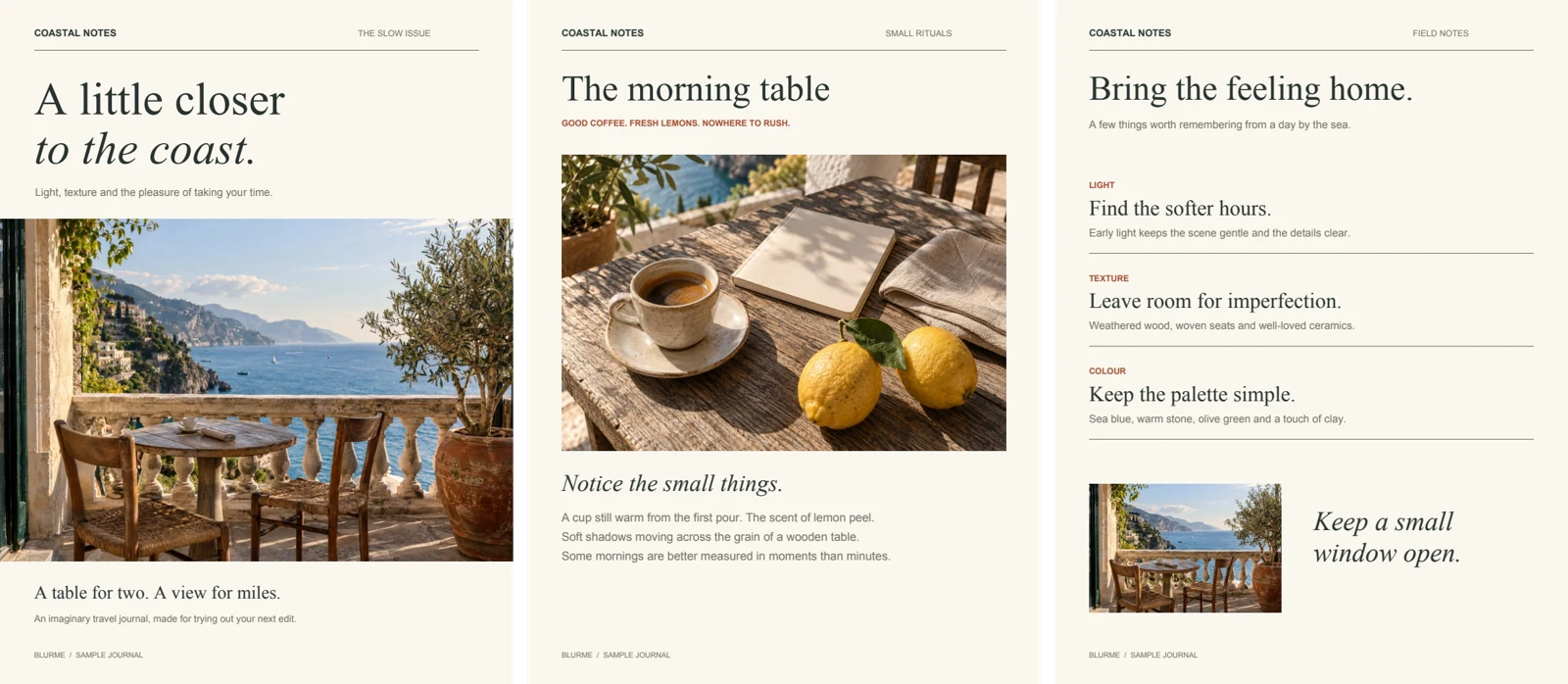
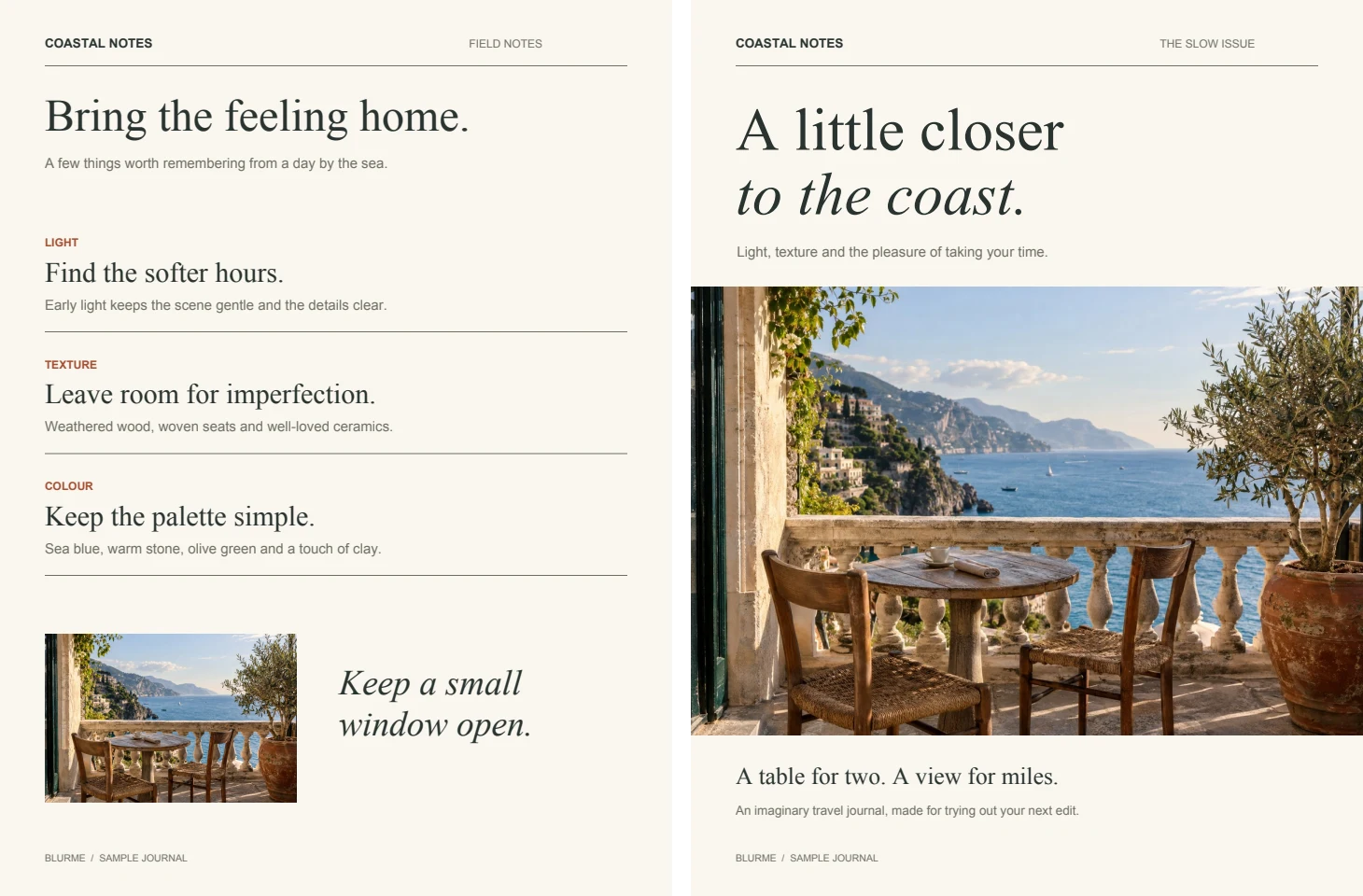
Example result
Before
After
Frequently asked questions
- Can extracted pages appear in a different order?
- Yes. Enter the pages in the order you want, such as 3,1, and they appear in that order.
- What happens if I type the same page twice?
- It is included only once, at its first position, so 3,1,3 gives page 3 followed by page 1. To repeat a page on purpose, use Organize PDF.
- Can I get each extracted page as a separate file?
- Not here, because extracting always produces one PDF. In Split PDF, type single pages as separate groups, such as 2;5;9, to get one file per page.
- Do extracted pages keep their size and orientation?
- Yes. Each page keeps its page size and saved rotation, so a landscape table stays landscape among portrait pages.
- Are my files uploaded to a server?
- No. Files are processed in your browser on this device and are not sent to BlurMe servers.
Related tools
All toolsRedact PDF
Edit in StudioFind and remove personal information in PDFs.
Remove PDF pages
Remove selected pages and download the remaining PDF.
Organize PDF
Arrange PDF pages in an explicit new order.
Rotate PDF
Rotate selected PDF pages without rendering them as images.
JPG → PDF
Arrange JPG photos into a single PDF document.
PNG → PDF
Put PNG images into a PDF for sharing or printing.